Learn how to check data usage on iPhone 7. It is easy and must-do when you have no idea how much data is consumed by your WiFi Assist. This feature was introduced by Apple to let you never lose connection when WiFi is poor or lost. Your smartphone can automatically switch to cellular data and your AT&T iPhone bill can quickly grow. This is one of the reasons why you should control WiFi Assist iOS 10 feature once in a while.
iPhone data consumption can get ridiculous with WiFi Assist being turned on. A lot of users prefer turning it off just in case but you might still take advantage of this option if you need to browse web and experience no problems or are waiting for an important phone call and can’t miss it because of poor WiFi.
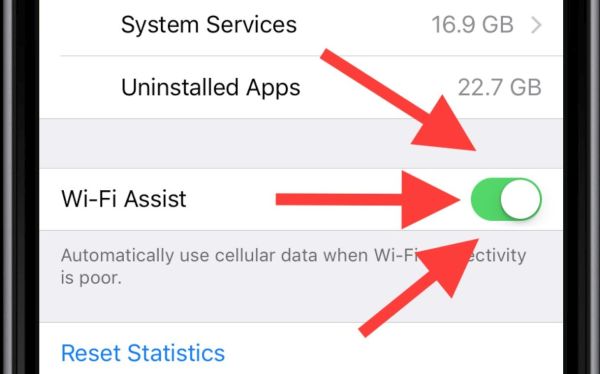
How to Turn Off WiFi Assist on iOS 10
Step 1. Launch Settings on your mobile device.
Step 2. Choose Cellular menu.
Step 3. Get down till you see WiFi Assist. Disable the switch next to it.
You can find a lot of guides on how to reduce data usage on iPhone 7 AT&T model or handsets locked to different carriers. Below we’ll explain how you can check WiFi Assists iOS 10 data consumption to control your bill.
You can also fix iOS 10 battery problems with battery widget missing on iPhone lock screen after firmware update.
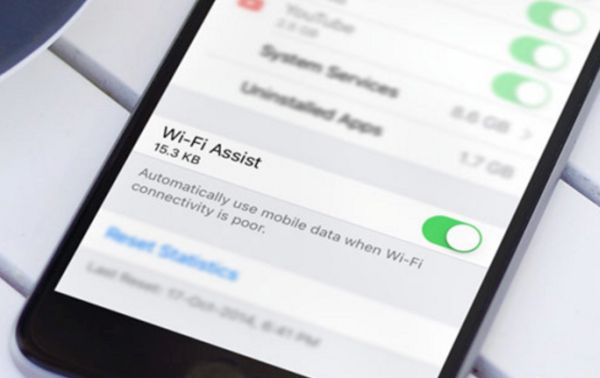
How to Check Your Data Usage on iPhone 7 with WiFi Assistant
Step 1. Go to Settings on the AT&T iPhone 7.
Step 2. Choose Cellular or Mobile Data option.
Step 3. Look for WiFi Assist option (you’ll have to scroll down).
Step 4. Now you can see how much data you have consumed via WiFi Assist.
iPhone WiFi Assist Data Usage Settings for Statistics
It is easier to check your monthly data consumption by resetting your statistics. Here is what you should do:
Step 1. Launch Settings application on your smartphone.
Step 2. Click on Cellular or Mobile Data section.
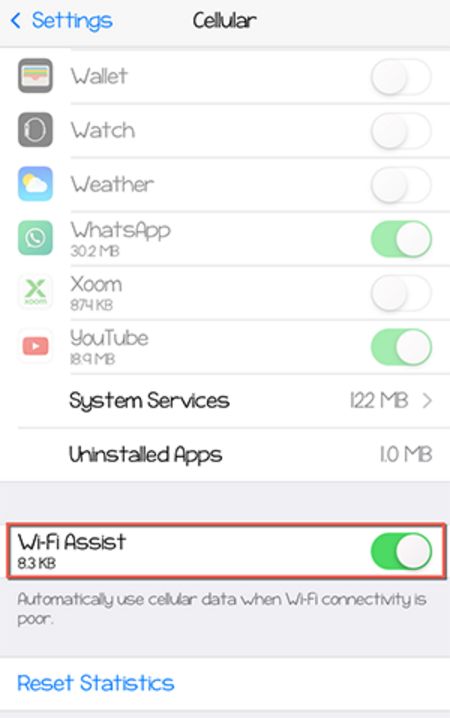
Step 3. You’ll find Reset Statistics option at the bottom of the screen.
By the way, this section also show the last time you applied changes.
Step 4. Click on Reset Statistics and confirm your decision.
You can see how simple iPhone data usage check instructions are. Follow them once in a while and you’ll take care of your bill and avoid possible extra charges.
By the way, you can easily reduce your cellular data usage after you upate to iOS 10 or newer iOS 10.2. There are some useful tips that can make it possible. It is surely nice when you can avoid any unusual and unexpected data overuse.
How to Reduce iPhone Data Consumption
Tip #1: Disable Cellular Data
Sometimes you don’t really need your mobile data at the moment. It is easy to let only some applications use cellular data and turn it off when it is not in use.
Step 1. Go to Settings on your iPhone.
Step 2. Choose Cellular option.
Step 3. Turn off the switches next to iOS 10 apps that should not consume your mobile data.
Tip #2: No Background Application Refresh
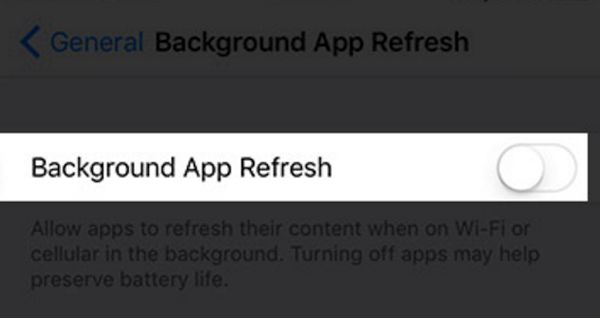
By the way, this same method can also save you some battery life.
Step 1. Launch Settings and choose General section on the handset.
Step 2. Choose Background App Refresh feature.
Step 3. Disable the option.
Tip #3: Use iPhone Data Usage App
Control your data consumption. Use the method described above or find data usage program that will help you keep an eye on how much money you spend monthly on your mobile data.
Tip #4: No Auto-Downloads
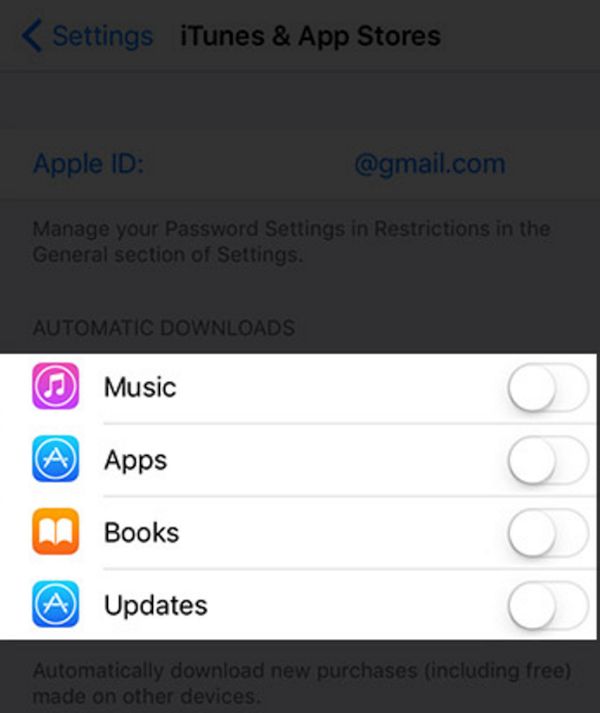
Save mobile data by turning off your automatic downloads and updates.
Step 1. Launch Settings program on iPhone AT&T.
Step 2. Choose iTunes & App Store section.
Step 3. Disable Use Cellular Data option.
Step 4. Now get back to Settings and choose iCloud.
Step 5. Click on iCloud Drive and disable Use Cellular Data option here.
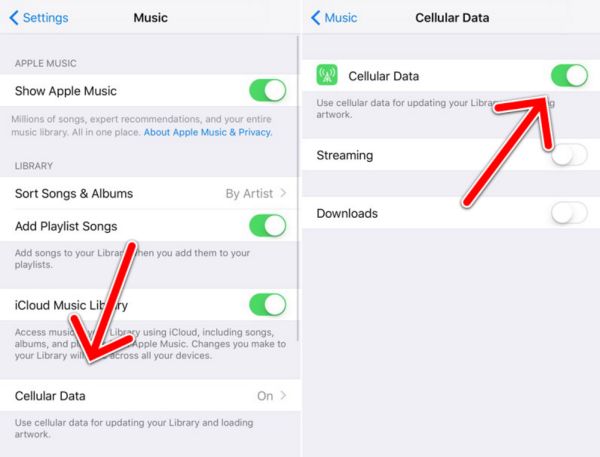
Tip #5: No Cellular Data for Apple Music App
Step 1. Go to Settings and select Music section.
Step 2. Click on Cellular Data menu.
Step 4. Disable Cellular Data.
Hopefully these iOS 10 tips will help you save some mobile data.