MacBook Pro Tips for Touch Bar Users and Notes Fans

Are you a big fan of Apple MacBook Pro 15 model? Do you own the MacBook pro 2016 version? There are a lot of ‘fruit’ customers who prefer using several computeres as well as mobile devices. iPhone, iPad, Mac are often owned in more than one model per user. Well, if you do have the Touch Bar on your machine and prefer using Apple Notes instead of other text programs you might wish to learn some interesting MacBook Pro tips.

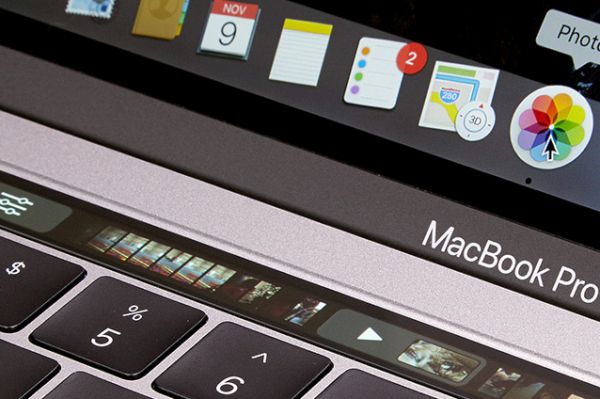
It is actually useful to know your MacBook Pro specs as well as some popular tricks. This way you can simplify your work with various application, spend less time on your tasks and enjoy your everyday life. One great feature brought by Apple this year is Touch Bar on MacBook Pro. It lets you perform various actions much quicker with a single or a couple of clicks. For example, it is possible to use Touch ID to unlock Notes with Touch Bar, delete your notes or even add some customizations on-the-go.

We won’t describe all the new MacBook Pro specs as this time we plan to devote the post to Touch Bar tips and tricks only. This spec is a great addition to Apple computers. You just need to explore some possibilities. By the way, if you don’t see sidebar in iTunes learn how to fix iTunes 12.4 problems.
Mac Touch Bar Apple Notes Tips

How to Use Touch Bar with Apple Notes on Mac

You can work with Notes via Touch Bar. Just follow the step-by-step instruction below and you’ll master this must-have trick.

Step 1. You should launch Apple Notes on MacBook Pro 2016.

Step 2. Click on the new note icon and you’ll create a new Note on your computer.

Step 3. If you need to format an existing note you should click on Format icon (it reminds of capital and lowercase letters A). Then click on Title and you’ll work with H2 format option. Click on Heading and you’ll work with H3 format. If you wish to format body text you need to click on Body. Use Bullets icon when you need to create bullets list. If you prefer working with dashes list you should click on the Dash icon. For numbered list you should press on Numbers icon. If you need to close tools that format your text just hit the X.

Step 4. It is easy to create checklists via Checklist icon.

If you wish to connect 5K display to your Mac computer you’ll love the changes!

Here are some Touch Bar MacBook Pro tricks for Notes app:

*Use Indent when you wish to indent left / right margins

*Italics helps you italicizing words and sentences in Notes

*Place your cursor at the end of the sentence and click on the desired format to change text format with ease

*Bold icon helps you make words or whole sentences bold

*Underline icon can be used to underline a word or sentence
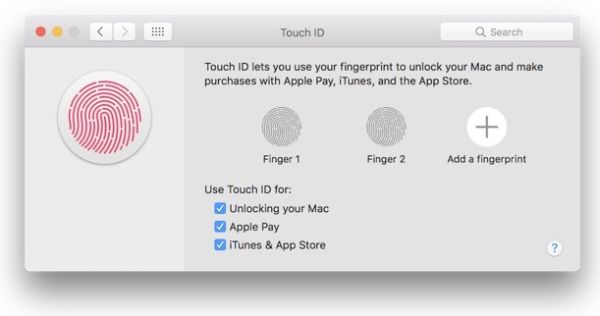
Apple Mac Touch ID

Unlock Apple Notes with Touch ID

Step 1. Launch the application.

Step 2. Select the locked note you wish to unlock.

Step 3. Place your finger on Touch ID (the one you have registered for your sensor) and you’ll unlock all your notes at once.

Step 4. If you want to lock your notes press on Lock icon (you can see it at the top part of Notes application).

Fix problems with launchpad apps missing on Mac OS Sierra machines.
MacBook pro Touch Bar Apple Notes

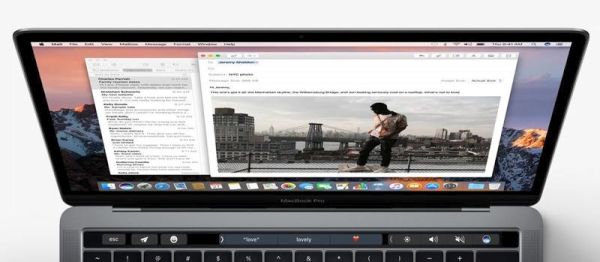
Delete Notes Using Touch Bar

Step 1. Choose the note you prefer to remove.

Step 2. Click on Trash icon (in Touch Bar).

Step 3. If you want to delete folders, select a folder instead of a note and press on the Trash icon.
Customize Touch Bar on macBook Pro 2016 model

MacBook Pro Tips for Touch Bar and Notes Customization

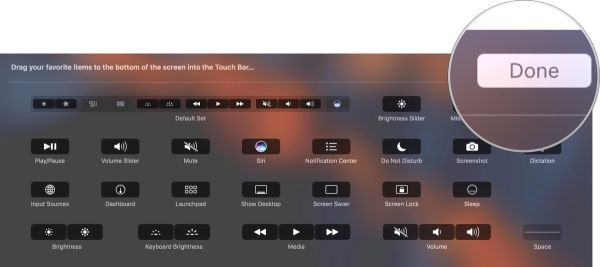
Step 1. You can launch Notes program – press on View in menu – click on Customize Touch Bar option. You can drag any tool from the customization panel and drop it into your Touch Bar.

Step 2. When you want to remove a tool from Touch Bar you should move your cursor down and select the tools.

Step 3. Remember to click on Done option when you are happy with the results.

Step 4. To customize your formatting tools simply choose a note in Notes application.

Step 5. Press on View option and choose the feature Customize Touch Bar. Now you can work with tools and customize them.

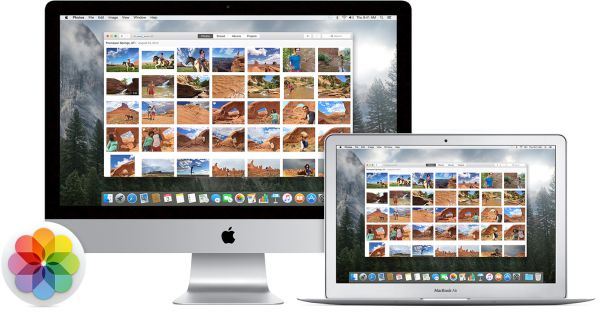
Apple Photos Tutorial for Mac Users to Hide and Unhide Photos

Guides on how to use Mac OS are pretty popular among Mac users. Still there are so many questions you might be looking to answer after updating to macOS Sierra. This operating system has a lot of interesting tricks and secrets. You’ll love exploring its possibilities but let’s start with Apple Photos tutorial. It should be useful for all macOS Sierra fans who love taking and storing images on their computer. Learn how to fix iTunes sidebar missing problem on your Mac which is fast and simple to do.

Are you curious how you can hide pictures on Mac or unhide them? What is the difference for iPhoto vs Photos app? How does everything work once you install macOS Sierra on your computer instead of using an earlier version of the ‘fruit’ desktop firmware? We wish to provide you all the answers in this post. P.S. Have you tried to connect 5K display to Mac computer?

iPhoto vs Photo app vs Aperture Mac

iPhoto vs Photos App

These are actually two different options offered by Apple. The stock Photos app can be used on Mac to save your memories. iPhoto is an older version of the program (it is a different release) and you can easily update from iPhoto (or even Aperture) to Photos once you install OS X Yosemite 10.10.3 or newer operating system on your ‘fruit’ computer.

Modern users prefer Photos application and you can download iPhoto for Mac although you are highly advised to run the newer program. Read Apple Photos review (you can find it online) and you’ll understand how the two versions are different. User who are big fans of social networks should learn how to send disappearing photos via iPhone Instagram application on iOS 10.

How to Hide Photos on Mac

Apple Photos Tutorial: How to Use Mac OS Sierra to Hide / Unhide Images

Step 1. Follow Photos for Mac download link to install this program on your computer. You can visit the ‘fruit’ store and find Apple Photos app download link right there.

Step 2. Launch Photos program on your computer.

Step 3. You need to view your album and decide which images you prefer to hide from Photos.

How to Hide Picture in Photos App on Mac

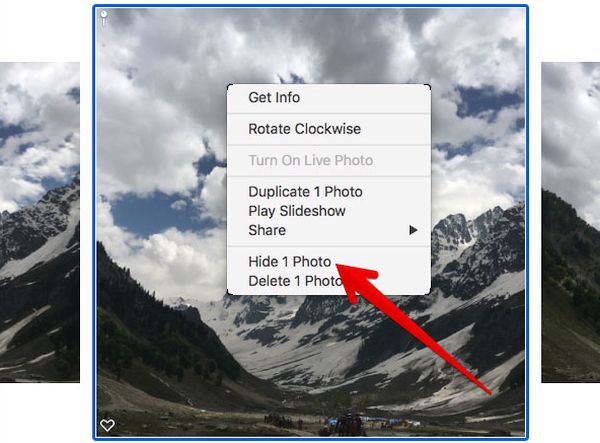
Step 4. Now Control + click on the picture that should be hidden and select ‘Hide Photo’ option.

Step 5. Confirm your decision by pressing on Hide Photo once again.

Step 6. That’s it. The image is hidden. You can repeat the guide for each photograph you want to hide on Mac.

You can also customize your MacBook Pro with Touch Bar model if you want to.

Unhide Photos Mac Instruction

How to Unhide Pictures on Mac

Step 1. When you wish to reveal your images you need to launch Photos program and open your Hidden album.

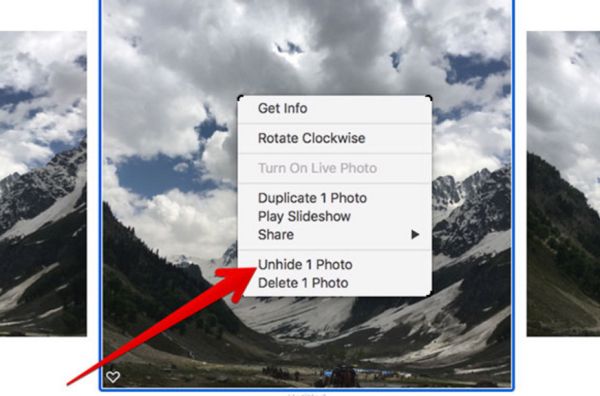
Step 2. Right click on the image that you wish to unhide.

Step 3. The photo will appear in your Moments, Collections, Years and Photos.

Step 4. Repeat the guide for each photograph you are planning to unhide.

Hide Several Photos at Once on Mac

How to Hide Several Photos at Once

Step 1. Sometimes you want to hide multiple photos at the same time. Launch Photos.

Step 2. Choose several pictures at once by dragging the cursor.

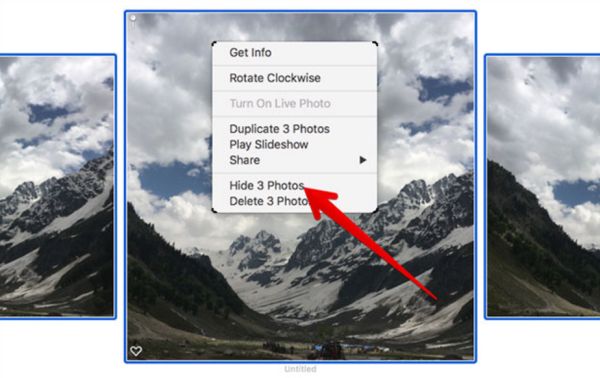
Step 3. Right click or use Command + Click on those images.

Step 4. Choose Hide Photos and confirm. They will be hidden.

A lot of use know how to use Photos for Mac OS Sierra. Still even if you install the Photos Mac application you might know how to hide your private images from the stock app. Now you know what you can do so follow the guide above and you’ll easily hide pictures on Mac without creating a secret folder Mac. Hopefully you’ll love the simple secret and make it your personal instruction for those days when you don’t want your friends or relatives to find photographs that are not meant for their eyes.

There are ways how to hide folders Mac however this is something to talk about in the future. Right now you know that you are able to hide some or all pictures and they will disappear from your Collections, Moments and Years. They will be stored in Hidden album only you can access. Luckily, it is also easy to reveal them when needed.

View Hidden Photos on Mac App

How to Find Hidden Images on Mac

Step 1. Go to Photos program on your computer.

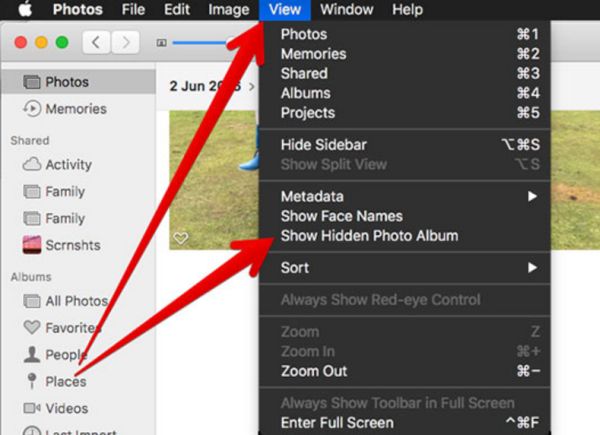
Step 2. Choose View option.

Step 3. Click on Show Hidden Photo Album.

View Hidden Photos Mac Guide

Step 4. Doulbe-click on ‘Hidden’ album you will see on the left menu.

Step 5. Enjoy all the hidden images you have.

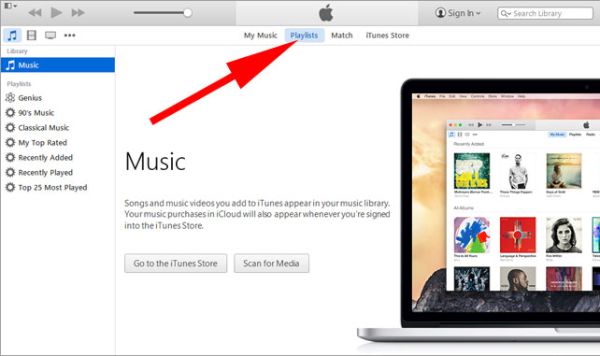
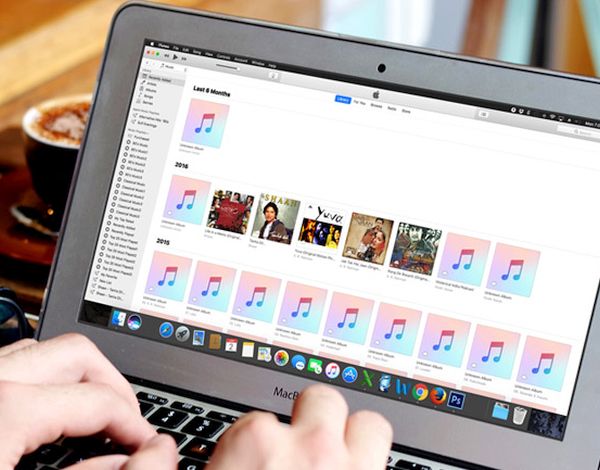
Your iTunes Sidebar Missing? Fix iTunes 12.4 Problems, Return Sidebar

Is your iTunes sidebar missing? There are users with Mac or Windows computers who are using iPhone 7 (iPhone 7 Plus or other popular ‘fruit’ phone) or iPad and have updated their desktop program to discover new iTunes 12.4 problems. Have you also installed this version of Apple tool? Can you not find your sidebar anymore? Is there a quick fix to your issue? It is great that you can send disappearing photos on iPhone by following a simple guide.

Apple is constantly updating its software and hardware. Every year the company presents new popular gadgets (some of them are becoming extremely popular, others are just popular among millions of customers from all over the world and there are devices that are less popular yet a lot of people are still buying them because this is ‘Apple’). We know how to find sidebar in iTunes. We will share our knowledge with you. Return this useful part of the Mac / Windows program to your computer.

Can't Find Sidebar iTunes 12.4 Issue

Disadvantages of Can’t Find Sidebar in iTunes 12 Bug

It is easy to sync your new iPhone 7 with iTunes, download songs, apps, games, audiobooks and other staff using this desktop application. Sidebar makes the whole navigation process simple, quick and easy.

This addition is very important. You’ll have to spend more time while transferring songs, TV shows, movies etc. from iTunes to your iPhone or iPad. Without this feature you’ll be disappointed and this is the main reason why you should deal with no sidebar in iTunes 12. Let’s get it back.

How to Find Sidebar in iTunes 12.4

How to Enable Sidebar in iTunes

It is great that you can easily fix iTunes sidebar missing problem, hide and unhide it as well as customize it. Isn’t it awesome? Let’s fix your iTunes 12.4 problems right here right now and the problem will be gone. Remember that you can easily connect 5K display to your Mac.

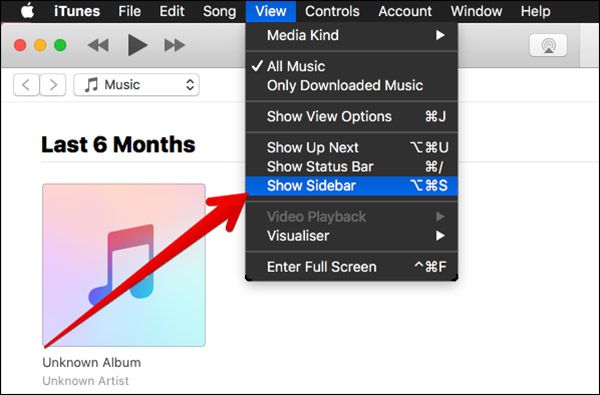
Step 1. Launch iTunes on your computer. This ‘how to find sidebar in iTunes’ instruction works great on both Mac machine and Windows PC computer.

Step 2. Go to ‘View’ section.

How to Show Sidebar in iTunes 12.4 Mac Windows PC

Step 3. There will be a drop-down menu. Choose Show / Hide Sidebar option (the one you need to use at the moment). When you see no sidebar in iTunes 12 you need to enable it. When you wish to hide this option you should disable it. This is really simple.

Will you customize your iTunes sidebar once you locate it? We hope that the guide on how to display sidebard in iTunes is useful to you and any iTunes 12.4 issues you face will be gone once and forever [it is possible to sync iPhone with Windows 10 computer, isn’t it great?].

Once you deal with can’t find sidebar in iTunes 12 you can learn how to use some customization options and edit it.

iTunes 12 Customization Edit Guide

iTunes Sidebar Customization Guide

Step 1. Update to iTunes 12 or newer version on your computer. Only these versions allow you editing the program’s elements.

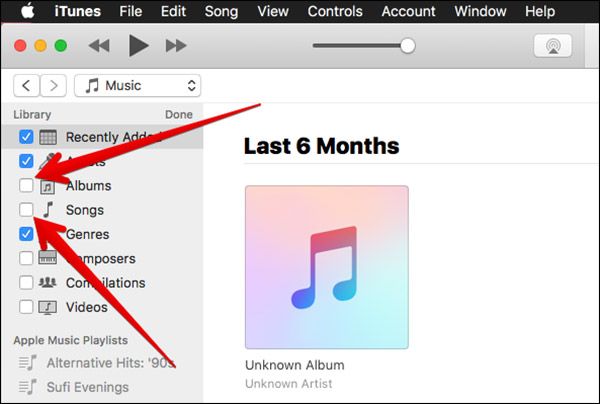
Step 2. Once your cursor is moved towards Library section there will be ‘Edit’ option.

Step 3. Click on Edit to start the Mac customization process.

Step 4. There are different options you can turn on and off. You can edit your albums, recently added, genres and other features. Enable and disable what you wish to change by checking or unchecking the options.

Step 5. Once you are happy with the changes you can confirm your decision by clicking on ‘Done’ option. This way your customizations will be saved.

That’s pretty much it. You know how you can return your iTunes sidebar once it is missing from the program. You can also customize some of the features to be visible or disappear. This is a cool way to make your version of iTunes better and more interesting and useful to you. Add changes and don’t be afraid to play with the app’s settings.

What do you think about new iTunes 12.4 version? Isn’t it cooler than the previous release?

How to Fix iOS 10 Message Crashing Problem on iPhone 7 and iPhone 7 Plus

Do you experience any iOS 10 problems with iMessage? It could happen on newer firmware version than iOS 10 because Apple presented iOS 10.1 and 10.2 versions as well. Some iPhone 7 and iPhone 7 Plus owners as well as ‘fruit’ fans with earlier handset models come across an unpleasant iOS 10 messages crash issue.

There is an interesting hack you need to learn about when it comes to solving your problems. In most situations the iOS 10 messages freezing issue comes unexpectedly. You are using your Messages application as always but it suddenly stops responding and your iOS 10 messages not sending. This is not nice since you probably wish to send a text message at anytime to anyone, right?

iPhone Messages Crash problem Fix

iOS 10 Problems with iMessage

There could be a malicious SMS you have on your device that crashes it. Even users who have installed iOS 10 ipsw file might face such iOS 10 problems. Have you heard about possible attackers who are able to send you’re a special file that makes iOS 10 messages crash? Well, it is indeed possible.

How does it work? Why iOS 10 messages not delivered are simply your iOS 10 messages not sending [you can always unlink your iPhone number from iMessage]? You can do nothing as soon as you click on the link you received. The bad link makes your app crash however there are tricks you can try to solve this situation.

How to Fix iOS 10 Glitch on iPhone 7

How to Fix iPhone Message Glitch on iOS 10

So if you see iOS 10 messages crashing bug you need to act. Since you cannot prevent third-party users to send a malicious file that caused new issues with iOS 10 opeating system you need to fix the problem once it appears. Follow the simple step-by-step guide below and you’ll deal with the iOS 10 freezing with your Messages.

Step 1. Take your iPhone and make sure it is updated to the latest version of mobile operating system.

Step 2. Launch Safari browser on your phone.

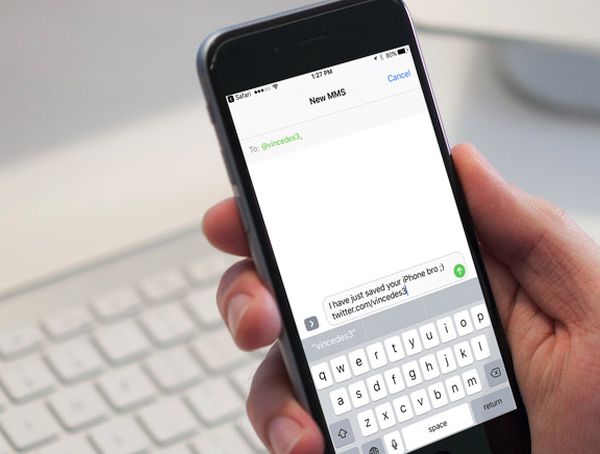
Step 3. You should visit the following website: https://www.vincedes3.com/save.html as this is what can really help you with your iOS 10 messages not sending because of the crash.

Fixing iOS 10 Messages Crash Bug

Step 4. The site should open your stock Messages app on your iPhone 7 or other model. Don’t worry. This happens automatically.

How to Solve Messages Crashing Bug on iPhone 7

Step 5. The link should also redirect you to the new message screen. There will be a pre-written text that says ‘I have just saved your iPhone bro 😉’ and this means that your iOS 10 messages freezing problem is finally fixed.

Step 6. Launch Messages app and you should experience no freezing or crashing issues on it.

There is a different tool you can try. It is possible to crash messages on your friend’s handset. You can do this to test the hack you have learned above and fix their issues as soon as you cause it. Here is how you can crash iPhone using iMessage:

Step 1. Take your iPhone. You need to download one contact file. Do this.

Step 2. Once you visit the link you can upload the contact file. Save it to your Dropbox or iCloud Drive.

Step 3. Now you should text this file through iMessage to your friend. Just let him or her know that you are planning this action. Once your friend reads the text message with malicious file linked to it and click on the link the Messages application will crash at once.

Step 4. Now you can follow the above guide to fix the iOS 10 issue with freezing Messages tool.

Step 5. Fix the bug and save the guide for future use.

There are a lot of iOS 10 issues you’ll have to face this year. Apple is working on future updates and hopefully newer versions will fix the bugs by default letting you solve everything with a simple upgrade.

Keep in eye on what you receive and don’t click the links unless you are 100% sure they are safe. Otherwise you can crash your iPhone or iOS 10 apps and search for quick fixing solutions.