Do your AirPod disconnect on calls? This could be so annoying! Users who purchased the new iPhone 7 or iPhone 7 Plus along with the new Apple accessories known as AirPods wish to experience no problems. Still issues exist and you should learn how to fix AirPods problems to enjoy mobile communication.
Mostly the AirpPods disconnecting randomly bug is noticed by iOS 10.2 users who have the iPhone 6s Plus model. However your iPhone 7 might also suffer from this unpleasant issue and this is why it’s nice to explore the solutions you can try.
iOS 10 Problems with AirPods
Here is what affected users have to say. Suddenly after iOS 10.2 update they notice how often AirPods that were correctly paired with the ‘fruit’ smartphone disconnect. The connection simply gets lost.
Even if you try to connect your accessories manually they still keep disconnecting during long calls (mostly). Those who experience the bug assure that their AirPods were fully charged and still stopped working during iPhone calls.
At the same time, the problem isn’t present when you listen to music for hours and hours in a row. You can read more reports about the AirPods disconnect bug on Apple Support Forum.

How to Fix AirPods Disconnecting During Calls
You can try to use only one AirPod as a microphone and this could fix AirPods randomly disconnect problem.
Step 1. Firstly make sure your AirPods are fully charged.
Step 2. Open Settings on your iPhone 6s or iPhone 7.
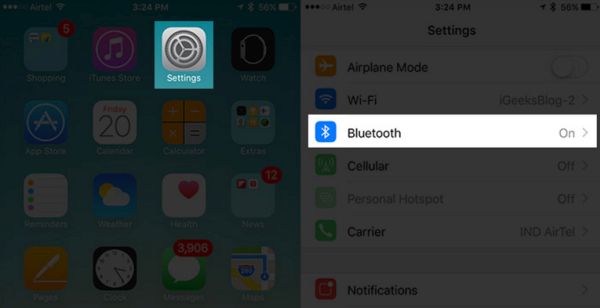
Step 3. Choose Bluetooth section.
Step 4. Click on ‘i’ option near AirPods.
Step 5. Click on Microphone option.
Step 6. Now choose Always Right AirPod. It will be used as your microphone.
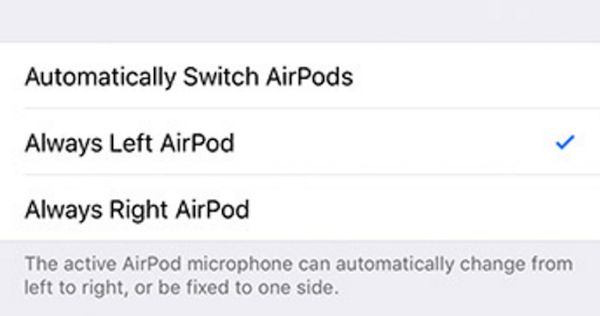
Step 7. The next day you can select Always Left AirPod. Change only one AirPod to work as your earphone microphone and your AirPods issues will be gone.
Remember that both AirPods are microphones by default.
iOS 10 Tips and Tricks: Fix Automatic Ear Detection
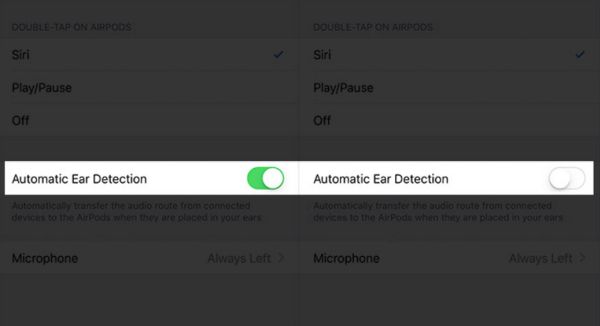
Sometimes you can fix AirPods problems by disabling Automatic Ear Detection option. This option allows turning off your earpodes when they are taken out of the ear. Still if you turn off the technology you could avoid AirPods disconnect on calls bug.
Step 1. Launch Settings option on your iPhone.
Step 2. Select Bluetooth feature.
Step 3. Click on the ‘i’ option near AirPods and you’ll see Automatic Ear Detection.
Step 4. Disable the option called Automatic Ear Detection.
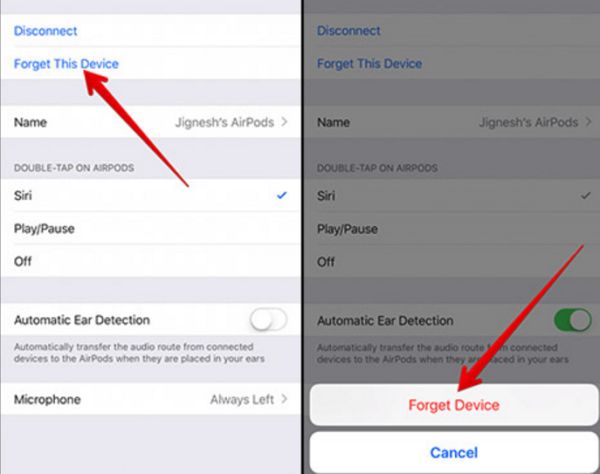
Re-Pair AirPods Fix Guide
Step 1. You can try to forget your earphones. Open Settings on your mobile device and choose Bluetooth option.
Step 2. Click on the ‘i’ option – select Forget this Device.
Step 3. It’s time to reboot the phone and then pair your AirPods again.
This simple method can fix your problem. If it doesn’t work you can also try to reset your settings:
Step 1. Launch Settings app on iPhone.
Step 2. Choose General section.
Step 3. Click on Reset option.
Step 4. Press on Reset Network Settings.
Step 5. Once you confirm the decision your settings will be reset.
Step 6. Sometimes you might need to Reset All Settings to solve the problem.
Is there anything else you can try performing before contacting Apple?
Mac users can play with their inputs and outputs:
Step 1. On your computer you should choose System Preferences.
Step 2. Choose Sound option.
Step 3. Choose Output option. Select AirPods.
Step 4. Now press on Input option and choose AirPods.
By the way, since users report problems with their new earphones Apple is investigating the issue. Maybe the fix will arrive in the upcoming iOS 10.3 release.