How to Customize iPhone 7 or iPhone 7 Plus without Jailbreaking It

The simple iPhone 7 user guide explains how you can customize your smartphone without major efforts. It is currently impossible to jailbreak this model which arrives with iOS 10 pre-installed on it. Let’s see how you can bring customizations to your handset and get acquainted with curious iPhone tweaks that are available to all users.

There are a lot of great iPhone 7 features [for example, you can enjoy wireless charging on iOS 10] and you have plenty of time of exploring all the options and adding the interesting touches to make your ‘fruit’ experience simply perfect. Everyone want’s to be a pro and this is something you can do right here right now.
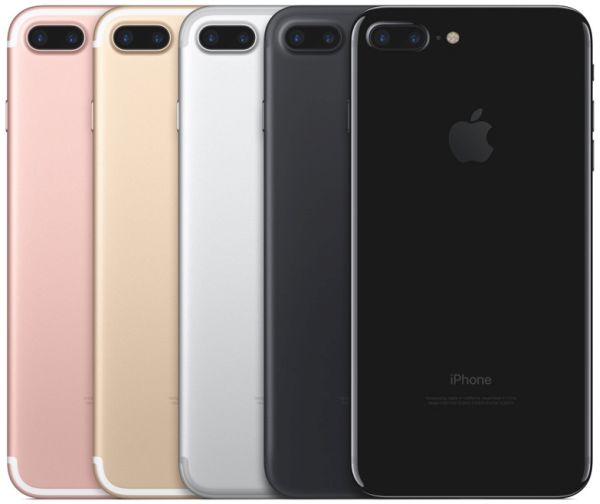
How to Customize iPhone 7 Guide

How to Customize iPhone Without Jailbreak

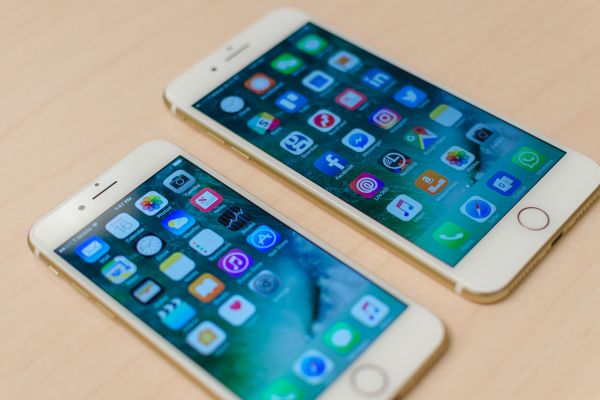
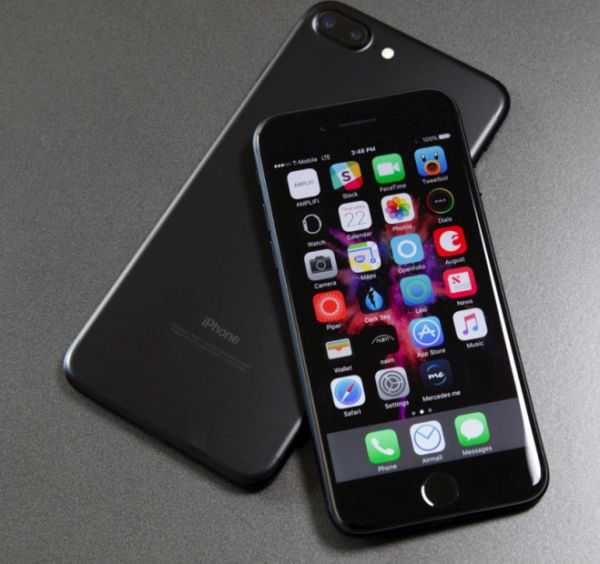
There are so many things you can do with your smartphone. Here are some of the best changes you are welcome to add or adjust on your 4.7-inch iPhone 7 or 5.5-inch iPhone 7 Plus. These both phones look like previous generation models yet they have some long-awaited features including improved cameras, better batteries and more storage capacity.

iPhone 7 Wallpaper

  • iPhone 7 Wallpapers

You can easily set new wallpapers on your handset [find out whether you have CDMA or GSM iPhone model]. The guide is simple:

Step 1. Launch Settings on the iDevice and select Wallpaper – Choose a New Wallpaper option.

Step 2. Choose the image or wallpaper you wish to use and press on Set option you’ll find at the lower part of the screen. It says Set Lock screen / Home screen however you can choose both options.
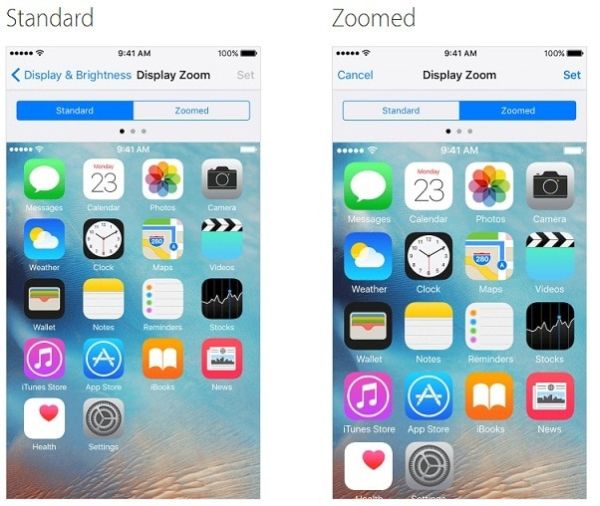
iPhone 7 Display Zoom

  • Cool iPhone 7 Features with Display Zoom

iOS 10 users can enjoy the awesome display zoom feature to get to all the details on their newest Apple handset. Still experiencing no SIM card issue on iPhone? Here is how to use this option:

Step 1. Go to Settings app.

Step 2. Choose Display & Brightness section where you will find Display Zoom option.

Step 3. Click on Zoomed option and press on Set – Use Zoomed and wait for the smartphone to restart.

The same instruction will help you to revert changes. Just select ‘Use Standard’ in the last step and your phone will use a bit less battery life afterwards.
How to Reboot iPhone 7

  • Quick Reboot iPhone 7 User Guide

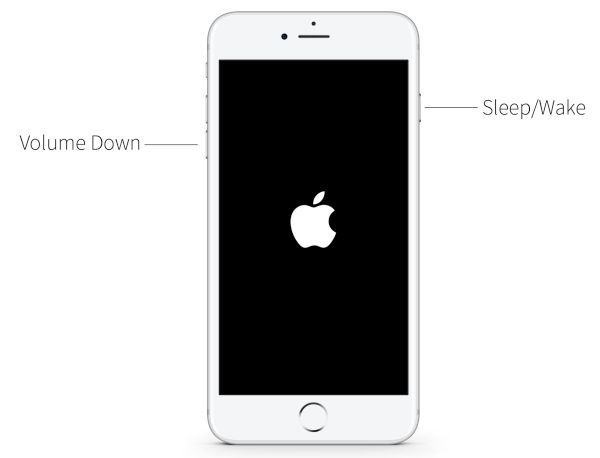
The latest generation phones use a different reboot option:

Step 1. You should click and hold the On / Off option that is placed on the right side of your device.

Step 2. Now you need to click and hold the Volume down option found on the left side of the smartphone while you are still holding down the On / Off button.

Step 3. While you are pressing two buttons at the same time your display will turn off and get back on. You’ll see Apple logo and this means you have successfully rebooted.
Choose iPhone 7 Home Button Click

  • Cool iPhone Tweaks No Jailbreak for Home Button

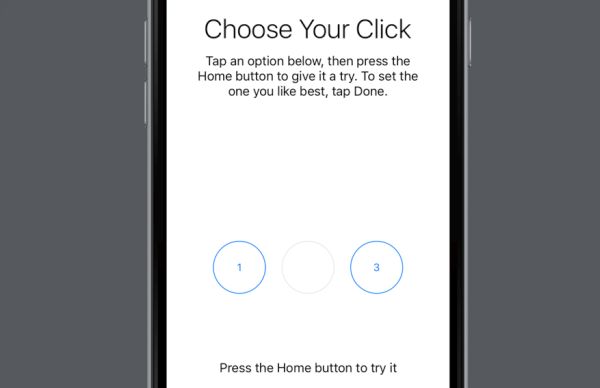
You can adjust the click intensity for the integrated Home button on iPhone 7 Plus and iPhone 7 and change its click speed without any issues:

Step 1. Go to Settings and select General – Home Button.

Step 2. Choose your click intensity from Light, Medium and Heavy [options 1, 2 and 3 accordingly] and test your button.

Step 3. Choose Done when you like the speed.

Step 4. You can adjust the click speed by going to Settings – General – Accessibility where you can select Home Button.

Step 5. You will see three speeds right below Click Speed. Select one of the following: Default, Slow or Slowest and adjust the speed to your personal needs.
How to Customize iPhone 7 Siri Without Jailbreak

iPhone Customization for Siri

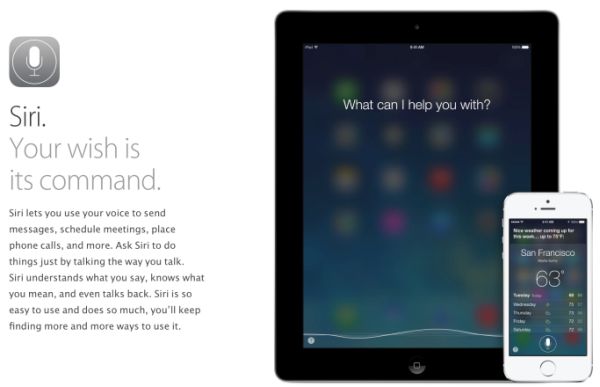
You can do so many different things with Siri on iPhone 7. Change its language, adjust the settings and make your personal assistant must-use in your everyday life.

How to Change iOS 10 Siri Language

Step 1. Go to Settings and choose Siri.

Step 2. You need to select Language and choose the one you wish to use. It can be English, Hindi or any other option. It’s up to you how you want your personal assistant to talk to you.

How to Select Siri Voice on iOS 10

You know that Siri can be female or male and you are the one who choose the accent.

Step 1. Launch Settings and select Siri option.

Step 2. Select Siri Voice and choose the accent from Australian, American or British English.

Step 3. Point to gender: male or female and you are done.

Changing Contacts in Siri

Step 1. Your iOS 10 assistant can call your friends or anyone else once you change contact information by launching Settings and choosing Siri. Also learn how to block spam calls on your iPhone 7.

Step 2. Go to My Info and you will see your contact list.

Step 3. Select data that Siri will use.

There are other methods to add ‘custom’ changes to Siri and other parts of iOS 10 firmware version to make it interesting and useful in all the ways you can think of. We are sure you can customize iPhone 7 to your personal likes and enjoy using this Apple phone for at least 2016-2017 since the next year the company is expected to unveil a major iPhone 8 upgrade and a lot of customers might be happy to get the newest model as soon as it is officially released.
iOS 10 Useful Tips: How to Use Health App on iPhone 7

The newest iOS 10 specs make some users curious especially if they didn’t have a chance to update yet. Apple released this firmware version and even updated it a couple of times in September. Who can win from installing this operating system? Let’s pay closer attention to iPhone health app that is improved in iOS 10 and brings some great features to love.

We won’t focus on what’s new in iOS 10 because this is the topic for a different post. We want to talk about iOS 10 health application and the changes it has introduced to ordinary users with iPhone 7 or older smartphone models. We should note that some iPhone 5 users report some issues after installing the latest firmware because it slows down their gadget. iPhone 7 and 7 Plus owners have other problems but most of them can be fixed with ease.

iOS 10 Health App What's New Improvements

iOS 10 Tips and Tricks for iPhone Health App

The following secrets are for users who wish to master iOS 10 like a pro. The updated program can help you stay fit and healthy. It can track your activities and share accurate details on your heart rate, blood pressure etc. You just need to learn how to use the tool in you everyday life.

Apple made its popular iOS 10 health application a real must-have. It has advanced features and new sections added compared to the previous iOS 9 version. This app is a stock one. You get it by default and it is free to use. So why not taking this advantage and reach your health goals using the smartphone and no-cost program?

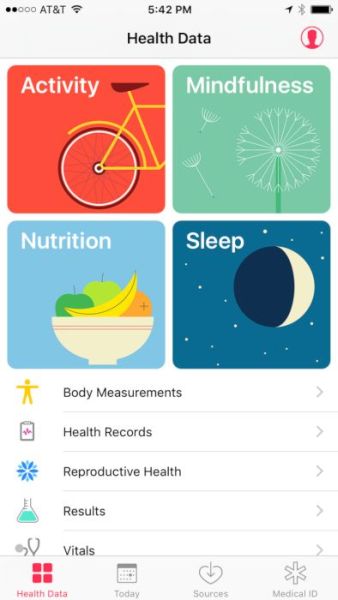
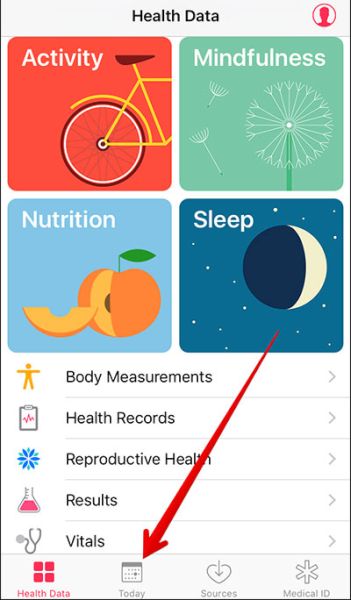
The enhanced Health app offers new Today menu, better Health Data section and other improvements you will really enjoy. Here is how you can use this program and get the most out of it:

Step 1. Let’s explore what’s new in iOS 10 Healthy program by launching it on your long-rumored iPhone 7 or older model.

iOS 10 Health App Today Section

Step 2. Choose Today section and find your day’s health data by scrolling down or up. You can also find data of yesterday and other days by swiping to the right. Another way is to click on the particular date you’ll see at the display’s top.

Step 3. You can choose Subject to get details about your health or get data for time periods such as week, month, year.

The Health iOS 10 specs also allow you turn on Health data for any third-party or Apple app that supports such a function. By the way always remember to backup your iPhone before you do anything. Here is what you need to do:

Step 1. Launch Health on your iDevice.

Step 2. Go to Select a category and choose your subject [what information you wish to receive].

Step 3. You need to choose Data Sources & Access section to continue.

Step 4. You will find ‘Edit’ option located at the upper right corner of the screen. Click on it and you’ll be able to proceed.

Step 5. You will see the list of applications which can show your health data if you choose so. Just check mark the field right next to the app name and you will enable your Health Data option for this particular app. Select as many applications as you need.

Medical ID on iPhone Emergency Health App Guide

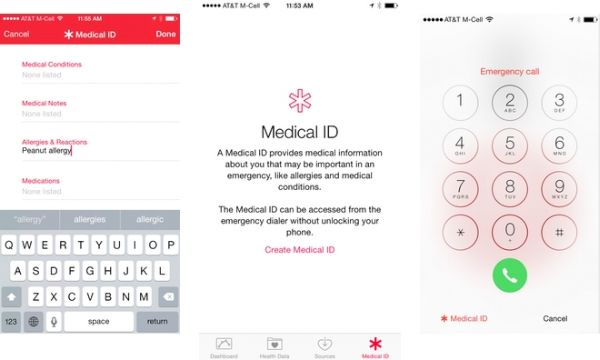
The cool iOS 10 features [you can upgrade to new iPhone 7 online] make it possible to access Medical ID when you need it pretty fast. This is a nice addition but you should learn how to enable this option:

Step 1. For cases of emergency it’s always nice when you can access Medical ID with a click. Open Health application to start.

Step 2. Select Medical ID section which you will find at the lower right part of the screen.

Step 3. Click on the Edit option you’ll see at the upper right part.

Step 4. Enable the option called Show When Locked. You just need to switch on this feature.

Step 5. Now you can lock your device and test how the quick access to your Medical ID works.

Step 6. Just press or touch your Home button and you will see your passcode window.

How to View Medical ID on iPhone iOS 10

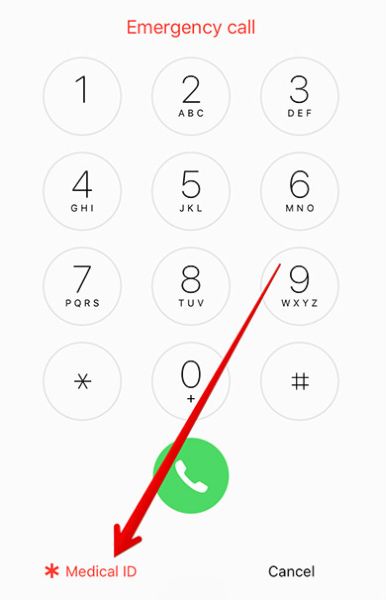
Step 7. Select Emergency section at the lower left part of the screen and press on Medical ID you’ll see at the top.

Step 8. Your Medical ID will be shown.

Step 9. Remember to press on Done to close this information.

There are a lot of applications that support Health Data on iOS 10. You can see all of them by going to Health app – category – Recommended Apps where you will find different programs you can download for free or buy. You can install this operating system to get all its features on iPhone 6s and SE lineup. Find out whether your iPhone 6s or iPhone SE is locked or unlocked if you got it from T-Mobile carrier.

We hope our short guide to the improvements brought to Health data on the newest firmware for iPhone users is something you can find useful.

How to Use iPhone 7 Wireless Charging Option

The release of the new Apple smartphones caused many rumores about new iPhone wireless charging possibility. This option is already offered by some of well-known competitors so seeing such an addition to the popular ‘fruit’ handset lineup was something to be expected. What can we say about the reality? Has Apple introduced the long-awaited option?

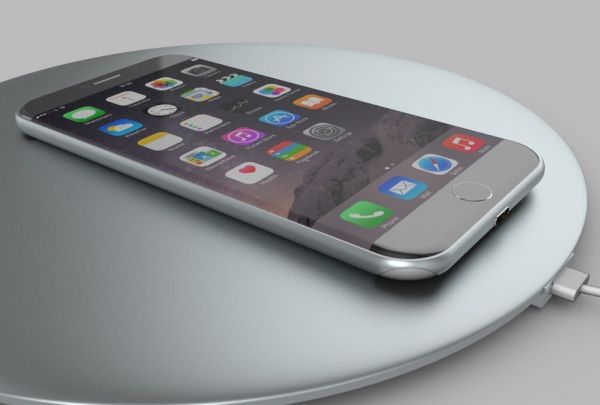
The idea of seeing iPhone 7 wireless charging faded as soon as the Cupertino-based company presented the two new smartphones to customers. You are still able to charge your newest handset wirelessly.

We’ll share a simple guide to walk you through the wireless charging procedure. Hopefully Apple will present this opportunity to all users in 2017 along with the new smartphone upgrade which is believed to be a major one [there are so many Android smartphones out there with the simple wireless charging technology that it becomes painful for some ‘fruit’ fans that they are not able to enjoy the option by default]. We have heard so many rumors about iPhone 6 wireless charging, iPhone 7 improvements and nothing has happened at the official level. Still there are always methods you can try and reach your goal, aren’t there?

iPhone 7 Wireless Charging

New iPhone Wireless Charging: How to Guide

Some work has to be surely done on your end. Forget about iPhone 6 wireless charging and let’s focus our attention on the newest iPhone 7 with A10 processor, improved cameras and other curious features and options. Some customers believe that the iPhone 7 and 7 Plus are not worth upgrading to because their design is the same as iPhone 6 and 6s lineup. Others are happy to get this latest generation model because of its dust and water resistance and interesting updates Apple offers.

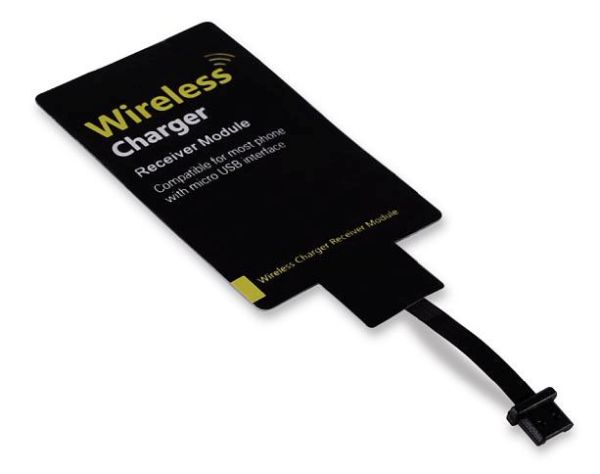
Firstly, you can find the wireless charging card receiver. You can search your local stores or online shops for the cheapest or most affordable accessory. For example, you can look at Leapcover or find a similar Qi receiver [this one is priced at around $10]. Your wireless iPhone charger should work similar to the process described below. Secondly, we offer a fast glimpse at what you can expect and how the whole iPhone 7 wireless charging idea works.

iPhone Wireless Charger

Step 1. It is necessary to plug in your lightning cable to the receiver you found. This way you’ll be able to place the cable over your phone’s back.

Step 2. It is needed to also find a thin case on the handset before you can put the gadget on the charging pad.

Step 3. Start charging wirelessly.

As you can see your iPhone 7 charging options still require using the lightning cable. This is what users hope to get rid of completely. At the same time getting additional accessories does require cables because this is the only way to connect the handset to charge it.

This is a different method of enjoying both iPhone 7 features and wireless charging. If you are not a fan of a charging station with just any case you can search for a special charging case that is designed specifically for your iDevice. Right, you still need to find additional accessory developed for the latest Apple smartphone model and use it to charge your device. You’ll have to place the device into the case and then on the charging pad.

iPhone 7 Wireless Charging Reports

iPhone 7 Wireless Charging Dreams

It would be great if Apple adds the wireless charging feature to the phones one day. Customers are always happy when their experience requires no efforts. With the current iPhone models it is impossible to find a simple and quick way to charge the smartphone without a cable while other well-known companies release handsets with this technology already built in.

Apple takes steps to improve its devices. This year it took a step towards waterproof and dust resistance along with built-in Home button with touch sensitivity, better batteries, more storage capacity [the old 8GB and 16GB models are in the past and users can enjoy 32GB, 132GB and 256GB models] and improved cameras.

The next year phone is already awaited by millions of ‘fruit’ fans. 2017 is when Apple celebrates the iPhone’s 10th anniversary. This is the main reason why experts and customers are talking about design upgrade and major changes that could be added to the next iPhone 8. Could it finally get the wireless charging option or not? What do you think?

iPhone 7 vs iPhone 7 Plus Differences: Is Upgrade Price Worth It?

It’s time to pay attention to iPhone 7 vs iPhone 7 Plus differences since both models are available in the market. Users who are planning to get the new generation smartphone released by Apple this fall should not only know about Verizon iPhone upgrade price and other carriers deal but also understand the main modifications that differ two devices.

The iPhone upgrade cost is cheaper when you have an older model to exchange. Apple and mobile operators have interesting upgrade programs that make it financially easier on customers to own the newest iDevice without paying its full price. Before we focus on costs let’s talk more about iPhone 7 features and specifications.

iPhone 7 vs iPhone 7 Plus Differences

iPhone 7 vs iPhone 7 Plus Review

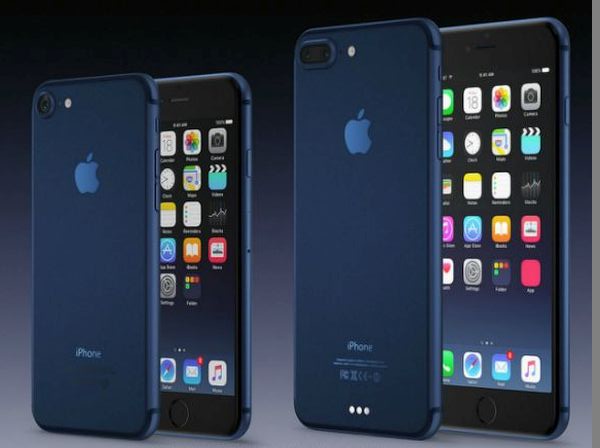
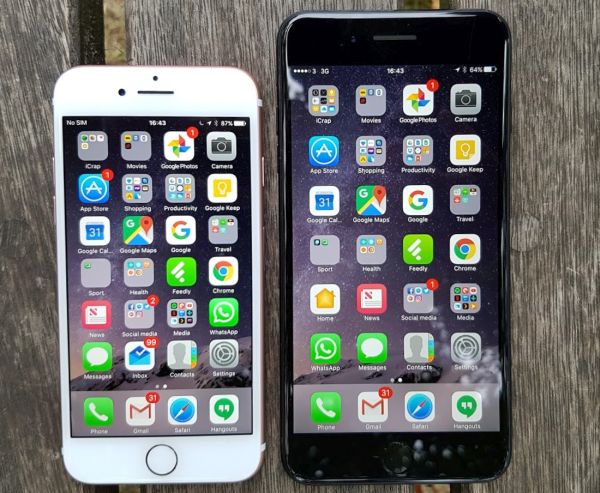
The first difference is the size of the smartphones. iPhone 7 is 4.7-inch device that weighs 4.87oz (138 g) and iPhone 7 Plus is 5.5-inch phone that weighs 6.63oz (188 g). Both versions are lighter than previous iPhone 6s and 6s Plus even though the overall design hasn’t changed. It’s curious that this year the bigger model seems to get higher demand that it was expected by Apple. Why do many customers choose iPhone 7 Plus over iPhone 7?

Both 2016 handsets are water and dust resistant. They don’t have the physical Touch Home button as it was intergrated into the screen. There are no antenna lines on the back and you’ll fall in love with the improved taptic motor with three vibration intensity options. Also this year you can choose no Space Grey color as it was replaced with new Jett Black and Black colors.
New storage capacity is also one of the most expected iPhone 7 specifications. Finally Apple offers 256GB version! Still these are not the changes that could wow modern customers.

While the ‘fruit’giant removed headphone jack saying it is ‘old technology’ it still kept the LCD screens in both phones. The iPhone 7 got 1334×750 pixels display (326 ppi) and bigger iPhone 7 Plus received 1920×1080 pixels screen (401 ppi) still they offer brightness improved by 25 percent and amazing color reproduction. Still the iPhone 7 Plus is a bit better because it matches the panel used in iPhone 7 but offers even better sharpness.

iPhone 7 Specifications Features

When you take a closer look at iPhone 7 specifications and features you can notice how fast both models are. They both come with A10 processors however the bigger model even gets 3GB of RAM instead of 2GB and this is 50% more!

The new devices are faster than iPhone 6s lineup. They have better speeds and run iOS 10 smoother than older gadgets. The dual camera 7 Plus version isn’t much better than iPhone 7 camera but you’ll notice how quickly most apps upload and work in the background [if you are planning to switch from Google or other brand to Apple learn how to transfer data from Android platform to iOS 10 iPhone]. The 4G modems you will find in both iDevice are upgraded to 450Mbit [they used to be 300Mbit].

The overall iPhone 7 vs iPhone 7 Plus shows an impressive 5.5-inch handset that is wanted by many customers in 2016. It has unique ‘fruit’ dual camera system, better processor and many other outstanding features you’ll enjoy.

The battery life between two models promises some great improvements. The 2900 mAh battery compared to 1960 mAh one might let you go through the day and even last longer. Sadly Apple doesn’t offer fast charging options so you still have to charge for a long while.

iPhone 7 Upgrade Price

Verizon iPhone Upgrade Price

The main changes and amazing features are expected to come in 2017. If you wish to get the newer iPhone this fall you should compare iPhone 7 price between two models.

The full cost of iPhone 7 begins at $649 for 32GB model and goes up to $849 for 256GB version. The iPhone 7 Plus is more expensive as its start cost is $769 for 32GB phone and ends at $969 for 256GB version. Still the price difference shouldn’t scare you away because you can get more with 5.5-inch smartphone. The same full price cost is for Verizon, T-Mobile, Sprint and AT&T when you select your device directly from Apple Store. Still there are deals offered by networks as well.
Luckily there is no 16GB handsets this year so iPhone 7 upgrade price is totally worth it. Getting double storage is nice especially when you take many photos and record mobile videos.

By the way, if you like to save some money you can get iPhone 6s or iPhone 6s Plus [guide on how to backup iPhone 6 models] that are both nice and cost less than the most recent release. Of course, the older devices don’t offer 256GB storage capacity. This is the exclusive option for iPhone 7 models only and you can also factory SIM unlock iPhone 7 and any other Apple handset.

Since the design of iPhone 6s and iPhone 7 is the same you can either take advantage of new features or wait till iPhone 8 launch the next year. Apple will celebrate the 10th anniversary of its popular smartphone and experts, users and analysts are expecting to get incredible upgrade with new design, specifications, options and OLED display.

Is Real Price on Waterproof iPhone 7 Only $220?

When you get acquainted with iPhone 7 specifications [learn how to set up new iPhone] you might also wonder how waterproof this model is and what its original cost is. You’ll be surprised to learn the iPhone 7 transparent price since experts are sure you pay three times more than it actually costs Apple to build this handset model.

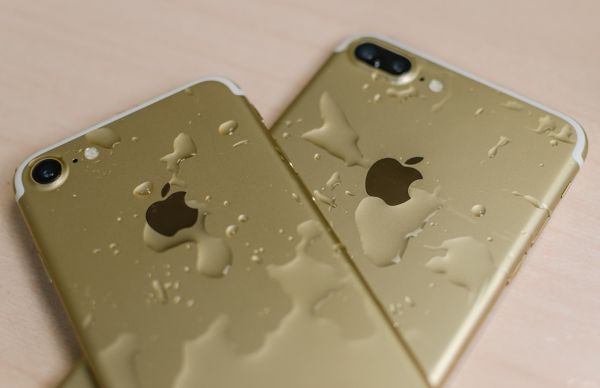
So how waterproof is the iPhone 7? Apple claims that you can be safe with up to 1 meter of submersion. You are surely not advised to test various crazy things like placing your iPhone 7 into coffee cup, salt water, deeper than 1 meter etc. The results could make you happy or completely disappoint [here are some best AT&T data plans for your phone]. Some testers prefer to do what they want and thus we can learn what can happen to your device if it ends up in water or even orange juice.

How Waterproof iPhone 7 Is Test

Waterproof iPhone 7 Tests and Results

Some customers are getting a new phone to use it through the year until the next upgrade is released. Others are buying the gadget to only destroy it. You can already watch tons of videos how iPhone 7 is being drown, smashed, broken. Such tests are performed to surprise public and are not advised to be repeated at home.
While we hear only about 1 meter of water iPhone 7 can withstand, people go further and submerge it much deeper. It’s curious that many tests show a phone surviving through hot coffee, orange juice, deep water and not falling apart or stopping to work. Sometimes you can also see how the tester disassembles the phone to show that no inner parts were destroyed by the water because no liquid got inside.

Waterproof iPhone Model 2016

It’s worth to note that your phone stops functioning while being under the water. Still it should work great again after being dried off. Some customers might think of starting to take pics or creating videos while being underwater [since the gadget’s display stop working in such conditions it could be possible to start the process above the surface] and it could be an interesting experiment. Still the Cupertino-based company doesn’t recommend you taking such actions.

And such waterproof and water resistant model is sold at least at $649 at retail stores. Is this the real price of the device? How much do iPhone 7 cost Apple to create it? Experts know the answer.

iPhone 7 Transparent Price

All the pries are only estimates. Apple doesn’t offer component breakdown to customers and it’s clearly understood. It’s iPhone 7 specifications promise a more powerful and interesting device [if you are not sure about your contract status you can use great AT&T iPhone out-of-contract checker] than current iPhone SE, iPhone 6s or iPhone 6 Plus. There are two versions to choose from: iPhone 7 and iPhone 7 Plus and both models can be a perfect Christmas gift idea in 2016.

iPhone 7 Components Cost Transparent Price

How much iPhone 7 cost estimates

The report you can find online [reported by IHS] states that iPhone 7 component cost is around $220. This is more than it was for previous models. You get a new device and Apple makes its profit. The company gets enough to develop software, continue market researches and earn money.

The estimated real cost of 4.7-inch iPhone 7 materials is based on the 32GB model. This is the basic version of a new 2016 iDevice. Its retail price starts at $649 if you are willing to pay the full price and are not looking for carrier deals and contract plans. Apple pays for materials only $220.80. You can see what the difference is and what profit the company can get in the end.

Everybody knows that big companies always have plenty of room to make money. This doesn’t come as a surprise. The best news is that the basic iPhone 6s components cost was $36 less so this year you are getting more for your money including improved camera, taptic engine technology, more storage etc.

Of course, the basic cost of iPhone 7 Plus is higher but the company didn’t provide this analysis yet. We should also say that the basic iPhone 7 cost is most likely higher than $220.80 because Apple pays taxes, salaries, is responsible for packaging, shipping, and marketing. Remember to use affordable iPhone IMEI network check service if you are planning to factory unlock your device this year.

iPhone 7 iPhone 7 Plus Models Specs

The announced figure includes the cost for different phone parts. For example, the A10 processor is believed to cost $26, phone cameras are around $20, 1960 mAH battery is around $2.50, 4.7-inch screen is $39. Keep in mind that these estimates are provided by a research company and not Apple.

Experts think that the ‘fruit’ giant can make about $250 of profit per sold iPhone 7 unit. We’ll learn how popular or not popular this new model is in 2017 when Apple reports its quarter sales results.

The iPhone 7 and iPhone 7 Plus release doesn’t offer major design or technological changes. Still a lot of customers might consider getting this phone for Christmas 2016 because of its amazing storage capabilities [this is the first iPhone that arrives with 256GB storage option] and other cute specs users could enjoy this year.

Deal with iOS 10 Spam Calls and Enjoy iPhone 7 Waterproof Test Results

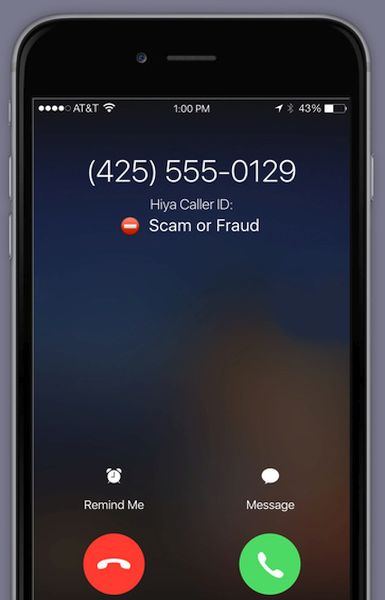
Would you like to block spam on iPhone 7? It is possible to do on other iOS 10 devices as well since there is a simple iOS 10 spam calls feature you can use. Nothing is too complicated and you’ll enjoy how easy and fast you get stop receiving random phone calls from scammers or local telemarketers.

We’ll share useful and must-have block unwanted calls iPhone instruction with you and all you need to do is follow it [learn how you can sync iPhone music without losing your data]. Once you forget about the unpleasant calls you can also see the results of waterproof iPhone 7 test. This is the first ‘fruit’ water resistant iDevice released by Apple.

How to Block Unwanted Calls on iOS 10 iPhone

How to Block Unwanted Calls iPhone Guide

While the cool iPhone 7 specs are available only to customers who upgrade or purchase this new phone model, iOS 10 features can be enjoyed by users with previous phones as well. You just need to update to this firmware version and get rid of spam on iPhone asap.

Your waterproof iPhone 7 will not get any robocallers if you know about the interesting iOS 10 option that blocks unwanted phone calls [this has nothing to do with blacklisted iPhone devices]. Apple allows devs to use extensions in Phone program which is a stock application and thus spam blocking becomes simpler and easier for ordinary users as well. Here is what you need to learn and how to use this wonderful feature.

Spam iPhone Calls How to Block

Block Spam Calls iPhone Apps

You need to use a third-party application created to block spam calls. Such apps have big databases of scammer numbers. They work fast and determine if your incoming phone call is included in ‘spam’ list or not. If it is scammer it will be blocked right away [here is a guide on how to unlock blocked Sprint iPhone]. You will not hear it ringing. Pretty cool, right?

Since there are several third-party apps you can use we’ll mention only the most popular titles. There is Callblock app you can get at $3.99, Who called tool that costs $0.99 and free Hiya application. You can download all these programs from App Store so let’s start with the no-cost option titled Hiya. It can identify spam calls and block robocallers, telemarketers and scammers on your behalf.

How to Block Spam Calls iOS 10 iPhone Guide

How to Block Unwanted Spam Calls on iOS 10 iPhone

Step 1. Download and install Hiya free application.

Step 2. The program will ask your permission to access iPhone contacts. Agree, choose your counter and provide the phone number. Click on Next.

Step 3. The program should text you the code which you need to enter to Continue.

Step 4. Once the code is verified you can go to app settings to setup your preferences.

Step 5. Now you can launch Settings on iPhone that is running iOS 10 and choose Phone menu [hopefully iOS 10 won’t get as many iOS 9 problems and issues].

Step 6. You need to select Call Blocking & Identification option to proceed.
Step 7. Enable Hiya to make it work.

Step 8. Now all the calls that are believed to be from spammers or scammers should be blocked automatically by the program. You will not be annoyed by all those unwanted people and organizations reaching you.

iPhone 7 Waterproof Test Results

How Waterproof Is The iPhone 7

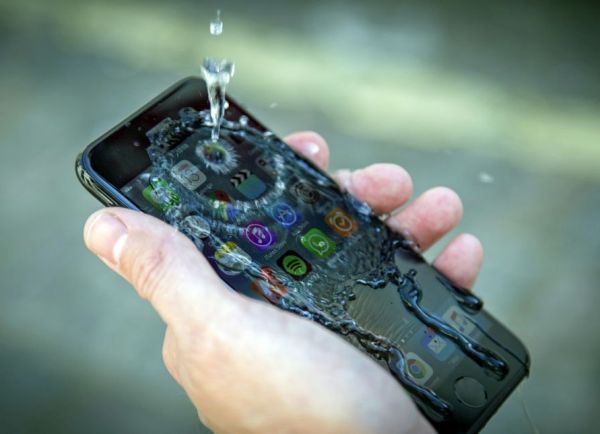
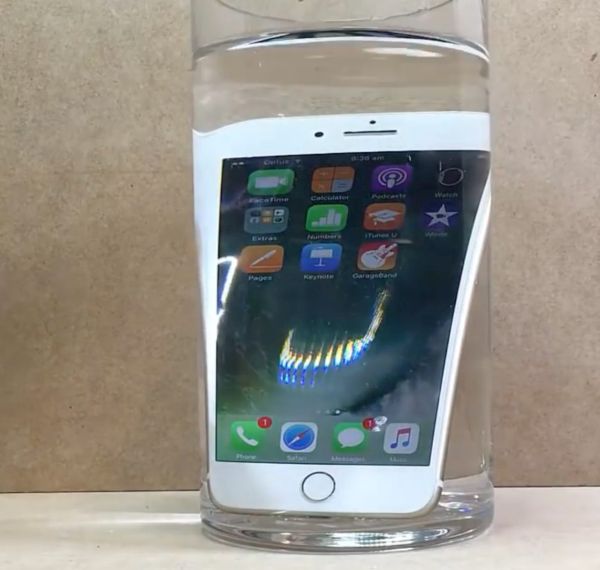
All previous Apple phones weren’t waterproof. However the most recent iPhone 7 and iPhone 7 Plus are water resistant which is modest and awesome. The iPhone 7 waterproof test shows that if you submerge your device in water [up to 1 meter] it should survive. The test lasted for about half an hour and the gadget wasn’t damaged which is great.

What does it mean to you? If you own iPhone 7 or iPhone 7 Plus you don’t have to place it to water to test. However if it happens that your smartphone falls in water [not too deep] it will still work perfectly well.

No phone is 100% water-resistant. Everybody knows this. Still the IP67 rating for water-resistants is pretty cool. A couple of inches of water will not hurt your brand new handset. This is what is so important to every handset owner these days, isn’t it? You can create beautiful selfies on the sea and in the water parks as long as you don’t submerge your gadget deep in water.

Don’t risk and don’t intentionally drop your precious device in water. Still you are protected in some ways in case of minor water accidents. The device should be fine as long as you don’t practice salt water tests on your own.

iCloud Users Can Enjoy Great Photo Sharing Option on Mac

Apple continues to improve its software and replace the tools users are so used to. This time the company switches iPhoto with Photo program on Mac computers and this also brings great additional features. Let’s talk about iCloud Photo sharing option and other great thinks you can discover and enjoy.

We’ll explain how to subscribe to iCloud Photo sharing on iPhone, Mac and other devices [learn how to set up new iPhone 7 from AT&T or other network]. We’ll also mention what this new option means and how you can use iCloud Photo library. Is it easier or more difficult to share your images with family and friends? Is it fun to use the new program and is there any limit you have to know about? Now, as the questions are asked we need to answer them.

iCloud Photo Sharing Guide Mac iPhone How to

Sharing Photos on Mac: How to Guide

Step 1. Some users find photo sharing on iCloud confusing and are sure that things got even crazier with the introduction of Photos program for Macs. What do you think about it?

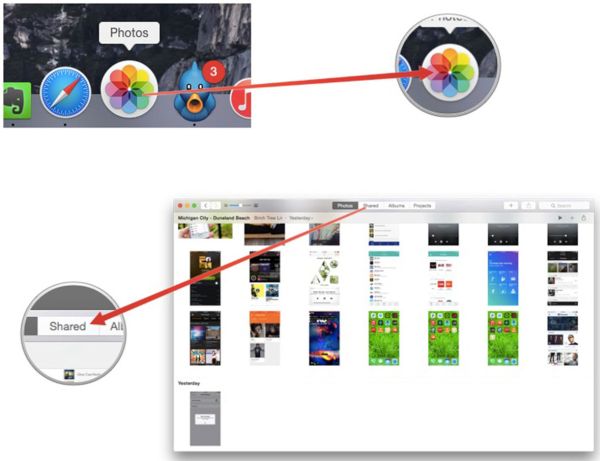
Step 2. Launch Photos.

Step 3. Press on ‘Shared’ option.

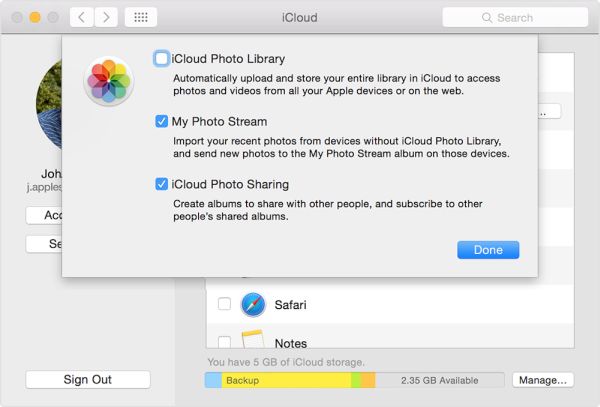
Step 4. You will see the blank field called iCloud Photo Sharing.

Step 5. The only think you can find in this new window is ‘Start Sharing’ button. So click on it.

Step 6. Now you will see Preferences option for your Photos along with 3 options: My Photo Stream, iCloud Photo Library and iCloud Photo Sharing. Just in case you are planning to buy AT&T iPhone 7 – learn more about the best AT&T data plans in 2016.

iCloud Photo Sharing Options

My Photo Steam Sharing Feature

Step 7. When you use My Photo Stream option you will see the Albums menu that shows your albums within Photos application. All your images captured with iDevice or Mac and saved to iCloud account also appear in this folder. It happens automatically if you link your Apple gadgets to iCloud. You can save as many images this way as you like. At the same time My Photo Stream doesn’t allow you sharing photos with any device. It only works with gadgets that are linked to your personal iCloud account.
Mac Photo Sharing Feature iCloud Instruction

iCloud Photo Library Usage

Step 9. What does iCloud Photo Sharing mean? This is just a private option that makes it possible to not just easily upload your images to social networks but also create a ‘shared album’ with a link that you can send to particular people or group of your friends via email. No one else will see such shared images. If you store your photos online you have no limits on how many to store.

Step 8. Press on Start Sharing option.

Step 9. Create a new shared album.

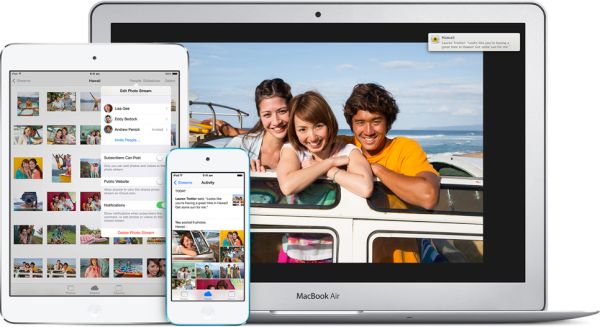
Step 10. You will see all your images as Moments so select which ones to include in your album to share. It is possible to select the whole Moment by hovering the mouse over the specific date. This particular option makes it possible to share videos recorded by you as well.

Step 11. This shared album will be visible to all your friends with iCloud accounts. It will be present on their Photos program on both iDevices and computers.

Step 12. When you wish other friends who don’t use iCloud to also see your captured images you should choose the ‘people-head’ icon that brings ‘Public Website’ quick creation and a link that will let your friends view web gallery online once you send the link to them.

Step 13. Use ‘Subscribers Can Post’ option to let your family members / friends upload their files to your shared album.

iCloud Photo Sharing on Mac iOS 10

How to Subscribe to iCloud Photo Sharing

This service is available to all users who are running the most recent iOS version and have their iCloud account set up on the iPhone [you can still SIM unlock your iPhone 6s and new iPhone 7] or other Apple devices. Remember to sign in to your account using the same Apple ID you have on all other iOS gadgets to enjoy iCloud Photo Sharing feature. It is also required to enable this option by going to Settings on the iPhone and choosing iCloud – Photos.

Remember that you are provided with 5GB of free iCloud storage and you can only share images within this limit or pay for extra storage.

Amazing iOS 10 Handwritten Messages Feature for iPhone 7 Users

Are you ready to explore the most interesting options in the new Apple firmware version? Here come iOS 10 handwritten messages that can be used on both iPhone and iPad. It’s just a matter of time how quickly you’ll adjust to this option and find how to use it in your everyday life [it’s also time to select the best 2016 smartphone]. Typing is fast, but when you can send your handwriting to your friends and family members – it could be a wonderful note with your personal touch.

The option is brought by one of the default applications. You have nothing new to install. Just use the nice improvements added to Messages program. We’ll explain what you need to do in order to get the full advantage of the new iOS handwriting recognition system. It’s simple, fast and once you get used to it – you could truly save time on typing and make your text messages more interesting, beautiful and very unique.

Handwritten Messages iOS 10 Guide

How to Send Handwritten Messages on iOS 10 iPhone

Step 1. Take your iPhone 7 or any other iPhone model you have that is running iOS 10 version. Remember that you have to backup iPhone once in a while to not lose your personal data.

Step 2. Launch your Messages tool.

Step 3. Choose the contact. This is the person you wish to receive your handwritten SMS.

iMessage Handwriting Recognition iOS 10

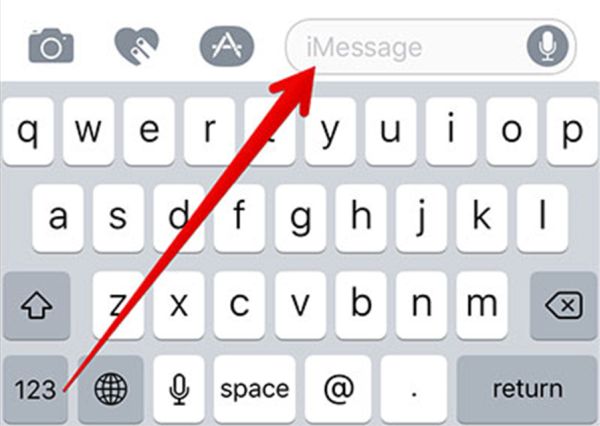
Step 4. Press on the iMessage field. This is where you can enter your text in the next step.

Step 5. It’s best to use Landscape mode. So turn your gadget to continue.

iOS 10 Handwritten Messages

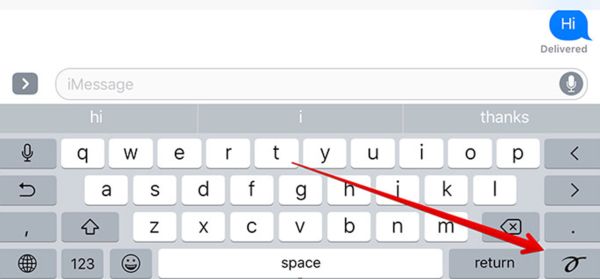
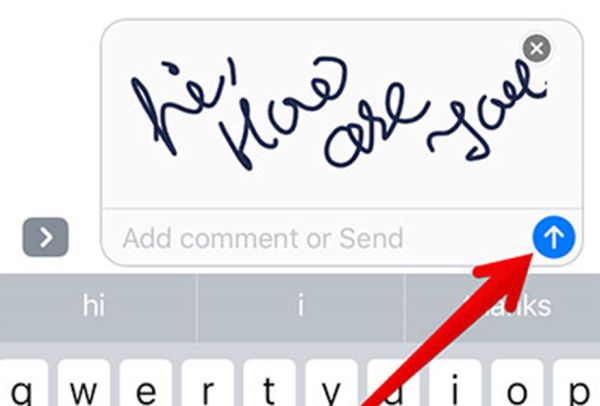
Step 6. You will be the handwriting canvas that is completely blank for now. Don’t see the new screen? You can always press on the small button in the bottom right corner of your display.

Step 7. Great, it’s time for creating your masterpiece. Draw (write) what you wish to send. In case you feel there is not enough space for you just press on the arrow and your canvas will get longer. If you need to use the regular keyboard you can press on the keyboard button that is located in the lower right part of your screen.

Step 8. If you need you can also use the Clear and Undo options. They are both located in the top left corner of your screen, right above the white canvas. Remember that when you ‘Clear’ you will delete everything you have written. If you only wish to remove your last doodled you should click on the ‘Undo’ button.

Thank You Prewritten Text Message iOS 10

Step 9. When you have finished your writing you need to press ‘Done’ option that you’ll find in to upper right corner.

Step 10. iOS 10 is ready to send your handwritten iMessage so click on ‘Send’ to confirm this is what you want to do. Your text will be send. In case you have a broken iPhone 6s screen learn how to repair your device.

How to Send iOS 10 Handwritten Text Messages iPhone

Isn’t it awesome? iOS 10 handwritten messages can offer even more possibilities to you. It is possible to create pre-written texts and send them instead of making a new one each time. Here is how it is simple and fast to complete:

Step 1. All the messages you have created will be saved automatically. So you can always choose them as they will appear at the bottom of your Messages application along with some pre-written messages are already available by default [‘thinking of you’, ‘happy birthday’, ‘thank you’ and similar common used phrases].

Pre Written Text Messages How to Use iOS 10

Step 2. Just click on the pre-written message and you’ll find its preview on your canvas.

Step 3. You can customize the message or send it as it is by pressing Done and Send buttons.

The similar guide is for your iPad however there are some minor differences. This is the reason why we wish to also add the fast step-by-step instruction for tablet owners.

iPad: How to Send Handwritten Messages iOS 10 Walkthrough

Step 1. Open Messages tool on the tablet device.

Step 2. Select the contact just as you did on the iPhone.

Step 3. Click on the ‘iMessage’ text window.

Step 4. Press on the hand-drawn-icon button you will find on the bottom line of iPad virtual keyboard. If you are tired of your iPad rings learn how to stop iPad from ringing.

Step 5. You will get the handwriting canvas and write your message. Use two fingers and swipe right or left and create a cute text message.

Step 6. If you wish to use handwritten texts you created earlier you need to press on the ‘Clock’ button that is located at the lower left corner.

Step 7. Use the new options offered by iOS 10 update and enjoy staying unique in every way possible.

Choose Best Smartphone 2016 and Deregister iMessage on iPhone

There are so many gadgets that it’s difficult to pick your best smartphone 2016. Let’s highlight the most interesting brands and models they offer this fall and also explain how to change text message to iMessage in case you choose Apple or learn how to deregister iMessage when you decide to switch to a non-iOS device.

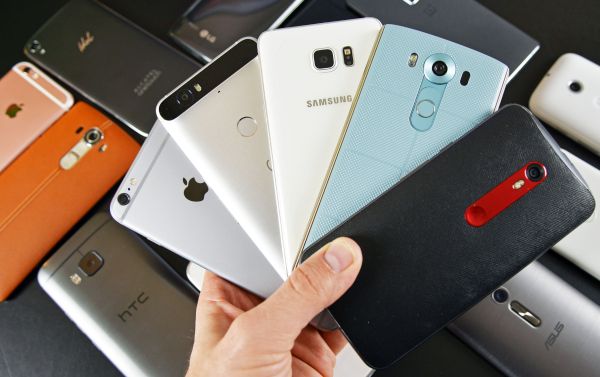
We’ll mention HTC, LG, Apple, Sony, BlackBerry, Motorola and other firms you see in your local stores [you can also SIM unlock iPhone from any U.S. network]. What phone should I get when the choices are so impressive? Think of your needs and read what the most outstanding features are of the handsets you like the most.

Best Smartphone 2016 iPhone Samsung HTC List

Best Phones on the Market in 2016

You can find HTC One A9 phone with AMOLED screen and a camera that still needs improvement to create nice images in low light conditions. This gadget supports Android firmware version 6.0. Users assure the performance is nice however there are more powerful devices out there.

There are some phones by Huawei and its sub-brand which interesting specifications. For example, you can get Honor 7 or Mate S. The first one get most of the Mate S options except for its premium sheen. If you are a fan of a fingerprint scanner, wish to get nice camera and Android firmware – these might be phones to look at. Huawei Mate S boasts 5.5-inch pressure-sensitive screen. There are many features and apps you can use. There is also Mate 8 model with 6-inch display, great features and nice performance. Nexus 6P that is also manufactured by Huawei arrives in a metal body with some impressive options to enjoy.

BlackBerry Priv iPhone Samsung Choose Best Smartphone 2016

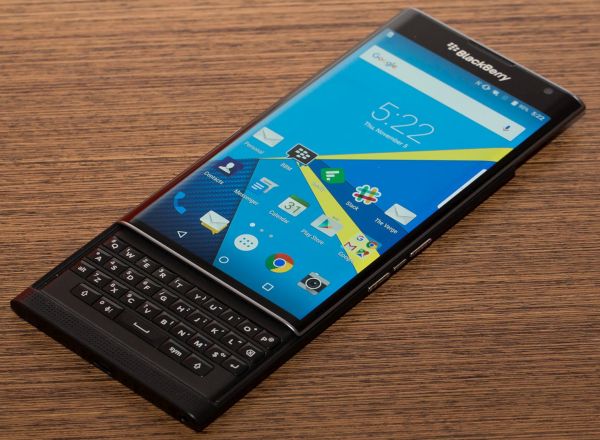
BlackBerry Priv is another smartphone with some benefits of Android platform and range of features. The innovative fingerprint scanner and some amazing options make it an interesting phone in 2016.

Sony offers Xperia Z5 version with 23-megapixel camera sensor, simple design and wish for more power than the handset offers.

There is Moto X Play by Motorola that includes big battery and more power than many other smartphones available this year. Still it lacks many of the popular features including the fingerprint scanner and improved camera. Another model, Moto G4, that sounds slower than competitors but it’s a budget smartphone that includes the fingerprint sensor.

Fans of Nexus models can take a look at 5X. It’s a nice phone that is affordable yet it doesn’t have that premium feel a lot of other handsets offer customers. Even though you will find some disadvantages this model has the fingerprint scanner.

LG is offering G5 phone with dual-camera, powerful chip, 4GB of RAM and fingerprint option along with metal body.

iPhone Models 2016 iPhone SE iPhone 6s

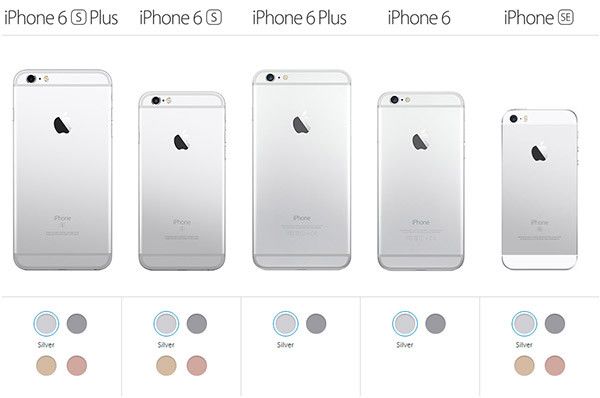
There are three Apple smartphones with two more arriving this September. Fans of premium handsets can get the iPhone 6s or iPhone 6s Plus. Those who love budget version can buy iPhone SE that is still interesting even though it lacks a lot of features offered by ‘6s’ lineup. The upcoming iPhone 7 and iPhone 7 Plus could be a wonderful purchase this year as it is believed to bring improved camera experience and new color options.

There is also HTC10 that looks serious with Quad HD resolution, powerful processor, 4GB of RAM and nice camera and Samsung smartphones Galaxy S7, S7 Edge and Galaxy Note 7. All these devices are pretty impressive and nice to look at. You might even consider getting Galaxy S7 Edge over Apple iPhone 6s. Still the upcoming iPhone 7 might bring something new and amazing so keep your eyes on the official announcement to learn more about this smartphone.

What phone should I buy? There are many choices and it’s up to you what to purchase in 2016. In case you are planning to switch from iPhone to a different brand you need to backup iPhone, disable iMessage and even deregister this service. We’ll explain how you can do this.

iPhone Settings Text Messages iMessage

How to Turn Off iMesagge on iPhone 7

When you have the problem with iPhone iMessage not delivered you can try to disable and enable this service. It could be buggy however the problem can be fixed without problems. Here is what you need to do:

Step 1. You need to go to Settings on your Home Screen.

Step 2. Select Messages menu.

Step 3. Choose iMessage option.

Step 4. Disable the service.

Step 5. Now you should close all open programs and turn off your iPhone or simply restart it. Hold both Home and Lock buttons for about 10 seconds and once it is back on you need to repeat the same guide but Enable the service in Step 4. The problem should be gone and your messages send via iMessage should be delivered.

Why is my iPhone sending texts instead of iMessage? It happens because the service is disabled by you. Enable it and everything will be fixed for you.

By the way, this same instruction explains how to switch from text to iMessage. However you should remember that you need to turn off this feature when you decide to get a different phone but keep your old iPhone number [learn how to bring data from Android to iPhone].

How to Deregister iMessage iPhone Guide

How to Deregister iMessage

To not lose your text messages once you stop using iPhone and its iMessage tool you need to:
Step 1. Visit special Apple website.

Step 2. Enter your iPhone phone number you are now using on a different smartphone brand.

Step 3. This way you will deregister your mobile number and get out of iMessage problems.

Step 4. You will get a confirmation code which means you have successfully deregistered your iMessage.

Steps to Sync iPhone to New Computer Without Erasing Everything

It is easy to delete all your images, applications and personal data while syncing your phone. Thus it is better to learn how to sync music from iPhone to Mac without erasing your files as well as other content. Remember this guide for working with new computers and more than one PC or Mac. It’s always better to keep your current information on the gadget you are using, right?

We’ll explain how you can sync iPhone to new computer without erasing anything. It works for all models including current iPhone 6s, SE, previous 6 and 5s. This instruction is also perfect for syncing iPhone 7 once it goes on sale and you get a chance to purchase it or upgrade to the next Apple phone.

There are actually several things you can try. If you know several successful methods you will never ask a question ‘Will syncing my iPhone to a new computer erase everything’ because you will not lose your data. You’ll be a syncing expert and easily preserve your applications, images, videos, content and songs.

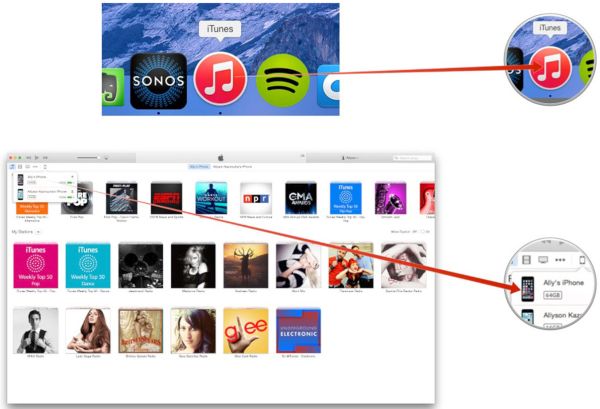
Sync iPhone Music to iTunes without Deleting Files

Guide to Sync iPhone without Deleted Music

It’s not that difficult to work with new computers although sometimes it is problematic to sync and even activate iPhone after factory IMEI unlock. The process is extremely simple when you have only one computer. When the phone is connected to the new PC or Mac for the first time you will see the message which makes sure you donn’t erase anything. It asks one question:

  • Do you want to erase this iPhone and sync with this iTunes library?

Choose ‘no’ when you have no plans to delete your data: music, films, videos, photos, and content. With Apple, although, you can only sync iPhone without erasing to one computer at a time. Still sometimes you wish to work with two or ever more computers at once. Is it possible?

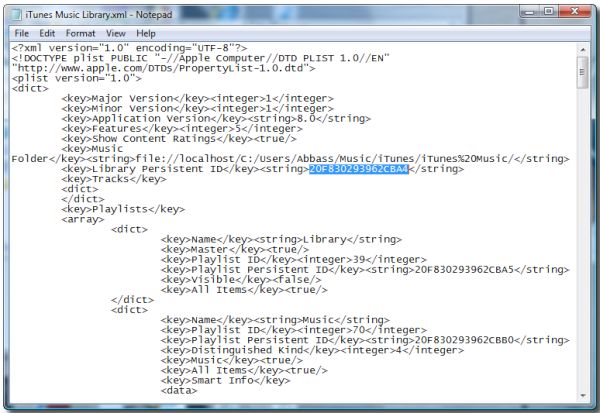
Library Persistent ID Key

Unfortunately manual syncing is not longer possible because it will erase your data when you try to only copy your Library Persistent ID Key to several computers. The Cupertino-based company changed the way iTunes supports syncing now. This method used to help you keep your content but it will now erase and then sync.

Sync iPhone Data Between Several Computers How to

Method 1.

It is possible to get third-party program and trick Apple. You can sync iPhone without deleting music to more than one Mac with AnyTrans or similar application. Here is how to sync music to iPhone without erasing other files:

Step 1. Download the program that promises to sync iPhone without deleting music. It doesn’t necessarily have to be AnyTrans as there are other tools you can search for. Just read reviews to make sure your data will remain.

Step 2. When you wish to transfer your files to your computer you can launch AnyTrans and go to System Preferences where you can ‘open’ Security & Privacy menu. This is needed to allow files syncing.

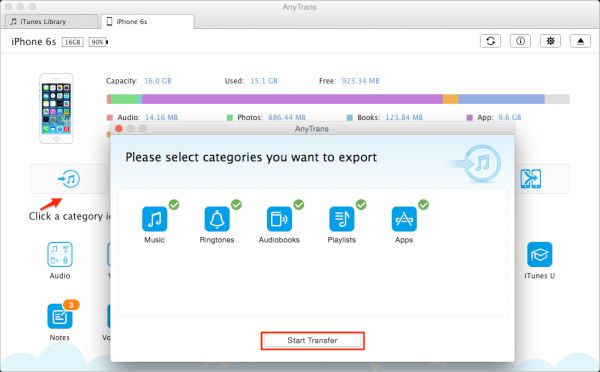
Step 3. Once you connect the phone to your computer you can copy music, videos and other data between your smartphone and Mac or Windows platform. Just choose what you wish to sync and press on ‘Start Transfer’ process.

Sync iPhone to Multiple Computers Macs How to

Method 2.

When you have several computers to transfer information to:

Step 1. When you have copied your files to iTunes via AnyTrans or alternative program you can manually manage the phone and not lose a file you have.

Step 2. Now when the copy of your data is saved on iTunes you can finally manage it manually and transfer data to more than one computer. By the way, iTunes is also used to complete iPhone unlock from your carrier.

Step 3. The first ‘manual management’ will erase your information this is why it is important to sync all your files beforehand. So once you connect your handset to your PC or Mac you need to launch iTunes program and wait for it to detect your gadget.

Step 4. Choose yourphone from the iTunes menu and go to Summary – Manually Manage Music and Videos.

Step 5. Press on Apply option.

Step 6. You get an option to drag your files between the iDevice and computer. The drag-drop method is the best to manually manage songs, movies, and data between gadgets. It can be performed on multiple computers.

iOS 9 Update Problems Fix

iPhone 6 Won’t Sync with iTunes

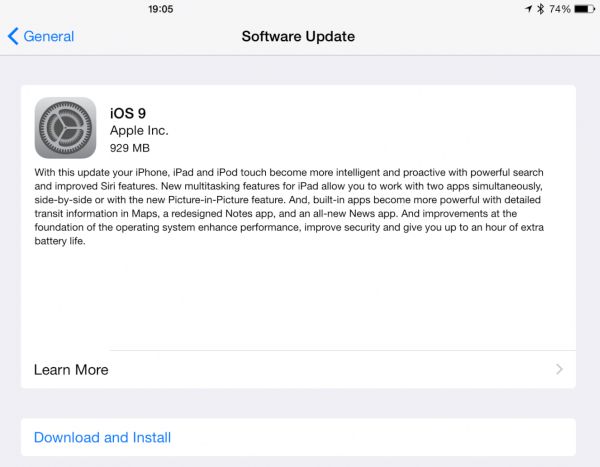
This could be a problem with different firmware versions. When you are not able to sync your images or other files between iPhone 6, 6, SE or new iPhone 7 you are advised to update both iTunes version and mobile firmware version to the most recent available.

The iOS company has many buggy releases so when something stops working you need to update for the newest firmware and this should fix the ‘iTunes won’t sync’ issues. This happened to iOS 9.3.3 and earlier versions [there were many different iOS 9 problems]. This might happen to iOS 10 which will be presented in the fall 2016.

Prepare for iPhone 7 release and iOS 10 update. Hopefully there will be no problems with syncing and transferring your files between computers and your phone.