Apple continues to improve its software and replace the tools users are so used to. This time the company switches iPhoto with Photo program on Mac computers and this also brings great additional features. Let’s talk about iCloud Photo sharing option and other great thinks you can discover and enjoy.
We’ll explain how to subscribe to iCloud Photo sharing on iPhone, Mac and other devices [learn how to set up new iPhone 7 from AT&T or other network]. We’ll also mention what this new option means and how you can use iCloud Photo library. Is it easier or more difficult to share your images with family and friends? Is it fun to use the new program and is there any limit you have to know about? Now, as the questions are asked we need to answer them.
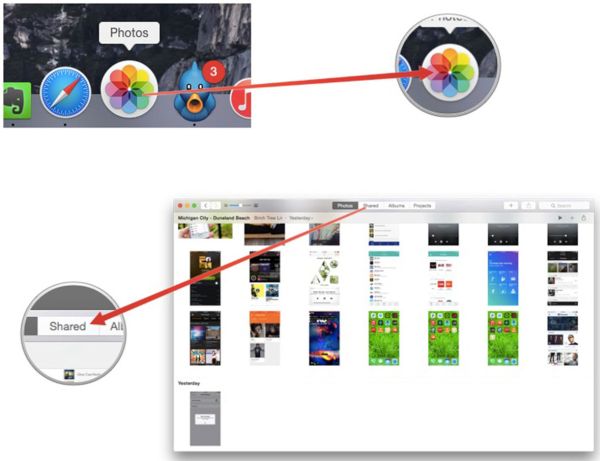
Sharing Photos on Mac: How to Guide
Step 1. Some users find photo sharing on iCloud confusing and are sure that things got even crazier with the introduction of Photos program for Macs. What do you think about it?
Step 2. Launch Photos.
Step 3. Press on ‘Shared’ option.
Step 4. You will see the blank field called iCloud Photo Sharing.
Step 5. The only think you can find in this new window is ‘Start Sharing’ button. So click on it.
Step 6. Now you will see Preferences option for your Photos along with 3 options: My Photo Stream, iCloud Photo Library and iCloud Photo Sharing. Just in case you are planning to buy AT&T iPhone 7 – learn more about the best AT&T data plans in 2016.
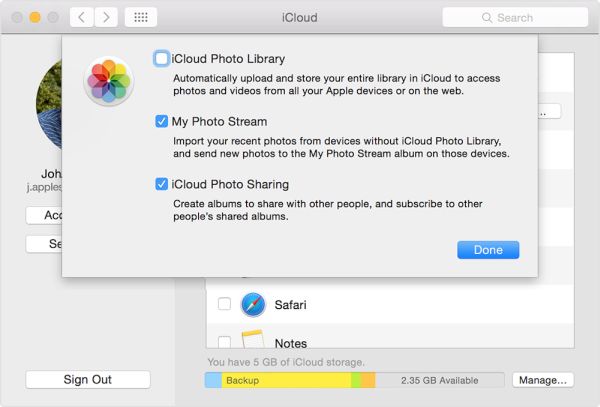
My Photo Steam Sharing Feature
Step 7. When you use My Photo Stream option you will see the Albums menu that shows your albums within Photos application. All your images captured with iDevice or Mac and saved to iCloud account also appear in this folder. It happens automatically if you link your Apple gadgets to iCloud. You can save as many images this way as you like. At the same time My Photo Stream doesn’t allow you sharing photos with any device. It only works with gadgets that are linked to your personal iCloud account.

iCloud Photo Library Usage
Step 9. What does iCloud Photo Sharing mean? This is just a private option that makes it possible to not just easily upload your images to social networks but also create a ‘shared album’ with a link that you can send to particular people or group of your friends via email. No one else will see such shared images. If you store your photos online you have no limits on how many to store.
Step 8. Press on Start Sharing option.
Step 9. Create a new shared album.
Step 10. You will see all your images as Moments so select which ones to include in your album to share. It is possible to select the whole Moment by hovering the mouse over the specific date. This particular option makes it possible to share videos recorded by you as well.
Step 11. This shared album will be visible to all your friends with iCloud accounts. It will be present on their Photos program on both iDevices and computers.
Step 12. When you wish other friends who don’t use iCloud to also see your captured images you should choose the ‘people-head’ icon that brings ‘Public Website’ quick creation and a link that will let your friends view web gallery online once you send the link to them.
Step 13. Use ‘Subscribers Can Post’ option to let your family members / friends upload their files to your shared album.

How to Subscribe to iCloud Photo Sharing
This service is available to all users who are running the most recent iOS version and have their iCloud account set up on the iPhone [you can still SIM unlock your iPhone 6s and new iPhone 7] or other Apple devices. Remember to sign in to your account using the same Apple ID you have on all other iOS gadgets to enjoy iCloud Photo Sharing feature. It is also required to enable this option by going to Settings on the iPhone and choosing iCloud – Photos.
Remember that you are provided with 5GB of free iCloud storage and you can only share images within this limit or pay for extra storage.