Sometimes you decide to switch from iOS to Android or vice versa. Remember to always backup your iPhone and Android gadgets. Is it simple to move all your data and contacts between the two rival companies’ gadgets or not? A lot of people wish changes once in a while and getting a new smartphone could be an interesting challenge since both iPhones and Android gadgets have their pros and cons.
We won’t compare iOS vs Android 2016 since it’s up to your personal taste and expectations which gadget to choose. It’s more important to understand how you can move your personal data, contacts, images, apps and other staff from one brand to a different one and this process has to be painless.
How to Transfer Data from iPhone to Android
There are some programs that could ease your switch however there is no one-click miracle solution when you decide to stop using Apple iPhone and instead get a new Android device. While the Cupertino-based company is about to bring a new generation iPhone 7 with possibly innovative features there are users who just need fresh breath and think that choosing another smartphone brand can be a good step in 2016. Besides, many experts are sure that only iPhone 8 in 2017 will get major update and incredible options thus you could use this year to try something absolutely different.
When you take a decision to switch from iPhone 6s to Android you could read the special Google support page first. Then you can follow our guide and bring over some of your iPhone files to Android gadget.
Step 1. Google Account
Since Android phones bring you more options with Google account, it’s nice if you used Gmail on iPhone to save your contacts. It’s simple to move your contact list if you log into your default Gmail account used on old iPhone on the Android device as this way everything transfers quickly.
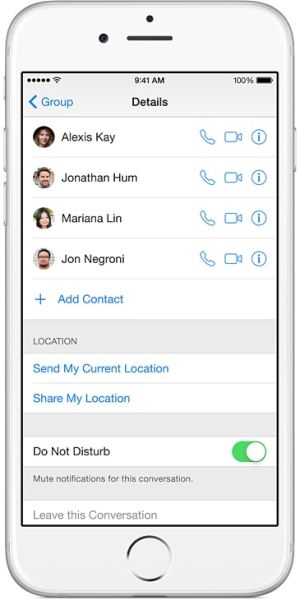
Step 2. Contact List
iPhone users whose contact information was saved to iCloud by default cannot move this data via Gmail account. They need to launch Settings on iPhone, choose iCloud and turn on Contacts to sync them to Apple iCloud service. Then from your computer you can sign into icloud.com using Apple ID and choose Contacts menu. The press on the ‘wheel’ icon and click Select All. Once again press on the ‘wheel’ and choose Export vCard option.
Now you should open a different site: http://www.google.com/contacts and press More – Import. You can find the saved file (the VCF format as this is how vCard looks like) and let your Gmail account import your iPhone contacts to Android handset.
Step 3. Photos & Videos
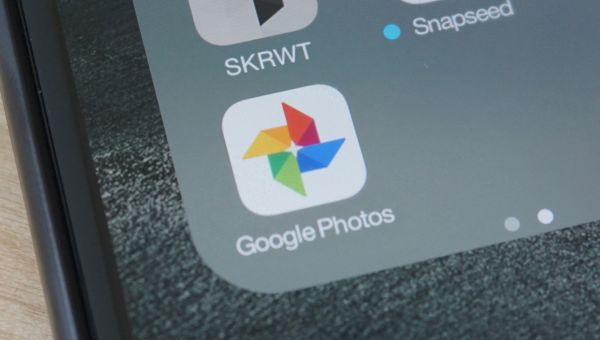
Do you have many photos on iPhone you wish to bring to Android device? It is possible to do using Google Photos or similar apps. Install such app on your iPhone and sign into Google account to back up / sync your videos and images. Then you can simply get into your Google account on Android phone and move all the photographs to your new handset.
Step 4. Music
Are you a music fan and have many songs saved to iTunes library? You might need to download Google Music Manage on your PC or Mac. This program allows uploading tunes right from iTunes. Then you can get them on the new Android phone without any issues.

Step 5. Android Applications
There are many interesting applications you can use on Android. The list is so long we’ll mention only a few of the most important. Use SmoothSync to bring your Cloud calendar to the new gadget. Don’t forget to download Android applications such as Facebook, Instagram, WhatsApp, Skype and everything else you can’t imagine your life without. All these programs can be found on play.google.com/store.
Step 6. When you stop using your iPhone you should disable iMessage app on it and remove iCloud Activation. This way your text messages will be directed to the new Android gadget and won’t get lost because of old redirect.
How to Transfer Contacts from Android to iPhone
Now let’s say you get tired of Android platform and wish to either switch to the upcoming iPhone 7 or wait till iPhone 8 release and bring all your content to this next Apple handset. Is it difficult to switch from Androids to iPhones or not?
Well, this is not difficult to do. Transfer procedures are safe and pretty smooth. You’ll enjoy it since you can do everything on your own.
Step 1. It’s always great to copy your images and files to save on your computer. It’s also nice to backup Android device which can be done very simply. Just connect the phone to your Mac or PC and copy all the necessary files and data to your computer.
Step 2. Launch Contacts program on the Android device and Export your contact list to your SIM card. The .vcf file can be then copied to your PC or Mac as well.
Step 3. Now you can copy all these files to your new iPhone 7 or other model. By the way, here is how to fix iPhone LTE connection problems if you experience any.
Step 4. Install iTunes on your computer and connect the iPhone using USB cable.
Step 5. Wait for the program to detect your smartphone and choose Photos menu to sync your images. Press on Apply once you point to the folder with photos saved from Android phone. If you already have photos on iPhone you should also add them to the same folder you are syncing to otherwise they will be removed.
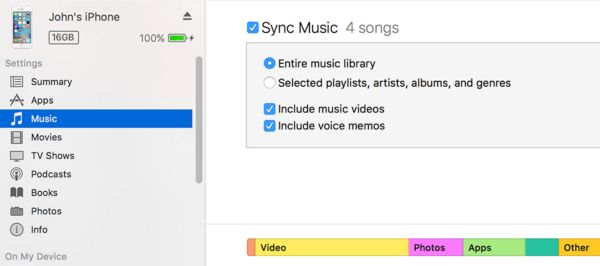
Step 6. Go to Video menu and Music menu and transfer your movies, videos, songs using the same syncing method as described in previous step. This should be pretty simple.
Step 7. Now you can set up email on the iPhone and email yourself the .vcf file with all your Android contacts. One you open this letter and click on the file – all the contacts will be transferred on your new smartphone. If your iPhone is locked to Sprint, Verizon, AT&T you can factory unlock iPhone from any U.S. network and connect to worldwide mobile operators.
It’s not that difficult to switch between different phones as you can see.