Why does my iPhone ring on my iPad? Why all of a sudden the entire room begins to noise with the smartphone, tablet and even computer announcing the phone call? Apple continues to improve the options and wants users be able to answer the calls on any of the ‘fruit’ gadgets. Still this ‘symphony’ doesn’t sound pleasing to all.
Have you noticed that your iPad rings when iPhone does? Apple tablet has a nice big screen that is fun for web surfing and searching however it is easier to answer the calls on your smartphone. Thus it could drive you crazy if the iPad is getting your iPhone cal. Right?
Users who are running iOS 9 experience the problem just like it happened on iOS 8. If you are new to ‘fruit’ devices you need to know the simple trick that will let you solve this ‘issue’ which is not really a big deal.
When My iPad Rings
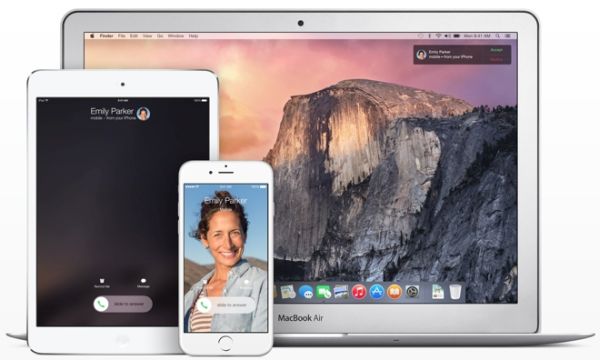
Apple made its tablets ring with the release of iOS 8 back in 2014 and OS X Yosemite. This was a new and unexpected feature that surprised many users. The iOS 9 got the same option [the future iOS 10 is expected to arrive in September or October 2016].
The tool responsible for tablet rings is called Continuity. It allows you making and receiving phone calls not only on the iPhone [as you would normally do] but also on the iPad. It sounds fun but not everyone is happy to experience this option over and over again.
Both iOS 8 and iOS 9 [here is how to remove activation lock on iPhone for both operating systems] make sure your smartphone call is automatically transferred to the iPad. This only happens when the handset is nearby [you hear your tablet ringing and wonder how to stop it].
The option is enabled by default when you install iOS 8 or newer firmware. It turns on only if you are using the same Apple ID and phone number on both devices. By the way, you can actually answer the call right on the tablet as it will turn into your speakerphone.
How Do I Stop My iPad from Ringing When My iPhone Rings
You’ll laugh at how simple everything is. The guides for different operating system versions are a bit different. So here is what you should do.
iOS 8 Instruction
Here is how to stop getting calls on iPad with older iOS 8 platform:
Step 1. Take your iOS 8 iPhone and select Settings.
Step 2. Make sure both iPhone and iPad are using the same iOS 8 firmware and connected to the same WiFi network.
Step 3. Go to FaceTime menu.

Step 4. Do you see iPhone Cellular Calls?
Step 5. Disable those calls. Repeat the same guide on your iPad.
iOS 9 Instruction
Guide on how to stop my iPad from receiving calls for the newer iOS 9 which is actually the most recet version of Apple mobile software. The next iOS 10 designs for new iPhone 7 and 7 Plus hasn’t been officially released yet. Developers and public beta testers are currently testing it and learning all the new features that would be available to public in the fall.
Step 1. Take your iPhone running iOS 9.
Step 2. Both iPad and iPhone have to run the same firmware and connected to WiFi network.
Step 3. Select Settings menu.
Step 4. Choose Phone.
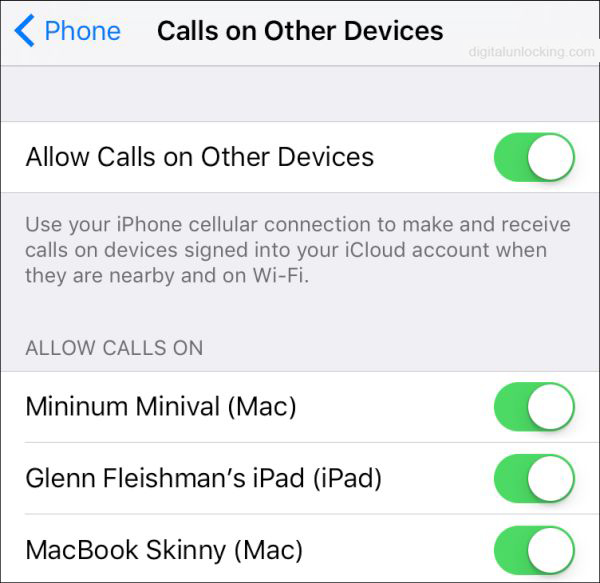
Step 5. Turn off Allow Calls on Other Devices and you should be ok. Repeat the same steps on your iPad.
Some users wonder ‘why does my iPad ring like a phone’ even though the feature ‘Calls from iPhones’ is turned off? It’s curious that your iPad will truly continue to ring when you get incoming phone call with this feature disabled [use best iPhone network checker if you need]. In such situations all you can do is shut down the whole iOS 8 or iOS 9 option for good which is possible via the instructions above.
For Macs, you should launch FaceTime application on the computer and choose Preferences fro the top left menu. There will be iPhone Cellular Calls option with check box. Uncheck and you’ll disable the ringing option on your Mac.
It’s nice that the fix to the issue is so simple and quick. There is no need to hate it when everything rings at the same moment. If you ever decide to give it a try you can enable Continuity option on all your devices and make sure you don’t miss another call.