The newest iOS 10 specs make some users curious especially if they didn’t have a chance to update yet. Apple released this firmware version and even updated it a couple of times in September. Who can win from installing this operating system? Let’s pay closer attention to iPhone health app that is improved in iOS 10 and brings some great features to love.
We won’t focus on what’s new in iOS 10 because this is the topic for a different post. We want to talk about iOS 10 health application and the changes it has introduced to ordinary users with iPhone 7 or older smartphone models. We should note that some iPhone 5 users report some issues after installing the latest firmware because it slows down their gadget. iPhone 7 and 7 Plus owners have other problems but most of them can be fixed with ease.
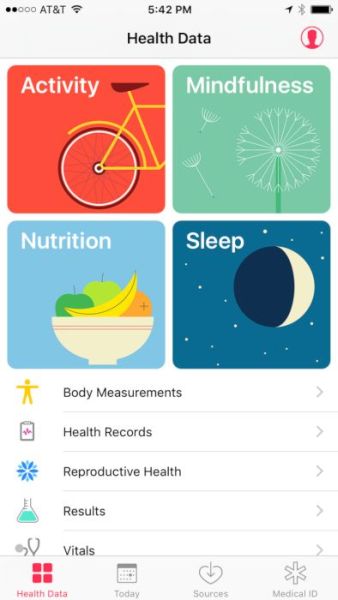
iOS 10 Tips and Tricks for iPhone Health App
The following secrets are for users who wish to master iOS 10 like a pro. The updated program can help you stay fit and healthy. It can track your activities and share accurate details on your heart rate, blood pressure etc. You just need to learn how to use the tool in you everyday life.
Apple made its popular iOS 10 health application a real must-have. It has advanced features and new sections added compared to the previous iOS 9 version. This app is a stock one. You get it by default and it is free to use. So why not taking this advantage and reach your health goals using the smartphone and no-cost program?
The enhanced Health app offers new Today menu, better Health Data section and other improvements you will really enjoy. Here is how you can use this program and get the most out of it:
Step 1. Let’s explore what’s new in iOS 10 Healthy program by launching it on your long-rumored iPhone 7 or older model.
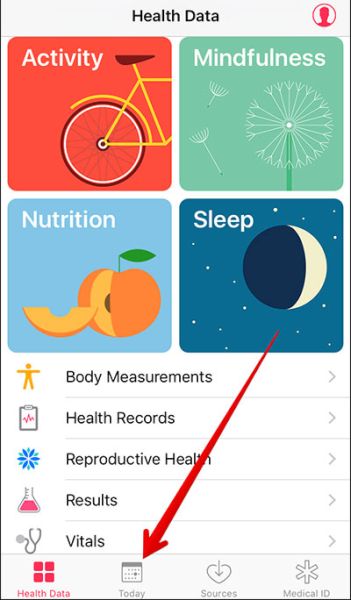
Step 2. Choose Today section and find your day’s health data by scrolling down or up. You can also find data of yesterday and other days by swiping to the right. Another way is to click on the particular date you’ll see at the display’s top.
Step 3. You can choose Subject to get details about your health or get data for time periods such as week, month, year.
The Health iOS 10 specs also allow you turn on Health data for any third-party or Apple app that supports such a function. By the way always remember to backup your iPhone before you do anything. Here is what you need to do:
Step 1. Launch Health on your iDevice.
Step 2. Go to Select a category and choose your subject [what information you wish to receive].
Step 3. You need to choose Data Sources & Access section to continue.
Step 4. You will find ‘Edit’ option located at the upper right corner of the screen. Click on it and you’ll be able to proceed.
Step 5. You will see the list of applications which can show your health data if you choose so. Just check mark the field right next to the app name and you will enable your Health Data option for this particular app. Select as many applications as you need.
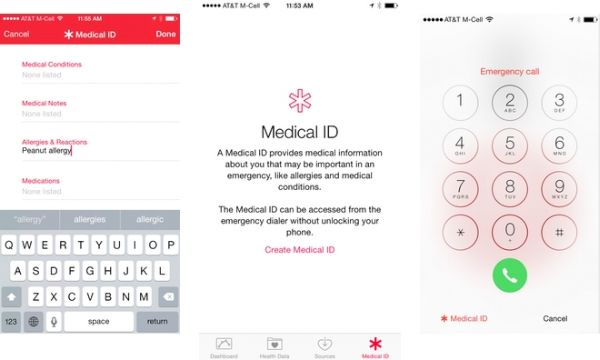
The cool iOS 10 features [you can upgrade to new iPhone 7 online] make it possible to access Medical ID when you need it pretty fast. This is a nice addition but you should learn how to enable this option:
Step 1. For cases of emergency it’s always nice when you can access Medical ID with a click. Open Health application to start.
Step 2. Select Medical ID section which you will find at the lower right part of the screen.
Step 3. Click on the Edit option you’ll see at the upper right part.
Step 4. Enable the option called Show When Locked. You just need to switch on this feature.
Step 5. Now you can lock your device and test how the quick access to your Medical ID works.
Step 6. Just press or touch your Home button and you will see your passcode window.
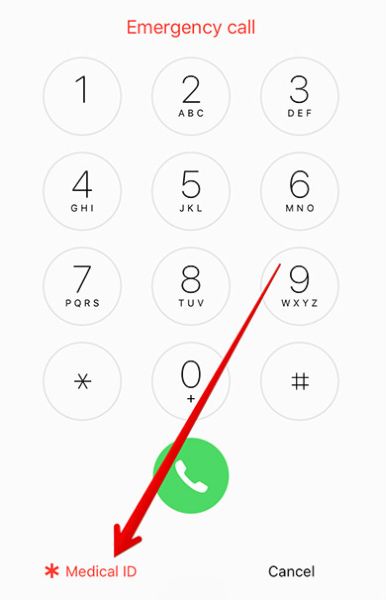
Step 7. Select Emergency section at the lower left part of the screen and press on Medical ID you’ll see at the top.
Step 8. Your Medical ID will be shown.
Step 9. Remember to press on Done to close this information.
There are a lot of applications that support Health Data on iOS 10. You can see all of them by going to Health app – category – Recommended Apps where you will find different programs you can download for free or buy. You can install this operating system to get all its features on iPhone 6s and SE lineup. Find out whether your iPhone 6s or iPhone SE is locked or unlocked if you got it from T-Mobile carrier.
We hope our short guide to the improvements brought to Health data on the newest firmware for iPhone users is something you can find useful.