How to Solve Haptic Feedback iPhone 7 Not Working Problem

Is haptic feedback not working on your iPhone 7 or iPhone 7 Plus model? This could be a rather unpleasant issue for those who took their chance to upgrade their Apple phone this year. The company released the new generation iPhone 7 with improved battery, camera, bigger storage capacity [same iPhone 6 and 6s design though] and other interesting specs that make users willing to purchase it. Still experiencing iPhone 7 problems is not great.

Are you ready to fix iPhone 7 issues with the haptic touch [learn how you can reduce your iPhone data usage with any carrier]? It’s not that difficult to do if you follow the guide below. We’ll make sure to explain all the details and make the walkthrough as ease as possible.
iPhone 7 Haptic Feedback Not Working

Haptic Meaning

What does Haptic Feedback mean for iPhone users? Actually the word ‘haptic’ means the sense of touch. It is relating to devices and various objects that have the sense of touch and it can be explained as ‘manipulation’ or ‘perception’ of such gadgets. Modern technology helps creating various haptic feedback devices that offer amazing virtual world to users but at the same time brings the real source of force illusion and impression of substance within.

A lot of Apple fans are happy with their magical iPhone haptic touch feature. Other companies also produce similar smartphones and thus haptic feedback gadgets are not surprising any more. By the way, if your older iPhone 6 restarts unexpectedly you might want to upgrade it to the 7th model.
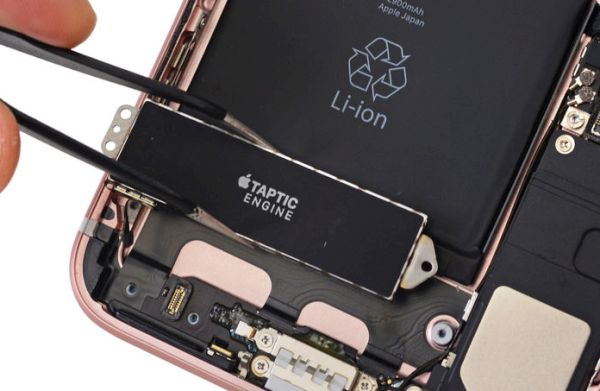
How to Fix Haptic Feedback iPhone 7 Problem

If Haptic Feedback Not Working

Sometimes even the new handset models can have unexpected issues. Haptic feedback iPhone 7 bug could be one of the problems you need to deal with. If it stops working you will not feel any vibratory feedback while using your device. Luckily you might be able to bring it back to live to enjoy the cool iPhone 7 features at fullest.

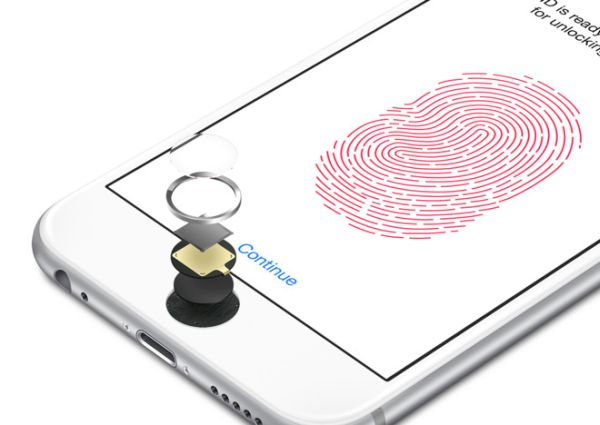
Both new ‘7’ handsets boast System Haptics option [here is how you can set up your iPhone 7]. When this feature is turned on you feel the vibratory feedback every time you toggle switches on and off for various applications, both stock and third-party programs. It works within Settings, browser and other tools.

How to Fix Haptic Feedback:

Step 1. Let’s go to Settings on you phone.

Step 2. Choose Sounds & Haptics menu.
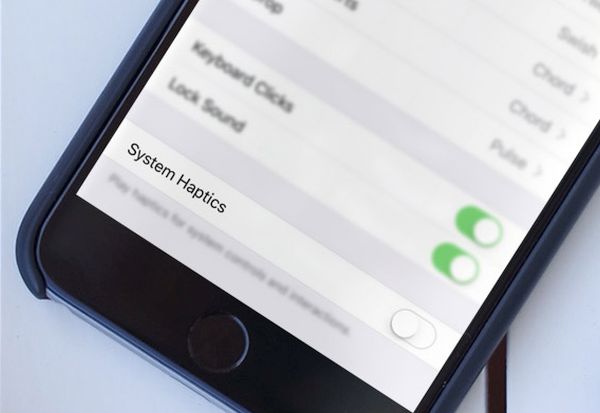
iOS 10 Settings System Haptics

Step 3. Find the System Haptics section and disable it.

Step 4. Now you should reboot iPhone 7 by pressing on sleep / wake button along with volume down button, count till 10 and you will see the ‘fruit’ logo on the display. This is how the latest gen device reboots.

Step 5. Now with the phone back on you should toggle on the System Haptics.

Step 6. Is the feature working again?
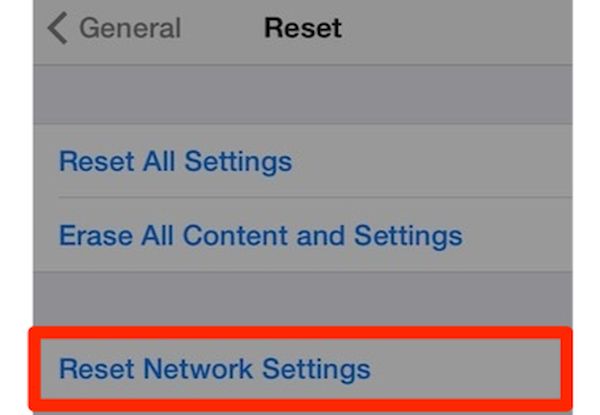
How to Reset Network Settings iOS 10

If haptic feedback problems are not gone yet you can try a different method. Maybe it will be a better solution for you. Here is what you can try:

Step 1. Go to Settings and choose General menu.

Step 2. Click on Reset. You’ll have to reset iPhone to factory settings which will not remove your personal data or various files.

Step 3. Press on Reset All Settings. If you are asked to enter your passcode, do so and confirm your decision.
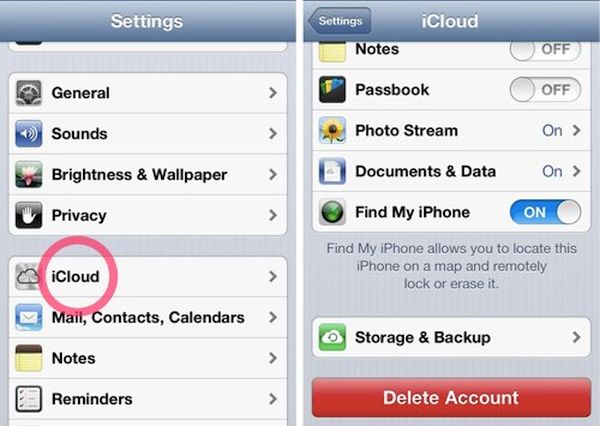
iOS 10 Settings iCloud Find My iPhone

Has haptic feedback stopped working and doesn’t come alive after both methods? Ok, there is another solution. Here is how to fix iPhone 7 issues [just remember to backup your iDevice before you continue]:

Step 1. Launch Settings once again.

Step 2. Go to iCloud section.

Step 3. Choose Find My iPhone and disable this feature.

Step 4. Now connect the handset to your computer.

Step 5. Open iTunes desktop program and choose the iPhone.

Step 6. You’ll need to Restore iPhone as new.

Hopefully your haptic feedback iPhone 7 feature is working again. If not, you can also try to update to the most recent iOS 10.x release. Sometimes older firmware versions [all new iPhone 7 and 7 Plus versions arrive with the original iOS 10 that has been updated by Apple since handset release] get prolems, bugs and issues that are fixed with newer upgrades.

There are a lot of interesting iOS 10 tips and tricks that can make your iPhone experience better. There are also many options to explore as this version of operating system has been significantly enhanced if compared to last year’s iOS 9. You can easily SIM unlock iPhone 7 from your carrier or third-party companies.

The iPhone 7 lineup isn’t a major upgrade as its design is so similar to iPhone 6 and iPhone 6s. Still users are happy to get dual-camera lens, 256GB of storage, better battery and other improvements.
Save on iPhone 7 Mobile Bill by Reducing Data Usage

You probably know how to reduce data usage on iPhone 6 so it’s now time to learn the details about the iPhone 7 and 7 Plus. The latest generation smartphones were presented by Apple in September. A lot of customers decided to update to this handset even though it doesn’t look like major upgrade. Of course, the device has its advantages such as impressive 256GB storage option, improvements within the system and hardware, better battery and camera. Still many users hoped to see a contemporary and innovative phone that stands out in the market and sounds much better than similar products.

Still if you got the update you need to learn more about iPhone data usage per app and what is cellular data in common [learn how to set up iPhone 7].This will help you to turn off mobile data in order to save on your bill. Let’s learn more about iPhone data usage check and other things you should know in order to spend less money on cellular connection month after month.

iPhone 7 Data Usage How to Reduce

What Uses Data on iPhone

This is a simple question to ask so you shouldn’t be surprised to learn that your applications use data as well as email, social networks and internet surfing. Your cellular / mobile data could be eaten too much on iOS 10 firmware version. Luckily you can turn off mobile data and lower down your monthly bills.

Sometimes you are ok with your monthly data consumption. However when your bill suddenly exceeds your expectations you should recollect your data usage iPhone 6 experience and do something similar with the 2016 iPhone model.

It’s important to deal with unusual data consumption on-the-go otherwise you can lose your money. What are the most ‘hungry’ options on the phone? What uses data on Verizon, AT&T, Sprint, T-Mobile and other carriers? Here is the list:

  • background application refresh loves to eat data
  • location services are always ‘hungry’ for more data
  • social networks also play a big role and consume much data

The following iOS 10 tips and tricks can do you a favor and help you deal with data usage on iPhone 7 or bigger iPhone 7 Plus.

iPhone 7 Cellular Data Usage

Select Apps That Consume Data

What is cellular data? This is the data provided by your network. It can be consumping and it costs way more than simple WiFi. In order to reduce data usage on iPhone 7 you should choose what apps use and what applications don’t use your mobile data. Thus you are advised to disable it when you don’t need it:

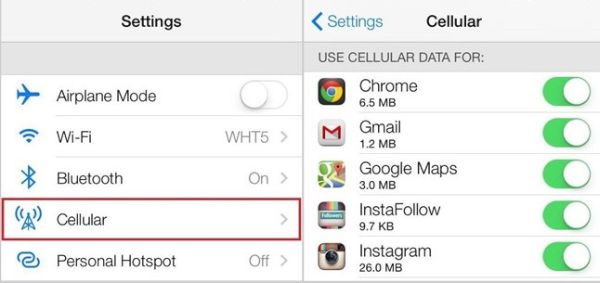
Step 1. Your iPhone data usage per app can very depending on the program. Make sure you select the apps that can use your cellular data and disable it by going to Settings menu.

Step 2. Choose Cellular or Mobile option.

Step 3. You will see toggles next to different applications that are using your data.

Toggle off the ones you currently don’t need to use.

Remember to turn your data back on when you need to use it.

Awesome Reduce Data Usage iPhone Guide

You can improve your iPhone data usage check results one you turn off Location Services:

Step 1. Go to Settings.

Step 2. Choose Privacy option and go to Location Services section.

Step 3. Disable Location Services by toggling off this feature.

Reduce Data Background App Refresh iOS 10

Just as it goes in how to turn off data on iPhone 6 instruction you need to disable background refresh for apps on iPhone 7:

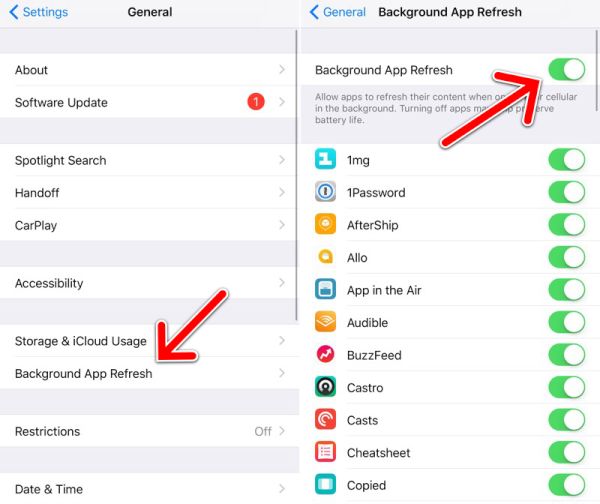
Step 1. Launch Settings and go to General menu.

Step 2. Go to Background App Refresh and disable it by toggling it off.

How to Turn Off Data on iPhone 7 for Auto-Downloads:

Step 1. This is simple. Settings is where you should go to.

Step 2. Choose iTunes & App Store section.

Step 3. Disable Use Cellular Data feature.

Step 4. Turn off your mobile data for iCloud.

Wi-Fi Tricks

There are some things you can do with WiFi settings so that your cellular data usage current period looks more attractive and less expensive:

Step 1. Go to Settings – iCloud and choose iCloud Drive where you need to disable the Use Cellular Data option.

Step 2. Now in Settings you should select Cellular and disable WiFi Assist so that your handset stops using your mobile data when your WiFi connection isn’t good.

iOS 10 Social Networks Reduce Data Usage

Mail & Social Network Tips

Step 1. Choose Settings and go to Mail where you can disable the option called Load Remote Images.

Step 2. For Facebook you should launch this app and go to More in order to get to your Settings – Account Settings. Click on Videos and Photos – Video Settings and choose Auto-play section where you can enable either Never Auto-plays Videos or On Wi-Fi Connections Only.

Step 3. Launch Instagram and select Profile – Gear where you can choose Mobile Data Usage and enable Use Less Data feature.

Step 4. For Twitter you need to choose Profile and click on Gear icon where you will get to Settings – Data and can either enable Use WiFi only or turn on Never play videos automatically.

You can now reduce your mobile data and save money on your monthly 256GB iPhone 7 bills.

Does Apple Unlock iPhone 7 and 7 Plus Models? How to Become Factory Unlocked

When we speak about how to unlock iPhone 7 / 7 Plus you could think about two different procedures. You can unlock iPhone AT&T, Verizon, T-Mobile, Sprint to support other networks or unlock the handset locked screen which doesn’t allow you inserting unsupported SIM cards and getting the signal.

Does Apple unlock iPhone 7? Can you unlock iPhone AT&T without Apple’s help? Is it legit to do? These are main questions users ask when they search for unlocked iPhones for sale and find no unlocked iPhone 7 or 7 Plus at an affordable cost. We’ll explain what you should do and how two unlockings are different from each other.

iPhone 7 Unloked Model

How to Unlock iPhone 7 Without Passcode

You know that there are methods for bypassing the passcode lock screen and the most popular solution might work with the iPhone 7 and 7 Plus. At least, it is reported to support iPhone 6s and 6 as well as iPhone 5s and 5. Since the newest iPhone 7 lineup reminds of the iPhone 6s generation smartphones it could be possible to use the same guide for reaching your goal.

Here is how to unlock iPhone 7 passcode by simply bypassing it if the iPhone 6s method works on the latest handset mode:

Step 1. Click twice on the Home button which is integrated into the smartphone. This way you can get to slide preview [you might prefer pressing on Update and launch the last app instead].

Step 2. You should swipe over to the front screen.

Step 3. Now you should successfully bypass the passcode lock screen.

Still remember that this bypass will not SIM unlock the smartphone.

How to Unlock iPhone ATT TMobile

How to Unlock iPhone 7 Plus and 7 from T-Mobile, AT&T, Other Networks

In most cases the unlock iPhone 7 plus price is similar to the cost of iPhone 7 unlocking. Becoming SIM free is the main reason why a lot of users choose to become unlocked. This service has nothing to do with the bypassing lock screen so there is huge difference between the two processes.

Unlocked smartphones always cost more than the locked models. Still there are tons of amazing deals and discounts offered by carriers who sell models locked to their networks only. It often becomes cheaper to buy SIM lock handset and order factory unlock directly from the carrier or third-party company.

When you are planning to follow how to unlock iPhone 7 TMobile or other U.S. network guide you should decide what firm to select.

Slide to Unlock iPhone 7

*Advantages of Direct Carrier Unlocking

You have nothing to worry about when your unlocked GSM iphone has become SIM free thanks to the network’s efforts. There are many things you have to know about and a list of requirements is pretty long.

For example, you have to use that network and have an active account in good standing. Your iPhohe should be whitelisted. The service could cost you something and there are chances your request to unlock would be rejected.

*Pluses of Factory Unlocked Cell Phones

So does Apple unlock iPhones or not? No, the company itself offers no such services. It does sell already unlocked devices at the full price however you should search for third-party firm that will provide the service distantly.

The value of a handset that can connect to multiple networks with ease is higher. There are many customers who are looking for used unlocked iPhones for sale. You will be able to resell your gadget at a higher price and upgrade to the next iPhone 8, for example, as this handset should be a big improvement.

iPhone 7 How to Unlock Guide

GSM Unlocked iPhone 7 Instruction for Locked Model

Step 1. Find a company that is eager to unlock iPhone AT&T for you and read the requirements. Some firms are not working with blacklisted and blocked devices, others do.
Step 2. Provide your IMEI code if you are sure you are eligible for the service. It is best to first use IMEI network checker and all other possible checking service to get all the details about your carrier and phone.

Step 3. Request the service, pay for it and wait.

Step 4. The company will let you know as soon as your IMEI number is added to the official Apple unlocked whitelisted iPhones.

Step 5. You just need to activate your unlocked iPhone 7 status using iTunes.This is simple. Just insert a non-supported SIM and connect to this desktop program.

iPhone 7 AT&T How to SIM Unlock

How to SIM Unlock iPhone 7 from AT&T

If you purchased your handset at the full price you can try a different GSM unlocked phones guide.

Step 1. Firstly set up your brand new iPhone 7 account using iTunes.

Step 2. You will see the set up display so enter your zip code and SSN number [the last 4 digits].

Step 3. You’ll have to agree to terms of services for Apple and AT&T network.

Step 4. When you see the message about AT&T iPhone activation you should press on Continue.

Step 5. Now you should see the new message that congratulates you with ‘iPhone being successfully unlocked.’

Step 6. Now you can use any GSM SIM card to connect to different GSM carriers and not be locked to AT&T only.

Only remember to turn off the handset before you switch the SIM cards. Enjoy!

Is Real Price on Waterproof iPhone 7 Only $220?

When you get acquainted with iPhone 7 specifications [learn how to set up new iPhone] you might also wonder how waterproof this model is and what its original cost is. You’ll be surprised to learn the iPhone 7 transparent price since experts are sure you pay three times more than it actually costs Apple to build this handset model.

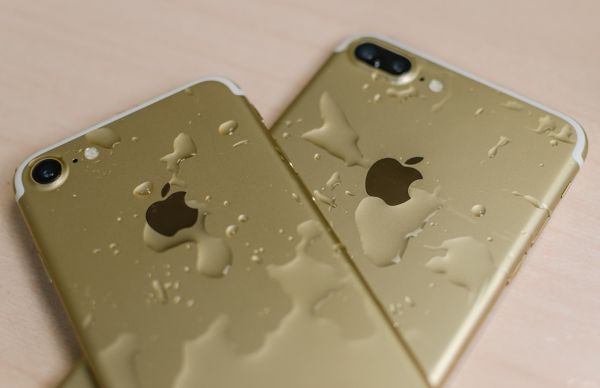
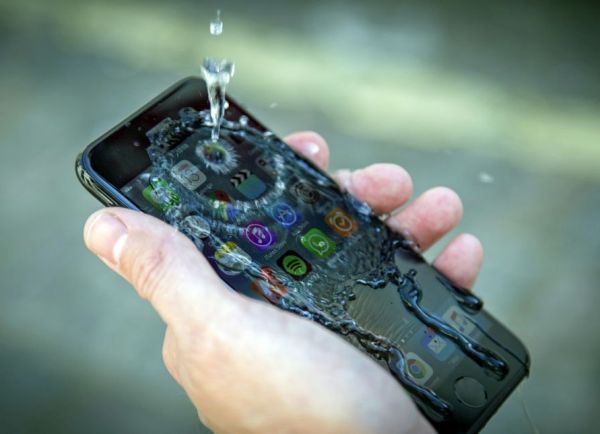
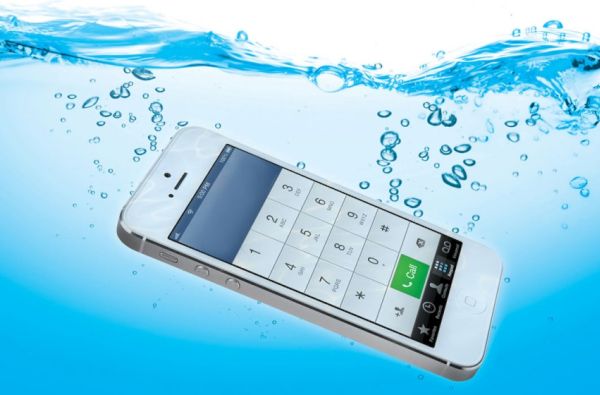
So how waterproof is the iPhone 7? Apple claims that you can be safe with up to 1 meter of submersion. You are surely not advised to test various crazy things like placing your iPhone 7 into coffee cup, salt water, deeper than 1 meter etc. The results could make you happy or completely disappoint [here are some best AT&T data plans for your phone]. Some testers prefer to do what they want and thus we can learn what can happen to your device if it ends up in water or even orange juice.

How Waterproof iPhone 7 Is Test

Waterproof iPhone 7 Tests and Results

Some customers are getting a new phone to use it through the year until the next upgrade is released. Others are buying the gadget to only destroy it. You can already watch tons of videos how iPhone 7 is being drown, smashed, broken. Such tests are performed to surprise public and are not advised to be repeated at home.

While we hear only about 1 meter of water iPhone 7 can withstand, people go further and submerge it much deeper. It’s curious that many tests show a phone surviving through hot coffee, orange juice, deep water and not falling apart or stopping to work. Sometimes you can also see how the tester disassembles the phone to show that no inner parts were destroyed by the water because no liquid got inside.

Waterproof iPhone Model 2016

It’s worth to note that your phone stops functioning while being under the water. Still it should work great again after being dried off. Some customers might think of starting to take pics or creating videos while being underwater [since the gadget’s display stop working in such conditions it could be possible to start the process above the surface] and it could be an interesting experiment. Still the Cupertino-based company doesn’t recommend you taking such actions.

And such waterproof and water resistant model is sold at least at $649 at retail stores. Is this the real price of the device? How much do iPhone 7 cost Apple to create it? Experts know the answer.

iPhone 7 Transparent Price

All the pries are only estimates. Apple doesn’t offer component breakdown to customers and it’s clearly understood. It’s iPhone 7 specifications promise a more powerful and interesting device [if you are not sure about your contract status you can use great AT&T iPhone out-of-contract checker] than current iPhone SE, iPhone 6s or iPhone 6 Plus. There are two versions to choose from: iPhone 7 and iPhone 7 Plus and both models can be a perfect Christmas gift idea in 2016.

iPhone 7 Components Cost Transparent Price

How much iPhone 7 cost estimates

The report you can find online [reported by IHS] states that iPhone 7 component cost is around $220. This is more than it was for previous models. You get a new device and Apple makes its profit. The company gets enough to develop software, continue market researches and earn money.

The estimated real cost of 4.7-inch iPhone 7 materials is based on the 32GB model. This is the basic version of a new 2016 iDevice. Its retail price starts at $649 if you are willing to pay the full price and are not looking for carrier deals and contract plans. Apple pays for materials only $220.80. You can see what the difference is and what profit the company can get in the end.

Everybody knows that big companies always have plenty of room to make money. This doesn’t come as a surprise. The best news is that the basic iPhone 6s components cost was $36 less so this year you are getting more for your money including improved camera, taptic engine technology, more storage etc.

Of course, the basic cost of iPhone 7 Plus is higher but the company didn’t provide this analysis yet. We should also say that the basic iPhone 7 cost is most likely higher than $220.80 because Apple pays taxes, salaries, is responsible for packaging, shipping, and marketing. Remember to use affordable iPhone IMEI network check service if you are planning to factory unlock your device this year.

iPhone 7 iPhone 7 Plus Models Specs

The announced figure includes the cost for different phone parts. For example, the A10 processor is believed to cost $26, phone cameras are around $20, 1960 mAH battery is around $2.50, 4.7-inch screen is $39. Keep in mind that these estimates are provided by a research company and not Apple.

Experts think that the ‘fruit’ giant can make about $250 of profit per sold iPhone 7 unit. We’ll learn how popular or not popular this new model is in 2017 when Apple reports its quarter sales results.

The iPhone 7 and iPhone 7 Plus release doesn’t offer major design or technological changes. Still a lot of customers might consider getting this phone for Christmas 2016 because of its amazing storage capabilities [this is the first iPhone that arrives with 256GB storage option] and other cute specs users could enjoy this year.

iCloud Users Can Enjoy Great Photo Sharing Option on Mac

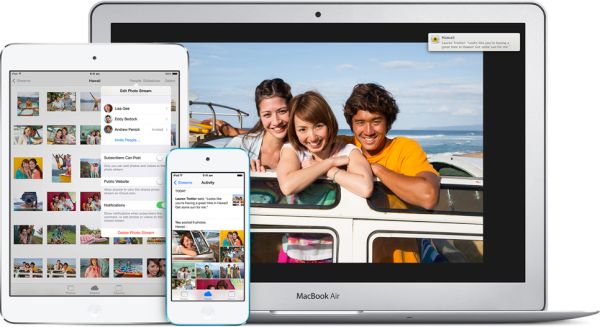
Apple continues to improve its software and replace the tools users are so used to. This time the company switches iPhoto with Photo program on Mac computers and this also brings great additional features. Let’s talk about iCloud Photo sharing option and other great thinks you can discover and enjoy.

We’ll explain how to subscribe to iCloud Photo sharing on iPhone, Mac and other devices [learn how to set up new iPhone 7 from AT&T or other network]. We’ll also mention what this new option means and how you can use iCloud Photo library. Is it easier or more difficult to share your images with family and friends? Is it fun to use the new program and is there any limit you have to know about? Now, as the questions are asked we need to answer them.

iCloud Photo Sharing Guide Mac iPhone How to

Sharing Photos on Mac: How to Guide

Step 1. Some users find photo sharing on iCloud confusing and are sure that things got even crazier with the introduction of Photos program for Macs. What do you think about it?

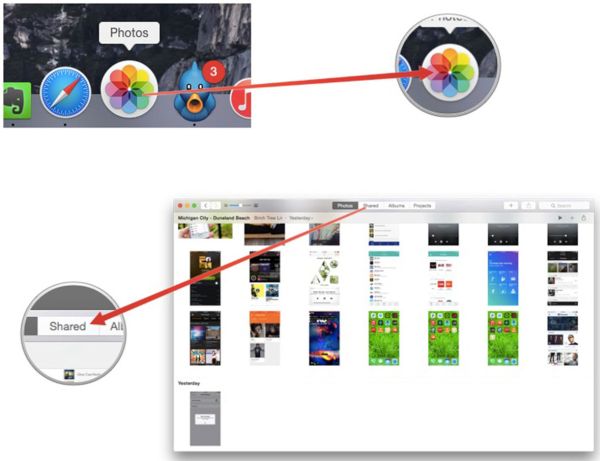
Step 2. Launch Photos.

Step 3. Press on ‘Shared’ option.

Step 4. You will see the blank field called iCloud Photo Sharing.

Step 5. The only think you can find in this new window is ‘Start Sharing’ button. So click on it.

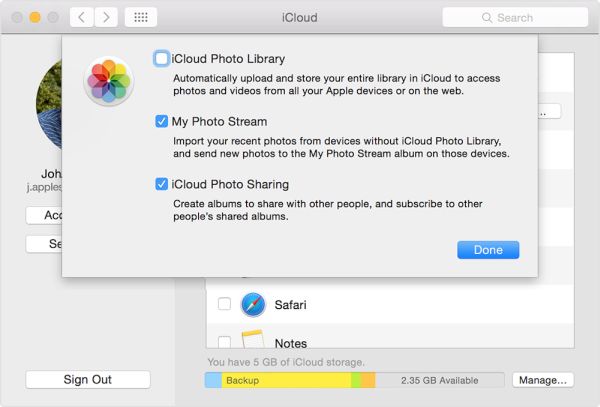
Step 6. Now you will see Preferences option for your Photos along with 3 options: My Photo Stream, iCloud Photo Library and iCloud Photo Sharing. Just in case you are planning to buy AT&T iPhone 7 – learn more about the best AT&T data plans in 2016.

iCloud Photo Sharing Options

My Photo Steam Sharing Feature

Step 7. When you use My Photo Stream option you will see the Albums menu that shows your albums within Photos application. All your images captured with iDevice or Mac and saved to iCloud account also appear in this folder. It happens automatically if you link your Apple gadgets to iCloud. You can save as many images this way as you like. At the same time My Photo Stream doesn’t allow you sharing photos with any device. It only works with gadgets that are linked to your personal iCloud account.

Mac Photo Sharing Feature iCloud Instruction

iCloud Photo Library Usage

Step 9. What does iCloud Photo Sharing mean? This is just a private option that makes it possible to not just easily upload your images to social networks but also create a ‘shared album’ with a link that you can send to particular people or group of your friends via email. No one else will see such shared images. If you store your photos online you have no limits on how many to store.

Step 8. Press on Start Sharing option.

Step 9. Create a new shared album.

Step 10. You will see all your images as Moments so select which ones to include in your album to share. It is possible to select the whole Moment by hovering the mouse over the specific date. This particular option makes it possible to share videos recorded by you as well.

Step 11. This shared album will be visible to all your friends with iCloud accounts. It will be present on their Photos program on both iDevices and computers.

Step 12. When you wish other friends who don’t use iCloud to also see your captured images you should choose the ‘people-head’ icon that brings ‘Public Website’ quick creation and a link that will let your friends view web gallery online once you send the link to them.

Step 13. Use ‘Subscribers Can Post’ option to let your family members / friends upload their files to your shared album.

iCloud Photo Sharing on Mac iOS 10

How to Subscribe to iCloud Photo Sharing

This service is available to all users who are running the most recent iOS version and have their iCloud account set up on the iPhone [you can still SIM unlock your iPhone 6s and new iPhone 7] or other Apple devices. Remember to sign in to your account using the same Apple ID you have on all other iOS gadgets to enjoy iCloud Photo Sharing feature. It is also required to enable this option by going to Settings on the iPhone and choosing iCloud – Photos.

Remember that you are provided with 5GB of free iCloud storage and you can only share images within this limit or pay for extra storage.

Easy Set Up for New iPhone AT&T For Users With and Without SIM

Let’s ago ahead of the official iPhone 7 release and recollect how to set up new iPhone. This is a perfect method for all phone models. You might need to know how to set up new iPhone 6s or even older iPhone 5s since it is possible to complete this action both for the gadget purchased directly from Apple and used smartphones.

The simple iPhone 7 setup is what you’ll have to do when you purchase this next generation device. It might happen this fall if you consider upgrading or getting this model in 2016 [have you heard of useful iPhone 6s tricks and secret codes?]. It might be an interesting Christmas gift or just a gift for you or your family members. There are different options to select and this what could confuse new users. Should you set up new iPhone or restore from backup? Is it better to use iCloud or iTunes? Which options to select when it comes to Location Services or iCloud Key Chain? Let’s start from the very beginning and explain what you need to do.

Set Up New iPhone 7 ATT Guide

How to Transfer Everything to New iPhone

A lot of users already own an iPhone, the models vary. So it might be important for you to know how to transfer info from one iPhone to another, newer one. This is something to be performed before you choose to set up your AT&T iPhone 7 [here are some of the top ATT data plans for your handset] or any other carrier smartphone.

Step 1. If you wish to use all your programs, settings and personal data on a new phone you should back up your old device. It is possible to do this via iTunes or iCloud.

Here is how to backup iPhone through iTunes:

You need to install the most recent version of this desktop program. Connect your handset using a USB cable and choose to Sync it. This way the app will automatically back up your gadget.

iCloud iPhone backup procedure is also simple:

Newest operating systems support every-day-icloud-backup so double check if you are ok to go. Select Settings on your iPhone once you have a WiFi connection and go to iCloud – Backup. If you don’t have a recent backup saved under Back Up Now option you can click on Backup menu and create a copy of your iPhone.

Set Up iPhone New Phone from iCloud from iTunes Guide

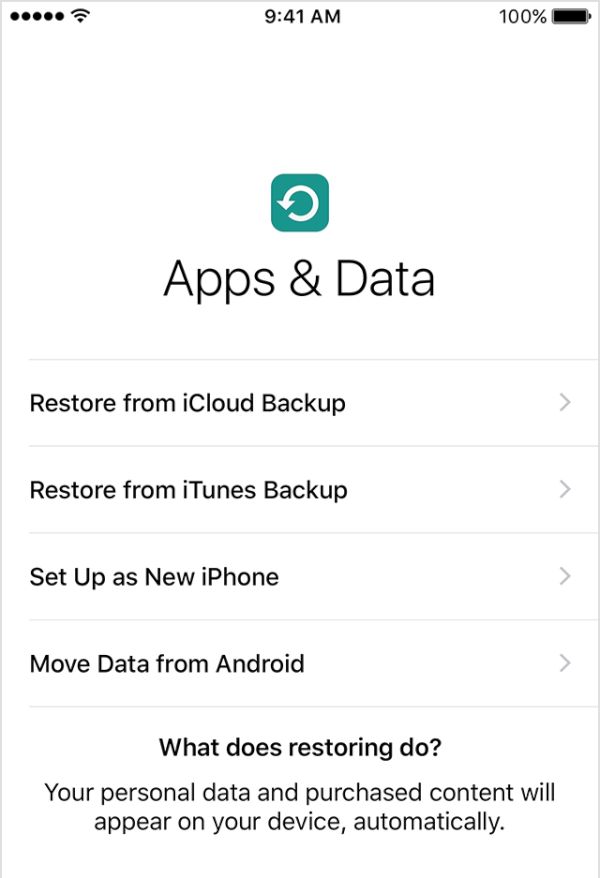
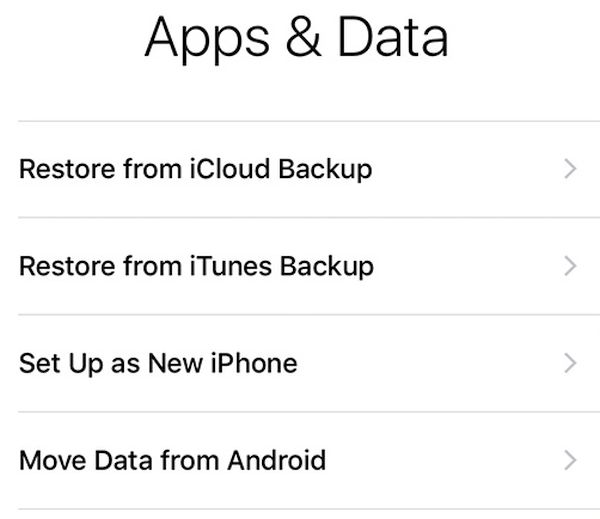
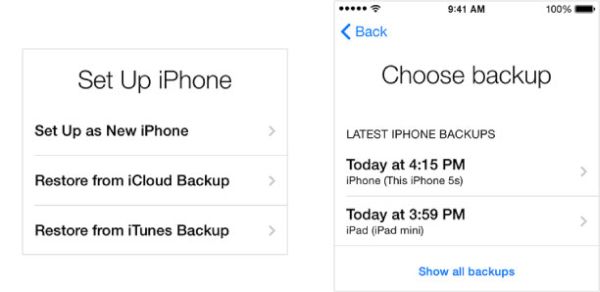
Step 2. You can now set up new iPhone AT&T or any other network. Turn on your smartphone and press on Slide to Set Up. You will see on-screen guide created by Apple that helps you to choose your settings. Go through it until you see the three options to select from, including Restore from iCloud and iTunes Backup. This is what you need right now.

Step 3. You can restore new phone using your iTunes or iCloud backup to get back all the information you saved from your previous device.

iPhone 7 How to Set Up iTunes iCloud New Phone Apple Instruction

How to Set up iPhone 7 Brand New without Need to Restore

This method works for iPhone 6s or any other model you purchase from the store. If you have a new handset you shouldn’t experience any issues with iPhone 6s, SE, iPhone 6 setup.

Step 1. Click and hold the On / Off button on your handset to turn it on.

iPhone Slide to Set Up Guide

Step 2. You should swipe on the ‘Slide to Set Up’ to proceed.

Step 3. Select language, country. It is nice if you can get WiFi connection. Choose to turn on Location Services or ignore this option for now. It is used by some applications to track your location so choose Next if you don’t want to use it.

Step 4. Choose Set Up as New iPhone since you don’t have anything to back up.

Step 5. You can transfer your contacts from Gmail or other mail account to your iPhone 7 by just logging into it from the phone. The syncing will be automatic for Hotmail, Gmail, Yahoo and some other services. You might need to also fix activation problems with your phone.

Add Songs Music to New iPhone How to

Step 6. You can also bring your music and videos from computer to the phone by installing iTunes program on your PC or Mac. This program is used to sync some of your files to the smartphone. Just connect the device to your computer, launch iTunes and select movies or songs you wish to sync.

Step 7. Apple doesn’t let its users to bring non-iOS applications to the iPhone. You can download free and paid games and apps on the official App Store.

Step 8. Unfortunately it is not possible to transfer the text messages from a very old phone to your iPhone. Android has some programs that can make this happen but Apple doesn’t. Still you can copy contants to the old nano-SIM if this is what your previous device as using (if you had one) and insert it into the iPhone, open Settings and go to Mail, Contacts, Calendars to Import SIM Contacts. For different SIMs you will need third-party desktop programs to try and transfer contacts. Learn how to solve No Service message on your device.

If you need to go through iPhone setup without SIM and wish to move from Android you need to download special Move to iOS application that can be found on Google Play store.

Once you have set up your new iPhone 7 or other model you can enjoy using it and learn everything about iOS 10, the new 2016 Apple firmware upgrade planned for the fall.

iPhone 6s Mobile Secret Codes and Code Tricks

There are different hidden iPhone 6s features that actually work on other models and mobile devices as well. We are talking about secret iPhone codes. Maybe these are not exactly the secrets left by programmers but it could be useful to know some combinations just in case.

It’s true that coders traditionally leave some mysterious passageways for users that are revealed when you enter a particular ‘key’ and it seems that similar thing happens in our mobile era. Using the codes we’ll describe below will unlock your handset’s hidden options. Aren’t you excited?

We can call codes to unlock iPhone 6s, 6, SE, 5s and other brand gadgets ‘quick codes’ and ‘feature codes’ as such USSD allow customers learn more about their device. USSD stands for Unstructured Supplementary Service Data and this additional UI protocol is your passway to CDMA and GSM smartphones including Apple, Samsung, LG and other well-known firms.

iPhone 6s Secret Codes Tips Tricks How To

Top Reasons to Unlock iPhone 6s Secrets

Why would you like to access backchannels that are available to public? Firstly, you can quickly access some important features and save your time. Secondly, this is just a direct way to communicate with your mobile operator. Thirdly, this is just something fun to learn and show your friends. Usually these tricks are something you can live without.

We’ll share both Apple and Samsung secret codes and tricks that can also work on other phone brands [here are useful repair guides for users who dropped iPhone 6s in the toilet]. Some of the combinations are exclusive to a particular gadget so we’ll mention this situation if this is the case. All other keys and numbers can be used on various devices.

Apple iPhone Secret Codes

How iPhone Mobile Phone Secret Codes Look Like

Most secret combinations start / end with key ‘#’ and ‘*’ – such numbers and keys make sure that users don’t accidentally dial the combination to access hidden features. Of course, the chance that someone would unintentionally enter the code still exists but it’s extremely low. Once you see main combinations you’ll understand why.

By the way a lot of people don’t know the secret codes and still enjoy using all their phone functions. Still sometimes it is much cooler when you can figure out your iPhone IMEI number by entering a combination rather than going to Settings. The same can be said about other secret options you will unveil once you know the right code. Sometimes you can surprise yourself.

iPhone Secret Codes Tricks

Let’s take a closer look at the most popular and used hidden iPhone features that can be accessed via a code. There are many more codes to learn but we have no desire to cover all of them. We have carefully picked out some of the best just for you. Note that some codes don’t work across various networks, firmwares and handset models.

iPhone IMEI Dial Secret Code

Code 1

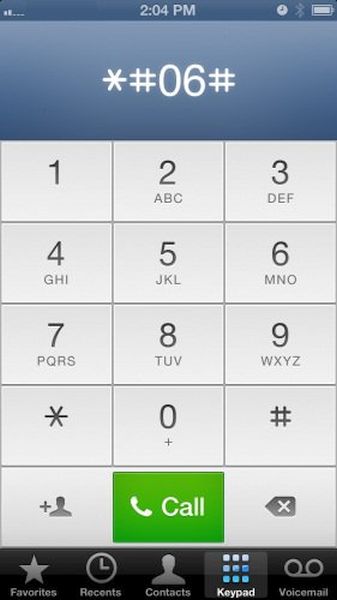
Users who are planning to SIM unlock iPhone from AT&T or other carrier have to know their IMEI number. You can easily access it if you dial *#06# however you should not that this option might not work for Verizon network for some reasons. You can learn many interesting things about your activation status, lock status etc. while knowing your IMEI so this is a useful option.

Code 2

If you wish to learn a number where your device is forwarding your calls you can enter *#67# and get the details. Use code *#61# to learn how long it takes for your call to be forwarded.

iPhone 6s Field Test Mode Combination Number

Code 3

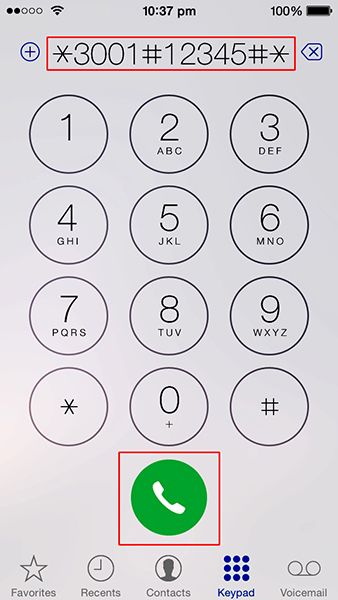
The combination *3001#12345#* [you won’t accidentally dial such combination, right?] gives you access to your phone Field Mode. Why do you need it? This is just an interesting option that shows details about your local cell towers and networks. Nothing too special but could be handy hen you get iPhone no service error.

Code 4

Dial #31# to get Samsung mobile secret codes and tricks to disable your caller ID. If you need to enable it dial a different combination *31#.

Code 5

Some Android users can try combination *#0*# to see your smartphone operations, including Front Cam, Sleep mode and so on.

Samsung Galaxy Secret Code Firmwaver Version Number

Code 6

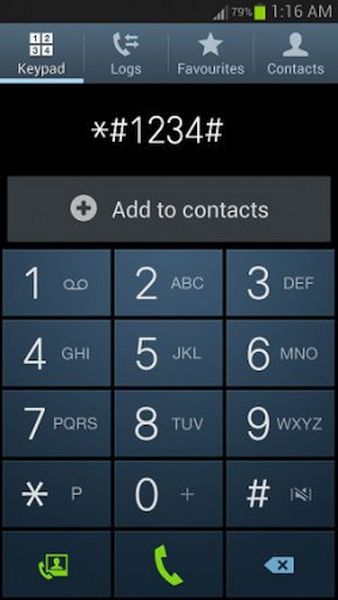
Users who have Samsung Galaxy phone can access one-click tests by calling *#7353# number. It is also possible to find out your firmware version using simple combination *#1234#.

Code 7

Dial *225# to see your billing information. If it can’t be displayed you’ll get it in the text message. It is also possible to find your billing cycle data via *3282#.

Code 8

Dial *43# and you will activate call waiting. To disable the feature you should dial a different combination #43#.

iPhone Secret Code Phone Numbers 2016

Code 9

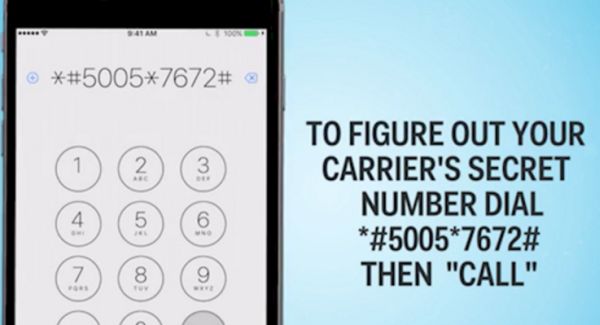
Dial long combination *5005*7672# and you will receive a text message with the SMS center number.

Code 10

Postpaid users can dial *646# and your phone will display available minutes or send this information via a SMS message.

When you unlock iPhone secret code you can access some features faster. This is probably the main advantage of quick numbers.

Choose Best AT&T iPhone Data Plans for August

It’s probably not the time to search for best summer data plan for iPhone 6, 6s, SE still users who are thinking of getting a contract with AT&T might be curious to know what the top plan for August is. Let’s take a look at different individual, family plans and AT&T unlimited plans for U.S. customers.

It might be more affordable to get the contract smartphone and have it factory unlocked from AT&T in the future to use with any other network. This is what millions of Apple users do since it is definitely cheaper than purchasing the never-locked iPhone 6s, 6s Plus or other model at the full retail price.

It’s always so important to understand your needs and desires when selecting your data plan. It has to fit all your wishes and cost fair. AT&T is the second biggest mobile network in the USA so it has enough options to keep you interested. Still remember that there are also other major operators, including Verizon, T-Mobile and Sprint, so you don’t have to stop on the Big Blue company.

AT&T Next iPhone Data Plans 2016

Next AT and T iPhone Data Plans for Individuals

Users who are not planning to watch their favorite TV shows on their smartphone and can do well with up to 15GB of data per month can select the individual plan with one line. It’s great that any unused data you might end up with will be automatically rolled over to your next billing month but will expire in one month.

AT&T Next options can break up your iPhone SE or 6S cost over the time period you select. You can always pay off the phone if you wish and make it permanently unlocked from this network in the future.

*Next 12

Fans of annual iPhone upgrade can go with this plan as it allows getting the new device after 1 year. You’ll have to stay with AT&T for 20 months of installments however your fees will be higher compared to Next 18 or 24.

*Next 18

This plan spreads your payment across 24 months. You can upgrade to the iPhone 8 after 1.5 year. There is no down payment and the monthly costs are pretty low.

*Next 24

If you choose this option your iPhone payment will be broken up into 30-month installments. AT&T will allow you upgrading to the new smartphone model after 2 years or when you pay off 80% of your device’s retail cost. There is no down payment to get your phone. You only have to pay sales tax and use it. Your monthly bill will be extremely low compared to other Next AT&T plans.
AT&T Family Plans 2016

Top AT&T Family Plan for iPhone SE, 6s, 6 Users

If you have a big family you should look not just at the best AT&T iPhone plan such as Next but at share options this carrier offers. Sometimes it’s even better to choose bigger plan to avoid possible AT&T iPhone overage charges since this company makes you pay additional $15 on top of your plan for every extra 1GB you use.

Mobile Share Value plan offers different values at different price. For example, the $20 plan gives you only 300MB per month which is extremely small for an iPhone user. The $30 plan option gives you 2GB of data per month which is surely a better deal. However such option is also perfect for a single user and not for a whole family.

The next AT&T family plan iPhone option costs $50 a month and you’ll get 5GB of data to share. It could be good for two lines. However for bigger families it’s better to choose either $100 plan with 15GB of data or $140 plan with 20GB of data per month. This is enough to share between a family of 4 or 5. The next Mobile Share Value costs $175 a month with 25GB of data to share with your family members. There is even 30GB of data option at $225 a month. This could sound a bit too much however if you have heavy-data users in your family this could be an interesting solution.

AT&T also offers 40GB and 50GB of data per month at $300 and $375 monthly payments accordingly. It’s up to you to choose your best AT&T plan for your family if this is something you really need.

AT&T iPhone Unlimited Data Plan 2016

How Much Does Unlimited Data Cost for AT&T iPhone Users

Sometimes you are such a big fan of TV series, movies and online games that you might think of getting an unlimited data plan. This is possible for AT&T iPhone 6s and other models however the price is also high. You’ll have to pay $100 per your line every month and each extra line will cost you $40 on top of this. You must also have eligible TV service otherwise you cannot subscribe to this data plan.

How to Choose iPhone Data Plan If You Are a Fan of Prepaid Options

AT&T also has GoPhone prepaid option. This way you get several payment options. For example, you can pay per day or minute, or choose monthly payments. It’s unfortunately impossible to get iPhone SE or iPhone 6s, 6 through such plan because the most recent models are not available with GoPhone plans. Still you can get iPhone 5S if you wish.
Still you have not contract which is impossible with AT&T Next. Remember that you can always SIM unlock your network with contract plans and have the most recent iPhone model without being locked to one carrier. This is legit, affordable and extremely popular. So you are the one who decides what phone to buy, what network to subscribe to and what data plan to use.

What to Do: My iPhone 6 Keeps Restarting Randomly

When your iPhone keeps restarting Apple logo you get mad, don’t you? Lucky those users whose ‘fruit’ smartphone is working well all the time. Unfortunately sometimes all of a sudden, this changes and you are seeing the popular logo more often than you wish. Is there a fix? Absolutely! Anything can be fixed if you have the right guide.

Why does my iPhone 6 keep restarting [if you dropped your phone in the toilet you need to dry iPhone out and fix the bugs]? Is it a big deal or minor issue? Should you worry and take the phone to Apple store or follow the instructions found online and solve everything on your own? Well, step-by-step guide is always the first thing to try out if it sounds well to you. If it looks risky, you better find something safer. Our guides are safe to follow as it won’t hurt your gadget to try something that helps others.

iPhone 6 Restarts Randomly

If iPhone Restarts by Itself

While most users who report their iPhone keeps restarting in 2016 mention older models such as iPhone 5s and earlier releases sometimes the same thing happens on newer iPhone 6 and 6 Plus that were updated to iOS 9 version which is the current platform for Apple gadgets.
You could search for ‘My iPhone crashed during restore’ or update and this is exactly what could happen to you while you are trying to install iOS 9.3.3, for example. You could also get no service error after update which can be fixed pretty quickly.

Could it be software-hardware kind of problem? Doesn’t sound like Apple as this company makes sure that all the phone models supported by particular firmware run it as smoothly as possible. What should you do in such a situation?

iPhone 6 Restore Backup How to

Fix #1 to My iPhone Crashed During Restore Bug

It doesn’t matter much if your iPhone restarts during restore or firmware update. The first thing you need to do is make sure you have a backup version of the device that was created before you tried to install newer platform version [learn what to do if Safari freezes on iPhone with iOS 9.3].

Step 1. You should use both your phone and computer that has iTunes installed on it with your older backup.

Step 2. Connect the smartphone to your PC or Mac and launch iTunes program which is the desktop app created by Apple.

Step 3. When you see your phone on iTunes choose it.

Step 4. Press on Restore Backup option.

Step 5. Point to older or previous backup version saved on your computer and wait till the process completes. It takes time so be patient. Hopefully there will be no problems with your iDevice afterwards.
iPhone Cellular Data On Off Toggle Settings

Fix #2 To My iPhone Restarts Itself Issue

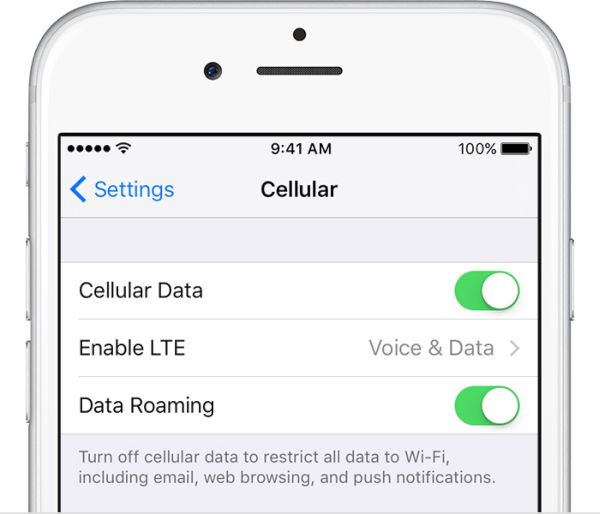
This sounds unreal but you can play with cellular connection. Surely this might not be the case but this is 100% safe to try so why don’t you?

Step 1. On your phone select Settings.

Step 2. Choose Cellular or Mobile menu.

Step 3. Disable your mobile data.

Step 4. Enabled it. Maybe it has helped you. Has it?

How to Set Up iPhone 6 as New Phone

Fix #3 To When iPhone 6 Randomly Restarts

This is something to try if you are not afraid to restore your device and set it up as a new one. It’s good if you have a backup saved or you could lose your images and other content.

Step 1. The first thing you should do before restoring is getting into Recovery mode. So press both Home and Power buttons on iPhone 6 and wait for the display to turn blank.

Step 2. Now connect your device to your PC or Mac and launch iTunes on your computer.

Step 3. The program should show that the handset is in recovery mode.

Step 4. Now choose Restore Backup and select the ‘backed up’ copy of your iPhone [created while you were running iOS 9.3.2 or other firmware version] to use.

Step 5. Set up the device by following the on-screen instructions. Maybe this will fix the bug.

Fix #4 to My iPhone 6 Keeps Restarting and Wont Turn On

When this happens and you are not able to run your phone you could try to replace battery or visit special service center where the smartphone can be tested. If you are covered by AppleCare+ program you are highly advised to bring the device back to the ‘fruit’ store and have it replaced. This is a perfect solution for iPhone 6 and 6s users as well as iPhone SE owners with phone issues however it won’t be cheap for those who have an older smartphone version such as iPhone 4, for example.

ReiBoot iPhone 6 Program Windows Mac

Fix #5 Hard Restart Without Losing Data

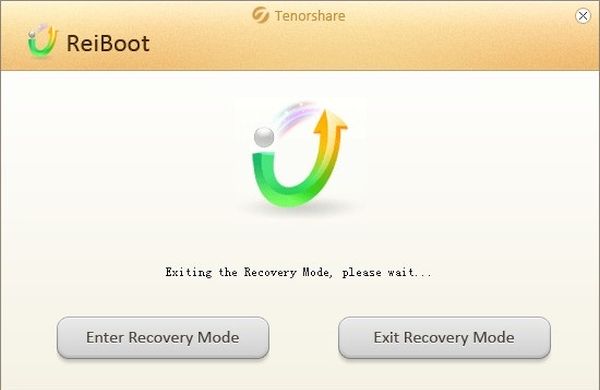
There is another thing you can try when your iPhone 6 keeps restarting randomly. There is a no-cost program called ReiBoot. It supports Macs and PCs and it allows iPhone users to restart the phone and preserver your data. Here is how it works:

Step 1. Download the computer program called ReiBoot for Mac or Windows.

Step 2. Now it’s time to use the USB cable and plug the phone to your computer.

Step 3. Launch ReiBoot.

Step 4. You will see the option called Enter Recovery Mode. This is what you should choose.

Step 5. Allow some moments for the program to get your mobile device into recovery mode.

Step 6. Now you need to select Exit Recovery Mode menu on ReiBoot and wait for it to restart your handset.

Step 7. Now the smartphone should work as normal.

iPhone 6 Freezes How to Fix

Other Fixes

If the device keeps freezing, turning off randomly, restarting itself for no reason or when you are running particular or new apps you could try to delete the suspicious programs [by the way, Apple discontinued iPhone 5s]. You can also try to reboot and even reset the phone:

Step 1. Press both Home + Power buttons. Wait for a while.

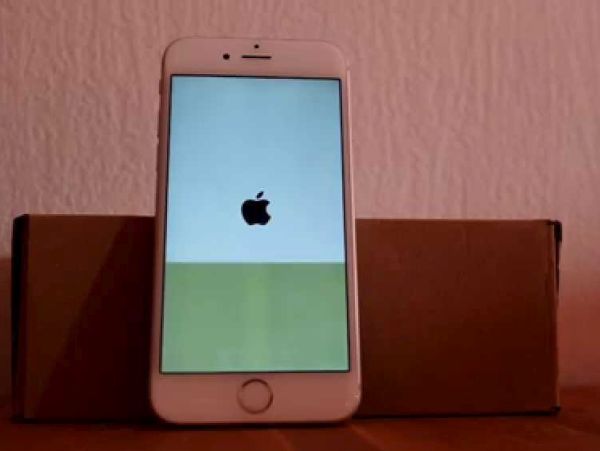
Step 2. When you see Apple logo it means you have rebooted successfully.

Step 3. Now open Settings.

Step 4. Go to General menu.

Step 5. Choose Reset menu.

Step 6. Click on Reset All Settings.

If you wish to delete an application or game you should reboot afterwards. It’s also nice to sync via iTunes as this can fix the bug related to that buggy app.

The problem with sudden restarts can be serious. Sometimes the only solution is to bring the phone back to Apple and replace it. Or you can upgrade to the newer device. The next iPhone 7 is set to be officially released by mid-September.

Dropped Your iPhone in the Toilet or Water? Useful Tips and Tricks

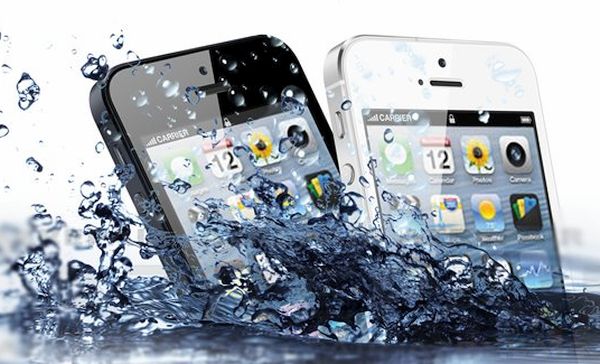
I dropped my iPhone in the toilet and it won’t turn on. Has it happened to you? You are not alone. Many of us carry the popular smartphone in the pockets and sometimes it just occurs. The device is in the water and once you take it out you should dry it.

Don’t be surprised to see iPhone no service after water damage. For many users their gadget stops turning on. Having such a brick does suck so you need to find a fix. We’ll share some of the most popular methods that could bring the handset back to life. Many iPhone water damage problems were successfully fixed so hopefully your case would also be resolved.

iPhone Fell in Toilet Water Damage Fix Guide Instruction

iPhone Water Damage Repair Cost

You can take your wet smartphone to Apple and have it officially repaired. The prices are different and depend on whether you have warranty or not. AppleCare+ must have to get the cheaper price but it won’t help you if your device is out-of-warranty [you can also use out-of-contract iPhone unlock if needed after you fix everything with the wet device].

If you have AppleCare+ service with accidental damage you can have your iPhone 5s, 5c, 6, 6 Plus, SE fixed at $79. For out-of-warranty models it would cost you way more: $269 for iPhone 5s, 5c or SE, $299 for iPhone 6 and $329 for iPhone 6 Plus. Pretty expensive, hah?

iPhone Water Damage Fix Instruction without Apple

How to Fix iPhone After Water Damage without Apple

There are some must-do steps even if you decide to take the damaged device to Apple Service Center. Even if the device is as wet as if being used under the heavy rain after sinking in water – you still must let it completely dry.

Step 1. Turn off the phone if it is still enabled. You can click-hold your Sleep / Wake button or ‘slide’ to power off. If the handset is already off do not turn it on to check if everything is ok because this is how the problems will begin.

Step 2. If you have the device in a case, remove it. If the device is connected via USB to anything, disconnect it.

Step 3. Wipe off your handset. There is no need to take off the screen protector if you are using once because of its water-resistant nature. It protects the screen so let it do its job.

Step 4. Leave it in the dry place for a few days.

Step 5. Do not use the gadget right away even though it is reported that users unlock their iPhone many times a day. Users who start using a water damaged model end up with the most common issues such as ‘iPhone doesn’t charge’, ‘Home button doesn’t work’, ‘Black screen’ only because they hurried and didn’t want to wait.

Wet iPhone is like an injured man. It needs time to heal.

Step 6. It is best to use the clean cloth (cotton cloth works the best) to dry exterior. This is something you can do on your own.

Step 7. You are advised to also dry the interior after you wiped the screen, back, front and sides of the iPhone 6s, 6, SE or other model. If you can find professionals who will do it for you – it’s awesome. All the following parts need extra attention: speakers, Home and all other buttons (volume, mute), charging port, SIM card tray, microphone. It is better to remove the SIM card [learn what to do if your iPhone password is forgotten].

What Not to Do When You Drop Your iPhone in Water

  • Do not turn on the phone if it is still enabled
  • Do not make phone calls
  • Do not dry the device with a hair dryer
  • Do not attach or connect anything [accessories etc.]
  • Do not charge the damaged device
  • Do not remove the battery or you can cause more problems

iPhone in Rice Does it Work How to Dry iPhone Water Damage

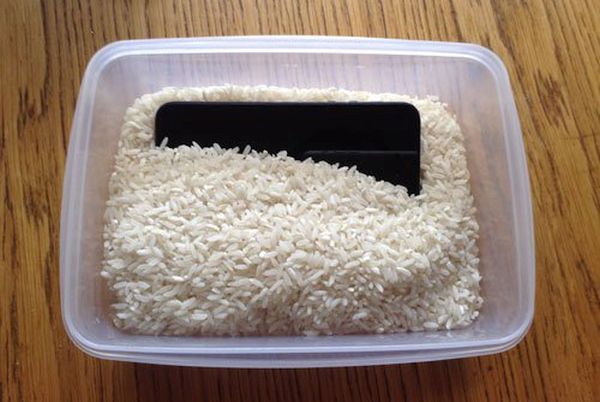
iPhone in Rice Trick

Have you heard of an interesting method how to absorb the moisture without disassembling your device? Does putting iPhone in rice work? Here is a curious solution many people have tried:

Step 1. You need uncooked rice and we’ll explain ‘how do i dry out my iPhone’ with food.

Step 2. You also need a bowl or plastic container that should be filled with the rice.

Step 3. Place the handset that was dropped into water into uncooked rice. Make sure to cover the gadget completely.

Step 4. Let the device dry in rice for up to 48-50 hours. If you decide it’s time to get new phone learn more about the best AT&T iPhone data plans and prices.

Step 5. While rice can absorb liquid it might also cause iPhone corrosion. Besides, the small grains might get inside your ports. These disadvantages and risks must be taken into consideration before you try it. Tip: you can use silica gel instead of rice.

iPhone No Signal after Water Damage Repair Guide

Have iPhone 6s No Signal After Water Damage?

When the device has dried and you finally turn it on you might find another unpleasant thing: no signal. The gadget might be searching for it but the search lasts forever. Remember that it becomes expensive to upgrade AT&T iPhone so it’s better to make it alive. Use the following iPhone no service fix:

Step 1. If your date, time is wrong you need to set everything the correct way.

Step 2. Once the Date & Time show the right information the problem will be gone.

Step 3. You can also remove and insert the SIM to make sure it’s placed properly.

Step 4. Enable and disable Airplan mode.

Step 5. Do the same with WiFi connection and your cellular data.

We hope that this detailed guide for fixing ‘My iPhone fell in the toilet what do i do’ problem has helped you to get a working device. If not, you should take the gadget to the Service Center and make experts fix everything which is not free. Replacing components or repairing hardware issues could be the only way to return your phone to a working condition. Or you can purchase the new model and take better care of it.