When your iPhone keeps restarting Apple logo you get mad, don’t you? Lucky those users whose ‘fruit’ smartphone is working well all the time. Unfortunately sometimes all of a sudden, this changes and you are seeing the popular logo more often than you wish. Is there a fix? Absolutely! Anything can be fixed if you have the right guide.
Why does my iPhone 6 keep restarting [if you dropped your phone in the toilet you need to dry iPhone out and fix the bugs]? Is it a big deal or minor issue? Should you worry and take the phone to Apple store or follow the instructions found online and solve everything on your own? Well, step-by-step guide is always the first thing to try out if it sounds well to you. If it looks risky, you better find something safer. Our guides are safe to follow as it won’t hurt your gadget to try something that helps others.
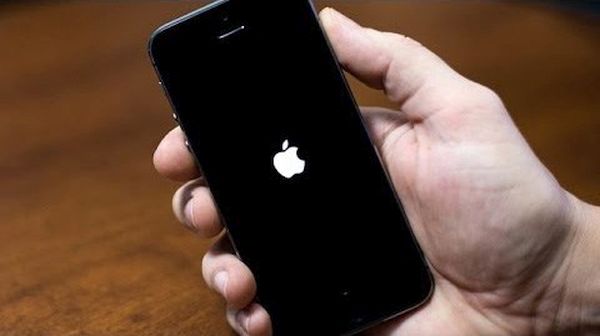
If iPhone Restarts by Itself
While most users who report their iPhone keeps restarting in 2016 mention older models such as iPhone 5s and earlier releases sometimes the same thing happens on newer iPhone 6 and 6 Plus that were updated to iOS 9 version which is the current platform for Apple gadgets.
You could search for ‘My iPhone crashed during restore’ or update and this is exactly what could happen to you while you are trying to install iOS 9.3.3, for example. You could also get no service error after update which can be fixed pretty quickly.
Could it be software-hardware kind of problem? Doesn’t sound like Apple as this company makes sure that all the phone models supported by particular firmware run it as smoothly as possible. What should you do in such a situation?
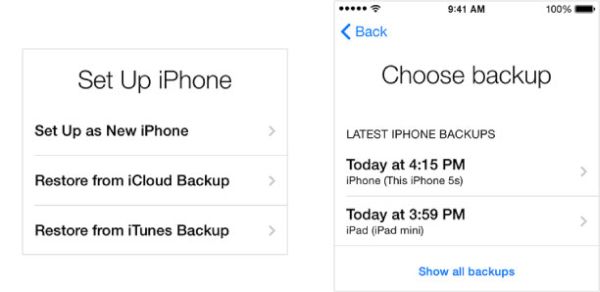
Fix #1 to My iPhone Crashed During Restore Bug
It doesn’t matter much if your iPhone restarts during restore or firmware update. The first thing you need to do is make sure you have a backup version of the device that was created before you tried to install newer platform version [learn what to do if Safari freezes on iPhone with iOS 9.3].
Step 1. You should use both your phone and computer that has iTunes installed on it with your older backup.
Step 2. Connect the smartphone to your PC or Mac and launch iTunes program which is the desktop app created by Apple.
Step 3. When you see your phone on iTunes choose it.
Step 4. Press on Restore Backup option.
Step 5. Point to older or previous backup version saved on your computer and wait till the process completes. It takes time so be patient. Hopefully there will be no problems with your iDevice afterwards.
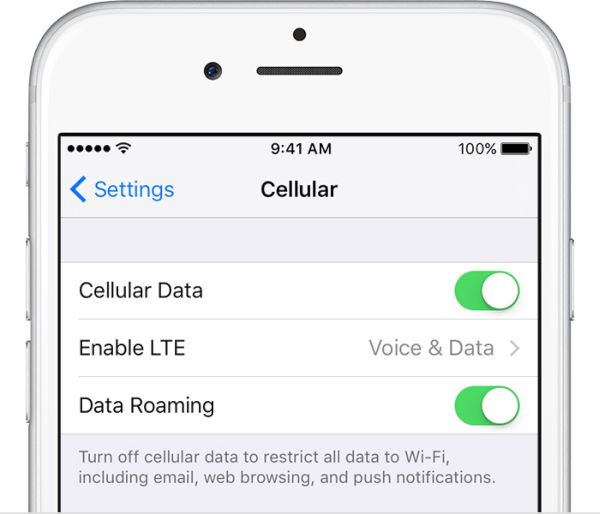
Fix #2 To My iPhone Restarts Itself Issue
This sounds unreal but you can play with cellular connection. Surely this might not be the case but this is 100% safe to try so why don’t you?
Step 1. On your phone select Settings.
Step 2. Choose Cellular or Mobile menu.
Step 3. Disable your mobile data.
Step 4. Enabled it. Maybe it has helped you. Has it?
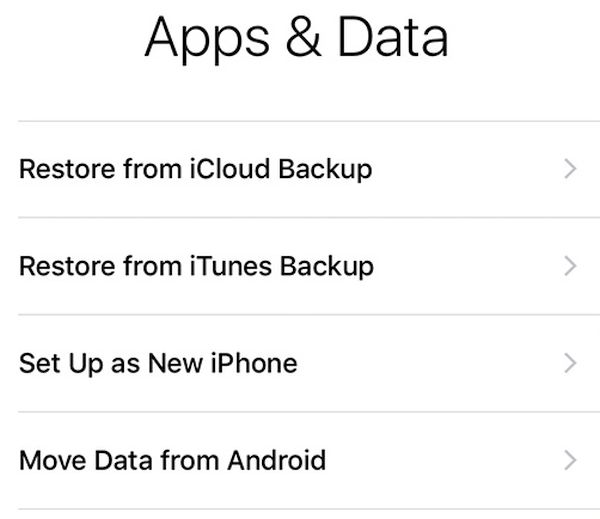
Fix #3 To When iPhone 6 Randomly Restarts
This is something to try if you are not afraid to restore your device and set it up as a new one. It’s good if you have a backup saved or you could lose your images and other content.
Step 1. The first thing you should do before restoring is getting into Recovery mode. So press both Home and Power buttons on iPhone 6 and wait for the display to turn blank.
Step 2. Now connect your device to your PC or Mac and launch iTunes on your computer.
Step 3. The program should show that the handset is in recovery mode.
Step 4. Now choose Restore Backup and select the ‘backed up’ copy of your iPhone [created while you were running iOS 9.3.2 or other firmware version] to use.
Step 5. Set up the device by following the on-screen instructions. Maybe this will fix the bug.
Fix #4 to My iPhone 6 Keeps Restarting and Wont Turn On
When this happens and you are not able to run your phone you could try to replace battery or visit special service center where the smartphone can be tested. If you are covered by AppleCare+ program you are highly advised to bring the device back to the ‘fruit’ store and have it replaced. This is a perfect solution for iPhone 6 and 6s users as well as iPhone SE owners with phone issues however it won’t be cheap for those who have an older smartphone version such as iPhone 4, for example.
Fix #5 Hard Restart Without Losing Data
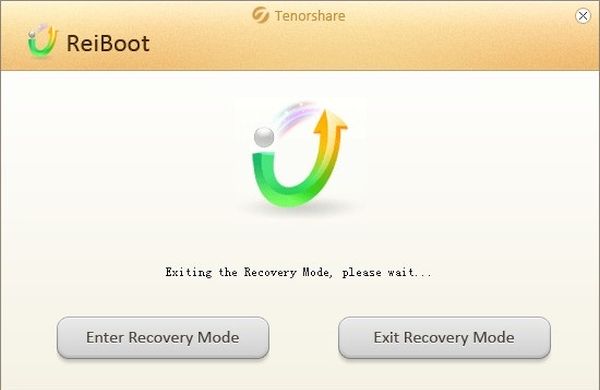
There is another thing you can try when your iPhone 6 keeps restarting randomly. There is a no-cost program called ReiBoot. It supports Macs and PCs and it allows iPhone users to restart the phone and preserver your data. Here is how it works:
Step 1. Download the computer program called ReiBoot for Mac or Windows.
Step 2. Now it’s time to use the USB cable and plug the phone to your computer.
Step 3. Launch ReiBoot.
Step 4. You will see the option called Enter Recovery Mode. This is what you should choose.
Step 5. Allow some moments for the program to get your mobile device into recovery mode.
Step 6. Now you need to select Exit Recovery Mode menu on ReiBoot and wait for it to restart your handset.
Step 7. Now the smartphone should work as normal.
Other Fixes
If the device keeps freezing, turning off randomly, restarting itself for no reason or when you are running particular or new apps you could try to delete the suspicious programs [by the way, Apple discontinued iPhone 5s]. You can also try to reboot and even reset the phone:
Step 1. Press both Home + Power buttons. Wait for a while.
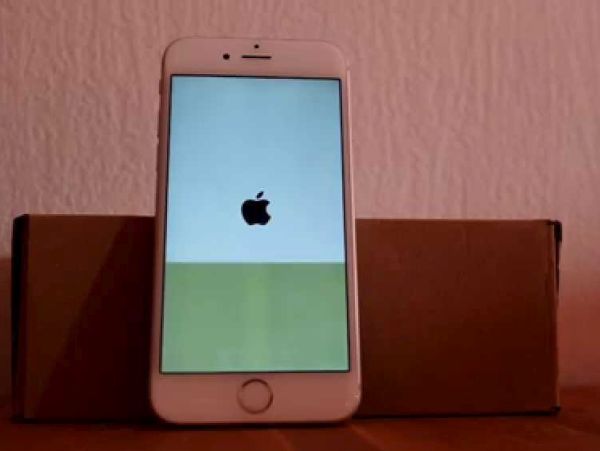
Step 2. When you see Apple logo it means you have rebooted successfully.
Step 3. Now open Settings.
Step 4. Go to General menu.
Step 5. Choose Reset menu.
Step 6. Click on Reset All Settings.
If you wish to delete an application or game you should reboot afterwards. It’s also nice to sync via iTunes as this can fix the bug related to that buggy app.
The problem with sudden restarts can be serious. Sometimes the only solution is to bring the phone back to Apple and replace it. Or you can upgrade to the newer device. The next iPhone 7 is set to be officially released by mid-September.