Can I Downgrade iOS 9.3.2 Back to iOS 9.3.1 on AT&T iPhone?

There is a fast way how to downgrade iOS 9.3.2 back to version 9.3.1 on AT&T iPhone 6s / 6. It’s risky to downgrade and Apple doesn’t like when users return to previous operating system versions. Still there are many users who choose to revert back no matter what the Cupertino-based giant thinks.

You can follow the short guide and downgrade iOS 9.3.2 to iOS 9.3.1. Remember that it’s risky so backup your AT&T iPhone via iTunes or iCloud before you do anything. Can I downgrade iOS 9.3.2? Sure, you can but stay attentive to details.
Downgrade iOS 9.3.2 to 9.3.1 iPhone How To Guide

Downgrade iOS 9.3.2 Guide

Step 1. Disable Find My iPhone option on AT&T iPhone using Settings – iCloud – Find My iPhone feature.

Step 2. Search for iOS 9.3.1 ipsw file for your particular iPhone model and download it [there are many iOS 9.3 features that are improved on 9.3.1 version]. Use Firefox to download the file or turn off automatic unzip option in Safari.

Step 3. Now connect your handset to computer and open iTunes.

Step 4. Press on Alt / Option on Mac while choosing Check for Update iTunes feature.

Step 5. Point to iOS 9.3.1 ipsw file and let iTunes to downgrade your smartphone. The program will ask you to confirm the decision to update (downgrade). Agree and wait for the program to complete everything.

Step 6. You might be asked to activate AT&T iPhone.

Apple won’t sign iOS 9.3.1 for a long time. It will soon stop signing this firmware and it will be impossible to downgrade. So double check if you can still downgrade 9.3.2 to 9.3.1 version.
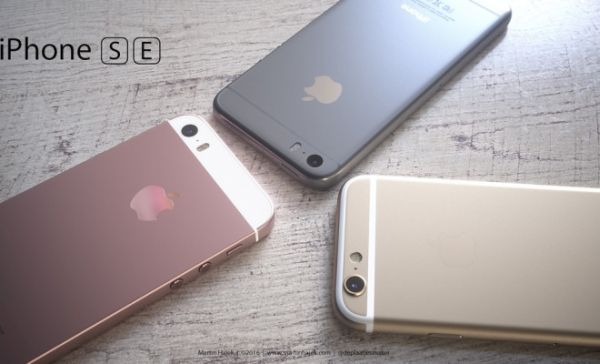
Simple Distant Verizon iPhone SE Unlock for iOS 9 Platform

Many Apple customers have heard a lot about Verizon iPhone SE unlock and other models / carriers unlocking services. With Verizon everything is much simpler than with other major U.S. networks. Why? Well, Verizon stopped locking handsets since iPhone 5.

If you wish to unlock iOS 9 iPhone SE you have to do nothing. We won’t get into details how to unlock Verizon iPhone SE for one major reason: your handset is already unlocked from this carrier because it comes with universal GSM / CDM / LTE cellular radio. You can simply switch the SIM card and connect to a different network without requesting the company to unlock your gadget.

Unlock Verizon iPhone SE How to Factory IMEI Unlocking Service

While iPhone SE Verizon unlock is available to you by default if you buy the handset directly from Verizon, you might have to order factory unlock if the gadget is locked to AT&T or other American network. Yes, there are still mobile operators that like to lock iPhones to their network.

All 4G iPhones sold by Verizon are shipped already SIM free. If you have older model that is still locked to the network you need to order affordable distant factory IMEI unlock for Verizon iPhone. This is fast, simple and very easy to do.

You should find out your IMEI number [this can be done through iPhone Settings app] and make sure your handset is not blacklisted or blocked by Verizon. Place your order for iPhone Verizon unlock online and wait for a couple of days until you can a confirmation about successful unlock.

Connect your iPhone to iTunes after inserting a non-supported SIM card and your unlocked IMEI will be automatically activated by the program. You’ll be able to connect to any carrier from all over the world.

You can also contact Verizon Customer Service at 800-11-8300 and ask the carrier for SIM unlock. Any method is great.

Learn How You Can Save iPhone Email Attachments to Your iCloud Drive

Do you know that you can save your iPhone email attachments to iCloud Drive? This can be done on iOS 9 platform [learn more about future iPhone 7 that should be released in the fall 2016]. There is no need to search for any third-party tools because your default iOS Mail application supports this feature.

All you have to do is enable your iCloud Drive. In other words, you should make sure it is installed on your iDevice. Follow our simple instruction and learn more about iOS Mail attachment iCloud Drive ‘partnership’ and your new opportunities offered by Apple to all iPhone users.

Save iOS 9 Mail Attachment iPhone to iCloud Drive

How to Save Email Attachments to iCloud Drive: iPhone Guide

Step 1. Once you download and install iCloud Drive application on iPhone you should launch Settings app.

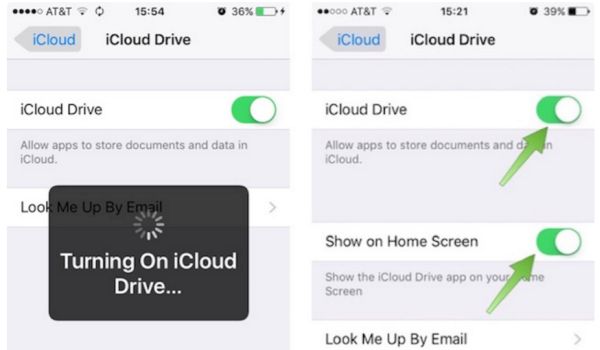
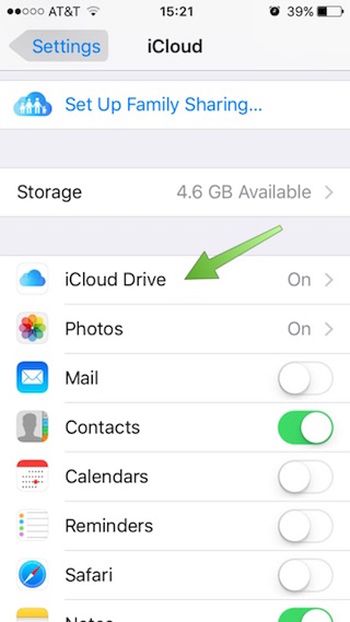
Step 2. Choose iCloud – iCloud Drive and use your login / password to log into the iCloud account. Do this right from your smartphone.

Login to iCloud Drive on iPhone

Step 3. With iCloud Drive being turned on you should also choose ‘Show’ option for Home Screen. Look for the iCloud Drive icon which appears on iPhone Home Screen [this can be done on popular iPhone SE and other Apple handset models]. Do you see it?

Turn On iCloud Drive on iPhone

Step 4. Go to Mail program.

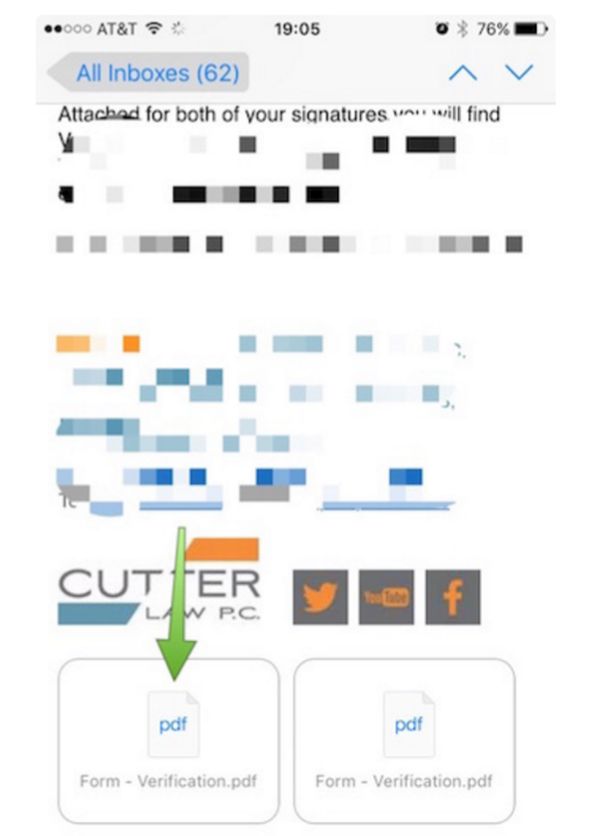
Step 5. You need to select email with any attachments.

Step 6. Click on icon to download the attachment.

Download iOS 9 Mail Attachment

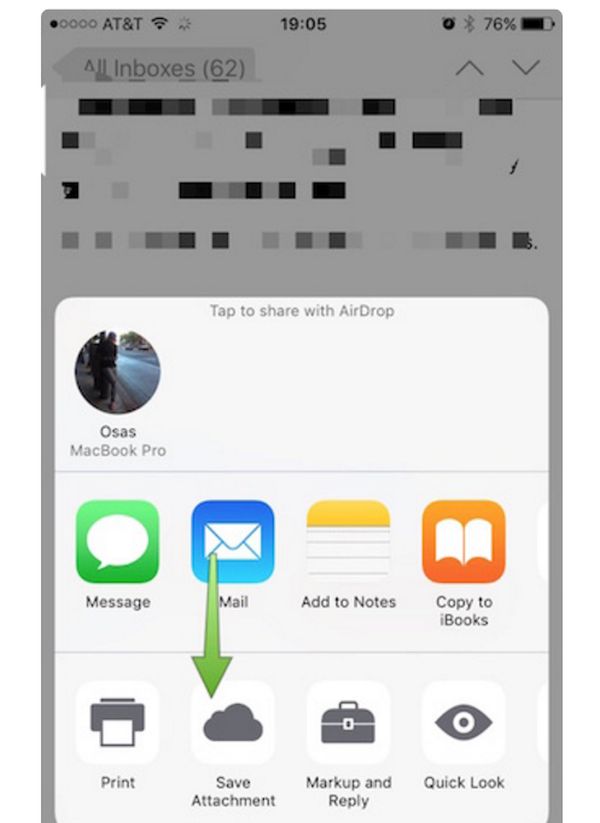
Step 7. You need to click-hold your attachment to see Share sheet option.

Step 8. Swipe in Share sheet to get to Save Attachment feature. You’ll see this icon so click on it to get to iCloud Drive.

Save iPhone Mail Attachment to iCloud Drive

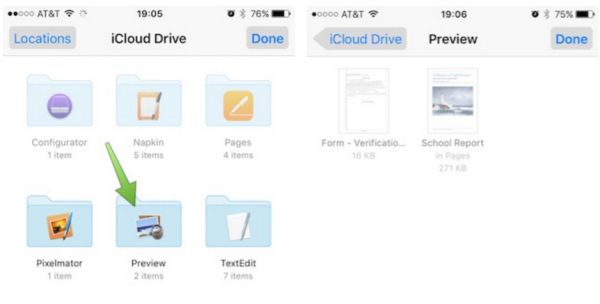
Step 9. Choose the folder where your file will be saved. Remember to click ‘Export to this location’ option in order to save your file and press on Done.

How to Save iPhone Mail Attachments on iOS 9 to iCloud Drive Guide

That’s it. You have successfully saved iOS 9 Mail app attachment to your iPhone iCloud Drive.

Learn How to Adjust Netflix Video Quality on iPhone

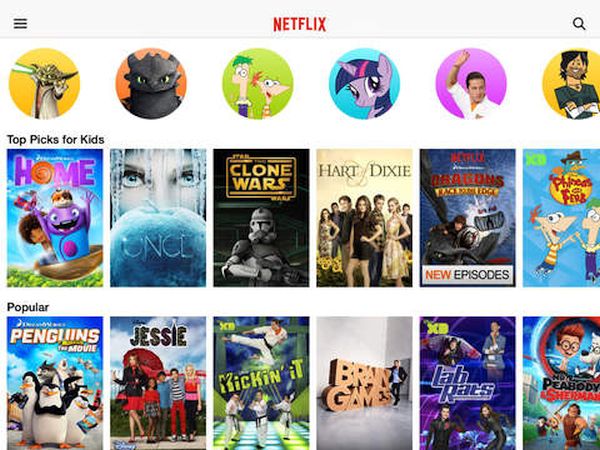
iPhone users who are using different U.S. carriers can adjust Netflix video quality and get other controls over this service. Why would you need to control your data usage? Firstly, you can save some money if you get this control. Secondly, you can improve or reduce the quality of videos on-the-go.

Netflix data usage can be controlled via special application. You can download it on the App Store and install on any iPhone that is running iOS 9. You can use iPhone T-Mobile, Sprint, AT&T, Verizon or any other American network and avoid extra charges from your cellular data network. This can be pretty handy, can’t it?

Adjust Netflix Video Quality Cellular Data Usage on iPhone

Once you install the app you can get full Netflix cellular data control with its help. At the same time you will get the bets video consumption per GB as the settings make it possible for you to choose and change this figure.

You can choose to use only WiFi network to save your cellular data completely. You are able to select Low quality option to get 4 hours of videos for each GB you consume. There are also other settings that go up to Unlimited.

If you are not happy with your carrier data plan but you are locked to its network – you can order SIM factory iPhone unlock for Sprint, T-Mobile or other carrier. This is fast, safe and affordable. Becoming SIM free is permanent. You will be able to select your data plans by switching SIM cards and using the best U.S. carrier you can find.

Download the free Netflix iPhone app and enjoy the changes.

Apple Maps Transit Support Comes to Rio de Janeiro

The list of Apple Maps transit cities gets expanded to Brazil. Rio de Janeiro is one of the most populated cities in this country and users who arrive to this city can now enjoy some extra options right on the iPhone.

iPhone iOS 9 Apple Maps Rio de Janeiro transit info can be handy for both travelers and iPhone owners who live in Brazil. It’s nice to get information about bus stops, metro system, trains, and ferries while visiting different countries. The ‘fruit’ giant is pretty quick on bringing new cities support to its application.

Rio De Janeiro Apple Maps Transit 2016 Support

A lot of users enjoy both Apple Maps and Google Maps on iPhone. Bringing Apple Maps transit directions to Rio de Janeiro is an interesting step. With more cities and countries on the list it becomes more interesting to use Maps on the go.

Are you planning to get to Summer Olympics? Take your iPhone with you and Apple Maps will provide you with all the information you need. Make your trip to Brazil brighter and easier with Rio de Janeiro transit info available on the handset.

Maps app transit information covers different places and areas in and outside the U.S. It is available in Mexico City, Chicago, Los Angeles, Sydney, London, Berlin, NYC, Baltimore and many more cities. The ‘fruit’ giant could bring the option to even more locations in 2016.

Are you using Apple Maps or do you prefer other iOS applications for getting transit information? Do you think that changes Apple offers enhance this program and make it more attractive to users?

Apple Silently Solves iOS 9.3.1 iPhone Bug

Apple presented several iOS 9 versions and iOS 9.3.x is the latest one available for download. All users who have heard about 1970 date bug iPhone issues that made a brick out of a working handset within seconds should know how to fix this unpleasant problem and avoid bricking this spring.

The real 1970 iPhone bug fix is silently brought with iOS 9.3.1 update. This version automatically solves the issue with the particular date of Jan 1, 1970. If previously you were able to manually change the date and enter January 1st, 1970 and this resulted in full iPhone brick – you are no longer able to enter this date after iOS 9.3.1 installation.

Apple Fix 1970 Date Bug iOS 9.3.1 iPhone iPad

Users who wish to avoid the crazy bug you should get iOS 9.3.1 bug fix and install the firmware. Apple should soon update this version as well and hopefully solve other known issues and problems with its new iPhone SE and software. A lot of users were happy to purchase 4-inch iPhone model this March and April and they also experience various issues and bugs.

According to experts, the problem with 1970 date was caused by ‘evil’ WiFi network called ‘attwifi’ and all users who were redirected or visited the spoofing site or set their date to January 1, 1970 caused the full self-destruction of their iPhone or iPad.

Anyways it’s always better to protect yourself and install the firmware version that fixes known issues just in case. Have you ever come across the bricked iPhone?

How iPhone 4s Performs on iOS 5 through iOS 9: Speed Test

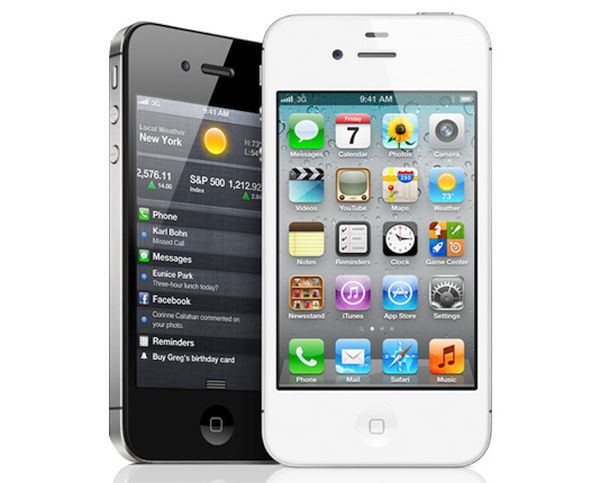
How good is new Apple firmware for the older smartphones [here are some iOS 9 useful features]? You can take a look at iPhone 4s speed test results for different versions of mobile operating systems for ‘fruit’ handsets. You won’t be surprised to learn that the gadget perfirms slower every year if you update it to the latest iOS.

Old firmwares are faster on old devices and iOS 9 speed test iPhone 4s can confirm this. The aging handset works much better with iOS 5. Some experts decided to see how this particular model works on iOS 5, iOS 6 and other firmwares including iOS 9.

iPhone 4s Speed Test iOS 5 iOS 9

You know that Apple is now testing iOS 9.3. The company could offer the upgrade this March or in April. It is also believed to present 4-inch iPhone and bigger iPhone 7 in 2016. The smaller handset could arrive as soon as in the end of the month. There was no Apple March event yet and nothing has been officially confirmed.

Tests show that iPhone 4s is running faster on iOS 5 and iOS 6. At the same time, apps and different menus load slower once you install iOS 7, iOS 8 and iOS 9. Web pages and and Safari also load faster on iOS 5 – iOS 7 compared to iOS 8 and iOS 9.

Of course, users don’t have to be surprised by this fact. Apple constantly updates its mobile OS and iPhone lineup and stops supporting older gadgets. The reason could be the fact that newer platforms require newer smartphones.

For example, when millions of iPhone users are already owning iPhone 6s and iPhone 6 – they would be happier to install iOS 9. The number of iPhone 4s owners is getting lower and thus the need to offer iOS 5 and iOS 6 support is less required.

iOS 9.2 SIM Unlock for iPhone 6s U.S. And Other Carriers

The newest iOS 9.2 has been rolled out and a lot of U.S. users are thinking about how to SIM unlock their iPhone 6s device that was released in September. We’ll explain how to unlock iOS 9.2 iPhone 6s as this service is already available to all AT&T, T-Mobile, Sprint, Verizon and other users inside the U.S. and in other countries across the world.

There is factory unlock iOS 9.2 iPhone 6s method you can use. It is popular. It is simple. It is affordable. It is fast. It is safe and offers only permanent result. Once you order iOS 9.2 SIM unlock and successfully activate it – you’ll always remain unlocked from all networks. You’ll be able to switch SIM cards, update, downgrade, restore and use your iPhone as usually without being worried about anything because no matter what you do – you stay SIM unlocked.

iOS 9.2 Unlock iPhone SIM

In order to unlock iPhone 6s iOS 9.2 [here is iOS 9.2 vs 8.4.1 speed comparison] you have to install this firmware version and select the corresponding package. It has to support your original carrier and iPhone model. You also have to meet some other requirements that are described in details in the unlocking package you choose. Double check everything and make sure you are eligible for this type of unlock which is the most popular nowadays and widely used by millions of people across the globe.

Once iOS 9.2 SIM unlock is performed and you get confirmation that your IMEI number is unlocked [this is the unique identifier of your iPhone 6s] – you can connect to iTunes and activate your new permanent status. This is very simple and pretty fast.

Distant service is the main advantage of factory IMEI unlocking since you can do everything online without going anywhere and installing no additional software.

iOS 9.2 Specs and Improvements for iPhone, iPad and iPod touch

Apple has released the new firmware and users are curious to learn about iOS 9.2 specs and changes before updating to this version. The latest iOS 9.1 [you can SIM unlock iOS 9.1 iPhone from any carrier] and iOS 9.2 are minor upgrades. They fix bugs and issues, bring some enhancements but overall the iOS 9 platform stays the same.

The iOS 9.2 improvements include the changes to Apple Music tool, Mail support for Mail Drop, possibility to import images and video files using USB camera adapter and others.

iOS 9.2 Features and Specs

So what does this iOS 9.2 changelog offer you? The changes that are brought to Apple Music tool allow users add a song to a playlist and create new playlists this way. It’s simpler than it used to be. The playlists you change most recently will now appear at the top of your list which makes it easier to add new tunes.

iOS 9.2 features list brings 3D Touch support to iBooks. If you have iPhone 6s or iPhone 6s Plus you’ll be able to peek-pop notes, pages, bookmarks while staying inside the book.

You can import files [images and videos] through USB camera adapter. Some enhancements have also become available for Podcasts, your Safari browser, mail, iCloud, Contacts, Calendar and other parts of the system. Numerous small bugs got changes and useful improvements.

Most known bugs should be fixed in iOS 9.2. If you experienced issues with Health app and couldn’t get some of your data – this issue is gone. Users should have no problems with Find My iPhone login [here is how to check if your Find My iPhone is turned on or disabled]. When you are backing up via iCloud – you should experience no issues.

Apple improved some keyboard, VoiceOver feature, Switch Controls, Siri and other parts of iOS 9.2.
AT&T users will be glad to know that NumberSync is now officially supported. This makes it easy to place / get iPhone calls right on computer.