Can I Downgrade iOS 9.3.2 Back to iOS 9.3.1 on AT&T iPhone?

There is a fast way how to downgrade iOS 9.3.2 back to version 9.3.1 on AT&T iPhone 6s / 6. It’s risky to downgrade and Apple doesn’t like when users return to previous operating system versions. Still there are many users who choose to revert back no matter what the Cupertino-based giant thinks.

You can follow the short guide and downgrade iOS 9.3.2 to iOS 9.3.1. Remember that it’s risky so backup your AT&T iPhone via iTunes or iCloud before you do anything. Can I downgrade iOS 9.3.2? Sure, you can but stay attentive to details.
Downgrade iOS 9.3.2 to 9.3.1 iPhone How To Guide

Downgrade iOS 9.3.2 Guide

Step 1. Disable Find My iPhone option on AT&T iPhone using Settings – iCloud – Find My iPhone feature.

Step 2. Search for iOS 9.3.1 ipsw file for your particular iPhone model and download it [there are many iOS 9.3 features that are improved on 9.3.1 version]. Use Firefox to download the file or turn off automatic unzip option in Safari.

Step 3. Now connect your handset to computer and open iTunes.

Step 4. Press on Alt / Option on Mac while choosing Check for Update iTunes feature.

Step 5. Point to iOS 9.3.1 ipsw file and let iTunes to downgrade your smartphone. The program will ask you to confirm the decision to update (downgrade). Agree and wait for the program to complete everything.

Step 6. You might be asked to activate AT&T iPhone.

Apple won’t sign iOS 9.3.1 for a long time. It will soon stop signing this firmware and it will be impossible to downgrade. So double check if you can still downgrade 9.3.2 to 9.3.1 version.
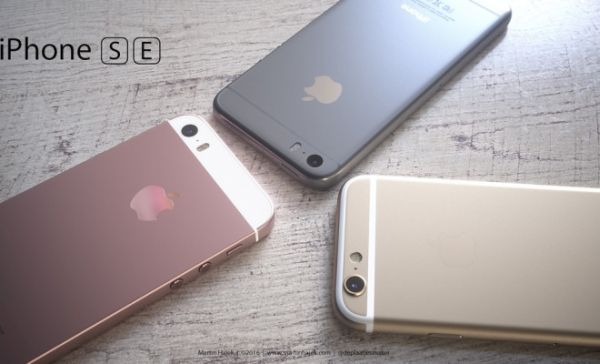
Simple Distant Verizon iPhone SE Unlock for iOS 9 Platform

Many Apple customers have heard a lot about Verizon iPhone SE unlock and other models / carriers unlocking services. With Verizon everything is much simpler than with other major U.S. networks. Why? Well, Verizon stopped locking handsets since iPhone 5.

If you wish to unlock iOS 9 iPhone SE you have to do nothing. We won’t get into details how to unlock Verizon iPhone SE for one major reason: your handset is already unlocked from this carrier because it comes with universal GSM / CDM / LTE cellular radio. You can simply switch the SIM card and connect to a different network without requesting the company to unlock your gadget.

Unlock Verizon iPhone SE How to Factory IMEI Unlocking Service

While iPhone SE Verizon unlock is available to you by default if you buy the handset directly from Verizon, you might have to order factory unlock if the gadget is locked to AT&T or other American network. Yes, there are still mobile operators that like to lock iPhones to their network.

All 4G iPhones sold by Verizon are shipped already SIM free. If you have older model that is still locked to the network you need to order affordable distant factory IMEI unlock for Verizon iPhone. This is fast, simple and very easy to do.

You should find out your IMEI number [this can be done through iPhone Settings app] and make sure your handset is not blacklisted or blocked by Verizon. Place your order for iPhone Verizon unlock online and wait for a couple of days until you can a confirmation about successful unlock.

Connect your iPhone to iTunes after inserting a non-supported SIM card and your unlocked IMEI will be automatically activated by the program. You’ll be able to connect to any carrier from all over the world.

You can also contact Verizon Customer Service at 800-11-8300 and ask the carrier for SIM unlock. Any method is great.

Learn How You Can Save iPhone Email Attachments to Your iCloud Drive

Do you know that you can save your iPhone email attachments to iCloud Drive? This can be done on iOS 9 platform [learn more about future iPhone 7 that should be released in the fall 2016]. There is no need to search for any third-party tools because your default iOS Mail application supports this feature.

All you have to do is enable your iCloud Drive. In other words, you should make sure it is installed on your iDevice. Follow our simple instruction and learn more about iOS Mail attachment iCloud Drive ‘partnership’ and your new opportunities offered by Apple to all iPhone users.

Save iOS 9 Mail Attachment iPhone to iCloud Drive

How to Save Email Attachments to iCloud Drive: iPhone Guide

Step 1. Once you download and install iCloud Drive application on iPhone you should launch Settings app.

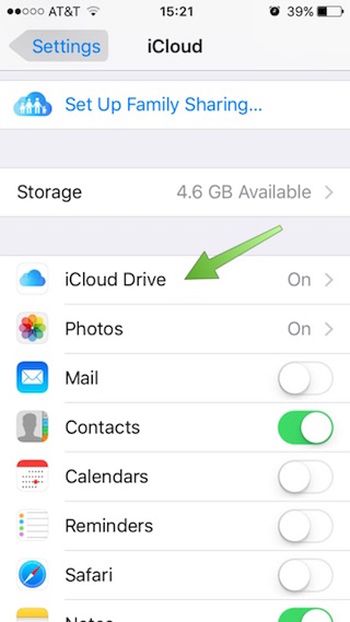
Step 2. Choose iCloud – iCloud Drive and use your login / password to log into the iCloud account. Do this right from your smartphone.

Login to iCloud Drive on iPhone

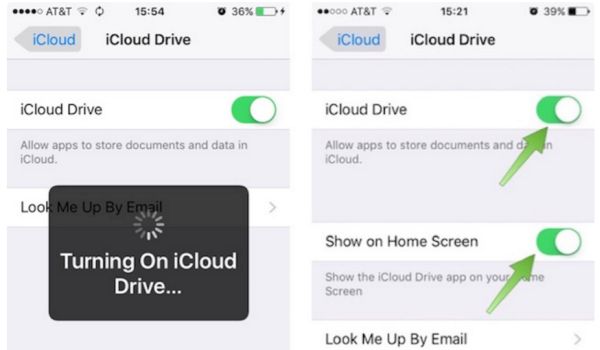
Step 3. With iCloud Drive being turned on you should also choose ‘Show’ option for Home Screen. Look for the iCloud Drive icon which appears on iPhone Home Screen [this can be done on popular iPhone SE and other Apple handset models]. Do you see it?

Turn On iCloud Drive on iPhone

Step 4. Go to Mail program.

Step 5. You need to select email with any attachments.

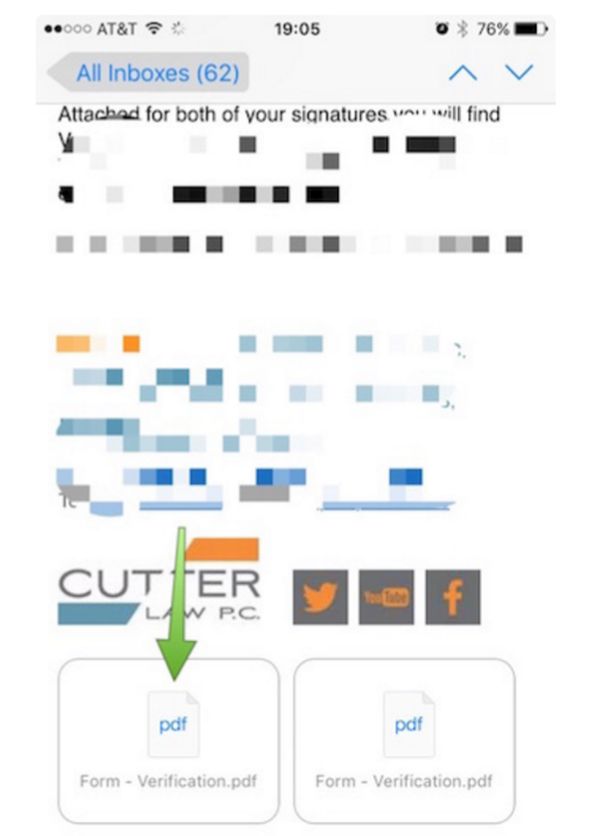
Step 6. Click on icon to download the attachment.

Download iOS 9 Mail Attachment

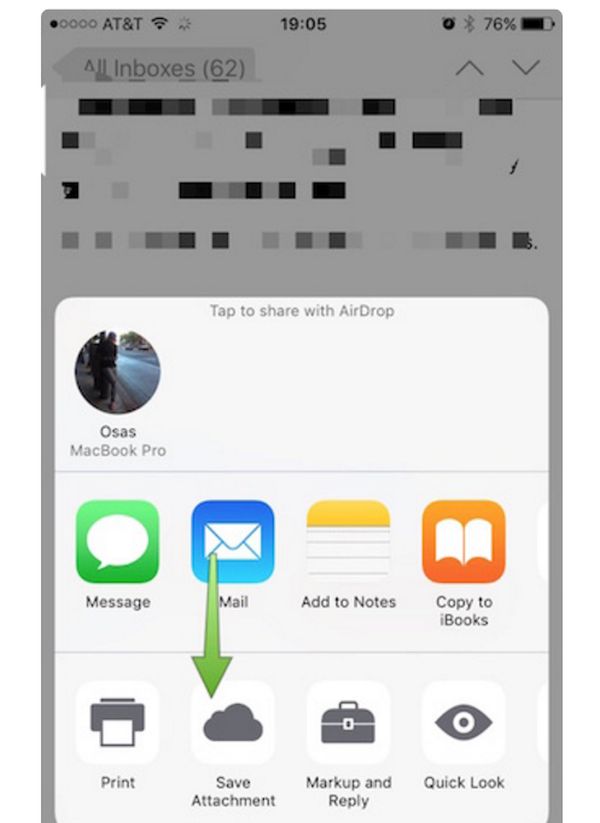
Step 7. You need to click-hold your attachment to see Share sheet option.

Step 8. Swipe in Share sheet to get to Save Attachment feature. You’ll see this icon so click on it to get to iCloud Drive.

Save iPhone Mail Attachment to iCloud Drive

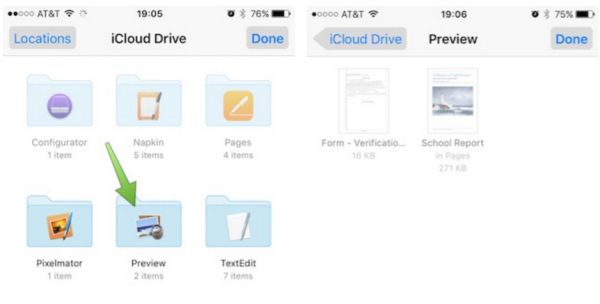
Step 9. Choose the folder where your file will be saved. Remember to click ‘Export to this location’ option in order to save your file and press on Done.

How to Save iPhone Mail Attachments on iOS 9 to iCloud Drive Guide

That’s it. You have successfully saved iOS 9 Mail app attachment to your iPhone iCloud Drive.

Learn How to Adjust Netflix Video Quality on iPhone

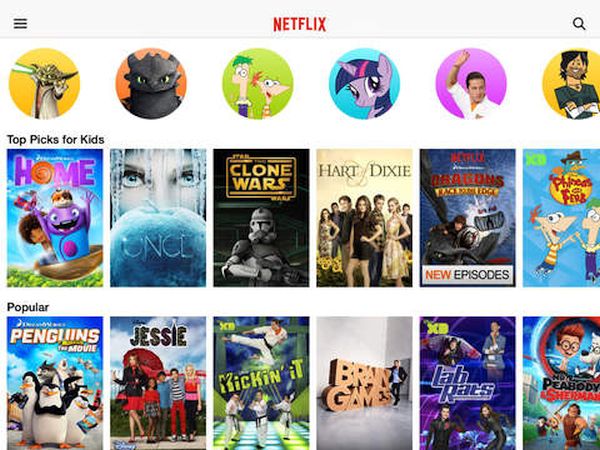
iPhone users who are using different U.S. carriers can adjust Netflix video quality and get other controls over this service. Why would you need to control your data usage? Firstly, you can save some money if you get this control. Secondly, you can improve or reduce the quality of videos on-the-go.

Netflix data usage can be controlled via special application. You can download it on the App Store and install on any iPhone that is running iOS 9. You can use iPhone T-Mobile, Sprint, AT&T, Verizon or any other American network and avoid extra charges from your cellular data network. This can be pretty handy, can’t it?

Adjust Netflix Video Quality Cellular Data Usage on iPhone

Once you install the app you can get full Netflix cellular data control with its help. At the same time you will get the bets video consumption per GB as the settings make it possible for you to choose and change this figure.

You can choose to use only WiFi network to save your cellular data completely. You are able to select Low quality option to get 4 hours of videos for each GB you consume. There are also other settings that go up to Unlimited.

If you are not happy with your carrier data plan but you are locked to its network – you can order SIM factory iPhone unlock for Sprint, T-Mobile or other carrier. This is fast, safe and affordable. Becoming SIM free is permanent. You will be able to select your data plans by switching SIM cards and using the best U.S. carrier you can find.

Download the free Netflix iPhone app and enjoy the changes.

iPhone Night Shift Option: How to Master This Option

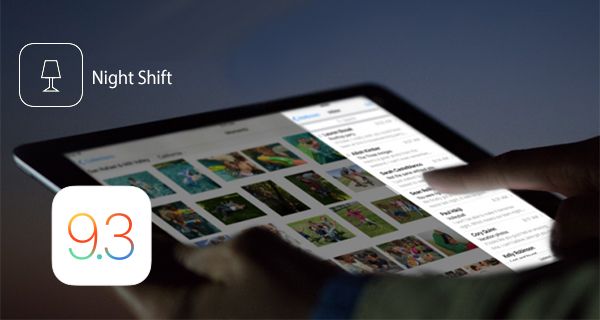
iOS 9.3 release, 9.3.1 update and 9.3.2 beta testing all bring the same interesting iPhone Night Shift mode. Here is the simple guide on how to use this option. It’s an interesting addition to any book worm and users who often surf the web at night or read tons of emails.

Having iPhone iOS 9.3 Night Shift mode enabled is simple and fast. It makes reading easier on your eyes. Many people enjoy the new feature.

iOS 9.3 Night Shift Feature How to Use Details Guide

How to Use Night Shift on iPhone

Before we explain how it works you should know that this special mode simply adds yellow tint to iPhone display. This can be compared to your iPhone wearing sunglasses and helping your eyes to be exposed to soothing light instead of bright white light. According to researches, bright blue light is not good for human eyes. At the same time orange light is better for eyes and this is what Apple offers with the iOS 9.3 Night Shift mode.

We should note that older Apple gadgets including iPhone 5 and earlier smartphones do not support Night Shift mode. However future iPhone 7 will definitely work with this option.

Step 1. To turn on the feature you have to install iOS 9.3 firmware version and make sure your iPhone or iPad supports the new mode.

Step 2. There should be a new sun icon in Control Center. Look at the bottom and click on it. This is how you enable Night Shift feature.

When you enable Night Shift iOS 9.3 option your Low Power Mode gets automatically disabled but there are tricks how to use both features at once. There are many other tricks how to better use Night Shift mode and enjoy reading from iPhone screen at any time of the day without hurting your eyes.

Simple Fix to iTunes Error 3194 on iPhone

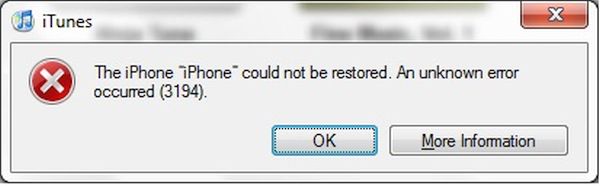
Do you get iTunes error 3194 while trying to update or restore your Apple device? It is simple to solve this problem [find out if it’s possible to downgrade iOS 9.3.1 to 9.3]. This method works for different problems. For example, you can fix Error 17 and 1639. This guide is good for Errors 3000 – 3020 and is great for iTunes errors 3100 – 3999.

Yay, there are multiple bugs and problems that can be resolved. It happens because iTunes doesn’t ‘talk’ to update server so you should check hosts file. If you are using Mac you can fix error 3194 iTunes through Terminal command. Simply enter:

sudo nano /private/etc/hosts

Click on Enter and you’ll see the hosts file where you should search for gs.apple.com entry. If it exists you need to remove or comment it by adding # with ‘space’ at the beginning of entry. Save the file and restart your Mac machine.

Error 3194 iTunes iPhone Fix

Windows users can fix error Can’t Restore 3194 iTunes problem [learn more about Apple online iPhone upgrade program] by getting to Search and typing Run to click on Run icon. You should type the following into Open window:

%WinDir%\System32\Drivers\Etc

When Etc folder is launched you can double press on Hosts file. It is necessary to edit it by removing gs.apple.com entry and saving the file.

The issue should be fixed after restore.

There are predictions that say iTunes error 3194 mostly appears on previously jailbroken devices where jailbreak caused the appearance of new entry hosts file that you have to remove in order to fix the problem. It can be solved on both Macs and Windows computers and this is nice. No matter if you have iPhone or iPad you can still fix the bug without issues.

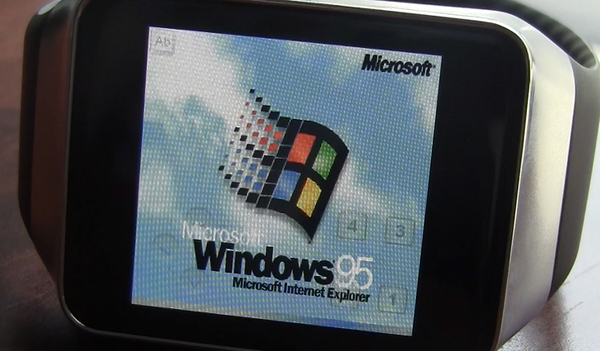
Imagine Apple Watch Running Windows 95

Apple Watch is usually running watchOS firmware version however you can imaging Apple Watch running Windows 95. Is it really possibly? Developers prove that nothing is impossible when it comes to popular ‘fruit’ devices.

We’ll tell you how to install Windows on Apple Watch without or with unlock. There is no detailed instruction but there are tips shared by dev Nick Lee. He is the one who is already running the old Microsoft OS on the new Apple Watch model.

Apple Watch Running Windows 95

Why would anyone wish to install Windows 95 on Apple Watch? This is another question to ask. Some users might want to surprise their friends or play a prank on someone. There are some things to consider before attempting to run old Windows OS on new Apple smartwatch.

Firstly, your gadget would take approximately one hour to boot up. Secondly, the Windows platform would be extremely slow on the Apple Watch. Thirdly, you do risk because you can easily void Apple warranty.

The small smartwatch is way more powerful than old computers that were running Windows 95 version. This is why it can technically run Windows. Still this firmware was never meant for Apple gadgets and the 2015 Apple Watch is surely not the gadget Microsoft built its Windows 95 platform for.

Developer who managed to run the old operating system on the Watch was using Windows 95 as Watch app and emulator that helped the OS functioning. Lee also created a motorized tube that as rotated the Crown all the time to prevent Watch display from shutting down when the gadget is not in use. You cannot just install Windows on Apple Watch. You have to be a developer and modify Apple software in ‘unorthodox’ way meaning you have to build your own platform without Lee’s help since the developer shares no step by step instruction on how to run Windows on Watch.

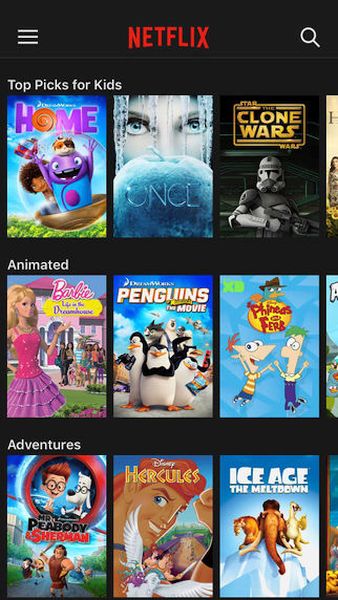
AT&T iPhone Users Can Change Netflix Mobile Data Usage | Guide

iPhone users can easily control the quality of Netflix videos and even lower Netflix mobile data usage on their smartphone. This could be handy to AT&T iPhone subscribers and anyone else who prefers saving money by reducing data usage.

How much mobile data does Netflix use? You can get this information by installing Netflix iOS 9 application on your Apple handset. This app allows controlling your data usage and quality of videos. It supports both iPhone and iPad. We are happy to share a simple guide with users who prefer learning how to take the control of their data.

Adjust Netflix Video Quality Cellular Data Usage ATT iPhone

How to Reduce Netflix Data Usage on AT&T iPhone

Step 1. Install the free application Netflix which you can download from App Store.

Step 2. Launch Settings.

Step 3. Go to Mobile Data / Cellular and find Netflix menu below Use Mobile Data For to understand how much data it is using on the iPhone.

Step 4. Launch your Netflix application and open App Settings. You need to click on the 3 lines in the top left corner and then press the settings to select Cellular Data Usage.

Step 5. If you ‘Set Automatically’ option doesn’t satisfy your data needs you can adjust the settings manually by choosing Off, Low, Medium, High or Unlimited option. This way you can block cellular streaming or allow particular hours / GB to save your mobile data usage.

AT&T iPhone users who happen to have the grandfathered unlimited data plan might enjoy the Unlimited setting as it saves the highest quality of Netflix videos for you. Still remember that AT&T likes to throttle users who ‘overuse’ their unlimited data.

How to Restore iPhone from iCloud Backup [Guide]

If you created a backup copy of your iPhone using iCloud you can use iCloud restore for iPhone from backup. This is simple, quick and easy to do. Maybe there was something wrong with your handset during update to the new iOS 8 beta 1 or jailbreak / hack attempt.

You can get back to your saved restore version and use your iPhone again.

Step 1. iCloud restore for iPhone 5S, 5c, 5 or other model begins from turning on your smartphone and making what it asks: Slide your finger to continue.

Step 2. Select your language, country / region and either use Wi-Fi or cellular connection. It is best to use Wi-Fi because to restore iPhone iCloud will use internet.

Step 3. Choose to use or not to use Location Services [you can change this later on].

Step 4. Now select Restore from iCloud backup menu.

Step 5. You will have to enter your ID and password to continue and accept Terms and Conditions. Otherwise yopu may have activation lock issue.

ios 7 activation lock

Step 6. To restore iPhone from iCloud backup, you need to select the backup name if you have several of them.

Step 7. Now allow your smartphone complete restoring process.

Once everything is returned to your handset you can once again enjoy using Apple gadget. If you didn’t have Wi-Fi connection, don’t worry. Once you get connected to Internet, iCloud can finish getting the files it couldn’t get earlier.

New Problem with iOS App Updating and Apple ID

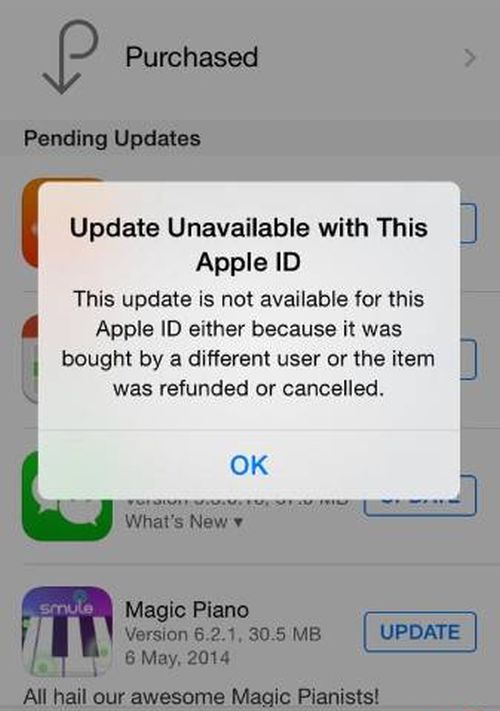
A lot of Apple customers get the same iOS app updates error. This new issue is faced by mostly international users who report problems on Apple official support forums and via Twitter. As people say, they are not able to update their iOS applications. This process fails to be successful and they receive Apple ID error while trying to upgrade.

apple-id-error-app-updating

Users describe the situation as follows: when they start to update iPhone and iPad apps in the official App Store, the store warns them that “the update is not available for this Apple ID.” The message provides two possible reasons for this: either someone else purchased the program or it was cancelled / refunded.

As one user wrote on forums for MacRumors, the attempt to update four applications failed and the App Store showed the problematic message with the reasons described above. The users assures she has only one account for the iPhone 5S and such Apple ID problems never surfaced in the past.

iDevice owners who got the issue say they even haven’t logout from their account. Some have even lost all their applications. Apple Support knows about the problem and iOS app update error. They said there was a problem with the server that affected updating your programs on iPad and iPhone. Apple is said to be working on the fix. It is not known when the issue should be gone.

Feel free to share your experience with app updating with us. Do you get this error or not? If not, what your current iPhone model is? It is impossible to fix the problem once you got it, at least, at the moment. It could be resolved at any time now.