Do you know that you can save your iPhone email attachments to iCloud Drive? This can be done on iOS 9 platform [learn more about future iPhone 7 that should be released in the fall 2016]. There is no need to search for any third-party tools because your default iOS Mail application supports this feature.
All you have to do is enable your iCloud Drive. In other words, you should make sure it is installed on your iDevice. Follow our simple instruction and learn more about iOS Mail attachment iCloud Drive ‘partnership’ and your new opportunities offered by Apple to all iPhone users.
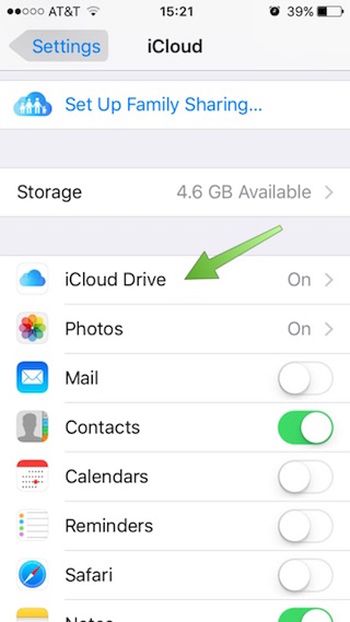
How to Save Email Attachments to iCloud Drive: iPhone Guide
Step 1. Once you download and install iCloud Drive application on iPhone you should launch Settings app.
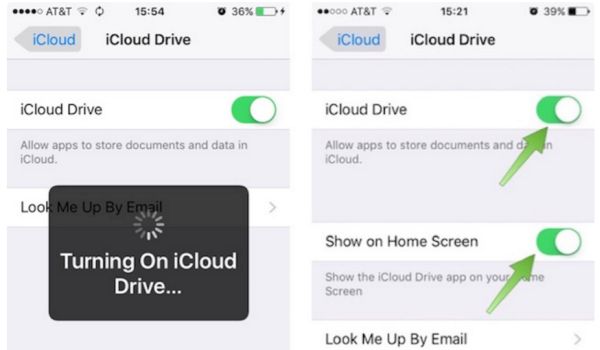
Step 2. Choose iCloud – iCloud Drive and use your login / password to log into the iCloud account. Do this right from your smartphone.

Step 3. With iCloud Drive being turned on you should also choose ‘Show’ option for Home Screen. Look for the iCloud Drive icon which appears on iPhone Home Screen [this can be done on popular iPhone SE and other Apple handset models]. Do you see it?
Step 4. Go to Mail program.
Step 5. You need to select email with any attachments.
Step 6. Click on icon to download the attachment.
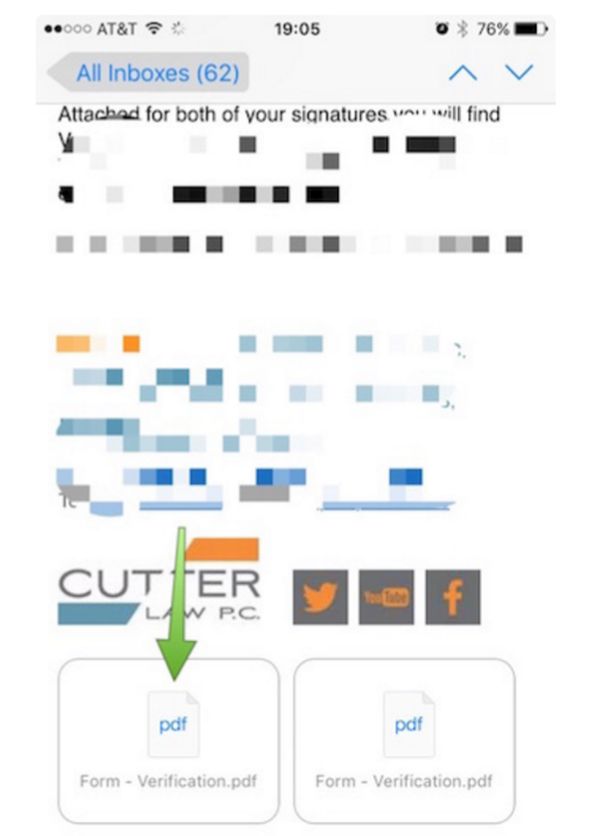
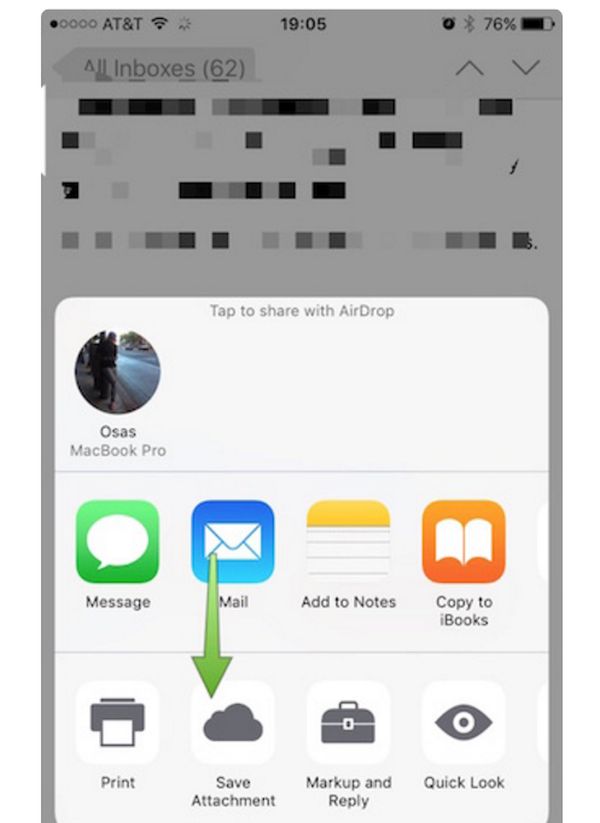
Step 7. You need to click-hold your attachment to see Share sheet option.
Step 8. Swipe in Share sheet to get to Save Attachment feature. You’ll see this icon so click on it to get to iCloud Drive.
Step 9. Choose the folder where your file will be saved. Remember to click ‘Export to this location’ option in order to save your file and press on Done.
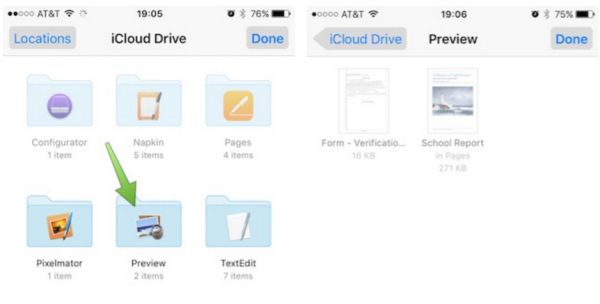
That’s it. You have successfully saved iOS 9 Mail app attachment to your iPhone iCloud Drive.