Can I Downgrade iOS 9.3.2 Back to iOS 9.3.1 on AT&T iPhone?

There is a fast way how to downgrade iOS 9.3.2 back to version 9.3.1 on AT&T iPhone 6s / 6. It’s risky to downgrade and Apple doesn’t like when users return to previous operating system versions. Still there are many users who choose to revert back no matter what the Cupertino-based giant thinks.

You can follow the short guide and downgrade iOS 9.3.2 to iOS 9.3.1. Remember that it’s risky so backup your AT&T iPhone via iTunes or iCloud before you do anything. Can I downgrade iOS 9.3.2? Sure, you can but stay attentive to details.
Downgrade iOS 9.3.2 to 9.3.1 iPhone How To Guide

Downgrade iOS 9.3.2 Guide

Step 1. Disable Find My iPhone option on AT&T iPhone using Settings – iCloud – Find My iPhone feature.

Step 2. Search for iOS 9.3.1 ipsw file for your particular iPhone model and download it [there are many iOS 9.3 features that are improved on 9.3.1 version]. Use Firefox to download the file or turn off automatic unzip option in Safari.

Step 3. Now connect your handset to computer and open iTunes.

Step 4. Press on Alt / Option on Mac while choosing Check for Update iTunes feature.

Step 5. Point to iOS 9.3.1 ipsw file and let iTunes to downgrade your smartphone. The program will ask you to confirm the decision to update (downgrade). Agree and wait for the program to complete everything.

Step 6. You might be asked to activate AT&T iPhone.

Apple won’t sign iOS 9.3.1 for a long time. It will soon stop signing this firmware and it will be impossible to downgrade. So double check if you can still downgrade 9.3.2 to 9.3.1 version.
Learn How You Can Save iPhone Email Attachments to Your iCloud Drive

Do you know that you can save your iPhone email attachments to iCloud Drive? This can be done on iOS 9 platform [learn more about future iPhone 7 that should be released in the fall 2016]. There is no need to search for any third-party tools because your default iOS Mail application supports this feature.

All you have to do is enable your iCloud Drive. In other words, you should make sure it is installed on your iDevice. Follow our simple instruction and learn more about iOS Mail attachment iCloud Drive ‘partnership’ and your new opportunities offered by Apple to all iPhone users.

Save iOS 9 Mail Attachment iPhone to iCloud Drive

How to Save Email Attachments to iCloud Drive: iPhone Guide

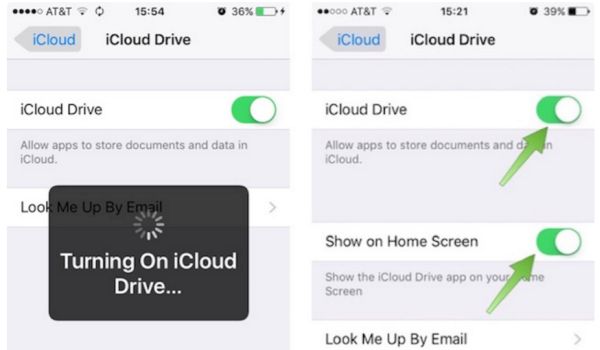
Step 1. Once you download and install iCloud Drive application on iPhone you should launch Settings app.

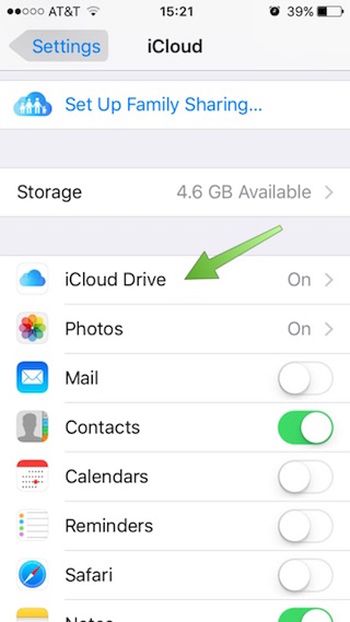
Step 2. Choose iCloud – iCloud Drive and use your login / password to log into the iCloud account. Do this right from your smartphone.

Login to iCloud Drive on iPhone

Step 3. With iCloud Drive being turned on you should also choose ‘Show’ option for Home Screen. Look for the iCloud Drive icon which appears on iPhone Home Screen [this can be done on popular iPhone SE and other Apple handset models]. Do you see it?

Turn On iCloud Drive on iPhone

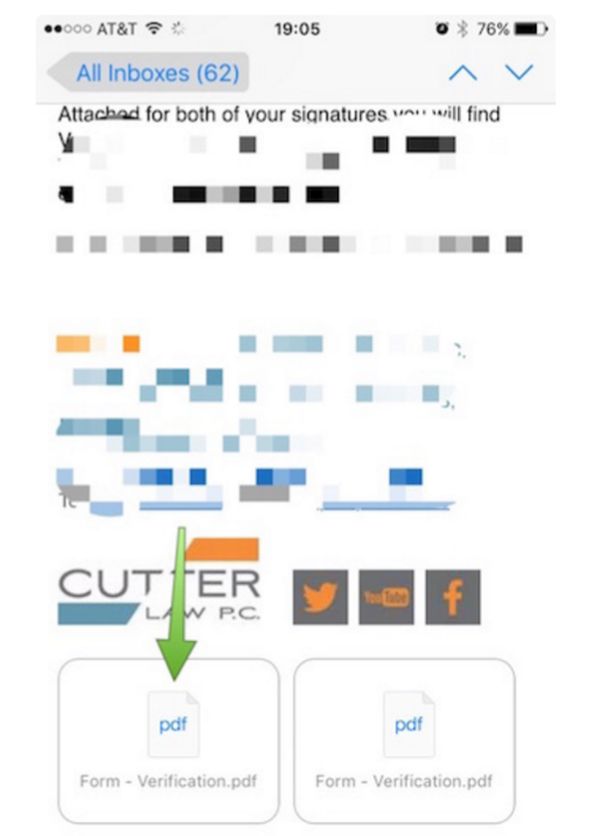
Step 4. Go to Mail program.

Step 5. You need to select email with any attachments.

Step 6. Click on icon to download the attachment.

Download iOS 9 Mail Attachment

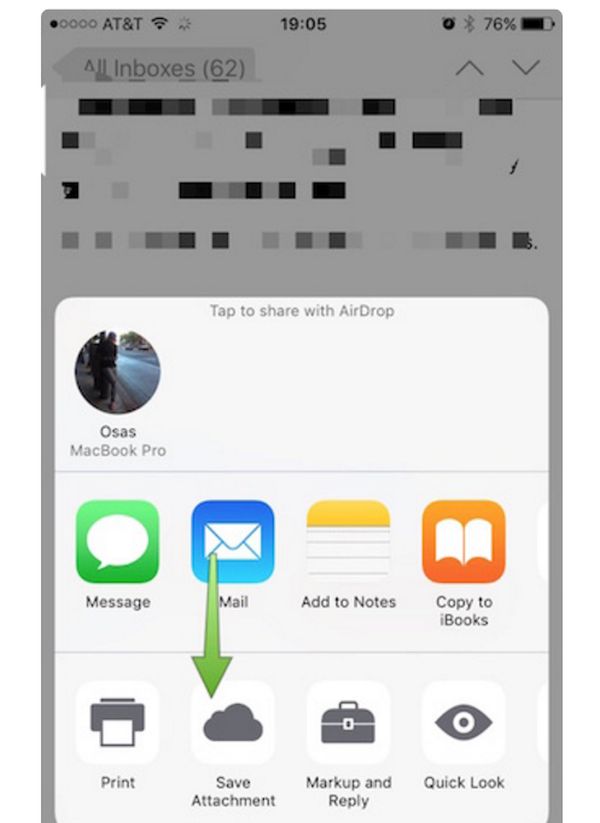
Step 7. You need to click-hold your attachment to see Share sheet option.

Step 8. Swipe in Share sheet to get to Save Attachment feature. You’ll see this icon so click on it to get to iCloud Drive.

Save iPhone Mail Attachment to iCloud Drive

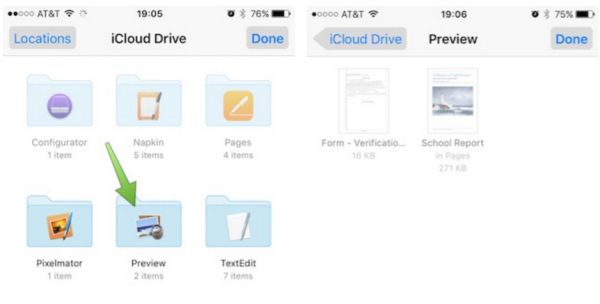
Step 9. Choose the folder where your file will be saved. Remember to click ‘Export to this location’ option in order to save your file and press on Done.

How to Save iPhone Mail Attachments on iOS 9 to iCloud Drive Guide

That’s it. You have successfully saved iOS 9 Mail app attachment to your iPhone iCloud Drive.

iPhone Night Shift Option: How to Master This Option

iOS 9.3 release, 9.3.1 update and 9.3.2 beta testing all bring the same interesting iPhone Night Shift mode. Here is the simple guide on how to use this option. It’s an interesting addition to any book worm and users who often surf the web at night or read tons of emails.

Having iPhone iOS 9.3 Night Shift mode enabled is simple and fast. It makes reading easier on your eyes. Many people enjoy the new feature.

iOS 9.3 Night Shift Feature How to Use Details Guide

How to Use Night Shift on iPhone

Before we explain how it works you should know that this special mode simply adds yellow tint to iPhone display. This can be compared to your iPhone wearing sunglasses and helping your eyes to be exposed to soothing light instead of bright white light. According to researches, bright blue light is not good for human eyes. At the same time orange light is better for eyes and this is what Apple offers with the iOS 9.3 Night Shift mode.

We should note that older Apple gadgets including iPhone 5 and earlier smartphones do not support Night Shift mode. However future iPhone 7 will definitely work with this option.

Step 1. To turn on the feature you have to install iOS 9.3 firmware version and make sure your iPhone or iPad supports the new mode.

Step 2. There should be a new sun icon in Control Center. Look at the bottom and click on it. This is how you enable Night Shift feature.

When you enable Night Shift iOS 9.3 option your Low Power Mode gets automatically disabled but there are tricks how to use both features at once. There are many other tricks how to better use Night Shift mode and enjoy reading from iPhone screen at any time of the day without hurting your eyes.