iOS 9 Read Receipts for Easier and Simpler Reading

The screen is too bright. Now, the fonts are spindly. Oh, it’s hard to read in the sunlight. These are some of the common iOS 9 read text complaints from iPhone users [it is possible to decrease iPhone data usage on iOS 9]. You can change some settings and enjoy reading on your smartphone. Of course, this is not a book but you might want to check your text messages, emails or read something online – anyway it’s better when you enjoy the fonts, background and other things.

iOS 9 read receipts can explain what exactly you need to change and adjust in order to create bigger, bolder, brighter fonts and dimmer background on the iPhone.
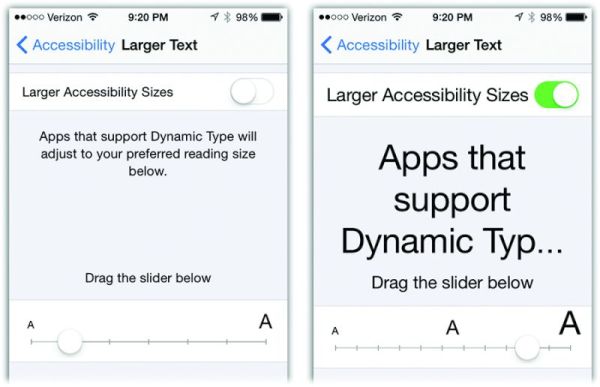
iPhone Adjust Text for Reading

iOS 9 Reading Settings Guide

Step 1. All iPhone users can apply the changes through Settings app.

Step 2. Go to General – Accessibility menu where you are able to increase the font size and make texts more appealing to your eye. Large type size wouldn’t appear throughout the system. If you increase the text you’ll find it bigger in iBooks and your Messages, but it won’t be present in apps that don’t support Dynamic Type feature.

Step 3. You can also make bold text and play with contrast [there are a lot of iOS 9 tips and tricks you can enjoy]. For example, you can make solid background for Notification or Control Center by reducing transparency or create darker colors making fonts look heavier.

Step 4. It is also possible to play with your button shapes if this helps to improve your reading experience.

Step 5. There are some on and off switches that make white background for the switch when you are using Off option and green background for On option.

Step 6. Disable parallax motion if you want to reduce iOS 9 motion.

All these simple changes can make reading on the iPhone so much greater.
AT&T WiFi Calling iOS 9.2 Beta 2 Support for iPhone / Mac

iOS 9.2 will become public sometime this fall. Apple already released two betas for developers and one public beta and the most recent version available for testing is iOS 9.2 beta 2 public beta. This is an interesting release. Even though most users cannot check the new features yet because millions of users are not public testers or devs – you should know some of the changes this next firmware should bring to AT&T subscribers.

iOS 9.2 AT&T iPhone WiFi Call Support for Mac

There is no need to SIM unlock your AT&T iPhone 6 or 6s right now because of the issues with WiFi Calling support. The iOS 9.2 beta 2 update proves that Apple has enabled AT&T NumberSync option and this means that all Mac users who have the AT&T smartphone will be able to answer phone calls through WiFi right from their computer.

The previous beta solved some issues and bugs, and the second update brings some enhancements and improvements to the system. Apple is reportedly solving some issues with Safari View Controller, updates the Safari window and adds some minor changes along with supporting the AT&T NumberSync option useful for iPhone users who also have Mac or iPad and wish to receive phone calls right from the tablet or computer without connecting their smartphone [Verizon is also trying to bring WiFi calls on iOS 9 devices].

All iDevices that are supported by iOS 9 will be able to update to iOS 9.2. This includes AT&T iPhone 6s and 6s Plus which can be distantly unlocked to use SIM cards of other networks. Once being permanently unlocked you’ll be able to use T-Mobile, O2, Verizon and other U.S. and foreign carriers.

Different mobile companies are already supporting iOS 9 WiFi Calls along with AT&T, T-Mobile and other networks. This is a great option that makes it possible to stay connect and receive phone calls even if your cellular signal is poor or absent while WiFi connection is available.

Compare iOS 9 and iOS 8: Speed Test for 9.2 Beta and 8.4.1 Firmwares

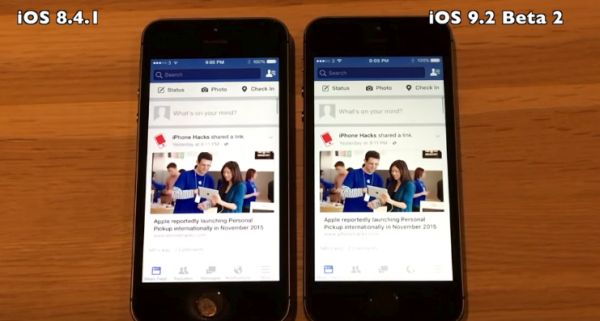
Over 60 percent of iPhone users installed iOS 9 versions [here is a list of some useful iOS 9 tips and features], as Apple reports. Still at least 25 percent of people who are using the ‘fruit’ smartphone are still running previous iOS 8. Let’s compare iOS 9 and iOS 8 in a speed test performed for the most recent iOS 9.2 beta and the last iOS 8.4.1 version.

Isn’t it curious to see the results of iOS 9.2 vs 8.4.1 speed test before this operating system becomes officially released? The test was performed by iAppleBytes and it compares the most recent versions of iOS 8 and iOS 9 platforms that both support iPhone 6, 5s, 4s, 5, 5c and 6 Plus. Not all the models were put to the test. The company chose the older iPhone 4s, 5 and 5s since the iPhone 6 / 6 Plus were launched a year ago and they won’t be affected by iOS 9.2 update as much as previous gen devices.

iOS 9.2 vs iOS 8.4.1 Speed Test Compare

The iOS 9.2 speed test proves that Apple makes its system running just a big faster on older phones if compared to iOS 8.4.1 version. Still if the boot up gets faster some other things remain the same. For example, when you launch programs and switch between iOS applications you will notice no difference between the two firmwares.

If both versions truly offer identical speeds – users who are running iOS 9 might want to stay on this firmware and not downgrade to iOS 8.4.1 which is still possible! You can read how to update and downgrade to 8.4.1 from any iOS version on the web. Keep in mind that iOS 8.4.1 cannot be jailbroken just like iOS 9.1. iOS 9, 9.0.2, 9.0.1 and earlier iOS 8 versions are also jailbreakable with Pangu program.

A group of hackers found a way how to jailbreak 9.1 platform but their tool will not be released to public.
Apple will present iOS 9.2 upgrade sometime this fall. The company is testing it together with developers and public beta testers. You can also participate in Apple iOS public beta testing program if you are interested in peering inside the firmware versions that are not available officially yet.

How to Return iOS 9.1 to 9.0.2 Guide for iPhone, iPad, iPod touch

Users who are looking for the shortest iOS 9.1 downgrade to iOS 9 instruction can follow the guide below and successfully return from their newest mobile version on iPhone to the previous one [if you don’t have iPhone and hesitate between different models check our comparison of iPhone 6s and Galaxy S6]. Apple is signing 9.0.2 right now so you can install this particular firmware on your iDevice. Unfortunately you cannot get iOS 9 or iOS 8.

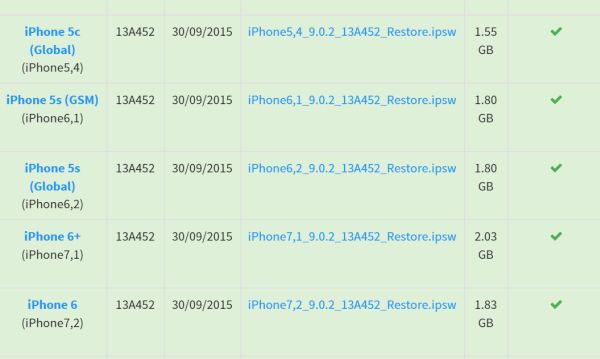
We’ll mention one pretty fast guide on iOS 9.1 downgrade iPhone 5 or other model you have. It is easy but you’ll have to do some search as you’ll need to find iOS 9.0.2 ipsw file if you didn’t download and save it when Apple officially released it.

How to Return iOS 9.1 to 9.0.2 on iPhone 5

Step 1. Firstly, make sure you have the 9.0.2 firmware file on your computer.

Step 2. Secondly, double check to make sure Apple is signing 9.0.2 version.

iOS 9.0.2 Apple Signing Status for Downgrade

Step 3. Launch Settings program on your iPhone 5. Select iCloud and disable Find My iPhone program.

Step 4. Users who started to prefer 6-digit code over the 4-digit code have to change it back to the 4-digit passcode. This way you’ll be able to unlock iPhone 5 when you are downgraded and running iOS 9.0.2 [here are some other useful iOS 9 tips and tricks you should learn about].

Step 5. Backup. Remember to do this. You can use iTunes.

Step 6. Now connect via USB to your computer while the iPhone is running iOS 9.1.

Step 7. Launch iTunes on PC / Mac.

Step 8. Choose your iDevice from iTunes top menu.

Step 9. Press on Shift [Windows] or Alt / Option [Mac] and click on Check for Update on iTunes.

Step 10. Choose your 9.0.2 file and allow iTunes to restore to iOS 9.0.2.

Step 11. Press update and wait.

Step 12. As soon as iTunes completes restoring your iPhone, it will restart and you will find Slide to upgrade option. You can enter the 4-digit passcode and activate the iPhone running iOS 9.0.2 instead of 9.1.

WiFi Assist iPhone iOS 9 Feature Not Working [Reasons]

Sometimes you get spotty WiFi connection and need something that is more reliable [AT&T is bringing support for iOS 9 WiFi calls]. If you update to the most recent mobile firmware offered by Apple you can get iOS 9 WiFi Assist feature that is exactly what you need to get reliable Internet connection.

The new option is very curious. All users know that it makes connections more reliable however this cool WiFi iOS 9 setting is firstly not available to all iPhone owners and secondly has other facts you must hear about.

iOS 9 WiFi Assist Not Working Fix Guide Reasons

WiFi Assist iPhone iOS 9 Secrets and Tips

* Updated to iOS 9 but have no WiFi Assist?

Unfortunately Apple made its new feature available on particular models only. Even if you upgrade to iOS 9.0.1, new iOS 9.0.2 or download iOS 9 direct ipsw file – you have no guarantee that the cool option would work for you. Apple restricted the models that can get this addition. Thus, iPhone 4s users are out of luck. Customers who have the original iPad mini, iPad 2 or iPad 3 will also find WiFi Assist not working on their devices.

* WiFi Assist is supported by my iPhone but doesn’t work

You might be using third-party applications and Apple restricts third-party programs support for its WiFi Assist option. This happens to avoid large amounts of data used by you. The company is trying to protect users from huge data bills. If you are using file downloaders, video streaming or music programs you might notice that your iOS 9 feature stops working.

* Why iOS WiFi Assist stops working in the background?

Apple made sure you cannot run its new iOS 9 feature in the background. It works only with foreground programs. If you are trying to download something in the background the option will stop working.

* No WiFi Assist while roaming?

Apple made sure its users who are traveling abroad do not get expensive data bills because of the WiFi Assist iOS 9 feature. This option becomes not available when you are using data roaming service.

We hope that this information is useful to iOS 9 users.

Does AT&T iPhone Support WiFi Calling Feature on iOS 9?

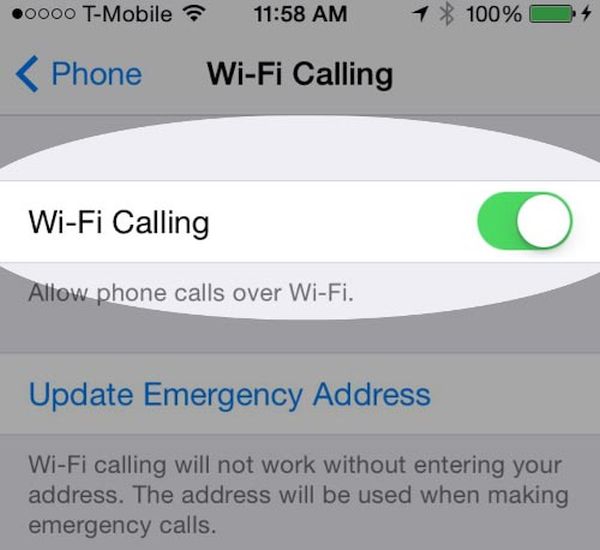
It’s not a secret that many AT&T iPhone 6s and iPhone 6s Plus subscribers purchased this new Apple device from this particular carrier because it promised soon AT&T WiFi calling launch date [learn how you can decrease your data usage on iPhone 6s]. The Cupertino-based giant updated its iOS 9 platform however AT&T is still not supporting the feature.

While other companies, including Sprint and T-Mobile iPhone carriers, already offer the support for WiFi Calling, AT&T WiFi calling release has been postponed. At first, the mobile operator reported that it wouldn’t launch the service unless the FCC regulator confirms everything is within the law. Well, the FCC approved the option however AT&T hasn’t schedule the launch date yet.

WiFi Calling iPhone 6s iOS 9 Feature

Does AT&T iPhone support WiFi calling on iOS 9? No, it does not and it doesn’t say when it is planning to rollout this option in the United States. The regulations related to the FCC are now settled down but users still cannot access the option.

It is worth to mention that AT&T also blasted both Sprint and T-Mobile for not offering TTY feature along with WiFi Calling and such rules are set by the FCC. If you wish to use both cellular and WiFi calling on your iPhone 6s you might even want to unlock AT&T iPhone on iOS 9 and switch to a different network that is supporting this option.

Since you can install iOS 9 firmware on your AT&T iPhone or Apple handset locked to other U.S. carrier – you might also want to use all the iOS 9 options and features right away. This isn’t always possible due to different issues with carriers and other things. If you are using a different carrier that supports the WiFi calls you might have already tested this option. How does it work? Do you like it when your phone is always connected even when your cellular signal is poor or absent for any reasons?

How to Decrease Mobile Data Usage on iOS 9 iPhone

With iOS 9 official upgrade iPhone and iPad users report the unpleasant iOS 9 increase data usage problem. The gadgets can now automatically switch between your cellular network and WiFi and this could cause you using more data than in the past. We’ll explain how you can fix the issue if it bothers you and you prefer using less data as it was on iOS 8 firmware version.

Apple made sure its users get the best connection all the time. This is why iOS 9 is switching between your WiFi and cellular networks. It is trying to provide you with the better experience. If this is a problem for you – solve it using the guide below.

How to Decrease Mobile Data Usage on iOS 9

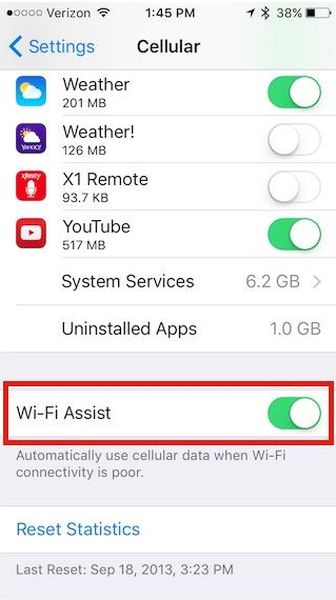
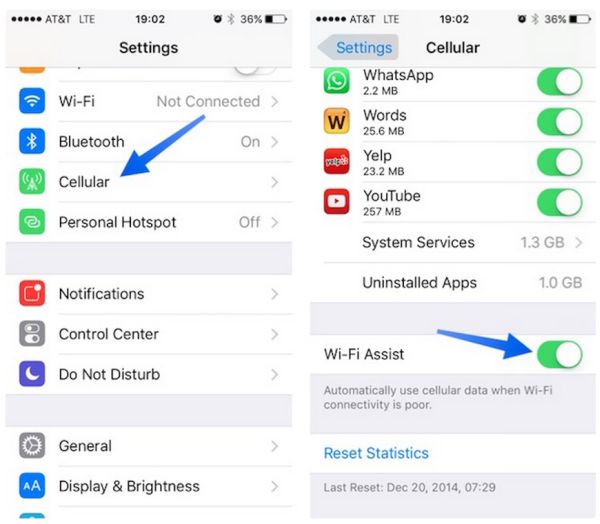
Step 1. You should work with your WiFi Assist feature if you want to stop consuming too much data because of the network switching on iOS 9 firmware version.

Step 2. Go to Setting. This is probably the app you are using the most when changes are needed.

Step 3. Select the Mobile Data / Cellular menu.

Step 4. You should now get to the page’s bottom. Scroll down.

WiFi Assist iOS 9

Step 5. Find the WiFi Assist option and disable it. Once it is off your iPhone 6s or iPad will stop jumping from 3G to 4G without asking you. You will not have the unexpected data usage issue any more.

Step 6. It is still possible to use the 3G / 4G network so don’t worry about it.

Step 7. If you need to track your mobile data usage on iOS 9 you can select Settings and choose Cellular menu where you are able to get to Cellular Data Usage.

This instruction could help users whose data usage increased significantly after iOS 9 installation. Some iPhone owners report that they used to get around 1-2GB of data and they are now getting about 7GB for performing the same tasks.

iOS 9 Face Down iPhone Battery Saving Tips

The firmware version iOS 9 brings iPhone face down screen support for some models. Unfortunately it won’t work for all iDevice users however if you are a lucky owner of a supported smartphone you’ll be able to save your battery life throughout the day.

iOS 9 face down feature is meant to save your battery and make it last longer. The official name of this option is Facedown detection. Apple introduced it in the fall 2015 and now a lot of users are already taking benefits of using it. It can bring up to one hour of your battery life and this is great because the feature turns off your iOS 9 display when you are not using your iPhone.

iPhone iOS 9 Face Down Feature

iPhone iOS 9 Battery Saving Tips

The feature is one of the coolest additions to iOS 9 tricks and features. When you put the handset facedown on the surface its display will stop lighting up. Even when you get a phone call or notifications the screen will not light up and your battery will last longer.

The new iOS 9 feature Facedown detection supports different surfaces including glass surface. You can even suspend your smartphone in the air and the option will still work. Still it requires a particular model.

If you have the iPhone 6s, 6s Plus that are on sale from September 25th, iPhone 6 Plus, iPhone 6 or iPhone 5s – you can enjoy the new iOS 9 facedown feature. If you own the older iPhone 5c, 5 or 4s you are out of luck. The new option doesn’t support these three versions of Apple mobile device.

iPod touch and iPad users cannot use the facedown option as well. It is exclusive for supported iPhones only.

It is possible to turn off the feature by turning off iOS 9 Fitness tracking option in your Settings application. There is no other way to disable it.

iOS 9 Tricks and Features That Are Fun to Use

There is a long list of iOS 9 features you could find useful and enjoy using everyday on your iPhone or other Apple device. The company finally allows saving battery life through special Lo Power Mode. It created the iCloud Drive as iOS 9 application and provides a lot of great options for those who enjoy taking pictures and recording videos.

There are a lot of other iOS 9 tricks you might like. For example, you can group your notifications by applications making it simpler to find them later on.

iOS 9 Tricks Features Tips

Those of you who are using Mail a lot can edit files right on the iOS 9 iPad, iPhone or iPod touch. Apple brings the new Reply and Markup functions and you can edit attachments [add your signature, text, drawings and other things] using Share sheet.

It has become possible to use Notes as your special word app. It gets tons of new options including checklists, sketching, Maps support and other useful additions.

Bedies, Mail and iCloud Drive allow you adding attachments and saving attachments. This is a great extra option that is lacking in iOS 8 and earlier firmware versions.

Apple allows saving battery life by placing the smartphone face down. This way the display doesn’t light up when you get a notification or text message.

It also important to mention the Quick Reply feature in the iOS 9 tips guide. It has been added to WhatsApp and similar programs. The company upgraded and improved Maps program and lets users disable vibrations for messages, phone calls and notifications through Settings – Accessibility.

Users who search iOS 9 contacts and names can place a call right from Search. When you wish to undo your last step you can shake your iDevice to Undo. Safari and other programs have also been improved. And finally Apple allows protecting your gadget using both 4-digit and 6-digit passcodes.

How to Downgrade to iOS 8.4.1 Instruction for iOS 9 Users

There are several ways how to downgrade to iOS 8.4.1. We want to mention the quickest one. It will help iPhone, iPod touch and iPad owners to downgrade iOS 9 to 8.4.1 version. Apple upgraded its mobile firmware in mid September and will soon stop signing the previous operating system. You still have time to get back to the older version in case you don’t like or don’t need the newest iOS 9.

This method is fast. Still it might not be recommended to all users. Besides, Apple doesn’t support downgrading.

Downgrade iOS 9 to iOS 8.4.1 iPhone Guide

iOS 9 to iOS 8.4.1 Downgrade Instruction

Step 1. Take your iPhone and launch Settings. Go to iCloud and disable Find my iPhone application.

Step 2. If you are already using the 6-digit passcode iOS 9 option you should change it back to 4-digit otherwise you will fail to unlock iPhone or iPad once you are running iOS 8.4.1 again because iOS 8.4.1 doesn’t support the 6-digit passcodes.

Step 3. Download iOS 8.4.1 ipsw for your device. Save it on your computer.

Step 4. It’s time to use USB cable and connect to your PC or Mac.

Step 5. Open iTunes and let is detect your device. Choose your gadget from iTunes menu. If you are using PC click on Shift [Mac users should hold Alt / Option] while pressing on Check for Update feature.

Step 6. Point to your iOS 8.4.1 file.

Step 7. When iTunes tells you it will update your iDevice to 8.4.1 version you should press on Update.

Step 8. Patiently wait for the downgrade to complete. It’s done when Slide to upgrade appears on your screen. You’ll have to enter our passcode to unlock iPhone and start using it.

Step 9. That’s it.

Remember that Apple will not sign iOS 8.4.1 for months in a row. It will soon stop signing the previous firmware so keep an eye before you downgrade. It could become impossible any time soon.