Best iPhone Tricks for iOS 9: Holiday Guide

Have you found the new iPhone 6s purchased from AT&T under your Christmas tree? This model is running iOS 9 platform and there are some top iPhone tricks you should discover. Even if you are familiar with Apple smartphones you probably didn’t know that such secrets exist.

We have a compilation of the of the best iPhone tricks for the most recent mobile operating system from Apple, iOS 9. There are so many features and brilliants specs you can use to enjoy you brand new smartphone!
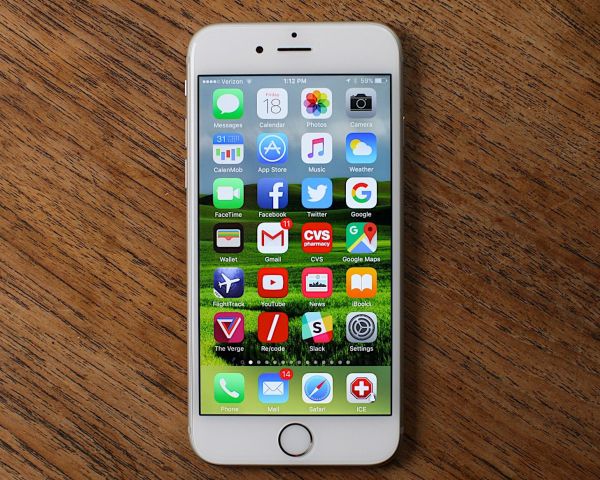
iPhone 6s Tips and Tricks

Awesome iPhone Tips and Tricks

*Record videos and takes photos simultaneously

The iPhone 6s can boast a nice camera you can use for shooting amazing videos and taking pictures. It is possible to accomplish both tasks at the same time. For example, when you are recording some impressive moments of your life you can also take a photo without stopping the recording process. Simply click on your camera button and you will get the shutter option on your screen. Isn’t it great?

*Can’t answer the phone call? Create automatic reply!

It is possible to create custom replies for the calls you cannot answer at the moment. Go to Settings and choose Phone – Respond with Text option [have you heard about iPhone 6s is the top Google search in 2015?]. It is possible to add a custom message but note that you’ll have to delete one of the three default options because your iPhone iOS 9 can hold only three prepared messages at a time.

When someone calls you next time you don’t have to answer the call. Just tap on message above the Slide to Answer option or select Respond with text feature.

*iPhone vibrations set up

It is possible to use custom vibrations to know who is calling you when your iPhone is in your pocket. This is a fun iOS 9 features and it’s very simple to set custom vibrations. It is very similar to how to assign ringtones to your contacts. Select Contacts and choose the contact you wish to add the new vibration to. Click Edit and find the vibration field. Choose the pattern you like or Create New Vibration to add your own rhythm. Save your custom vibration and enjoy!
iOS 9 Safari Secrets and Top Safari Tips for iPhone Users

Use iPhone Safari tips to get more out of your smartphone. It is easier to surf the web if you know some secrets as this way you can get rid of any possible frustration. iOS 9 system offers different features you can take advantage of [for example, you can hide apps to invisible folder on iPhone] but you can improve this experience even more if you follow this short guide.

iOS Safari Tips for iPhone Users

iOS 9 Safari Secrets for iPhone

*Private browsing is available to users who turn it on through Private menu. You can find it in the bottom of your iOS 9 browser.

*View recently closed tabs by clicking on the Tab icon. You will then need to hold the ‘+’ and all the tabs will appear in the list. You can now launch any link by clicking on it. This is a very useful option that comes handy once in a while.

*Our top Safari tips include the possibility to Request desktop site version which is available in iOS 9 [if you get iOS 9 iCloud error you can fix ‘backup could not be completed’ issue]. You can enable this feature through Refresh – Request Desktop Site menu in Safari browser on iPhone.

Safari iOS 9 Search Engines

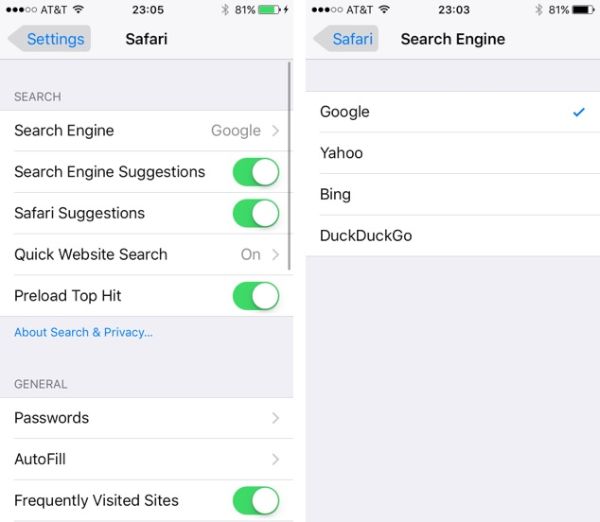
*You can select different Search Engine in Settings – Safari. Find this option under Search menu. Choose between Yahoo, Bing, Google and DuckDuckGo. It is also possible to use Smart Search option.

*Use Offline reading option or Reader view as both options are present in iOS 9 iPhone Safari.

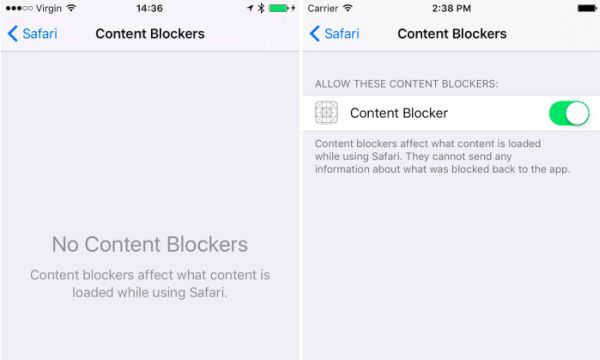
*Block ads if you are tired of mobile advertisements on iPhone. Go to Settings and choose Safari – Content Blockers to turn on this feature.

*If you wish to switch between pages – swipe right or left to go left – right. There is no need to click on the back option in the bottom every time you wish to perform this task.

How to Change iPhone Screen Timeout on iOS 9

It is possible to change your iOS 9 screen timeout on iPhone. If you already have the most recent Apple smartphone model iPhone 6s you might want to adjust this setting [if you have clean IMEI you can unlock AT&T iPhone 6s to use it with other SIM cards]. Everything is pretty fast and simple. Follow the instruction and you’ll learn how to deal with this option.

Your iOS 9 iPhone screen timeout if the period of time that passes until the smartphone shuts off its display after you stopped playing with your gadget. You are the one who can set up the time that passes after the last touch and before the screen shuts down automatically.

Change iPhone 6s Screen Timeout

How to Adjust Screen Timeout iPhone 6s Guide

Step 1. Take your Apple smartphone. The iPhone 6s has tons of great features [users are already looking for new iPhone 7 features and specs] but this particular setting is not that easy to find at first. Go to Settings as this is where our journey begins.

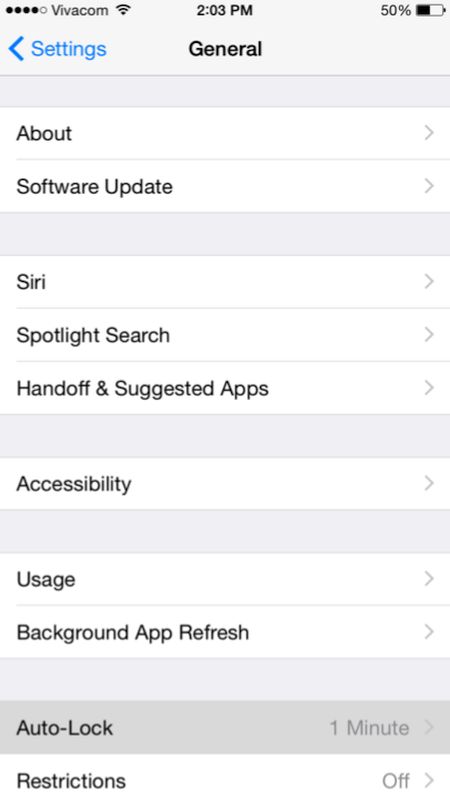
Step 2. To change iPhone screen timeout you need to launch General menu and select Auto-lock option which appears at the bottom.

step 2 Change iPhone Screen Timeout

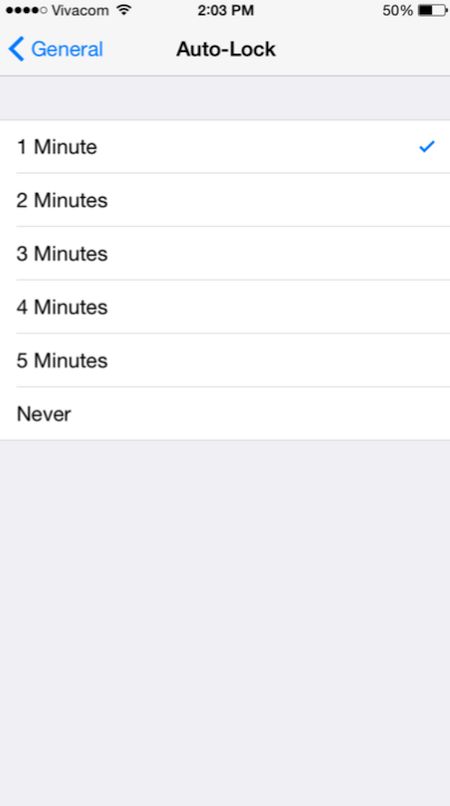
Step 3. There will be a checkmark which you need to use in order to change the screen timeout option.

step 3 Adjust Screen Timeout iPhone

This is pretty simple once you know where to look at. Right? There are numerous great iOS 9 changes and features you might also want to use in your everyday life. The iPhone offers a lot of possibilities and is a very popular smartphone nowadays.

How to Fix Error the Last Backup Could Not Be Completed on iOS 9

iPhone and iPad users who are running iOS 9 experience problems with iCloud backup creation. It is necessary to back up your iDevice when you are planning to restore, jailbreak, upgrade and in other situations. This way you can preserve your personal data and information you really need. Sometimes you come across iCloud error iOS 9 and we know how to solve it.

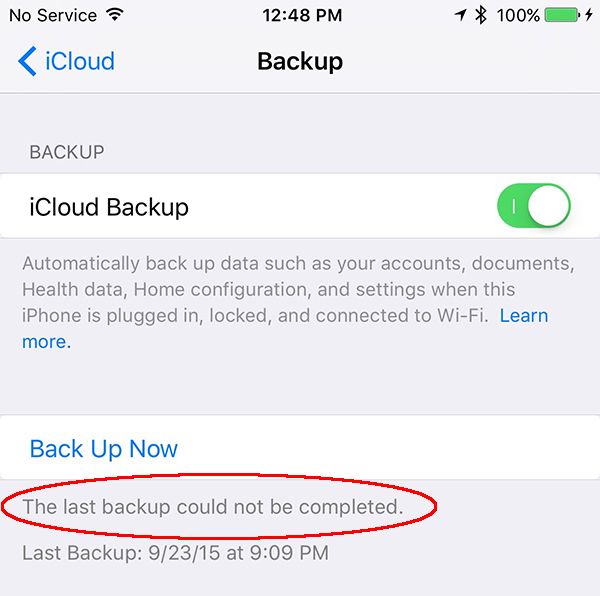
What should you do when you receive ‘the last backup could not be completed’ iOS 9 error? There are several things you can do so please follow our fix iCloud error guide and you should be safe and fine.

Fix Last Backup Could Not Be Completed iPhone iOS 9

How to Fix Error The Last Backup Could not Be Completed

Step 1. Firstly, backup using iTunes just to be safe. This should work.

Step 2. When something is wrong with the gadget you should reboot it. Turning off and on will not help. You should force the reboot by pressing Sleep / Wake + Home button. Wait for a few seconds and Apple boot logo will appear. When the iPhone is back on you should launch Settings and choose iCloud to backup. Hopefully this would work.

Step 3. If this doesn’t happen you can log out of iCloud account and log backin. Maybe this way you’ll be able to successfully backup without ‘the last backup couldn’t be completed’ iCloud error.

Step 4. Try to update to the most recent firmware version. The most recent one available today is iOS 9.1 [learn about possible iOS 9.1 update issues prior to installing this version]. You can either download iOS 9.1 ipsw file or go to Settings and select General – Software Update option.

Step 5. It isalso possible to reset network settings and try to backup afterwards.

Step 6. There is one more option you can use. Just go to Settings, choose iCloud and go to Storage – Manage Storage where it is possible to delete your old backup copies. Now try to backup again and this hopefully would work without any iCloud errors.

Make Siri Silent iOS 9 Guide and Disable iPhone Audio Feedback

It is too easy to activate Siri on iOS 9 and sometimes this could happen during an important meeting or in a class [you can always SIM factory unlock AT&T iPhone 6s and other models if you want to use different networks without restrictions]. Users who like to check on their smartphone once in a while and don’t want to become red because their personal assistant is suddenly activated can use Siri silent mode iOS 9 or simply make it silent.

We’ll tell you how to disable Siri on iOS 9 and this is probably the best solution which makes sure the assistant will stay silent and not be awoken during an intense conference or other event you are attending. We’ll also explain how to turn off your audio feedback just in case.

Disable Siri iOS 9 Audio Feedback Turn Off How to

Make Siri Silent iOS 9 Instruction

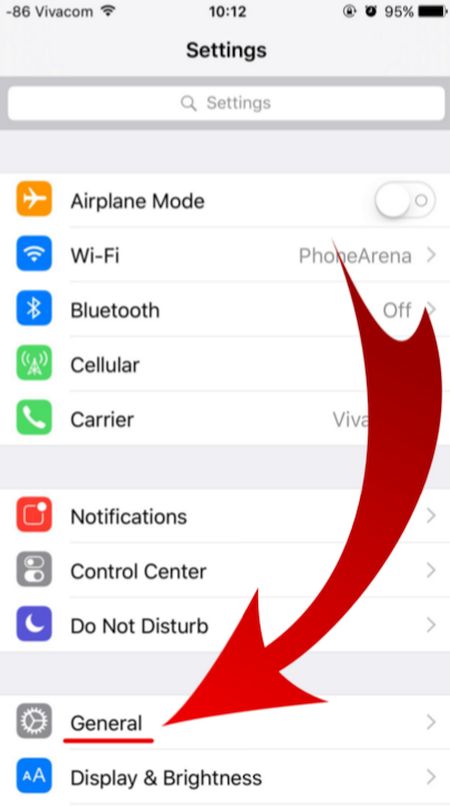
Step 1. Firstly take your iPhone and launch Settings app.

Step 2. In General menu you will find Siri option.

iOS 9 iPhone Settings General menu

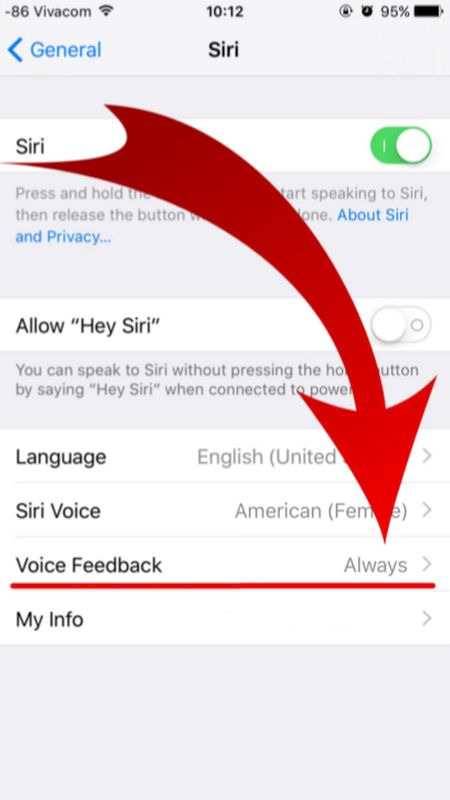
Step 3. There are several options under Siri menu. Look up for Voice Feedback feature as we are here to learn how to turn off audio feedback on iPhone that is updated to one of iOS 9 firmware versions [Apple released iOS 9, updated it to iOS 9.0.1, 9.0.2 and 9.1 which is the most recent release and the only firmware signed in by the company right now. Some users report AT&T iOS 9.1 Touch ID not working issue on their smartphone after upgrade].

iOS 9 Voice Feedback Siri Disable iPhone

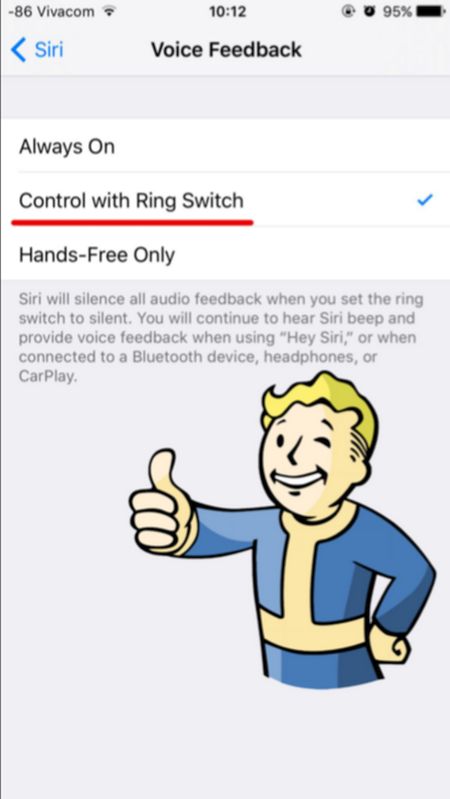
Step 4. You don’t need the Siri Voice Feedback being always on so disable it and you will complete Siri silent iOS 9 guide. How can you turn it off? Just select a different option. For example, tap on Control with Ring Switch. Why not? This is very simple but unfortunately Apple doesn’t set this feature this way by default.

Turn off Voide Feedback Siri iOS 9 Feature

Your personal assistant Siri will never surprise you after you go through the guide above and change the settings for iOS 9 Siri. You can use it but it will remain silent letting you attend meetings and other events without having to worry whether you awake Siri unexpectedly or not.

iOS 9 WiFi Calling AT&T iPhone 6 Set Up Guide for Mac

There were some problems with iOS 9 WiFi Calling AT&T option as the U.S. carrier was waiting for the approval from the FCC before it was ready to finally launch the announced service. The latest news state that users will be able to enjoy iPhone AT&T WiFi Calling on Mac once Apple officially updates iOS 9.2 version.

The Cupertino company started to test iOS 9.2. Developers got the first and second beta already and this latest OS makes it possible to answer your AT&T iPhone calls from Mac through WiFi connection. You just have to make sure that your computer and smartphone are both connected to the same network.

iPhone ATT WiFi Calling Mac Support

iOS 9.2 beta 2 supports AT&T NumberSync technology. Previous releases didn’t offer such support so you cannot answer phone WiFi calls from Mac right now. You’ll be able to do this when iOS 9.2 is launched for public use or if you are a public tester. Apple will definitely release iOS 9.2 public beta with support for AT&T NumberSync option.

How to Set Up WiFi Calling on iPhone 6 iOS 9.2

Step 1. Firstly you should install iOS 9.2 beta on iPhone [you can also SIM unlock AT&T iPhone 6s at any time].

Step 2. Now you can launch Settings on the phone.

Step 3. Select Phone – WiFi Calling menu.

Step 4. You need to Add WiFi Calling for Other Devices. This option is exactly what activates the feature on your computer.

Step 5. Follow the on-screen guide until you activate the iOS 9.2 WiFi Call support for AT&T.

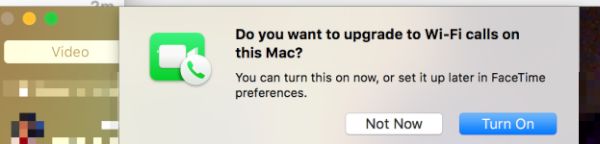
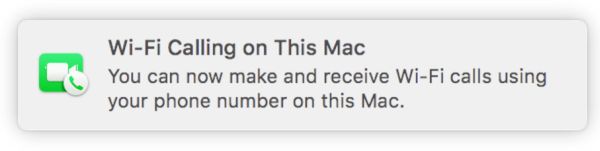
Step 6. If both Mac and iPhone are connected to the same WiFi network you will see a pop-up message from FaceTime that confirms everything is working.

AT&T WiFi Calls Mac

Step 7. On your Mac launch FaceTime and agree to enable WiFi Calling feature for Mac. The computer will provide you with the code. Enter it into your iPhone.

Step 8. When someone calls your iPhone via WiFi AT&T Calling you’ll be able to answer the call from Mac.

What do you think about such feature?

Can’t Update Apps App Store Issues Today with iOS 9

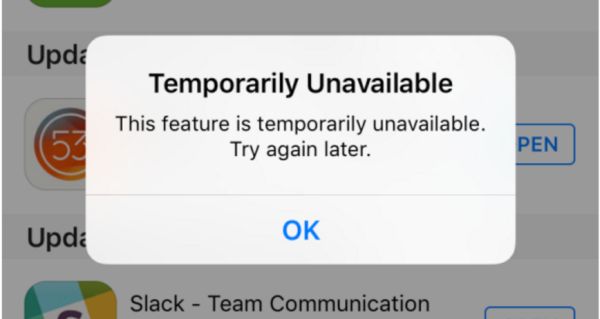
Do you experience can’t update apps App Store problem? A lot of AT&T iPhone and iPad owners come across App Store issues today and assure they cannot upgrade programs using iOS application store so popular among millions of Apple fans from all over the world. They keep getting the same message ‘Temporarily Unavailable’ from the store with suggestion to ‘try again later.’

Different sources mention App Store problems iOS 9 [if you have issues with extreme data usage you can reduce data usage on iOS 9 iPhone 6] and while this is usually not common, a lot of people cannot use the store and its options once in a while. The 2015 fall problem is not the first outage experienced this season. Different Apple services become unavailable while there are no indications of outage on the company’s System Status page.

App Store Can't Update App Temporary Unavailable

A number of reports and tips from different users suggest that they can’t update apps via App Store while all the processes are ‘green’ on the System Status site meaning everything is ok and working just as normally as usual.

Did you have any issues with updated your iOS 9 applications lately [by the way you can get more AT&T iPhone data for free]? Apple will absolutely fix the issues and there might not be any problems when you try to update a program the next time. Sadly, the company often prefers fixing issues silently without mentioning there was a real problem for a number of its users.

If you have problems with upgrading programs [maybe particular apps and not all applications you are trying to update for iOS 9 device] – you should know that the problem could be with Apple servers even though the company doesn’t indicate this. When several tips suggest the issue exists – it means a lot of users are struggling like you do and waiting for the Cupertino-based company to fix the problem.

How to Fix Facebook Battery Drain on iPhone 6, 6s

A lot of users get the same issue while using one popular social network program on their iPhone 6, 6s and other models [if you have iOS 9 flaws you can fix them]. Facebook battery drain iPhone 6 became a problem and it had to be fixed since millions of people from all over the world wish to preserve their battery life while still accessing their social network accounts.

Firstly, Facebook app battery drain was finally explained after numerous complaints from users. Secondly, when too many people report the same problem – it is indeed a big issue that must be addressed by a company.

iPhone Battery Drain Facebook Fix

Here is the best Facebook battery drain iPhone fix that should help you when you face the bug. There is an update you can download and install. It addresses iOS 9 battery concerns and is meant to solve the issue for most users who experienced it. You know that Apple rolled out iOS 9 firmware and upgraded it to iOS 9.1 you can download using direct links. There are also versions 9.0.1 and 9.0.2.

So what could cause the problem with fast iPhone battery drain when you were using Facebook app? The company thinks the issue was related to CPU spin. As noted by Facebook, its mobile program kept sending requests to the CPU to do ‘something’ even when the program wasn’t being in use. This was a problem in the network code and it is fixed in the update.

Once you install the most recent version of iOS 9 application the problem will be gone and Facebook will stop asking your iPhone for something and ‘eating’ its battery life that much. The improvements should help you out.

The more fixes are coming soon since the iOS 9 program has another issue the company is aware of. It continues to play audio if you were watching a video while the program was active and then put in the background.

Apple Assures It Is Impossible to Unlock iPhone

A lot of users are familiar with unlock iPhone iOS 9 options. There are two types of unlock you most likely know. One is the factory IMEI unlock from AT&T or other carrier and the other one is unlocking the phone to access your personal information.

Well, Apple started to say that it was impossible to unlock iPhone with iOS 8 release. This year the company officially launched iOS 9, updated it to iOS 9.0.1 and 9.0.2. The Cupertino-based giant still assures that it is impossible to unlock the gadgets if they are running of these platforms.

iPhone Unlock Impossible

The well-known iPhone maker believes that unlocking is not possible and when the judge asked Tim Cook [the company’s CEO] to unlock iPhone and access data stored on it – Cook assured it wasn’t possible for Apple to accomplish.

The iOS giant simply doesn’t store encryption keys for iPhone and iPad that is updated to iOS 8 or iOS 9. Passcode is required to access a locked screen. Still there are services that can bypass this restriction and find the correct passcode by tricking the system.

If you wish to learn how to unlock iPhone iOS 8 or iOS 9 to become SIM free [this is the different type of unlock as we already mentioned] you are welcome to select the corresponding unlocking package for your iPhone model and mobile network. You’ll become fully unlocked pretty soon and get the chance to use different SIM cards from various networks from all over the world.

There is no iOS 9 unlock code or iOS 8 unlock passcode to use with factory unlock. All you need to know is your IMEI number and your iPhone statuses as well as original carrier you are locked to. Use iPhone IMEI network check online to get this information about your handset.

AT&T WiFi Calling Release Date Delayed

A lot of U.S users who purchased AT&T iPhone 6s or iPhone 6s Plus wished to also get the announced AT&T WiFi calling 2015 option. However this feature hasn’t been released yet. It is being delayed and millions of subscribers are now upset.

While AT&T WiFi calling iPhone 6s option is not working because the mobile operator is awaiting for the FCC to approve this feature, users who are subscribed to Sprint or T-Mobile can enjoy the wonderful calling iOS 9 option. You might even want to unlock AT&T iPhone 6s or 6s Plus right away and become SIM free to use the feature with a different network provider while waiting for your original carrier to get the approval.

AT&T WiFi Calling Feature Delayed

AT&T WiFi calling release date was expected right after the ‘s’ lineup launch. The company was testing this option together with Apple in the end of the summer. This made a lot of users believe that they would get iOS 9 WiFi calling right after this firmware update. Apple indeed upgraded its mobile operating system and has already launched two versions: iOS 9 and minor iOS 9.0.1 update. At the same time, AT&T is still holding back on releasing the WiFi calling on its network.

AT&T hoped to release its WiFi calling service without offering TTY support for hard-of-hearing and deaf people. It has to get the FCC approval to make this happen. It is curious that both Sprint and T-Mobile that launched iOS 9 WiFi calling feature support do not offer TTY support as well.

Originally AT&T WiFi calling launch was planned on September 25th or 26th. The company is not going to offer the service unless it gets the approval. Are you going to wait for the option to be launched or do you plan to factory unlock iPhone from AT&T in order to use the option on a different network?