iOS 9.3 Features Get iCloud Music Library Improvements

New iOS 9.3 features are coming soon and meanwhile users suffer from iPhone error 53 brick. Apple is testing iOS 9.3 beta with developers and public beta testers and latest reports assure that this platform will extend options of iCloud Music Library.

Beta stage will soon be over and public will see the final iOS 9.3 release for iPhone, iPad and iPod touch. Users who listen to music will welcome the new options Apple offers. The company gave a light to third-party programs and this way users are able to add more music to their iCloud Music Library.

iCloud Music Library iOS 9.3 Feature

Right now users are not advised to download and install iOS 9.3 beta 3 because all beta firmwares are buggy and could cause different errors. Still there are users who like to take risk and update to beta mobile operating system before it becomes available to millions of users.

If you happen to run iOS 9.3 beta you can launch Settings and choose Privacy menu where you’ll find a new setting. It is known as Media Library. This is your new iOS 9.3 iCloud Music Library feature update.

If you decide to use this option and permit it, devs will be able to add songs to your iCloud Music Library. Right now there are no applications that could use this option through iOS 9.3 API but in the future you could be able to export songs from apps similar to SoundCloud.

You can already upload songs from Apple Music and iTunes Match to your cloud account if you are subscribed to these Apple services. You have to use iCloud Music Library option this way.

Can I Restore Permanently Deleted Files on iCloud?

Apple changes some things for its iOS users. If you own AT&T iPhone or any other smartphone, tablet or computer developed by the Cupertino-based company, you can now recover deleted files on iCloud through your account and never lose important contacts and other information even if you delete it by accident.

Can I restore permanently deleted files on iCloud? Yes, you can do this now. The famous ‘fruit’ giant has added the new option to its iOS firmware and allows users getting back the files that were deleted for good [it is also possible to reduce data usage on your iPhone 6].

icloud-restore-deleted-files

If you wanted to recover your Contacts, Calendars or other Files earlier it was impossible to do. There was no such a feature in iCloud menu. Now, when you login into your iCloud.com account you can find the new option in Settings and use it to restore what you wish to recover. The process is fast, simple and superb.

Where can you recover the files to? You could guess that the deleted files can be restored to your iCloud Drive. Unfortunately, you cannot get back the files there were lost a year ago. However the feature supports those files and contacts that were created within the last 30 days.

The option should work only if you deleted files a couple of days ago and wish to bring them back today. The program shows how many days you have in order to restore the lost or deleted files. Such information or timestamp appears when you delete the file. Apple gives you a month for this right now but it might allow longer moments in the future for opportunities to restore the files on iCloud.

It could happen that the same option is brought to the new iOS 9 and OS X El Capital that are expected to be officially released this fall.

Learn All iCloud Photo Library Features

Let’s investigate all iCloud Photo Library features, that lets user to sync all photos and videos to iCloud, so that user will have the access to them from any device. It features to keep optimized and lightweight versions of your entire library. This allows to save space on your device. The original resolution of your entire library is stored in iCloud Photo Library. When you enable it the Camera Roll and My Photo Stream album will replaced with an All Photos album.

One of the limitations currently is that Albums are not synced to photo library. The files are stored in All Photos (which includes videos), Videos (which only has videos), and Favorites.
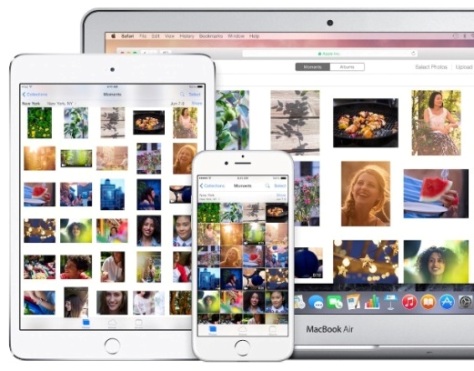
iCloud photo library features main

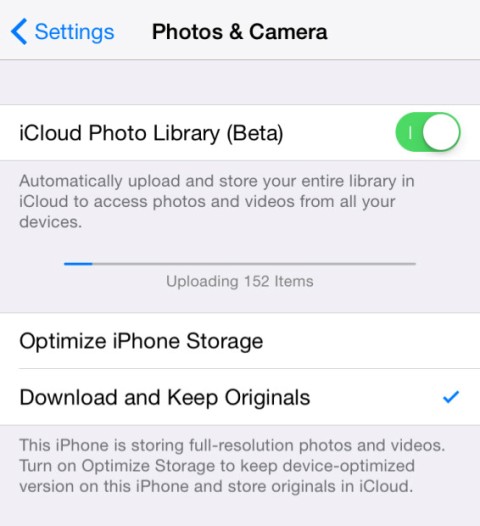
iCloud Photo Library is currently in its beta, so please proceed with caution. To turn on library need:

  • Go to Settings > iCloud > Photos & Camera.
  • Then click on the on/off toggle for iCloud Photo Library (Beta) to enable it.

Important note, your device needs to be on iOS 8.1 or higher to enable iCloud Photo Library.

Currently, there is no native app available for iCloud Photo Library. So you can access the photos and videos in the All Photos album on your iOS device.

Apple company plans to release Photos app for Mac soon this year. But until that time you can access your photos and videos only on iCloud.com. You need to login to iCloud account on your iOS device, and to access the files, click on iCloud Photo Library.

How Upload Photos Manually Using iCloud Photo Library Features

Upload photos by going to iCloud.com on your Windows PC or Mac running OS X Mavericks or earlier. Sign in to iCloud.com using your Apple ID, then tap on Photos, followed by the Upload button at the top. Select the photos you want to upload and tap OK.

Note: iCloud library supports the following photo and video formats: JPEG, RAW, PNG, GIF, TIFF, and MP4.

To prevent your photos from being synced to other devices you can go to Settings > iCloud > Photos and disable Upload to My Photo Stream.

The entire library does get counted against your iCloud storage. iCloud storage is used for iCloud Backup, iCloud Drive, iCloud Photo Library beta, iCloud Mail, and data from apps that use iCloud. Although, purchased apps, books, music, TV shows, movies, My Photo Stream do not get counted against your iCloud storage.
icloud photo library features

If your iCloud storage limit will be exceed, new photos and videos won’t be uploaded to iCloud, so they won’t be available on your other devices. You will need to upgrade your storage plan or reduce the storage you’re using.

To save space on your iOS device you need to go to Settings > Photos & Cameras > iCloud Photo Library or Settings > iCloud > Photos and select Optimize iPhone Storage.

When you edit a picture, the changes are updated across all your devices. If you’ve selected Optimize iPhone/iPad Storage then it will download the original photo or video for editing. The original pictures are stored in iCloud so you can revert back the changes at any time. If you delete a photo or video from the Photo app, it also gets deleted from iCloud Photo Library.

Although, you have the option to recover the photo from Recently Deleted album for 30 days. A little useful fact is that photos are backed up on Apple servers for 30 days after they’re deleted from your device. These are all useful iCloud Photo Library features you need to know.

How to Restore iPhone from iCloud Backup [Guide]

If you created a backup copy of your iPhone using iCloud you can use iCloud restore for iPhone from backup. This is simple, quick and easy to do. Maybe there was something wrong with your handset during update to the new iOS 8 beta 1 or jailbreak / hack attempt.

You can get back to your saved restore version and use your iPhone again.

Step 1. iCloud restore for iPhone 5S, 5c, 5 or other model begins from turning on your smartphone and making what it asks: Slide your finger to continue.

Step 2. Select your language, country / region and either use Wi-Fi or cellular connection. It is best to use Wi-Fi because to restore iPhone iCloud will use internet.

Step 3. Choose to use or not to use Location Services [you can change this later on].

Step 4. Now select Restore from iCloud backup menu.

Step 5. You will have to enter your ID and password to continue and accept Terms and Conditions. Otherwise yopu may have activation lock issue.

ios 7 activation lock

Step 6. To restore iPhone from iCloud backup, you need to select the backup name if you have several of them.

Step 7. Now allow your smartphone complete restoring process.

Once everything is returned to your handset you can once again enjoy using Apple gadget. If you didn’t have Wi-Fi connection, don’t worry. Once you get connected to Internet, iCloud can finish getting the files it couldn’t get earlier.