New iPhone 8 Rumors: Amazing 2017 Smartphone Concepts

What is the next iPhone 2017 to be like? When is the official iPhone 8 release date? How will Apple surprise customers this year? Even users who own the improved iPhone 7 and 7 Plus are now looking for the smartphone that will celebrate iPhone’s 10th anniversary. Are you also excited to hear the latest iPhone 8 rumors?

The Cupertino company likes to bring innovative features to handset market. Its ‘fruit’ smartphone is one of the best sold phone in the world. Millions of users from different parts of the planet are waiting for the new generation device and the await starts right after the previous gen line is finally announced.

While Apple says nothing about the future iPhone 8 features there are a lot of interesting concepts of this device. Look at some of the most impressive ideas about the options, specs and improvements that could be offered along with the new iDevice.
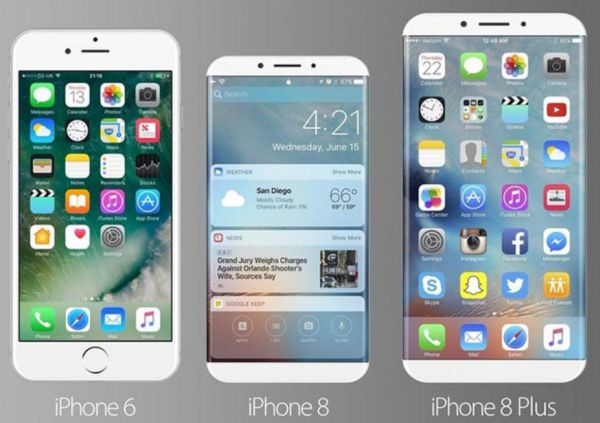
Beautiful Concept of next iPhone 8 model to be released in 2017

New iPhone Concept Ideas

There are predictions about this future device. Users believe they will see an updated design and a lot of wonderful changes. Thus the excitement regarding this handset is growing. This could be the most impressive iPhone 17 ever! By the way you might also be able to send disappearing photos on Instagram from next phone model.

Remember that these are only attractive iPhone 8 concepts. Designers cannot guarantee anything. This is just their vision of the upcoming gadget and it is based on various rumors, dreams and expectations.
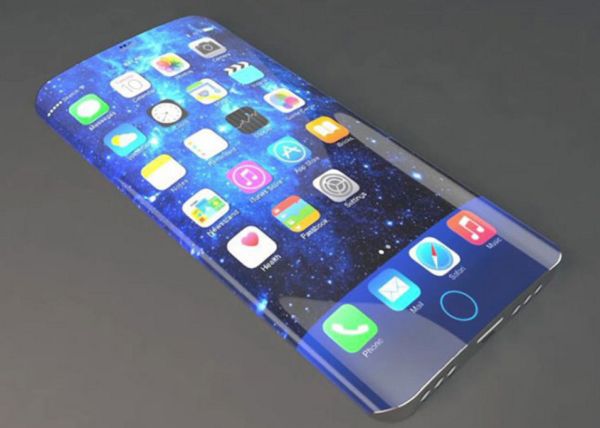
iPhone 8 new 2017 Apple phone model concept

iPhone 2017 Design Concepts

The iPhone 8 and 8 Plus rumors show us a new radical change with its design. You might remember how disappointed some customers where when they saw that the iPhone 7 / 7 Plus models look exactly like the previous 6s / 6 smartphones. Everyone was hoping to see an update in the look and feel of their handset but Apple decided to postpone design upgrade.

Since the new iPhone that will be releases in 2017 should celebrate the 10th anniversary of this iDevice, Apple is expected to unveil many awesome firecrackers. It must take everyone by surprise and prove that iPhone is the number one smartphone in the world.
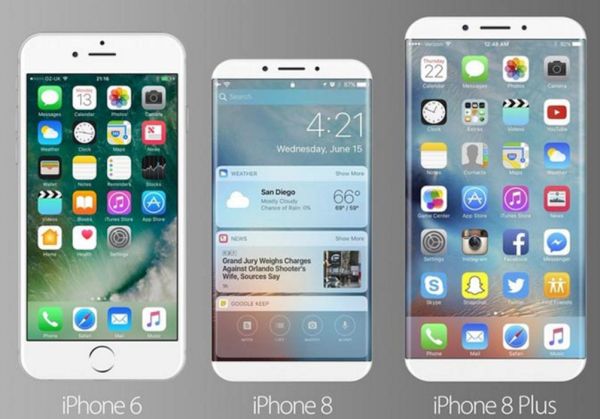
iPhone 8 Concepts: edge-to-edge screen ideas

What design are you expecting to see? Should the phone arrive with stainless steel frame or get edge-to-edge screen? Can you imagine a glass phone design?

Can the gadget get flat sides and pretty curved edges? It should definitely differ from iPhone 7 since too many experts, designers and ordinary users are looking forward to changes. Apple just cannot upset everyone by bringing the same iPhone design over and over again.
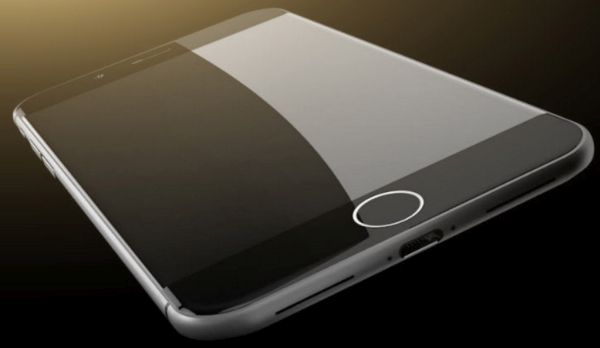
New iPhone 8 and 8 Plus Concepts

iPhone 8 Specs

There are a lot of people out there who can’t wait to get wireless charging technology. Current ‘fruit’ devices do not support this option still Apple could add the incredible feature to the new iPhone lineup later this year.

The next-gen model could get the Touch ID option and front-facing camera fully integrated into the display. By the way, this could be OLED screen developed by Sharp.

Another interesting spec awaited by users is facial scanning feature that is also known iris scanner. It could help to quicker unlock iPhone screen and even pay for goods and services by authenticating with eyes.

The new A11 processor should make the phone much quicker and more efficient. The new battery might last longer making users happy.
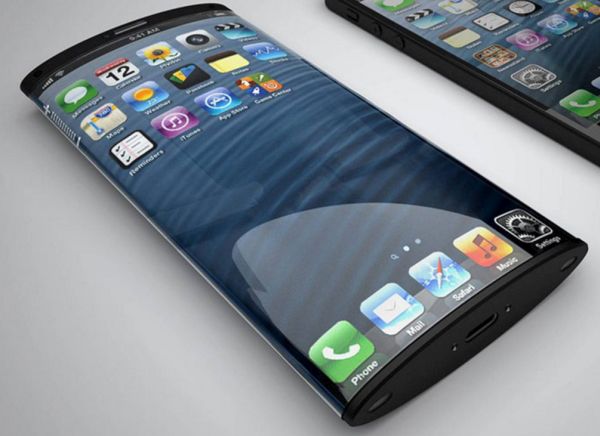
iPhone 17 concept idea iPhone 8

iPhone 8 Release Date

Since the latest phones were introduced in early fall the launch date for the 2017 iPhone model is also expected in mid or late September. Usually Apple takes its time to test the new iOS version during summer and bring it to public in autumn (iPhone 8 could run iOS 11).

There could 3 different models brought to the market. If OLED display is released there could be only one version of iPhone 8 with OLED screen. Other versions could arrive with LCD screens. The sizes of new 2017 smartphones could be 4.7-inch, 5-inch and 5.5-inch.
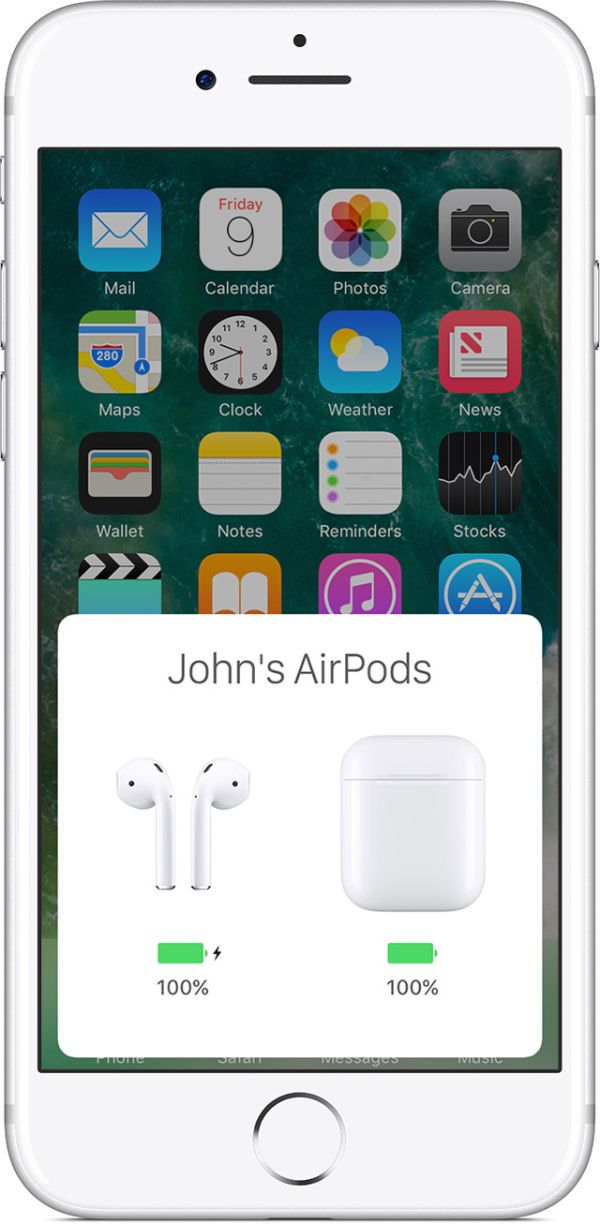
Simple AirPods Software Update Guide for iPhone 7 Users

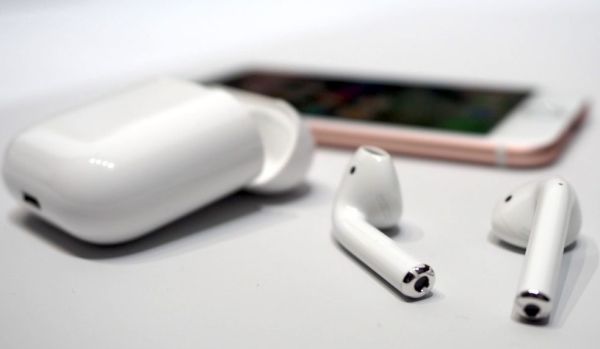
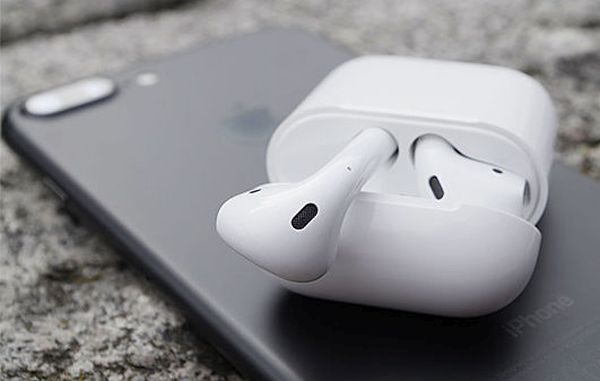
While AirPods are a new accessory that was only introduced in the end of 2016, there are a lot of Apple fans who are already using these wireless earphones in addition to their latest iPhone 7 or iPhone 7 Plus. There are a lot of AirPods problems and most of them could be easily fixed once you learn how to update AriPods to the most recent software version.

You’ll love how simple everything is with upgrading your accessories. There is no need to purchase another pair of ‘fruit’ earphones since you can update AriPods firmware. The Cupertino-based company has presented the new software 3.5.1 that can improve the performance of iPhone accessories that currently use 3.31 release.

How to use AirPods? Can you truly fix all the problems by simply updating the platform version? Let’s learn how to update your device and answer other questions related to the tiny wireless accessory.

Guide on how to update Airpods firmware version to 3.5.1

How to Update AirPods Software

Just as we already noted, this is extremely simple and super fast. Actually you have almost nothing to do because your accessories are not as complicated as your iPhone 7, iPhone 6s, iPad or other iDevices. Apple made sure that users have no issues while installing newer software on their AirPods. Here is what you need to do:

Step 1. Connect your AirPods to your iPhone in case they are disconnected. Learn how to pair your headphones.

Step 2. Double check that your charging case is nearby. It’s better to place your headphones right into their original charging case.

Step 3. Now you should simply wait until your earbuds are updated to version 3.5.1. This happens automatically.

Sometimes you don’t get instant update. Luckily there are some curious and useful iOS 10 tips you can follow to solve this simple problem.

Instruction for easy AirPods firmware updating for iPhone users

iOS 10 Tips and Tricks for AirPods Update

Step 1. You should fully charge your case.

Step 2. Connect AirPods to iPhone by launching Settings app – Bluetooth.

Step 3. Reset the charging case if needed.

Hopefully these AriPods tips can fix the bug and let you install newer firmware version right away.

Make sure your AirPods are fully charged before update

Reasons to Update AirPods

Why would you need to upgrade? You can absolutely avoid the update although it will eventually take place on its own. Still users are advised to run the newest software because this way you can fix some common AirPods problems.

Besides, the later release brings some performance improvements. So you can solve the issues and make sure your earphones are faster and easier to use. For example, there was a problem with headphones randomly disconnecting during iPhone calls… This is what you can solve by getting newer version.

Are you not sure which firmware version you are running? It is possible to check your AirPods software on iPhone. This is really fast. You’ll love to know more details about iOS 10 accessories, won’t you?

Follow this simple guide and find out how to figure out what software is installed on AirPods:

Step 1. Connect your headphones if they are not connected to iPhone 7 yet.

Step 2. Open Settings tool on your smartphone.

Step 3. Proceed to General menu.

Step 4. You should go to About section.

Step 5. Click on AirPods option.

Step 6. You’ll see a new screen that makes it possible to check ou your Firmware Version.

Step 7. You can also find serial and model numbers along with headphone’s hardware version.

Will you install this update? Do you think that your AirPods will stop disconnecting while you are getting a new phone call? Hopefully everything is fixed as soon as possible and you’ll enjoy the enhancements brought by the famous company.

How to Set Up Google Voice on iPhone 7 or iPad

iOS 10 update has improved Apple features on iPhone and iPad still there are users who are big fans of Google and would like to install Google Voice on iPhone 7. Is it possible? How much does Google Voice cost on iDevices? How does it work? Let’s answer these questions and learn how to set up the service on your ‘fruit’ smartphones or tablets.

It’s not difficult to go through Google Voice sign up procedure because everything can be done from within the iOS 10 application. By the way, it is simple to check your iPhone data usage with WiFi Assist enabled. All you need to do is download, install and set up your program.

Google Voice Setup Guide

Short Google Voice Review

This app is VoIP program that makes it possible to place calls, send text messages and leave voicemail. Google Voice is similar to many voice-over-internet-protocol tools. It boast a simple design and easy-to-understand options.

When you first follow the link for Google Voice download and install this application on your iOS 10 iPhone or iPad you’ll have to sign up for a new account. There are a couple of things you must know about this program. Firstly, GV is available in the U.S. only. Secondly, its rates for international calls are believed to be cheap compared to other VoIP-tools.

AT&T iPhone users can reduce their data usage per month.

Set Up Google Voice iPhone

How to Setup Google Voice on iPhone 7

Step 1. Download and install Google Voice app on your iPhone 6, 7 or other model.

Step 2. Launch the application and follow our iOS 10 tips.

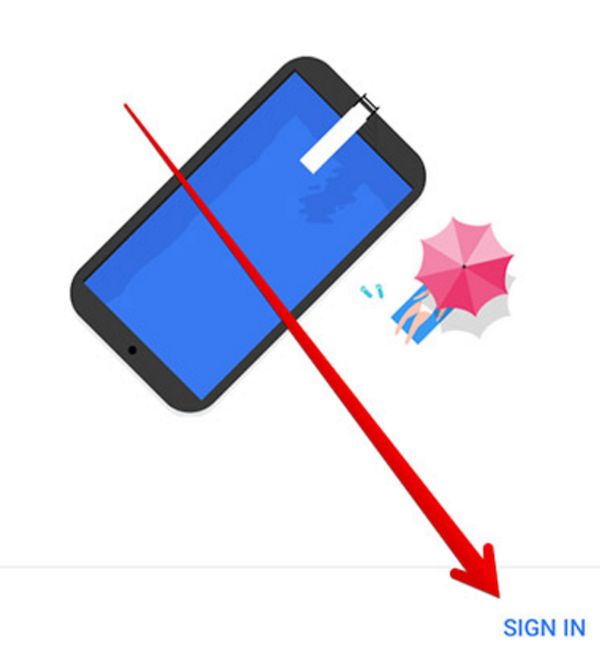
Step 3. Do you see Google Voice sign in feature at the bottom of the tool? Click on it.

Google Voice Sign In

Step 4. Use your Gmail account to sign in. If you don’t have one you should create an account.

Step 5. You can now read the Terms and Conditions and accept them to continue.

Step 6. Your Google Voice iPhone 6 or iPhone 7 tool will allow you choosing your voice number. Just click on Search – enter your city – and decide which number you wish to use. Press on ‘Select’ next to it.

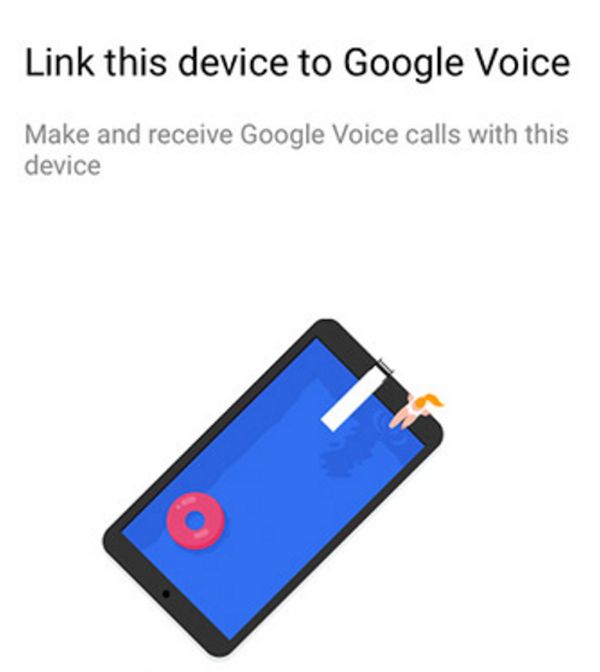
Link Google Voice How to Guide

Step 7. Your new voice number has to be linked to your account. So click on Next to proceed.

Step 8. Enter your phone number. How does Google Voice work? The program will send your texts and guide phone calls to your phone number. Your account has to be verified. Just enter the code you’ll receive now.

Step 9. You have set up your account.

Google Voice on iPhone 7

How to Use Google Voice on iPhone

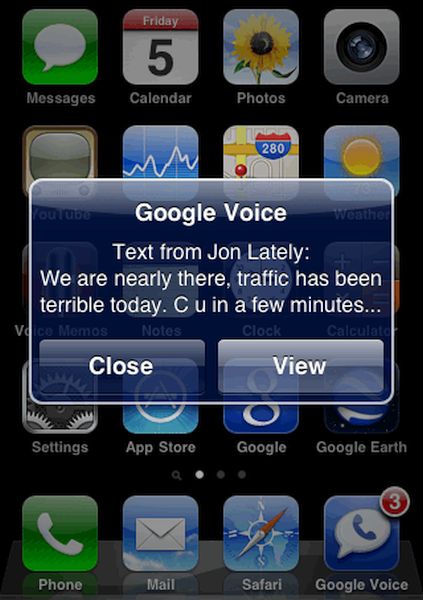
Google Voice on iPhone has 4 tabs you can use. They are located at the app’s bottom. You should click on the chat bubble and then on the plus to send your message. When you wish to call someone you have to click on telephone icon and then on the ‘plus’ and then you’ll be able to select a contact. The voicemail option can be accessed through voicemail icon. It is also possible to send your calls to voicemail when you cannot answer the call.

Is Google Voice Free?

You can download the iOS 10 Google Voice program for free however you’ll have to pay for calls and text messages. The rates vary by country. You can always lookup the rates before placing a phone call. Just enter the phone number and select ‘Find rate.’

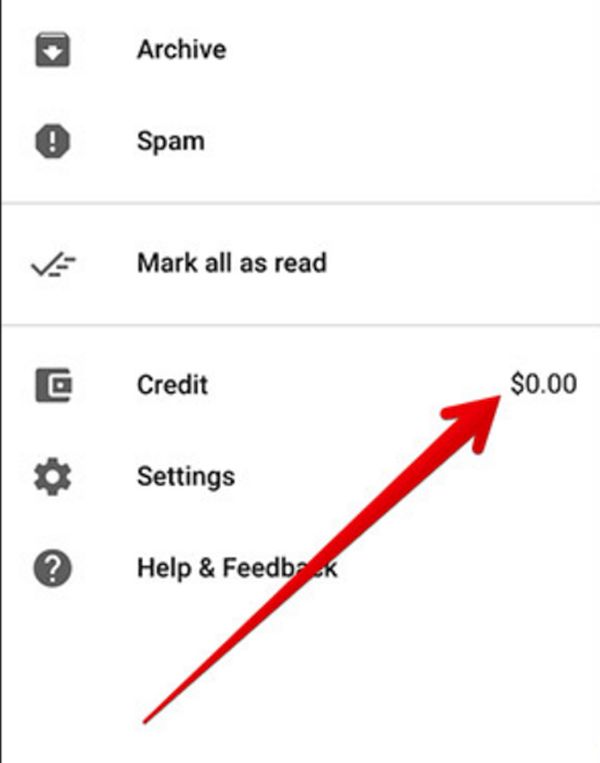
You can easily check your credit balance right on your handset:

Step 1. Launch the app on iDevice.

Step 2. Click on Menu.

Step 3. Your balance will be shown next to Credit menu.

Google Voice Credit Menu

Step 3. To add money to your balance you should go to More menu from the Google Voice app.

Step 4. Choose Settings and select Payments.

Step 5. Press on Add Credit option and choose Add credit under Calling credit option.

Step 6. Pay with Google account and you’ll have money added to your GV.

By the way, you can always know that you are calling via Google Voice because the program always lets you know when your call is not free. If you are connected to AT&T network you can also SIM unlock iPhone 7 AT&T and start using different SIM cards with ease.

The updated Google Voice iPhone 7 app is simple to use. Just control how much money you spend on your calls.