Can You Get Refunds on iTunes on Your iPhone or Mac?

Can you get refunds on iTunes? Many iPhone users ask this question when it comes to various problems with the store. You might have downloaded the wrong application or made an in-purchase by mistake. Well, there is iTunes refund request option and you can take advantage of it. This is not difficult to do so take your chance and ask for your money back.

It doesn’t matter if you only use your iPhone most of the time or prefer Mac or Windows PC for getting your iOS 10 apps or iOS 9 programs [enjoy some amazing and useful iOS 10 tips and tricks]. iTunes refund policy allows getting refund for App Store and iTunes purchases on both you smartphone and computer.
how-to-get-itunes-refund-on-iphone

How to Get a Refund from Apple App Store

It’s not a problem if you buy something you don’t need. It’s also not a big deal if the application you purchased turned out to be something you never expected. Right, when you have the wrong thing or don’t receive the item you were hoping to see you can request an Apple app refund. By the way, do you know how to send handwritten messages on iPhone 7 with ease?

Have anything like this happened to you? Were you too shy to ask for a refund? Don’t be shy. Follow our detailed guide and ask the famous Cupertino-based company to return your money. Here is what you should do if you are looking for web-solution:

Step 1. Firstly you need to follow ‘report a problem iTunes’ link so that the ‘fruit’ giant knows that something is wrong and you are not satisfied. Visit Apple issue reports website.

Step 2. Secondly you need to use your Apple ID / password to log in [make sure that this is the account that was used to purchase the wrong item]. Otherwise you cannot report the problems with programs you wish to get refund for.

Step 3. Now as you have successfully logged in you need to select the app purchase you are not happy with. Find it on the list.

Step 4. Select the app and click on Report [this option is located in to the right of the application title].

Step 5. Choose your reason for refund, add the description and submit your request online using your computer or iPhone.

How to Get Your Money Back from the App Store via Email

This method is a bit longer than the web-based solution still you are able to get your App Store refund using your email address:

Step 1. Take your newest 4.7-inch or 5.5-inch iPhone 7 or other smartphone model and make sure you have internet connection.

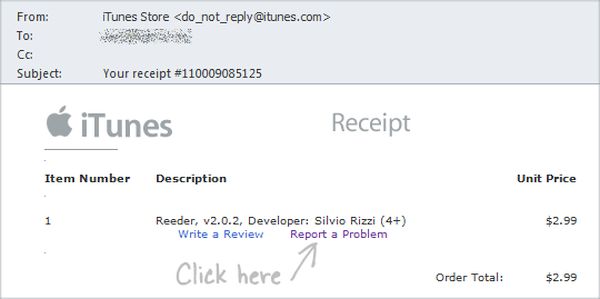
Step 2. Launch Mail application and find the app purchase receipt.
itunes-report-problem-receipt

Step 3. Click on that receipt.

Step 4. You’ll be forwarded to the ‘fruit’ company’s problem report page.

Step 5. Select the reason why you want to be refunded and fill in other details.

Step 6. Complete your Apple refund request by sending the email.

How to Get Money Back on iTunes on PC or Mac

Sometimes it is easier to fix refund App Store problem using your computer. This can be done on both Macs and PCs but only if you have iTunes installed on it. You are also advised to manually backup your iPhone just in case.

Step 1. Launch iTunes program.

Step 2. Just as it happens on your smartphone you should sign into your iTunes account with Apple ID and password once you select Account section. This menu is located on the right side.

Step 3. You’ll see your Purchase History menu.

Step 4. Select the See All option.

Step 5. Find the right purchase and tap on the arrow right next to it.

Step 6. Now press on Report a Problem option so that you can request your refund by letting Apple know about your reasons [please note that you will be taken to the ‘fruit’ site].

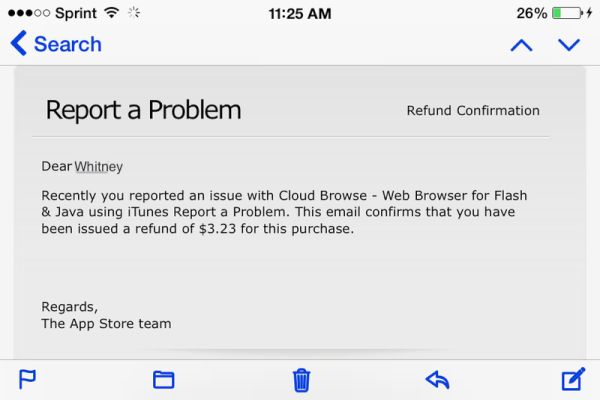
Step 7. Leave your request and wait for Apple in app purchase refund or app refund.
successful-itunes-app-refund

Once you complete your refund request you should wait for the company to read your explanation. It takes some time however you’ll be happy if the desire to get your money back has a good reason like an incorrect or unwanted purchase. Apple officially allows refunds for wrong purchases so this is the main reason you have to choose.

This year the Cupertino-based giant presented iPhone 7 and 7 Plus that look exactly as previous iPhone 6s / 6s Plus but boasts some nice changes. For example, you can get 256GB model in 2016 or wait a year for the bigger upgrade expected along with iPhone 8 launch. No matter what model you decide to get you can always SIM unlock iPhone from any U.S. network and worldwide carrier using safe, fast and affordable service.
iOS 10 Useful Tips: How to Use Health App on iPhone 7

The newest iOS 10 specs make some users curious especially if they didn’t have a chance to update yet. Apple released this firmware version and even updated it a couple of times in September. Who can win from installing this operating system? Let’s pay closer attention to iPhone health app that is improved in iOS 10 and brings some great features to love.

We won’t focus on what’s new in iOS 10 because this is the topic for a different post. We want to talk about iOS 10 health application and the changes it has introduced to ordinary users with iPhone 7 or older smartphone models. We should note that some iPhone 5 users report some issues after installing the latest firmware because it slows down their gadget. iPhone 7 and 7 Plus owners have other problems but most of them can be fixed with ease.

iOS 10 Health App What's New Improvements

iOS 10 Tips and Tricks for iPhone Health App

The following secrets are for users who wish to master iOS 10 like a pro. The updated program can help you stay fit and healthy. It can track your activities and share accurate details on your heart rate, blood pressure etc. You just need to learn how to use the tool in you everyday life.

Apple made its popular iOS 10 health application a real must-have. It has advanced features and new sections added compared to the previous iOS 9 version. This app is a stock one. You get it by default and it is free to use. So why not taking this advantage and reach your health goals using the smartphone and no-cost program?

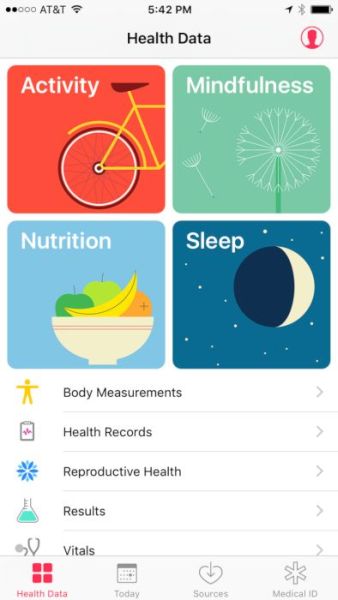
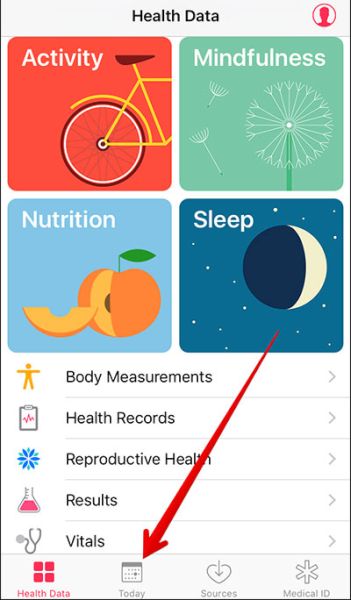
The enhanced Health app offers new Today menu, better Health Data section and other improvements you will really enjoy. Here is how you can use this program and get the most out of it:

Step 1. Let’s explore what’s new in iOS 10 Healthy program by launching it on your long-rumored iPhone 7 or older model.

iOS 10 Health App Today Section

Step 2. Choose Today section and find your day’s health data by scrolling down or up. You can also find data of yesterday and other days by swiping to the right. Another way is to click on the particular date you’ll see at the display’s top.

Step 3. You can choose Subject to get details about your health or get data for time periods such as week, month, year.

The Health iOS 10 specs also allow you turn on Health data for any third-party or Apple app that supports such a function. By the way always remember to backup your iPhone before you do anything. Here is what you need to do:

Step 1. Launch Health on your iDevice.

Step 2. Go to Select a category and choose your subject [what information you wish to receive].

Step 3. You need to choose Data Sources & Access section to continue.

Step 4. You will find ‘Edit’ option located at the upper right corner of the screen. Click on it and you’ll be able to proceed.

Step 5. You will see the list of applications which can show your health data if you choose so. Just check mark the field right next to the app name and you will enable your Health Data option for this particular app. Select as many applications as you need.

Medical ID on iPhone Emergency Health App Guide

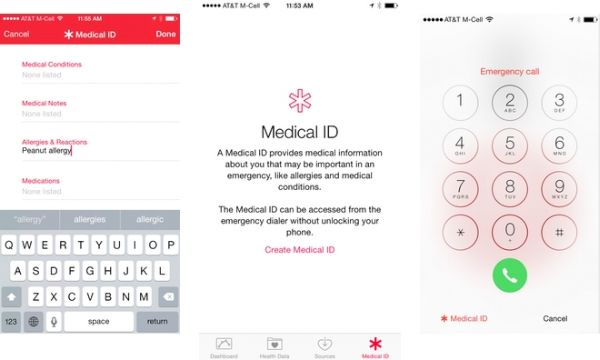
The cool iOS 10 features [you can upgrade to new iPhone 7 online] make it possible to access Medical ID when you need it pretty fast. This is a nice addition but you should learn how to enable this option:

Step 1. For cases of emergency it’s always nice when you can access Medical ID with a click. Open Health application to start.

Step 2. Select Medical ID section which you will find at the lower right part of the screen.

Step 3. Click on the Edit option you’ll see at the upper right part.

Step 4. Enable the option called Show When Locked. You just need to switch on this feature.

Step 5. Now you can lock your device and test how the quick access to your Medical ID works.

Step 6. Just press or touch your Home button and you will see your passcode window.

How to View Medical ID on iPhone iOS 10

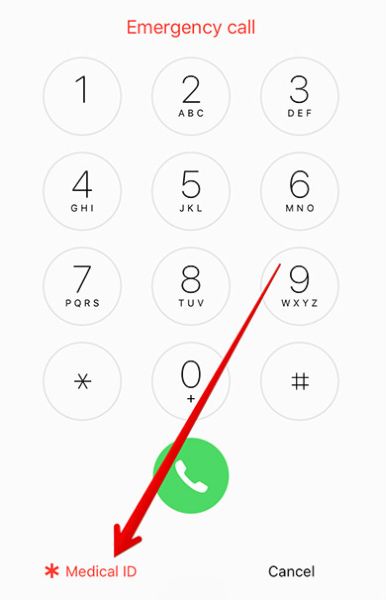
Step 7. Select Emergency section at the lower left part of the screen and press on Medical ID you’ll see at the top.

Step 8. Your Medical ID will be shown.

Step 9. Remember to press on Done to close this information.

There are a lot of applications that support Health Data on iOS 10. You can see all of them by going to Health app – category – Recommended Apps where you will find different programs you can download for free or buy. You can install this operating system to get all its features on iPhone 6s and SE lineup. Find out whether your iPhone 6s or iPhone SE is locked or unlocked if you got it from T-Mobile carrier.

We hope our short guide to the improvements brought to Health data on the newest firmware for iPhone users is something you can find useful.

iPhone 7 vs iPhone 7 Plus Differences: Is Upgrade Price Worth It?

It’s time to pay attention to iPhone 7 vs iPhone 7 Plus differences since both models are available in the market. Users who are planning to get the new generation smartphone released by Apple this fall should not only know about Verizon iPhone upgrade price and other carriers deal but also understand the main modifications that differ two devices.

The iPhone upgrade cost is cheaper when you have an older model to exchange. Apple and mobile operators have interesting upgrade programs that make it financially easier on customers to own the newest iDevice without paying its full price. Before we focus on costs let’s talk more about iPhone 7 features and specifications.

iPhone 7 vs iPhone 7 Plus Differences

iPhone 7 vs iPhone 7 Plus Review

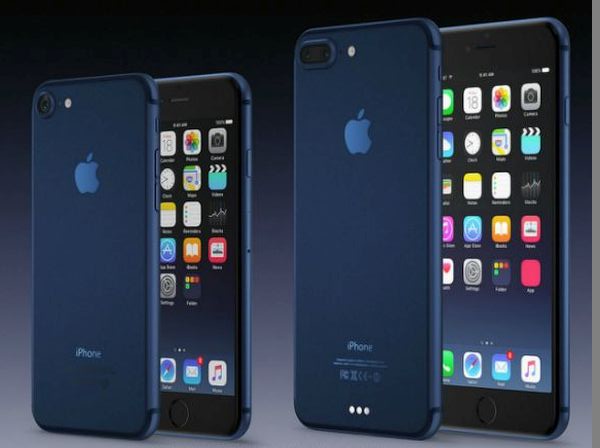
The first difference is the size of the smartphones. iPhone 7 is 4.7-inch device that weighs 4.87oz (138 g) and iPhone 7 Plus is 5.5-inch phone that weighs 6.63oz (188 g). Both versions are lighter than previous iPhone 6s and 6s Plus even though the overall design hasn’t changed. It’s curious that this year the bigger model seems to get higher demand that it was expected by Apple. Why do many customers choose iPhone 7 Plus over iPhone 7?

Both 2016 handsets are water and dust resistant. They don’t have the physical Touch Home button as it was intergrated into the screen. There are no antenna lines on the back and you’ll fall in love with the improved taptic motor with three vibration intensity options. Also this year you can choose no Space Grey color as it was replaced with new Jett Black and Black colors.
New storage capacity is also one of the most expected iPhone 7 specifications. Finally Apple offers 256GB version! Still these are not the changes that could wow modern customers.

While the ‘fruit’giant removed headphone jack saying it is ‘old technology’ it still kept the LCD screens in both phones. The iPhone 7 got 1334×750 pixels display (326 ppi) and bigger iPhone 7 Plus received 1920×1080 pixels screen (401 ppi) still they offer brightness improved by 25 percent and amazing color reproduction. Still the iPhone 7 Plus is a bit better because it matches the panel used in iPhone 7 but offers even better sharpness.

iPhone 7 Specifications Features

When you take a closer look at iPhone 7 specifications and features you can notice how fast both models are. They both come with A10 processors however the bigger model even gets 3GB of RAM instead of 2GB and this is 50% more!

The new devices are faster than iPhone 6s lineup. They have better speeds and run iOS 10 smoother than older gadgets. The dual camera 7 Plus version isn’t much better than iPhone 7 camera but you’ll notice how quickly most apps upload and work in the background [if you are planning to switch from Google or other brand to Apple learn how to transfer data from Android platform to iOS 10 iPhone]. The 4G modems you will find in both iDevice are upgraded to 450Mbit [they used to be 300Mbit].

The overall iPhone 7 vs iPhone 7 Plus shows an impressive 5.5-inch handset that is wanted by many customers in 2016. It has unique ‘fruit’ dual camera system, better processor and many other outstanding features you’ll enjoy.

The battery life between two models promises some great improvements. The 2900 mAh battery compared to 1960 mAh one might let you go through the day and even last longer. Sadly Apple doesn’t offer fast charging options so you still have to charge for a long while.

iPhone 7 Upgrade Price

Verizon iPhone Upgrade Price

The main changes and amazing features are expected to come in 2017. If you wish to get the newer iPhone this fall you should compare iPhone 7 price between two models.

The full cost of iPhone 7 begins at $649 for 32GB model and goes up to $849 for 256GB version. The iPhone 7 Plus is more expensive as its start cost is $769 for 32GB phone and ends at $969 for 256GB version. Still the price difference shouldn’t scare you away because you can get more with 5.5-inch smartphone. The same full price cost is for Verizon, T-Mobile, Sprint and AT&T when you select your device directly from Apple Store. Still there are deals offered by networks as well.
Luckily there is no 16GB handsets this year so iPhone 7 upgrade price is totally worth it. Getting double storage is nice especially when you take many photos and record mobile videos.

By the way, if you like to save some money you can get iPhone 6s or iPhone 6s Plus [guide on how to backup iPhone 6 models] that are both nice and cost less than the most recent release. Of course, the older devices don’t offer 256GB storage capacity. This is the exclusive option for iPhone 7 models only and you can also factory SIM unlock iPhone 7 and any other Apple handset.

Since the design of iPhone 6s and iPhone 7 is the same you can either take advantage of new features or wait till iPhone 8 launch the next year. Apple will celebrate the 10th anniversary of its popular smartphone and experts, users and analysts are expecting to get incredible upgrade with new design, specifications, options and OLED display.

Amazing iOS 10 Handwritten Messages Feature for iPhone 7 Users

Are you ready to explore the most interesting options in the new Apple firmware version? Here come iOS 10 handwritten messages that can be used on both iPhone and iPad. It’s just a matter of time how quickly you’ll adjust to this option and find how to use it in your everyday life [it’s also time to select the best 2016 smartphone]. Typing is fast, but when you can send your handwriting to your friends and family members – it could be a wonderful note with your personal touch.

The option is brought by one of the default applications. You have nothing new to install. Just use the nice improvements added to Messages program. We’ll explain what you need to do in order to get the full advantage of the new iOS handwriting recognition system. It’s simple, fast and once you get used to it – you could truly save time on typing and make your text messages more interesting, beautiful and very unique.

Handwritten Messages iOS 10 Guide

How to Send Handwritten Messages on iOS 10 iPhone

Step 1. Take your iPhone 7 or any other iPhone model you have that is running iOS 10 version. Remember that you have to backup iPhone once in a while to not lose your personal data.

Step 2. Launch your Messages tool.

Step 3. Choose the contact. This is the person you wish to receive your handwritten SMS.

iMessage Handwriting Recognition iOS 10

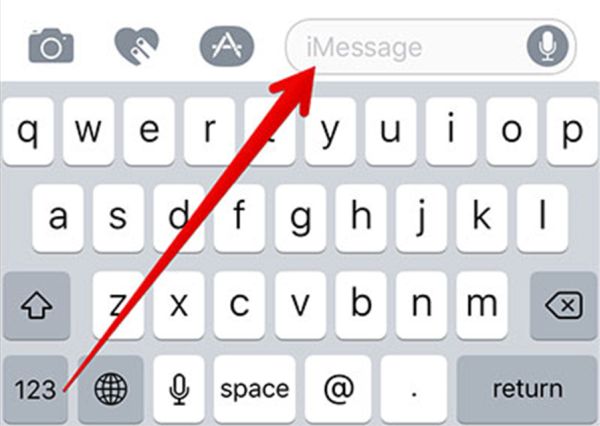
Step 4. Press on the iMessage field. This is where you can enter your text in the next step.

Step 5. It’s best to use Landscape mode. So turn your gadget to continue.

iOS 10 Handwritten Messages

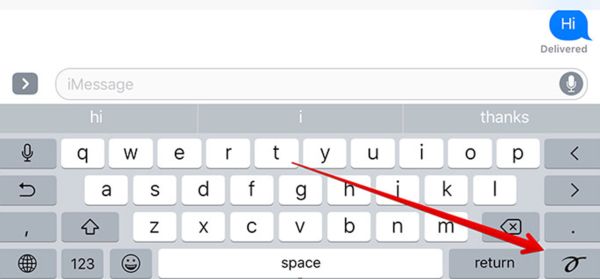
Step 6. You will be the handwriting canvas that is completely blank for now. Don’t see the new screen? You can always press on the small button in the bottom right corner of your display.

Step 7. Great, it’s time for creating your masterpiece. Draw (write) what you wish to send. In case you feel there is not enough space for you just press on the arrow and your canvas will get longer. If you need to use the regular keyboard you can press on the keyboard button that is located in the lower right part of your screen.

Step 8. If you need you can also use the Clear and Undo options. They are both located in the top left corner of your screen, right above the white canvas. Remember that when you ‘Clear’ you will delete everything you have written. If you only wish to remove your last doodled you should click on the ‘Undo’ button.

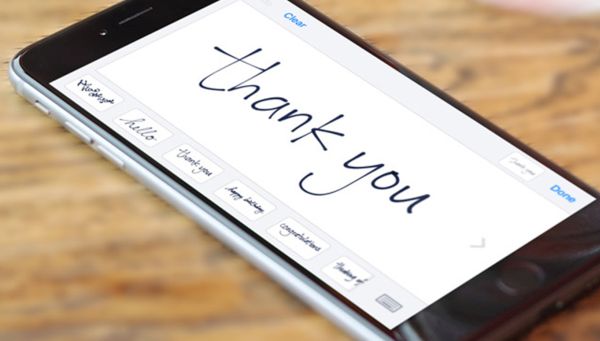
Thank You Prewritten Text Message iOS 10

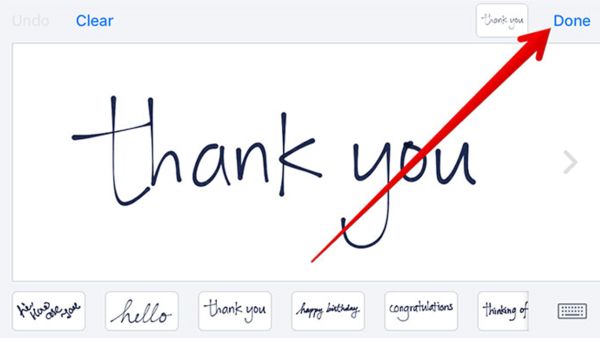
Step 9. When you have finished your writing you need to press ‘Done’ option that you’ll find in to upper right corner.

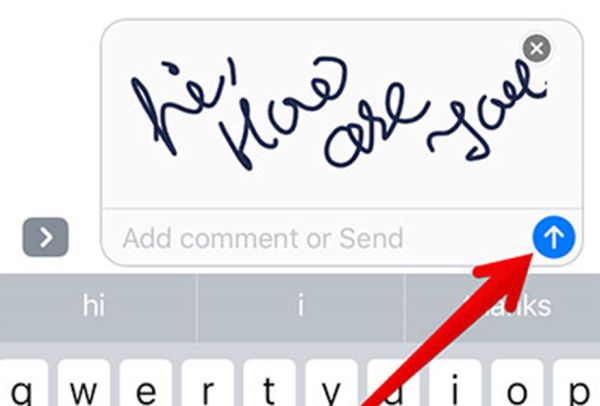
Step 10. iOS 10 is ready to send your handwritten iMessage so click on ‘Send’ to confirm this is what you want to do. Your text will be send. In case you have a broken iPhone 6s screen learn how to repair your device.

How to Send iOS 10 Handwritten Text Messages iPhone

Isn’t it awesome? iOS 10 handwritten messages can offer even more possibilities to you. It is possible to create pre-written texts and send them instead of making a new one each time. Here is how it is simple and fast to complete:

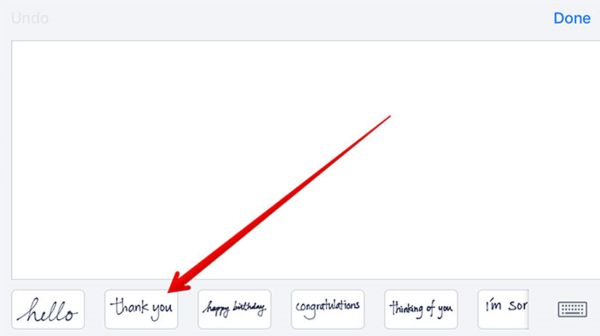
Step 1. All the messages you have created will be saved automatically. So you can always choose them as they will appear at the bottom of your Messages application along with some pre-written messages are already available by default [‘thinking of you’, ‘happy birthday’, ‘thank you’ and similar common used phrases].

Pre Written Text Messages How to Use iOS 10

Step 2. Just click on the pre-written message and you’ll find its preview on your canvas.

Step 3. You can customize the message or send it as it is by pressing Done and Send buttons.

The similar guide is for your iPad however there are some minor differences. This is the reason why we wish to also add the fast step-by-step instruction for tablet owners.

iPad: How to Send Handwritten Messages iOS 10 Walkthrough

Step 1. Open Messages tool on the tablet device.

Step 2. Select the contact just as you did on the iPhone.

Step 3. Click on the ‘iMessage’ text window.

Step 4. Press on the hand-drawn-icon button you will find on the bottom line of iPad virtual keyboard. If you are tired of your iPad rings learn how to stop iPad from ringing.

Step 5. You will get the handwriting canvas and write your message. Use two fingers and swipe right or left and create a cute text message.

Step 6. If you wish to use handwritten texts you created earlier you need to press on the ‘Clock’ button that is located at the lower left corner.

Step 7. Use the new options offered by iOS 10 update and enjoy staying unique in every way possible.

Choose Best Smartphone 2016 and Deregister iMessage on iPhone

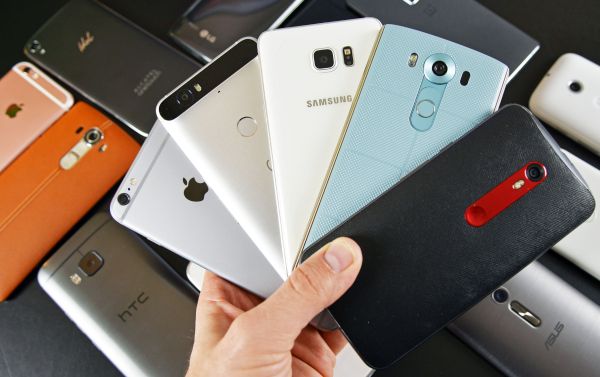
There are so many gadgets that it’s difficult to pick your best smartphone 2016. Let’s highlight the most interesting brands and models they offer this fall and also explain how to change text message to iMessage in case you choose Apple or learn how to deregister iMessage when you decide to switch to a non-iOS device.

We’ll mention HTC, LG, Apple, Sony, BlackBerry, Motorola and other firms you see in your local stores [you can also SIM unlock iPhone from any U.S. network]. What phone should I get when the choices are so impressive? Think of your needs and read what the most outstanding features are of the handsets you like the most.

Best Smartphone 2016 iPhone Samsung HTC List

Best Phones on the Market in 2016

You can find HTC One A9 phone with AMOLED screen and a camera that still needs improvement to create nice images in low light conditions. This gadget supports Android firmware version 6.0. Users assure the performance is nice however there are more powerful devices out there.

There are some phones by Huawei and its sub-brand which interesting specifications. For example, you can get Honor 7 or Mate S. The first one get most of the Mate S options except for its premium sheen. If you are a fan of a fingerprint scanner, wish to get nice camera and Android firmware – these might be phones to look at. Huawei Mate S boasts 5.5-inch pressure-sensitive screen. There are many features and apps you can use. There is also Mate 8 model with 6-inch display, great features and nice performance. Nexus 6P that is also manufactured by Huawei arrives in a metal body with some impressive options to enjoy.

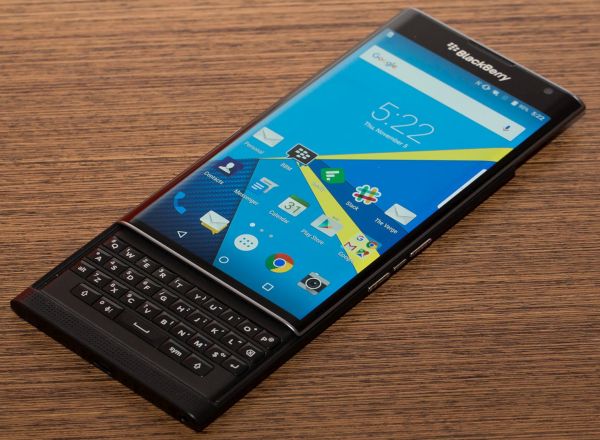
BlackBerry Priv iPhone Samsung Choose Best Smartphone 2016

BlackBerry Priv is another smartphone with some benefits of Android platform and range of features. The innovative fingerprint scanner and some amazing options make it an interesting phone in 2016.

Sony offers Xperia Z5 version with 23-megapixel camera sensor, simple design and wish for more power than the handset offers.

There is Moto X Play by Motorola that includes big battery and more power than many other smartphones available this year. Still it lacks many of the popular features including the fingerprint scanner and improved camera. Another model, Moto G4, that sounds slower than competitors but it’s a budget smartphone that includes the fingerprint sensor.

Fans of Nexus models can take a look at 5X. It’s a nice phone that is affordable yet it doesn’t have that premium feel a lot of other handsets offer customers. Even though you will find some disadvantages this model has the fingerprint scanner.

LG is offering G5 phone with dual-camera, powerful chip, 4GB of RAM and fingerprint option along with metal body.

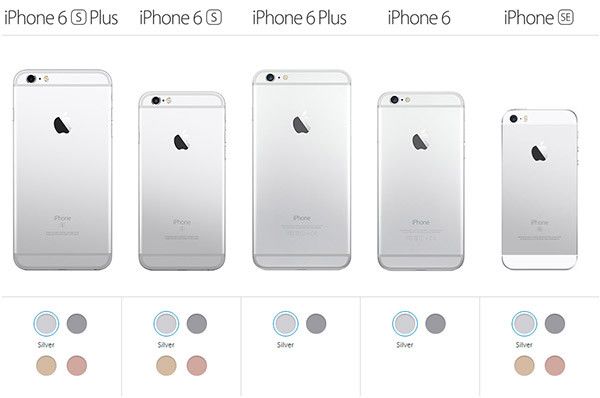
iPhone Models 2016 iPhone SE iPhone 6s

There are three Apple smartphones with two more arriving this September. Fans of premium handsets can get the iPhone 6s or iPhone 6s Plus. Those who love budget version can buy iPhone SE that is still interesting even though it lacks a lot of features offered by ‘6s’ lineup. The upcoming iPhone 7 and iPhone 7 Plus could be a wonderful purchase this year as it is believed to bring improved camera experience and new color options.

There is also HTC10 that looks serious with Quad HD resolution, powerful processor, 4GB of RAM and nice camera and Samsung smartphones Galaxy S7, S7 Edge and Galaxy Note 7. All these devices are pretty impressive and nice to look at. You might even consider getting Galaxy S7 Edge over Apple iPhone 6s. Still the upcoming iPhone 7 might bring something new and amazing so keep your eyes on the official announcement to learn more about this smartphone.

What phone should I buy? There are many choices and it’s up to you what to purchase in 2016. In case you are planning to switch from iPhone to a different brand you need to backup iPhone, disable iMessage and even deregister this service. We’ll explain how you can do this.

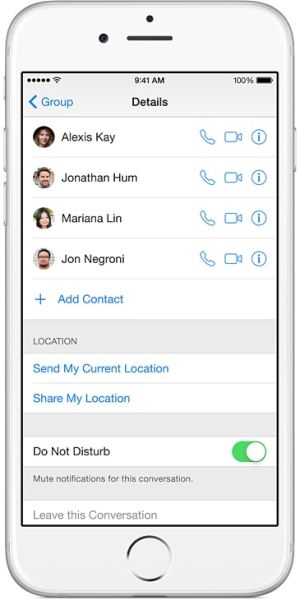
iPhone Settings Text Messages iMessage

How to Turn Off iMesagge on iPhone 7

When you have the problem with iPhone iMessage not delivered you can try to disable and enable this service. It could be buggy however the problem can be fixed without problems. Here is what you need to do:

Step 1. You need to go to Settings on your Home Screen.

Step 2. Select Messages menu.

Step 3. Choose iMessage option.

Step 4. Disable the service.
Step 5. Now you should close all open programs and turn off your iPhone or simply restart it. Hold both Home and Lock buttons for about 10 seconds and once it is back on you need to repeat the same guide but Enable the service in Step 4. The problem should be gone and your messages send via iMessage should be delivered.

Why is my iPhone sending texts instead of iMessage? It happens because the service is disabled by you. Enable it and everything will be fixed for you.

By the way, this same instruction explains how to switch from text to iMessage. However you should remember that you need to turn off this feature when you decide to get a different phone but keep your old iPhone number [learn how to bring data from Android to iPhone].

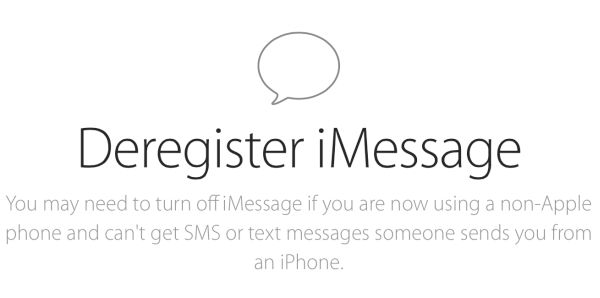
How to Deregister iMessage iPhone Guide

How to Deregister iMessage

To not lose your text messages once you stop using iPhone and its iMessage tool you need to:
Step 1. Visit special Apple website.

Step 2. Enter your iPhone phone number you are now using on a different smartphone brand.

Step 3. This way you will deregister your mobile number and get out of iMessage problems.

Step 4. You will get a confirmation code which means you have successfully deregistered your iMessage.

Easy Switching Between iOS iPhone and Android Smartphones

Sometimes you decide to switch from iOS to Android or vice versa. Remember to always backup your iPhone and Android gadgets. Is it simple to move all your data and contacts between the two rival companies’ gadgets or not? A lot of people wish changes once in a while and getting a new smartphone could be an interesting challenge since both iPhones and Android gadgets have their pros and cons.

We won’t compare iOS vs Android 2016 since it’s up to your personal taste and expectations which gadget to choose. It’s more important to understand how you can move your personal data, contacts, images, apps and other staff from one brand to a different one and this process has to be painless.

How to Transfer Data from iPhone to Android

How to Transfer Data from iPhone to Android

There are some programs that could ease your switch however there is no one-click miracle solution when you decide to stop using Apple iPhone and instead get a new Android device. While the Cupertino-based company is about to bring a new generation iPhone 7 with possibly innovative features there are users who just need fresh breath and think that choosing another smartphone brand can be a good step in 2016. Besides, many experts are sure that only iPhone 8 in 2017 will get major update and incredible options thus you could use this year to try something absolutely different.

When you take a decision to switch from iPhone 6s to Android you could read the special Google support page first. Then you can follow our guide and bring over some of your iPhone files to Android gadget.

Step 1. Google Account

Since Android phones bring you more options with Google account, it’s nice if you used Gmail on iPhone to save your contacts. It’s simple to move your contact list if you log into your default Gmail account used on old iPhone on the Android device as this way everything transfers quickly.

iPhone Contact List Transfer to Android How to

Step 2. Contact List

iPhone users whose contact information was saved to iCloud by default cannot move this data via Gmail account. They need to launch Settings on iPhone, choose iCloud and turn on Contacts to sync them to Apple iCloud service. Then from your computer you can sign into icloud.com using Apple ID and choose Contacts menu. The press on the ‘wheel’ icon and click Select All. Once again press on the ‘wheel’ and choose Export vCard option.
Now you should open a different site: http://www.google.com/contacts and press More – Import. You can find the saved file (the VCF format as this is how vCard looks like) and let your Gmail account import your iPhone contacts to Android handset.

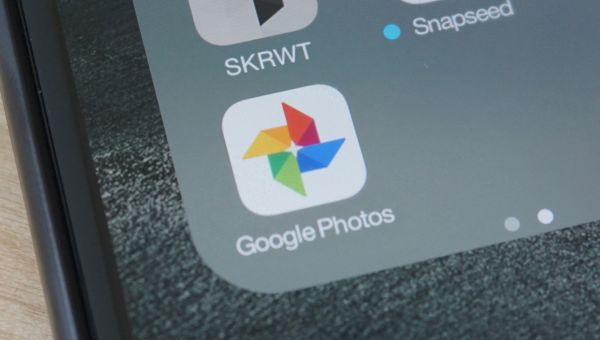
Google Photos App to Transfer Images from iPhone to Android

Step 3. Photos & Videos

Do you have many photos on iPhone you wish to bring to Android device? It is possible to do using Google Photos or similar apps. Install such app on your iPhone and sign into Google account to back up / sync your videos and images. Then you can simply get into your Google account on Android phone and move all the photographs to your new handset.

Step 4. Music

Are you a music fan and have many songs saved to iTunes library? You might need to download Google Music Manage on your PC or Mac. This program allows uploading tunes right from iTunes. Then you can get them on the new Android phone without any issues.

Android Apps to Use

Step 5. Android Applications

There are many interesting applications you can use on Android. The list is so long we’ll mention only a few of the most important. Use SmoothSync to bring your Cloud calendar to the new gadget. Don’t forget to download Android applications such as Facebook, Instagram, WhatsApp, Skype and everything else you can’t imagine your life without. All these programs can be found on play.google.com/store.

Step 6. When you stop using your iPhone you should disable iMessage app on it and remove iCloud Activation. This way your text messages will be directed to the new Android gadget and won’t get lost because of old redirect.

How to Move Data from Android to iOS iPhone

How to Transfer Contacts from Android to iPhone

Now let’s say you get tired of Android platform and wish to either switch to the upcoming iPhone 7 or wait till iPhone 8 release and bring all your content to this next Apple handset. Is it difficult to switch from Androids to iPhones or not?

Well, this is not difficult to do. Transfer procedures are safe and pretty smooth. You’ll enjoy it since you can do everything on your own.

Step 1. It’s always great to copy your images and files to save on your computer. It’s also nice to backup Android device which can be done very simply. Just connect the phone to your Mac or PC and copy all the necessary files and data to your computer.

Step 2. Launch Contacts program on the Android device and Export your contact list to your SIM card. The .vcf file can be then copied to your PC or Mac as well.

Step 3. Now you can copy all these files to your new iPhone 7 or other model. By the way, here is how to fix iPhone LTE connection problems if you experience any.

iTunes Download and Install on PC Mac

Step 4. Install iTunes on your computer and connect the iPhone using USB cable.

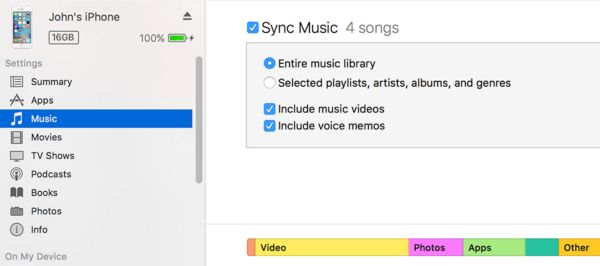
Step 5. Wait for the program to detect your smartphone and choose Photos menu to sync your images. Press on Apply once you point to the folder with photos saved from Android phone. If you already have photos on iPhone you should also add them to the same folder you are syncing to otherwise they will be removed.

Sync Music Photos iPhone iTunes

Step 6. Go to Video menu and Music menu and transfer your movies, videos, songs using the same syncing method as described in previous step. This should be pretty simple.

Step 7. Now you can set up email on the iPhone and email yourself the .vcf file with all your Android contacts. One you open this letter and click on the file – all the contacts will be transferred on your new smartphone. If your iPhone is locked to Sprint, Verizon, AT&T you can factory unlock iPhone from any U.S. network and connect to worldwide mobile operators.

It’s not that difficult to switch between different phones as you can see.

How Do You Backup Your iPhone 6s or iPhone SE?

When do you start thinking of how to backup iPhone 6s? Well, you should absolutely created copies of your device once in a while, especially before you install a newer firmware version. This is something many of us forget to do. Still the procedure is must-do when you are planning to get a newer phone.

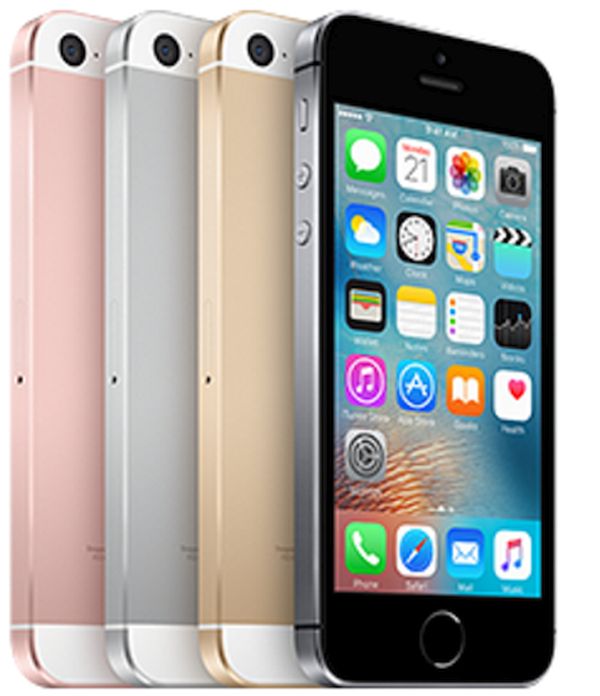
Preparing to update to iPhone 7? This phone is expected to arrive in less than a month from now. Pretty cool as there are many Apple users out there who already purchased iPhone 6, 6s, 6s Plus or SE model (this is the smaller 4-inch version presented in the spring) and might also get the next generation device.
How Do I Backup My iPhone 6s to iCloud

This is probably the easiest and fastest method of backing up. You don’t need your computer since everything can be performed right on the handset. You are advised to follow this guide before you install iOS 10 which will bring a lot of interesting features, options and possibly issues and bugs.

Step 1. You need to have WiFi network with stable connection.

iPhone WiFi Connection

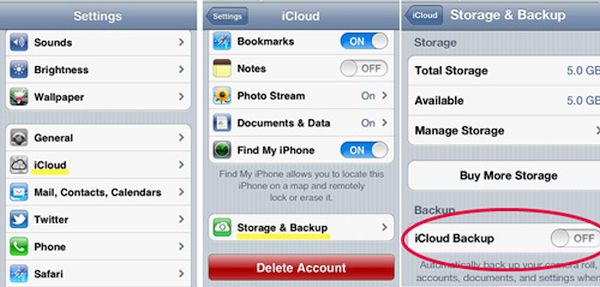
Step 2. Once you connect the phone to WiFi at home or somewhere else and select Settings menu.

Step 3. Choose iCloud option [if you are running iOS 8, iOS 9 or next iOS 10 that are all supported by iCloud Activation remove service].

iPhone 6s Backup iCloud Instruction Guide

Step 4. Make sure iCloud Backup feature is enabled. If it’s not you should turn it on.

Step 5. Such method could be pretty long. Everything depends on how fast and good your WiFi connection is.

Step 6. When you think the backup is done you need to go to Settings and double check that you have succeeded. Just go to iCloud again and select Storage menu. Go to Manage Storage.

You should always force iPhone backup before upgrading and updating [by the way, Apple offers customers to upgrade to new iPhone 7 online]. You should also remember how to backup old iPhone when you have plans to purchase the newer version. We believe this fall could bring an interesting upgrade also main changes might be only introduced in 2017.

How to Back Up iPhone 6s iTunes iCloud Walkthrough

How to Manually Backup iPhone 6s via iTunes

Why do you need to follow our guides? When you have a saved copy you will not lose your data. In case anything happens you will just restore from your backup version and have all your contacts, photos, videos, music right on the phone again. It’s also a nice way to transfer content to another phone, for example iPhone 7 or iPhone 7 Plus.

Step 1. You’ll need a computer (PC or Mac) and iTunes program. It should be the most recent one.

Step 2. You also should use USB cable. You’ll connect your smartphone to iTunes via it.

Step 3. Launch iTunes on your computer.

Step 4. Wait until your phone is detected. It takes a while.

iPhone Backup iTunes Guinde Intruction iOS 8 iOS 9 iOS 10

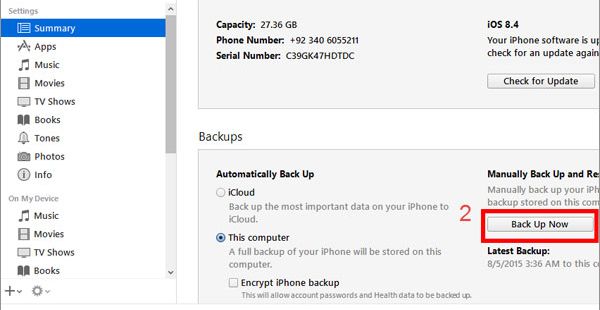
Step 5. Press on Backup Now menu.

Step 6. Your iPhone back up version will be created.

You can also use a different method: once iTunes is launched you should press on File and select Devices – Back Up option (or instead you can click on Sync menu and sync the handset to your PC or Mac – syncing also created backup version but it happens automatically). Once you do this you can also factory unlock your iPhone using distant and affordable IMEI unlocking option.

Now you know ‘how do I backup my iphone 6, SE to my computer’ so use this guide before updating to iOS 10 or moving your data from old phone to the new iPhone 7.

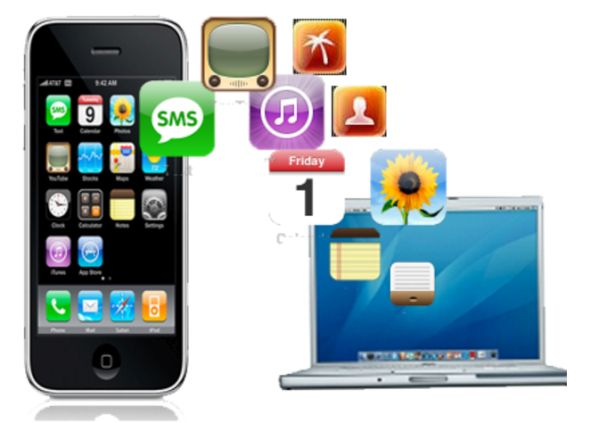
iPhone Backup iTunes iCloud Instruction

You might want to know if there are any other answers to your question ‘how do you backup your iphone 6s’ and we should note that there are different programs that can help you out. It is possible to save copies of your disk with backups and choose external drive.

Sometimes you only need to save the copy of your photographs or messages. You might also need only some parts of your old phone when you are buying a newer one. In such situation you can look for programs similar to AnyTrans or another alternative to typical iTunes or iCloud methods.

Such programs are not difficult to use. For example, with AnyTrans all you have to do is install it on your computer and select iPhone content you wish to copy. The program displays your categories after you plug the handset to your PC or Mac. If you are planning to further unlock your smartphone you also need to run IMEI check service to learn all the details about your iPhone, carrier and activation / blacklist statuses.

Select what you need to save and wait till the backup is created. This could take a while as it happens with any saving operations. So be patient and keep in mind to back up once in a while.

Do TMobile iPhones 6s, SE Come Unlocked Or Locked?

Many experts and users have proved that if you purchased T-Mobile iPhone 6 Plus or 6 model from Apple store you could have used it with Verizon, AT&T and other U.S. and world networks. You needed no T Mobile device unlock iPhone code a couple of years ago. Has this changed in 2016 or not? Do iPhone 6s, 6s Plus and SE come unlocked as well or not?

When you visit the carrier’s site you will learn about Mobile Device Unlock service offered for a number of handset models including iPhone 6, 6s and SE. Do you really need the code or can you just purchase or borrow your friend’s AT&T SIM card and insert it into your handset to make it work? All these questions require answers. We are happy to explain details on T-Mobile unlock phone for international use.

T-Mobile iPhone 6s Unlock Code Request SIM Unlocking Guide

How to Unlock a Phone from T Mobile

According to the network’s website, users who wish to use their smartphone with other networks have to go through T-Mobile unlock code request. This is mentioned for different models, including iPhone 6s, 6, SE and older 5s.

Will TMobile unlock my phone for me? The carrier is more than eager to do this for you. You just need to learn how it works and what you are required to do. The SIM unlock as it is called by different companies is needed because your network might prevent your mobile gadget from working with other wireless networks before you get the unlock code [which is similar to official permission of your old carrier to connect to other mobile providers].

T-Mobile unlock code can be requested however before you proceed we’ll give you one useful advice.
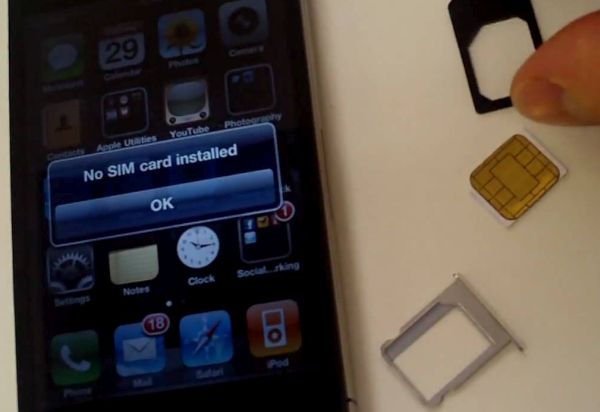
Unlock TMobile iPhone Insert ATT Sim Card

Tips: How to Unlock My TMobile Phone

Step 1. Make sure your handset is locked as it can be already unlocked for you. In such situation you don’t have to ask for any codes and use no third-party SIM unlock T-Mobile iPhone packages.

Step 2. Find a SIM card that is activated with AT&T or Verizon U.S. carriers.

Step 3. Turn off your phone and take out your current T-Mobile SIM.

Step 4. Insert AT&T SIM card and turn on your iPhone.

Step 5. Check if you have the signal. If you can connect to AT&T, make phone calls, text and surf the web you are good to go [congratulations as you have unlocked iPhone for free]. Just purchase your own SIM card and use your smartphone with this network. There is no need to continue with the T-Mobile unlock iPhone instruction.

SIM Unlock T Mobile iPhone USA Factory IMEI Service

T Mobile Locked My Phone

If you inserted a different SIM card and get no signal you might think that your iPhone is locked to T-Mobile network. Still there could be other reasons. For example, your new network is using different frequencies and thus you cannot access its network. You should be 100% sure that you are compatible with the other carrier you wish to switch to.

Use T Mobile iPhone 6s unlock instructions is you are planning to use the other network your phone is compatible with but doen’s work while you are using T-Mobile handset:

Step 1. Double check that you are eligible for the unlocking code. Only T-Mobile devices with good-standing accounts, whitelisted (your phone cannot be blocked by your network or reported as stolen / lost) and eligible for unlock can become SIM free.

Step 2. Contact T-Mobile and request unlock code online for your smartphone.

Step 3. Wait for 2-3 business days to get your unlock code which is completely free, accoding to T-Mobile unlock requirements.

Step 4. Remember that you can only request 2 unlocks per line per year with this American network.

T Mobile Unlock iPhone 6s Guide for Users Who Don’t Meet Requirements

Sometimes you are not eligible for direct free unlock from your carrier. It could be for many reasons. Maybe you have already used your 2 unlocks this year or your smartphone hasn’t been active on the network for 40 days yet. Maybe you haven’t paid in full for your gadget but still wish to switch to a different carrier without purchasing a new iPhone.

It doesn’t matter why you have no desire or wish to contact T-Mobile and request unlock code. There are third-party companies that can distantly SIM unlock your iPhone 6s by IMEI which is safe, fast and affordable. Some requirements should still be met by you but this list is not as long as the one created by your original network.

You now know the answer to question ‘Do TMobile iPhones come unlocked?’ – they mostly do but sometimes there exceptions. You should always double check if your model can work with other networks.

iPhone SE T Mobile Unlocked or Locked

T Mobile iPhone SE Locked or Unlocked

This particular model is pretty curious. Experts call it ‘carrier agnostic’ since your T-Mobile version A1662 can work on AT&T or Verizon network but will not work on Sprint even after you SIM unlock it. It might also not support carriers in Canada, Russia and some other countries. At the same time, model A1723 is fine for Sprint and T-Mobile but will work bad on AT&T or Verizon.

Broken iPhone 6s Screen? Learn How to Repair Your Cracked Phone

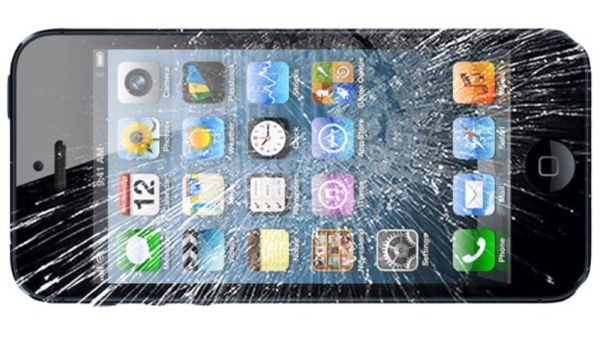
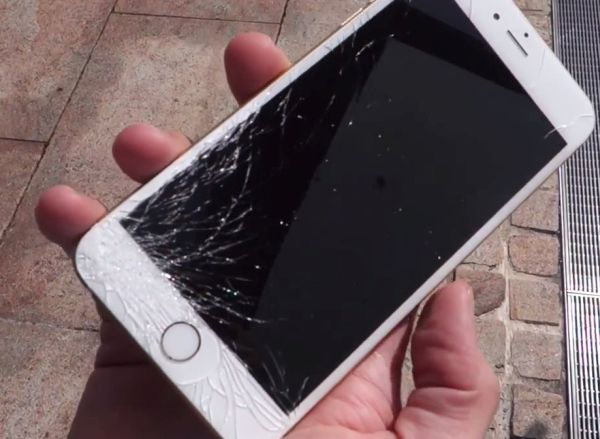
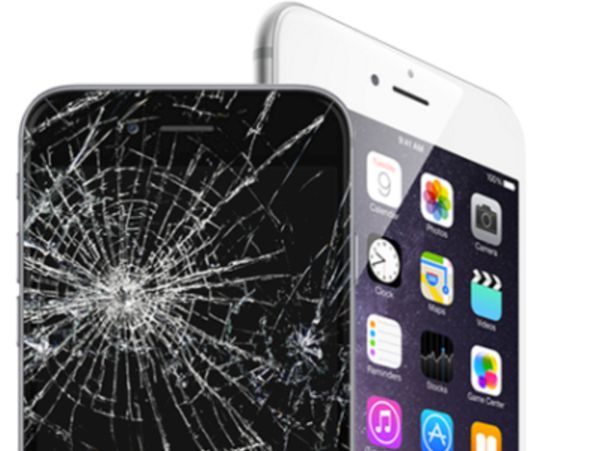
Many of us carry their iPhone in the pockets instead of cases. Thus when the device is suddenly dropped you can end up with iPhone broken screen problem. Having to repair cracked glass is something you have to think of a such situation. Let’s see what possible options are and how much it could cost to replace this part of your precious device.

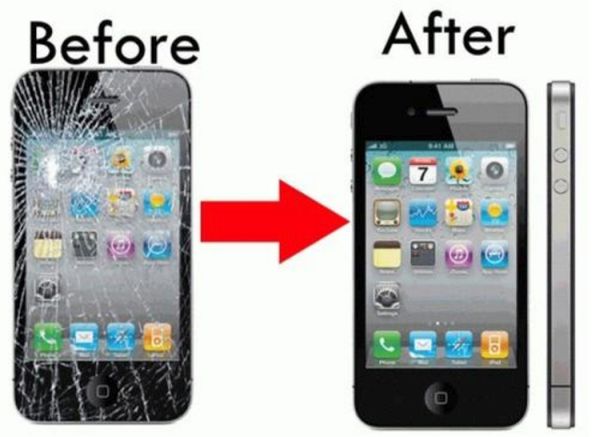
Actually there are more than 2 options you can choose. Some methods are cheaper, some are faster. Everything depends on how much you are willing to spend on your iPhone glass repair. We’ll talk about advantages and disadvantages of all possible repair methods we could think of.
How to Fix iPhone 6s Cracked Screen

Replace iPhone Cracked Screen Online

This is the simplest version for users who like shopping online and doing everything else from the comfort of their home. You can find online repair services, choose the price that suits you and send your phone directly to them for fixing its broken screen. Still you have to also understand that sometime could get into your private ‘iPhone life’ and see your photos, contacts and other information.

There is always some risk that sometime could browse your personal data on iOS 9.3.2 or other firmware version. It’s good to protect your device before you take this step. Busy users could still decide that choosing the online service is better than going to the physical store. You’ll have to send the handset via postal service so you should make sure it doesn’t break while being shipped. You’ll also have to pay your postage.

When you choose online companies you should read reviews and try to find the one with genuine replacement iPhone parts. It is still not that cheap to repair your phone but it’s more affordable than taking it to Apple.

Repair Broken iPhone Screen at Apple Store

iPhone Cracked Screen Repair Cost by Apple

The first thing you should keep in your mind is taking your device to Apple. The company is used to all possible repair solutions since a lot of customers come here with cracked screens, iPhone water damage consequences and other problems. Those users who are still covered by warranty should know that the standard agreement does not cover accidental drops and cracks.

If you are paying for AppleCare+ warranty you are a bit luckier since the final cost will be a bit lower. You’ll pay $49 for iPhone 5, $79 for iPhone 6, 6 Plus, 5s, SE, 5c and $99 for iPhone 6s or iPhone 6s Plus. Without this “plus” warranty the price would be $109-149. You can read more about Apple repair policies if you wish.

If you are out of warranty the cost would be from $269 to $329.

Repair Cracked iPhone Display Screen Service

How to Repair iPhone 6s, 6, SE, 5S Screen via Local Repair Services

If you have no plans and desire to take your broken gadget to Apple you can choose your local repair centers. Different stores offer such services in your home town or big cities. Search for “Phone Repairs” and you will find different locations where you can bring your phone and have it fixed. You will also know where to complain in case anything goes wrong.

It would definitely cost less to replace your broken iPhone screen [getting next iPhone 7 instead will surely be expensive]. You’ll pay around $85-$155 depending on your model. This way is cheaper than if you have your out-of-warranty handset were fixed directly by Apple.

You are highly advised to choose those repair companies that offer Apple certified display repair services. It’s always better to use genuine parts and not use just any phone screen on your iDevice, isn’t it? However such service could not be available in your area.

Repair iPhone Screen Replace DIY Kit

Getting iPhone Screen Replacement Kit to DIY Fix

If you are an individual you cannot get cell phone replacement parts wholesale but you can still purchase the new screen on eBay, Amazon and similar platforms. The costs are different but you can find differen iPhone SE screen replacement costs online or parts for other Apple smartphone models. You can always order factory SIM unlock for your iPhone from any U.S. carrier afterwards.

It’s risky to replace everything on your own even if you find step by step guides online. This is probably the most dangerous way of having your phone screen fixed as you can fail and get a brick instead of a smartphone. You are not recommended to take such a risk.

Smashed iPhone Screen How to Repair Fix

iPhone 6 Screen Replacement eBay Parts & Alternative Home Fix

If you don’t want to disassemble your phone on your own but still wish to have it fixed at your home you can find professionals who will come to your home and repair the cracked iPhone screen. You can meet in a public place. You’ll have to pay extra to the engineer who is fixing your device but you can purchase the parts online on your own. Just make sure you are getting the right thing before you ask a company to come and repair your gadget at home, work or somewhere else.

It would probably be more expensive than if you take the phone to a physical repair store [not Apple] but you can choose the place so it might be a more comfortable solution. Think about different methods and compare final cost before you decide how to replace broken iPhone screen.

My iPhone 6s Is Not Connecting to LTE: What to Do?

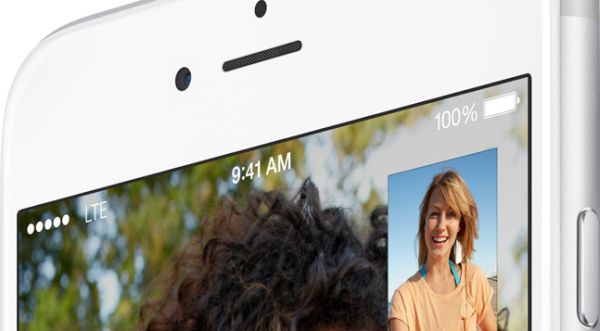
Is LTE not working on iPhone 6 or 6s? Sometimes you can come across software issue and while the bug can be solved it’s still not fun when you can’t make something work. Many Apple fans are reporting new iPhone 6 3G problems. Of course, you might be enjoying 4G and have no desire to use LTE still there are many users who really need to fix the glitch asap. Is it possible? How can you make the problem disappear?

How can you enjoy LTE working on your iPhone 6, 6s or other model [future iPhone 7 for example]? All there 3G bugs will be covered below. We hope that you’ll find the detailed guides on how to set LTE on iPhone 6 or make it work for Verizon and other U.S. carriers useful and must-have.

If you believe you experience LTE or 3G connectivity problems because of your network you can try some quick steps that could have an amazing effect and make you enjoy your device and mobile operator. If the problem is with your hardware – you’ll have to take your iPhone 6 to Apple Service center and have professionals take a look at it and repair your smartphone.

Fix LTE 3G Connection iPhone 6 iPhone 6s Guide

No LTE on iPhone 6 Because of Cellular Connection Bug Solution #1

Sometimes you cannot use 3G / LTE because the issues are with your mobile connection. To eliminate this problem you need to check if everything is ok or not. Follow the short instruction and complete this checking procedure:

Step 1. On your iPhone you need to open Settings.

Step 2. Select Mobile menu on iPhone 6.

Step 3. Toggle Mobile Data off and on a couple of times.

Step 4. Maybe the bug could be solved by this simple step. Your mobile date and LTE could be enabled and working well once again.

Step 5. You might also want to play with Airplane Mode. Just go to Settings and enable / disable this option.

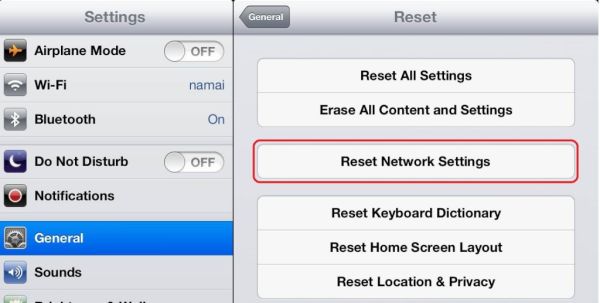
iPhone 6 Reset Network Settings Menu How To

iPhone 6 LTE Not Working Solution #2

The issue could be with your network settings. Reset and everything might be running well again. Just make sure you know all your passcodes for VPN, WiFi and other possible networks you are using because resetting will erase all this information and you’ll have to enter everything once again.

Step 1. You need to go to Settings on the device.

Step 2. Select General menu.

Step 3. Find Reset option.

Step 4. Click on Reset Network Settings. Is the issue still present?

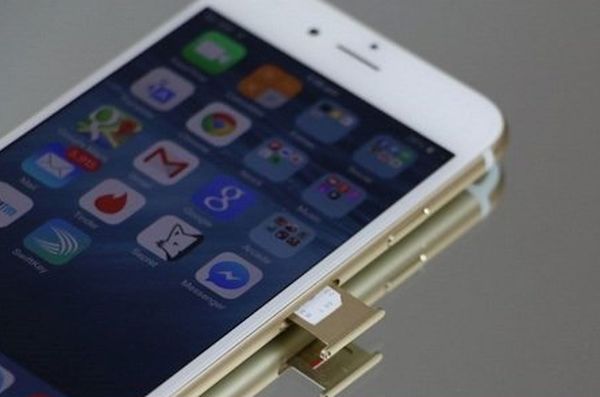
iPhone 6 SIM Card Remove Insert How to

Why Don’t I Have LTE on My iPhone 6 Solution #3

Issues with LTE or 3G could be related to your SIM card. Users who dropped their smartphone might need to either replace the mobile SIM card or try to fix the current one by taking these steps:

Step 1. Turn off the handset.

Step 2. Carefully take out the current SIM card for Verizon or other network.

Step 3. Look at the SIM. Does it look fine to you?

Step 4. Try to insert it back into your device.

Step 5. Turn on the phone after a while. Do you have connection back?

3G on iPhone 6 Issue Solution #4

Everything could be pretty simple. When was the last time you updated your software? Apple releases new iOS versions once in a while and the new ones have to fix previous issues.

Step 1. Make sure there is enough battery life. It’s better if it’s full.

Step 2. Go to Settings.

Step 3. Choose General – Software Update.

Step 4. If there is a new version you should click to Download and Install it.

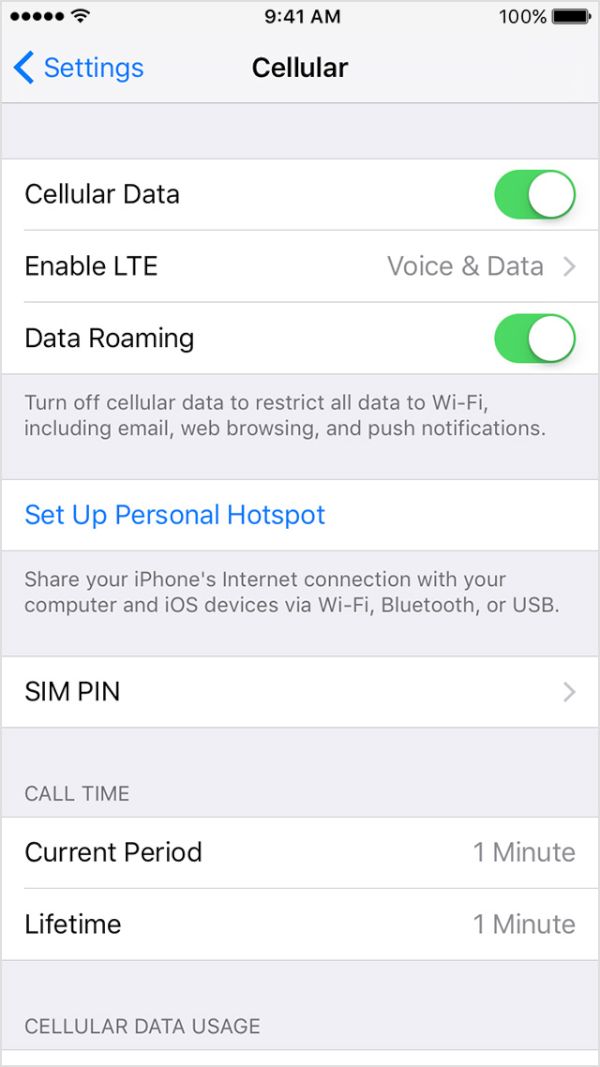
iPhone 6 SIM PIN Fix LTE 3G Connection Error

My iPhone 6s Not Connecting to LTE Solution #5

It could happen that you blocked your cellular data by enabling SIM PIN. This could be if you turned off / on the phone or switched SIMs. Maybe you decided to SIM unlock Verizon iPhone 6 and now trying to insert a different card.

Step 1. Settings is the place to go for a fix.

Step 2. Choose Phone menu.

Step 3. Click SIM PIN option and make sure it is disabled.

Solution #6

You might try to restore the gadget as new if nothing else fixed the bug. You should backup first because restoring erases all your information, videos, songs.

Step 1. You need your computer and iTunes running on it [here is how to fix iTunes error 3194].

Step 2. Open iTunes and backup the phone after you connect it to your PC or Mac.

Step 3. Choose Restore iPhone option and restore it as new device.

iPhone 6 Carrier Update Settings

Verizon LTE Not Working on iPhone 6

The issue might be with your carrier settings update. You should make sure that were no recent upgrades. Check it on Settings – General – About and see if there is any update available under OK option.

Make sure everything is good with your mobile data plan. Maybe the issue is related to this.

If nothing helped you should contact your mobile operator and make them figure out what is wrong with your handset.