Secret iPhone Shortcuts Tips: How to Create and Use Text Shortcut

It is probably impossible to know all the iOS 10 tips and tricks. There are so many secret ways how to master your Apple iPhone that most users only explore the features that are must-have in their everyday life. All other secrets remain hidden. When it comes to iPhone text shortcuts it is better to set them up and use while typing your text messages as this way you can send your respond to just any SMS instantly.
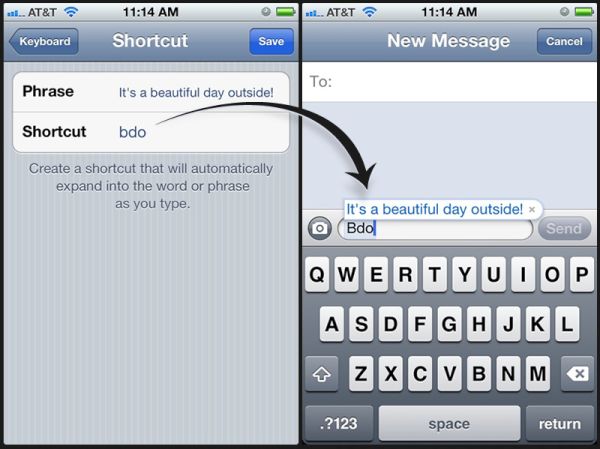
How to Set Up and Use Text Shortcuts on iPhone

How to Create Shortcuts on iPhone

It is not only necessary to setup and create your shortcuts but also learn how exactly you can use them on your iOS 10 iDevice. iOS 10 is the latest firmware version for iPhone and iPad. Apple is currently working on its new iOS 10.3 upgrade however it won’t bring any major changes to the platform. Thus once you update to any earlier ‘10’ system version you can explore the amazing shortcuts on iOS 10 phone and implement them into your life.

A lot of use like to send text messages. Of course, there are many people who prefer talking over the phone to sending SMS still it is great when you can quickly type your message without being interrupted from whatever you’ve been doing.

Let’s see in details how you can use text shortcuts on your iPhone. Follow the instruction below and you’ll master the way for sending quick short messages no matter what phrases you are using to build your sentences.

It is possible to create as many iPhone text shortcuts as you need. Think of all the quick phrases that can be useful to use and create shortcuts for each one. You can also easily block unwanted phone numbers on your Apple handset.
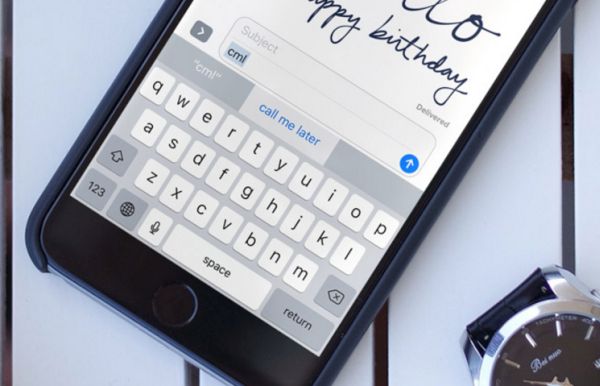
iPhone Text Shortcuts Usage

How to Set Up Shortcuts on iOS 10 iPhone

Step 1. Take your phone and make sure it is already updated to iOS 10 version (any version that exists).

Step 2. Open Settings program.

Step 3. Select General menu.

Step 4. Go to Keyboard section.
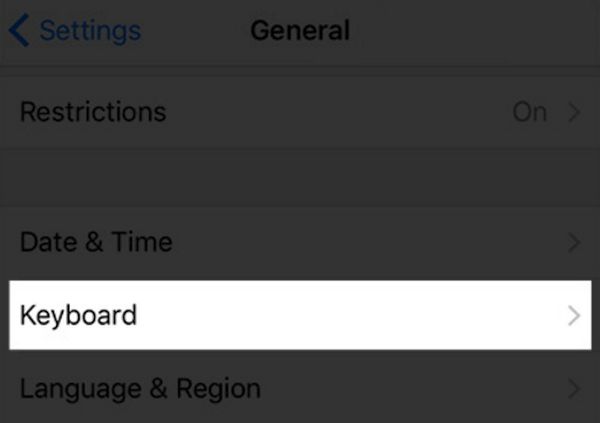
iPhone Settings - Keyboard

Step 5. Click on Text Replacement section.
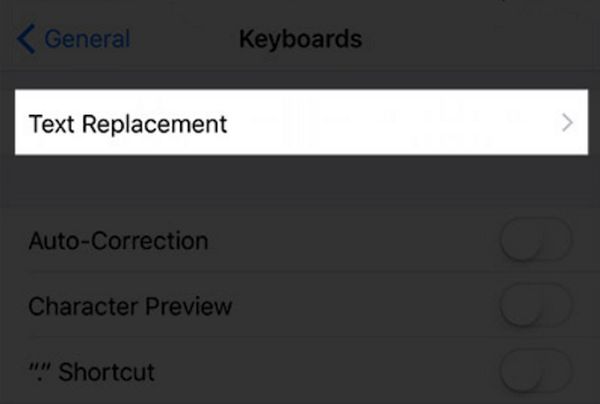
iPhone Settings - Text Replacement

Step 6. There should be a ‘plus’ button (+) at the upper right part of your display. Click on it to proceed.
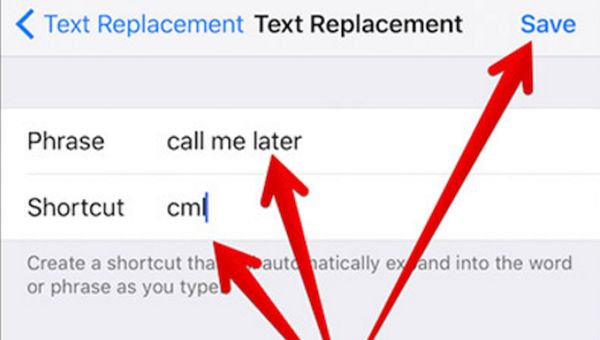
iPhone iOS 10 SMS Shortcuts Creation

Step 7. Enter the phrase that you want to turn into a shortcut. Now name your shortcut. Be brief as you’ll type your shortcut and it will turn down into your phrase. For example, type ‘cml’ for ‘call me later’ sentence. Hit on Done and Save your shortcut.
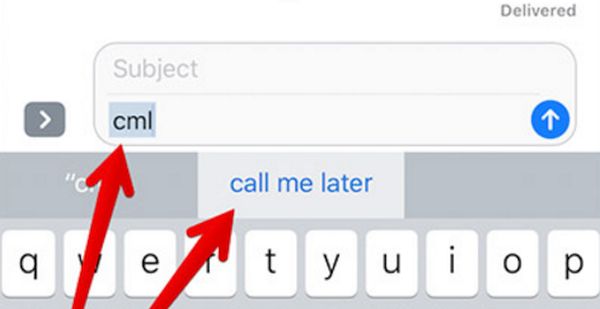
iOS 10 Keyboard Shortcuts

How to Use Your Secret iPhone Shortcuts

Step 1. Once you have created your shortcuts you should use them in your text messages. Launch the app that helps you typing your SMS. For example, use Messages program or similar app.

Step 2. Type your shortcut name. For example, type cml and it will automatically be shows in your predictive bar as the original phrase.

Step 3. Click on your corresponding message and send your SMS.
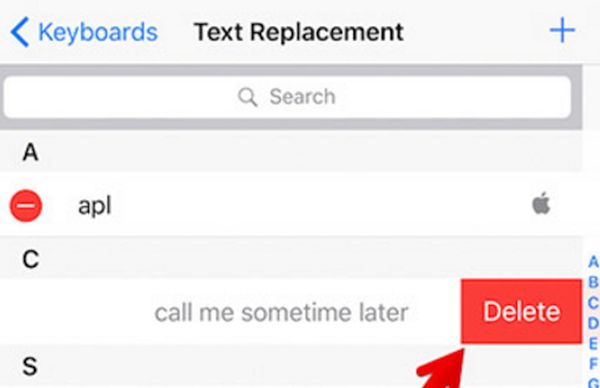
Remove Text Shortcuts on iPhone

How to Delete iPhone Keyboard Text Shortcuts

Step 1. Go to Settings when you wish to get rid of your old shortcuts.

Step 2. Select General menu and go to Keyboard.

Step 3. Choose Text Replacement option and hit Edit.

Step 4. You’ll see a red button next to your shortcuts. Click on this button for each phrase you wish to delete.

Step 5. Click on Delete – Done to confirm your decision.

If you only wish to edit your existing shortcuts you should repeat this guide up to Step 3 and instead of removing phrases you can change them and save those changes.

It’s really simple to create and use your shortcuts. For example, if you are tired of searching for a question mark you can create question mark text shortcut on your iPhone by choosing ‘qm’ name for this mark. Why not?

You see how you can adjust, edit, delete and create short phrases for different messages to reply as quickly as possible to important SMS when you are busy. Master your iPhone and iOS 10 features and you’ll love how everything is so simple and fun.
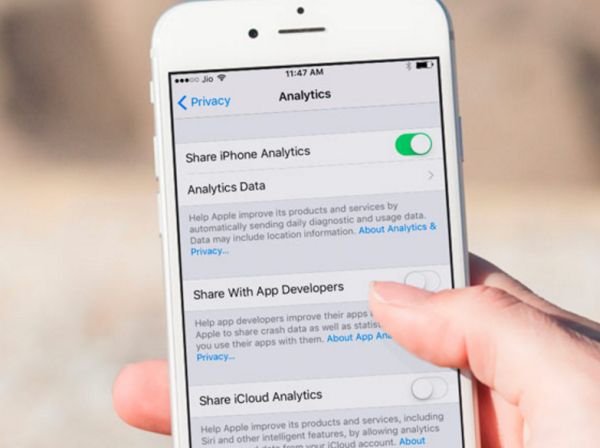
How to Easily Share iCloud and iPhone Data via iOS 10.3 Analytics Tools

Users who are running iOS 10 are surely following all the firmware updates. Apple is improving its mobile operating system for iPhone and iPad and you can share iCloud data on iOS 10.3 which is impossible on earlier platform versions. It is also possible to share your iPhone analytics data using the same method.

Why would anyone want to share iPhone data with Apple anyway? Firstly, you might not like your gadget or program performance. This is the reason to send your iCloud analytics direction from your phone. Secondly, it’s easier for the Cupertino-based giant to track the quality of its services and apps and enhance the performance, fix bugs and improve the overall experience of ‘fruit’ users with their ‘fruit’ devices.

Analytics Data Sharing on iOS 10.3 iPhone

iOS Analytics Tools

The fun options tested in iOS 10.3 beta sound really interesting and curious. They should simplify your life since it becomes even quicker to share analytics data on iPhone and iCloud not only with Apple itself but also with application developers. The information will be secure. Besides, you can control whether the data sharing is available or not. Enable and disable it when you wish. The whole idea does look attractive, doesn’t it?

Since you already know about the new feature let’s figure out how to use it.

Share Data Analytics on iCloud or iPhone

How to Share iPhone Data with Apple

Keep in mind that this option is present only in beta version for now. As soon as Apple officially updates its firmware to version iOS 10.3 [learn more about interesting iOS 10 features] you’ll be able to apply the knowledge on-the-go and send your analytics data on iPhone to the ‘fruit’ giant or devs.

Step 1. Once you install iOS 10.3 beta now (or the official 10.3 firmware once it is released) you can open Settings.

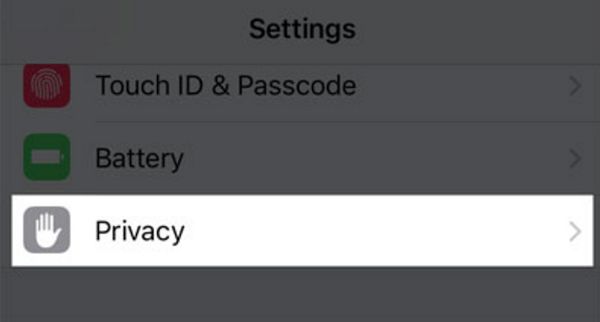
Settings - Privacy section on iPhone

Step 2. Get down to Privacy section.

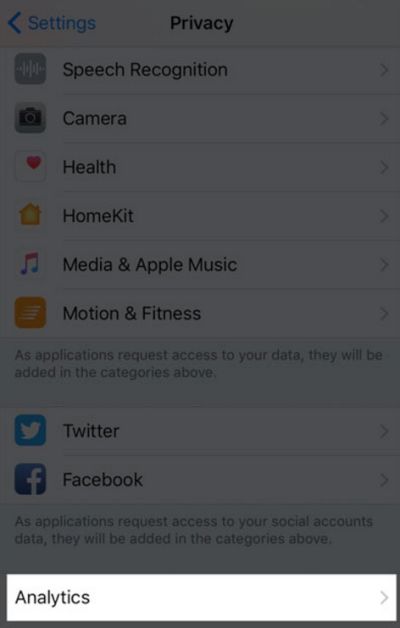
Step 3. Find Analytics section.

Step 4. Choose Analytics data feature.

Step 5. Now you will get to your Analytics data.

Step 6. If you wish to share your information with either Apple or your app developer you need to launch Settings again.

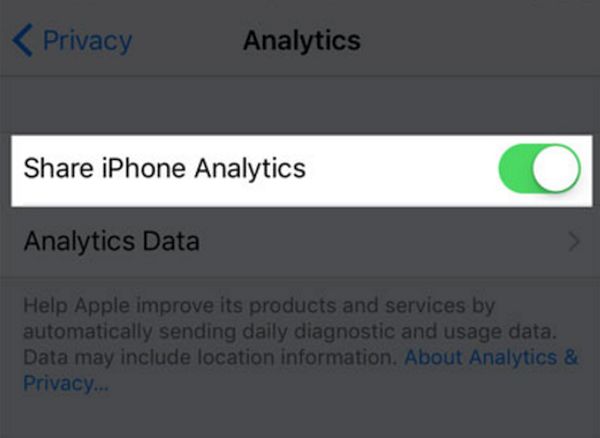
iPhone Settings - Analytics

Step 7. Select Privacy – Analytics section.

Step 8. There will be a switch for Share iPhone Analytics option. Enable it by toggling it on.

How to Share Analytics Data on iPhone with Apple or Developers

Step 9. If you need to share everything with devs choose Share With App Developers feature.

Step 10. If you need to share your iCloud Analytics you should get to Privacy – Analytics and enable Share iCloud Analytics option.

Now you know how to share iPhone data and it’s time to learn how you can improve this experience even more. You can also add some security to WhatsApp program on your smartphone.

iOS 10.3 Analytics Sharing

How to Improve your Sharing Analytics Data Feature

Step 1. Take your iPhone and go to Settings.

Step 2. Choose Privacy feature.

Step 3. Select Analytics.

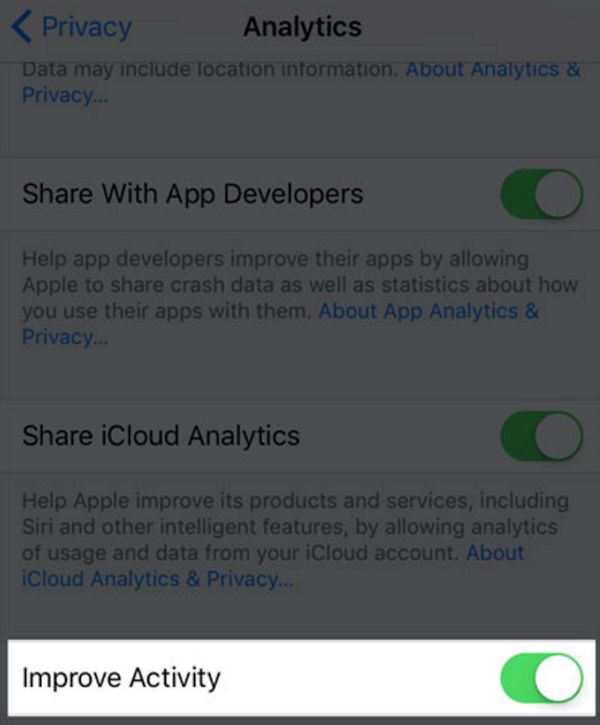
Step 4. You’ll see Improve Activity option which you can enable.

Step 5. Get back to Analytics section.

Step 6. You’ll see the option called Improve Wheelchair Mode which you can enable.

This way you can share workout information and wheelchair activity with the iOS company so that it can enhance its health services.

Is it safe to share your data with devs or the iPhone maker? Of course, it should be. It won’t harm anyone. This is just a way to control possible problems, issues and bugs on iOS gadgets. When you send the analytics information about the app or service Apple and developers will be able to make their products much better. It’s a win-win and hopefully this will be useful to all of us.

Can You Use Any Third Party Remote with Apple TV?

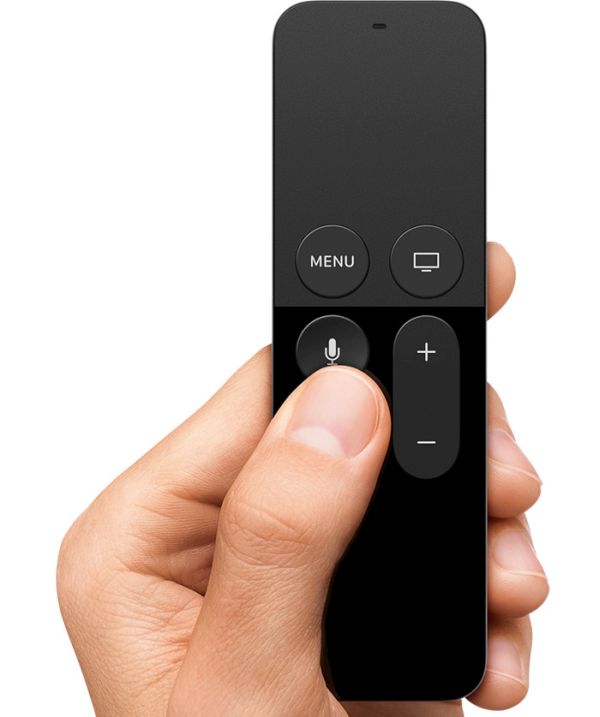
It does happen in real life: you break things or simply lose them. This often happens to my remote for Apple TV. I try to keep it at the same place however my dog is always there to play with it, lick it, carry around or choose on it. The result is pretty upset. My remote control often breaks and I have to get a new one, original or universal remote.

What is the best third party Apple TV remote? Does any remote work with this TV set or only original devices sold by the Cupertino-based company? I can share my experience with you. Maybe you’ll also like this idea since it’s not that comfortable to experiment with various alternatives in hopes to find the right one or work with Siri remote.

Anyways, this is just a quick simple instruction on how to use any (right, just ANY) third party remote when you have lost or broken your own gadget. By the way, some users really don’t like the remote that goes with their Apple TV and are also searching for the bigger and prettier remote control.

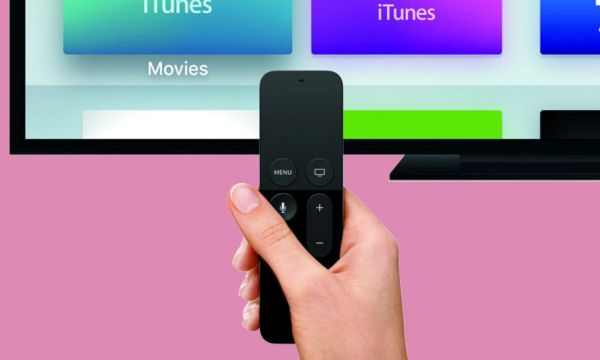
Original Apple TV Remote Controller was broken or lost

Best Universal Remote for Apple TV

No matter why you are planning to replace your original controller you can find a good alternative. There are many third party remotes for Apple TV that are cute, easy-to-use, fit perfect in your hand and are just wonderful.

Don’t worry about jailbreak because the guide below explains how to use your best third party Apple TV remote without any third-party activity [learn how you can customize new iPhone 7 without jailbreak]. The famous iPhone giant allows its customers choosing their ATV controller.

Best Universal Remote for Apple TV: how to use guide

How to Use Remote for Apple TV from Third Party Companies

Step 1. Find a remote you like. Remember it doesn’t have to be the original device created and sold by the iOS company.

Step 2. On the ATV you have, go to Settings.

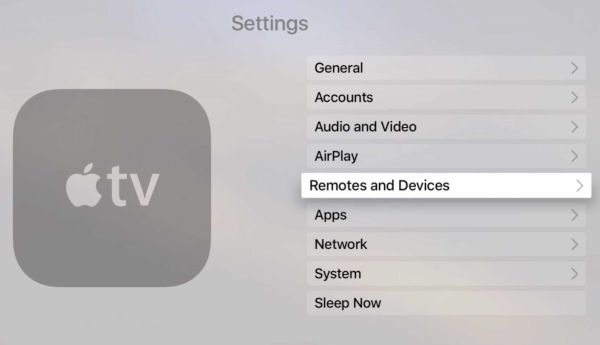
Step 3. You should get down to the list of options and select Remotes and Devices.

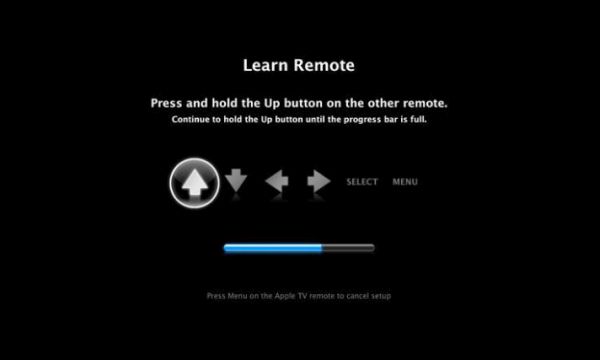
Apple TV learns new remote

Step 4. Click on Learn Remote feature.

Step 5. Select Start option to begin this interesting process.

Step 6. Work with your Apple TV and new remote by following the on-screen guides. Just press the buttons on remote and your ‘fruit’ set should learn the signal and get other information about your alternative controller.

Step 7. Give the remote a name.

Step 8. If you wish your TV set to understand commands sent by new remote you are advised to ‘train’ it to play Fast-Forward, Pause and Rewind features through Set Up Playback Buttons feature.

Step 9. In a few moments the procedure should be over and your Apple Remote button will assign your remote.

Since you can now assign any third-party remote to Apple TV let’s learn how to delete it if needed. Maybe you would like to use Siri remote or get an original accessory instead.

Apple TV Settings - Remotes and Devices

How to Delete Alternative Apple TV Remote

Step 1. Open Settings program on your TV set.

Step 2. Scroll down till you reach Remotes and Devices.

Step 3. Select your alternative remote name.

Step 4. There will be option called Delete Remote. Click on it.

Step 5. Confirm your decision by clicking on Delete Remote again.

You see that everything is simple [have you heard about wireless charging on iPhone 7?]. You don’t jailbreak your Apple TV and install no unknown tools. You only assign the third-party remote which you can later delete. Hopefully the instructions are useful and will save your time.