What to Do: My iPhone 6 Keeps Restarting Randomly

When your iPhone keeps restarting Apple logo you get mad, don’t you? Lucky those users whose ‘fruit’ smartphone is working well all the time. Unfortunately sometimes all of a sudden, this changes and you are seeing the popular logo more often than you wish. Is there a fix? Absolutely! Anything can be fixed if you have the right guide.

Why does my iPhone 6 keep restarting [if you dropped your phone in the toilet you need to dry iPhone out and fix the bugs]? Is it a big deal or minor issue? Should you worry and take the phone to Apple store or follow the instructions found online and solve everything on your own? Well, step-by-step guide is always the first thing to try out if it sounds well to you. If it looks risky, you better find something safer. Our guides are safe to follow as it won’t hurt your gadget to try something that helps others.
iPhone 6 Restarts Randomly

If iPhone Restarts by Itself

While most users who report their iPhone keeps restarting in 2016 mention older models such as iPhone 5s and earlier releases sometimes the same thing happens on newer iPhone 6 and 6 Plus that were updated to iOS 9 version which is the current platform for Apple gadgets.

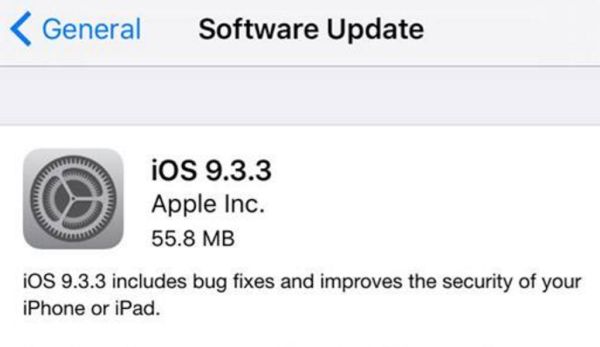
You could search for ‘My iPhone crashed during restore’ or update and this is exactly what could happen to you while you are trying to install iOS 9.3.3, for example. You could also get no service error after update which can be fixed pretty quickly.

Could it be software-hardware kind of problem? Doesn’t sound like Apple as this company makes sure that all the phone models supported by particular firmware run it as smoothly as possible. What should you do in such a situation?
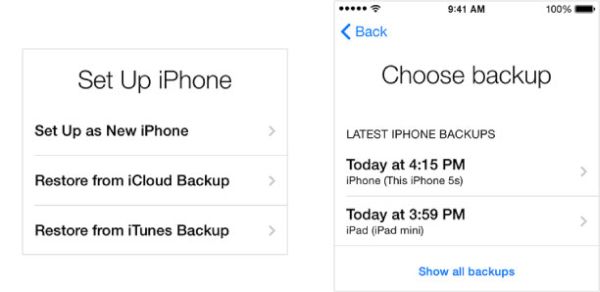
iPhone 6 Restore Backup How to

Fix #1 to My iPhone Crashed During Restore Bug

It doesn’t matter much if your iPhone restarts during restore or firmware update. The first thing you need to do is make sure you have a backup version of the device that was created before you tried to install newer platform version [learn what to do if Safari freezes on iPhone with iOS 9.3].

Step 1. You should use both your phone and computer that has iTunes installed on it with your older backup.

Step 2. Connect the smartphone to your PC or Mac and launch iTunes program which is the desktop app created by Apple.

Step 3. When you see your phone on iTunes choose it.

Step 4. Press on Restore Backup option.

Step 5. Point to older or previous backup version saved on your computer and wait till the process completes. It takes time so be patient. Hopefully there will be no problems with your iDevice afterwards.
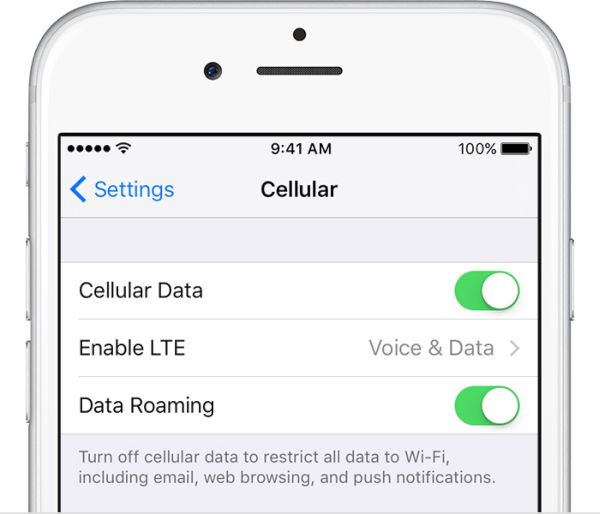
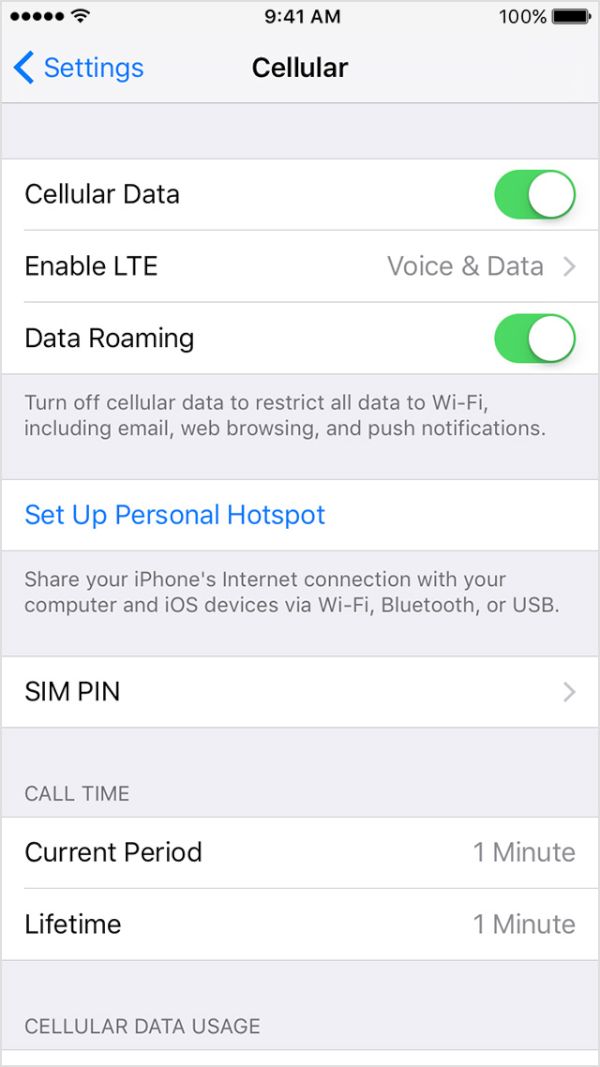
iPhone Cellular Data On Off Toggle Settings

Fix #2 To My iPhone Restarts Itself Issue

This sounds unreal but you can play with cellular connection. Surely this might not be the case but this is 100% safe to try so why don’t you?

Step 1. On your phone select Settings.

Step 2. Choose Cellular or Mobile menu.

Step 3. Disable your mobile data.

Step 4. Enabled it. Maybe it has helped you. Has it?
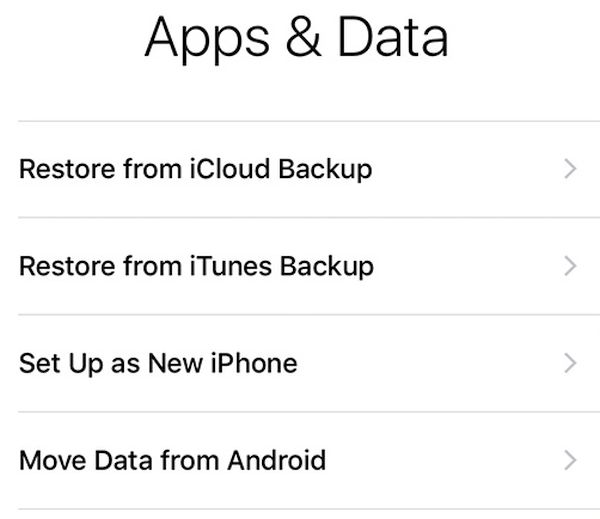
How to Set Up iPhone 6 as New Phone

Fix #3 To When iPhone 6 Randomly Restarts

This is something to try if you are not afraid to restore your device and set it up as a new one. It’s good if you have a backup saved or you could lose your images and other content.

Step 1. The first thing you should do before restoring is getting into Recovery mode. So press both Home and Power buttons on iPhone 6 and wait for the display to turn blank.

Step 2. Now connect your device to your PC or Mac and launch iTunes on your computer.

Step 3. The program should show that the handset is in recovery mode.

Step 4. Now choose Restore Backup and select the ‘backed up’ copy of your iPhone [created while you were running iOS 9.3.2 or other firmware version] to use.

Step 5. Set up the device by following the on-screen instructions. Maybe this will fix the bug.

Fix #4 to My iPhone 6 Keeps Restarting and Wont Turn On

When this happens and you are not able to run your phone you could try to replace battery or visit special service center where the smartphone can be tested. If you are covered by AppleCare+ program you are highly advised to bring the device back to the ‘fruit’ store and have it replaced. This is a perfect solution for iPhone 6 and 6s users as well as iPhone SE owners with phone issues however it won’t be cheap for those who have an older smartphone version such as iPhone 4, for example.
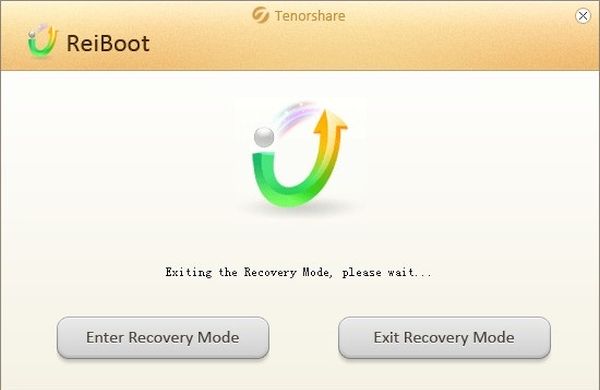
ReiBoot iPhone 6 Program Windows Mac

Fix #5 Hard Restart Without Losing Data

There is another thing you can try when your iPhone 6 keeps restarting randomly. There is a no-cost program called ReiBoot. It supports Macs and PCs and it allows iPhone users to restart the phone and preserver your data. Here is how it works:

Step 1. Download the computer program called ReiBoot for Mac or Windows.

Step 2. Now it’s time to use the USB cable and plug the phone to your computer.

Step 3. Launch ReiBoot.

Step 4. You will see the option called Enter Recovery Mode. This is what you should choose.

Step 5. Allow some moments for the program to get your mobile device into recovery mode.

Step 6. Now you need to select Exit Recovery Mode menu on ReiBoot and wait for it to restart your handset.

Step 7. Now the smartphone should work as normal.
iPhone 6 Freezes How to Fix

Other Fixes

If the device keeps freezing, turning off randomly, restarting itself for no reason or when you are running particular or new apps you could try to delete the suspicious programs [by the way, Apple discontinued iPhone 5s]. You can also try to reboot and even reset the phone:

Step 1. Press both Home + Power buttons. Wait for a while.

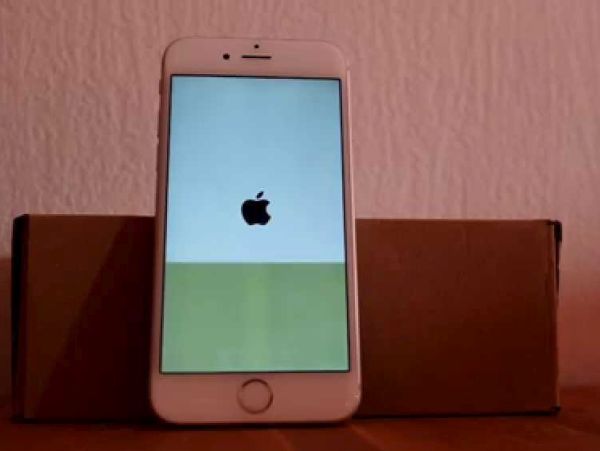
Step 2. When you see Apple logo it means you have rebooted successfully.

Step 3. Now open Settings.

Step 4. Go to General menu.

Step 5. Choose Reset menu.

Step 6. Click on Reset All Settings.

If you wish to delete an application or game you should reboot afterwards. It’s also nice to sync via iTunes as this can fix the bug related to that buggy app.

The problem with sudden restarts can be serious. Sometimes the only solution is to bring the phone back to Apple and replace it. Or you can upgrade to the newer device. The next iPhone 7 is set to be officially released by mid-September.

iPhone 6s SIM Lock Can Be Permanently Disabled for Any UK Carrier

What’s SIM Lock on iPhone 6s, SE, 6

There are many mobile operators across the world. Many of them including UK companies prefer restricting subscribers from switching to a different network. The restriction is set in the software and makes your phone ‘locked’ to a single carrier. Since most gadgets that get such a restriction are GSM devices that are using SIMs – comes the term ‘network lock’ or ‘SIM lock’.

There is the difference between ‘locked phone’ and ‘SIM lock’. You should understand it.

iPhone SIM PIN Settings

How to Disable SIM Lock on iPhone: Simple Guide

Step 1. This is extremely simple since you can lock and unlock your SIM card whenever you want. Just keep in mind that this will result in no signal since you will lock the cellular connection of the network you are using.

Step 2. Take the handset and click on Settings.

Step 3. Choose Phone – SIM PIN option.

Step 4. Disable the SIM PIN and you will have no connection.

Step 5. When you wish to enable the option you’ll have to enter your SIM PIN code and press on Done by repeating the same steps as described above.

How to Unlock iPhone UK SIM IMEI O2 Vodafone Three

iPhone Network Lock Check Service

If you tried to switch SIMs but haven’t succeeded to get the signal you should double check the two things. You can find out ‘Is my iPhone unlocked or not?’ by choosing the affordable network IMEI checker and you make sure that there is not SIM PIN lock on your device. This second problem can really prevent your gadget from connecting to the network. If SIM PIN is enabled but there is still no cellular connection – you have to answer the question whether your device is locked to one carrier or not.

If it is unlocked you are able to insert SIMs from any GSM carrier and save on data plans. If you are still locked it is possible to remove SIM lock using your original network or third-party services. We’ll explain how you can do this for major UK networks including Vodafone, EE, O2, T-Mobile, Orange and Three.

Let’s note that most recent models purchased in 2016 are already SIM unlocked. But there are still some devices that arrive only with limit to using it with one mobile operator. Anyways, the guides below work for all Apple handsets including iPhone 6s, SE, 6, 5s and others.

iPhone Vodafone UK SIM Unlock

How to Unlock iPhone 6 Vodafone UK

The first thing you should do is contact Vodafone and figure out if it is possible to get free unlocking service directly from this company. If you have an account with this network (in a good standing of course) you can use the special online form offered by Vodafone to get the details. It usually takes from 2 to 10 days to get the answer.

If you didn’t have Vodafone plan for over a year the service would cost you £19.99.

iPhone 6 Three UK Unlock

This operator stopped ‘locking’ iPhones since the beginning of 2014. If your model was purchased later than this, all you have to do to SIM unlock it is activate. This can be done through WiFi connection or when you open iTunes program on PC or Mac.
If your iPhone was bought before 2014 you can unlock any iOS firmware version including iOS 7, iOS 8 and iOS 9 by filling out the special online form created by Three in UK.

How to Unlock EE iPhone UK

UK iPhone Unlocking from T-Mobile, EE and Orange

These networks are probably the most complicated. Users who have an original account with one of them for about half a year can order SIM unlock at £8.99. Note that your account must be in good standing and you’ll have to wait for nearly a month to become SIM free. EE has special online form you can use.

Those users who don’t have an account are not that lucky because they have to contact the original iPhone owner and get their real phone number with the network and other account information – all these to order iPhone SIM unlock from network.

iPhone O2 UK Unlock

Online O2 iPhone Unlocking for UK

Contact pay-monthly users can become SIM free at any moment. Still you’ll have to pay off your contract afterwards if it is not paid already. Use this O2 form to order service online.

If you are using Pay & Go plan you’ll have to pay £15 to unlock. You will also have to wait for at least a year before you are eligible.

It’s curious that O2 promises that users with their iPhone who are not customers can insert any different SIM card and connect to iTunes to get the signal. This is probably what you have to try at first. Maybe such free simple method will make you permanently unlocked.

Third-party Unlocking

Don’t worry if your mobile operator refused to complete your request. You can always order distant IMEI unlock for UK iPhone which you should do if you keep getting one of the following errors when inserting different SIM cards:

*insert correct SIM card
*Invalid SIM
*Sim card not accepted
*payt lock
*enter sp code

All networks and third-party services are legally offering SIM unlock for your handset. Remember to backup before you do anything.

We believe that more carriers will be willing to sell already unlocked smartphones to customers in the future. This way you will not have to worry about your data plan since you’ll be free to choose your network and switch whenever you want to.

My iPhone 6s Is Not Connecting to LTE: What to Do?

Is LTE not working on iPhone 6 or 6s? Sometimes you can come across software issue and while the bug can be solved it’s still not fun when you can’t make something work. Many Apple fans are reporting new iPhone 6 3G problems. Of course, you might be enjoying 4G and have no desire to use LTE still there are many users who really need to fix the glitch asap. Is it possible? How can you make the problem disappear?

How can you enjoy LTE working on your iPhone 6, 6s or other model [future iPhone 7 for example]? All there 3G bugs will be covered below. We hope that you’ll find the detailed guides on how to set LTE on iPhone 6 or make it work for Verizon and other U.S. carriers useful and must-have.

If you believe you experience LTE or 3G connectivity problems because of your network you can try some quick steps that could have an amazing effect and make you enjoy your device and mobile operator. If the problem is with your hardware – you’ll have to take your iPhone 6 to Apple Service center and have professionals take a look at it and repair your smartphone.

Fix LTE 3G Connection iPhone 6 iPhone 6s Guide

No LTE on iPhone 6 Because of Cellular Connection Bug Solution #1

Sometimes you cannot use 3G / LTE because the issues are with your mobile connection. To eliminate this problem you need to check if everything is ok or not. Follow the short instruction and complete this checking procedure:

Step 1. On your iPhone you need to open Settings.

Step 2. Select Mobile menu on iPhone 6.

Step 3. Toggle Mobile Data off and on a couple of times.

Step 4. Maybe the bug could be solved by this simple step. Your mobile date and LTE could be enabled and working well once again.

Step 5. You might also want to play with Airplane Mode. Just go to Settings and enable / disable this option.

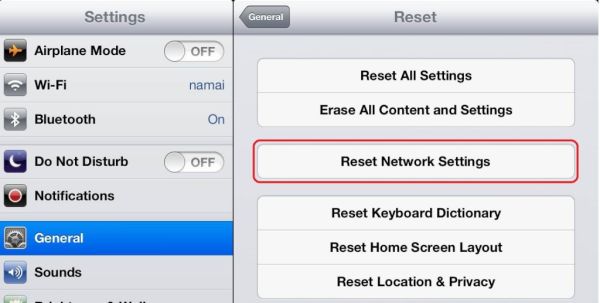
iPhone 6 Reset Network Settings Menu How To

iPhone 6 LTE Not Working Solution #2

The issue could be with your network settings. Reset and everything might be running well again. Just make sure you know all your passcodes for VPN, WiFi and other possible networks you are using because resetting will erase all this information and you’ll have to enter everything once again.

Step 1. You need to go to Settings on the device.

Step 2. Select General menu.

Step 3. Find Reset option.

Step 4. Click on Reset Network Settings. Is the issue still present?

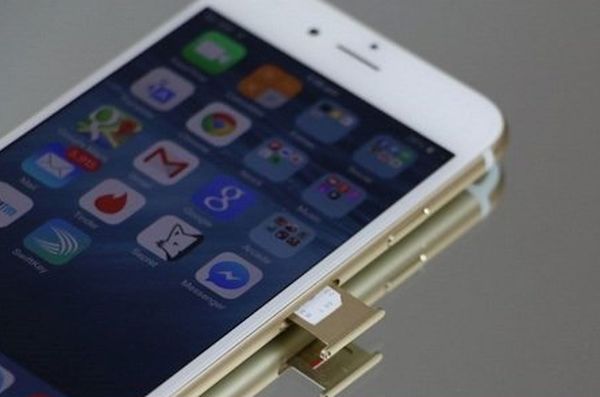
iPhone 6 SIM Card Remove Insert How to

Why Don’t I Have LTE on My iPhone 6 Solution #3

Issues with LTE or 3G could be related to your SIM card. Users who dropped their smartphone might need to either replace the mobile SIM card or try to fix the current one by taking these steps:

Step 1. Turn off the handset.

Step 2. Carefully take out the current SIM card for Verizon or other network.

Step 3. Look at the SIM. Does it look fine to you?

Step 4. Try to insert it back into your device.

Step 5. Turn on the phone after a while. Do you have connection back?

3G on iPhone 6 Issue Solution #4

Everything could be pretty simple. When was the last time you updated your software? Apple releases new iOS versions once in a while and the new ones have to fix previous issues.

Step 1. Make sure there is enough battery life. It’s better if it’s full.

Step 2. Go to Settings.

Step 3. Choose General – Software Update.

Step 4. If there is a new version you should click to Download and Install it.

iPhone 6 SIM PIN Fix LTE 3G Connection Error

My iPhone 6s Not Connecting to LTE Solution #5

It could happen that you blocked your cellular data by enabling SIM PIN. This could be if you turned off / on the phone or switched SIMs. Maybe you decided to SIM unlock Verizon iPhone 6 and now trying to insert a different card.

Step 1. Settings is the place to go for a fix.

Step 2. Choose Phone menu.

Step 3. Click SIM PIN option and make sure it is disabled.

Solution #6

You might try to restore the gadget as new if nothing else fixed the bug. You should backup first because restoring erases all your information, videos, songs.

Step 1. You need your computer and iTunes running on it [here is how to fix iTunes error 3194].

Step 2. Open iTunes and backup the phone after you connect it to your PC or Mac.

Step 3. Choose Restore iPhone option and restore it as new device.

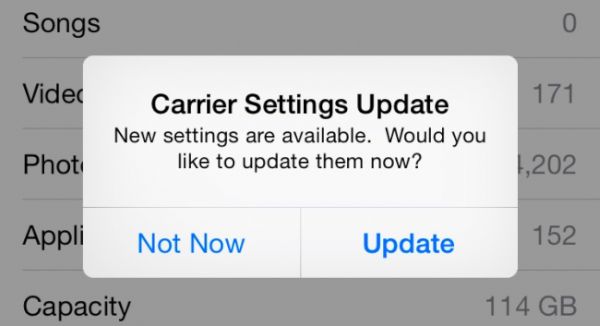
iPhone 6 Carrier Update Settings

Verizon LTE Not Working on iPhone 6

The issue might be with your carrier settings update. You should make sure that were no recent upgrades. Check it on Settings – General – About and see if there is any update available under OK option.

Make sure everything is good with your mobile data plan. Maybe the issue is related to this.

If nothing helped you should contact your mobile operator and make them figure out what is wrong with your handset.

Top Problems with iOS 9.3.3 and Other iOS 9 iPhone 6s Firmware

There are many common iOS 9 problems you have to keep in mind if you are still running iOS 8 or thinking of installing iOS 10 as soon as it becomes available as public release. Different smartphone models iPhone 6s, iPhone SE, iPhone 6 etc. can face various issues on different versions of Apple mobile firmware.

Are there problems with iOS 9.3.3 which is the most recent public download? What should you consider? Most users are already running this firmware but there is a small percentage of people who are still on the older platforms. Let’s learn how to solve something you can come across while developers are testing future iOS 10.

iOS 9.3.3 iOS 9.3 Common Problems Fix Guide

Most Common iOS 9 Problems

As we already mentioned, iOS 9.3.3 is the latest iOS 9.x update rolled out by Apple to solve common problems with iOS 9 [learn what device, iPhone or Android phone, crashes more often]. However it surprises users that even this upgrade is rather problematic. The Cupertino-based company always tries to improve its software and offers several minor updates with new features and options throughout the year. Even though iOS 10 is closer than you can imagine, the company introduced iOS 9.3.3 that also brought new headache to iPhone owners.

iPhone Slide to Upgrade iOS 9 Issue Problem Error Bug

Issue #1

Common problems with iOS 9 start during installation. You might get a frozen device. Or you can get the swipe to update fail on both tablets and handsets. But these things are easy to fix no matter what particular version you are updating to.

If the process is locked up you need to do the following thing: click both home and power buttons on your device and count to 10. Everything should jumpstart after 10 seconds.

You can also disconnect the handset from your PC or Mac and hopefully everything should be solved by the time to reconnect and restart iTunes.

WiFi Reset iPhone Forget This Network

Issue #2

There could be iOS 9 WiFi issues you should deal with. If anything is wrong with your connection you can try some simple tricks. Just make sure you know your password before you start as you’ll have to enter it after you complete the steps. For example, reset iPhone network settings for Wi-Fi by opening Settings and selecting General menu – Reset option and ‘Reset Network Settings’.

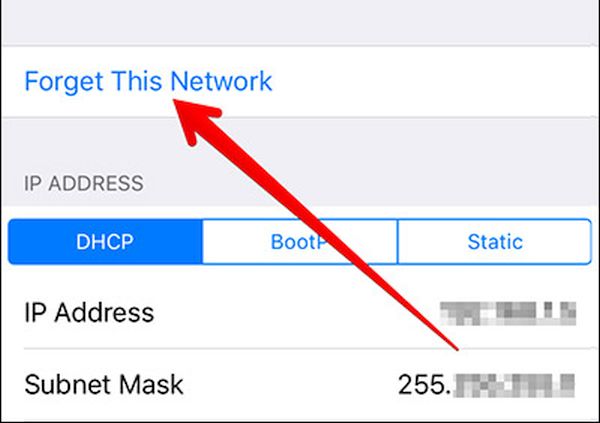
Another method you can try is choosing Settings – Wi-Fi menu. Choose connection and click ‘Forget this Network’. Then you should be able to connect again and have the bug gone.

WiFi problems could be also caused by your router. Try to unplug / plug back or even update its software.

iPhone Settings Cellular iOS 9 problems

Issue #3

There are iOS 9 data issues a lot of people complain about. Sometimes they are caused by Apple outage. Sometimes there might be problems with your carrier service. Such problems are solved on their own.
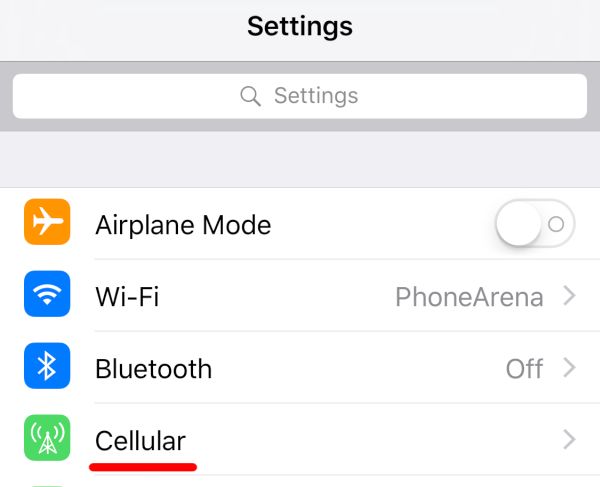
Still you can restart your gadget by sliding to turn off your device. Then you might want to disable / enable cellular data via Settings – Cellular. Another thing worth trying is disabling / enabling Airplane Mode.

Here is what you should do if you get No SIM card error on your iPhone 6s or other model.

iPhone Touch Screen Doesn't Respond Not Working Fix iOS 9

Issue #4

Sometimes your touchscreen stops working. It could happen on iPhone 6s and iPhone 6. You are not able to launch an application or even restart the device. What can you do in such situation? Just press the Home + Power buttons at once and hard reboot. The smartphone must work normally after this and your screen should respond to your touches.

Issue #5

There are iOS 9 issues on iPhone 6 related to Bluetooth. Resetting your network settings could do the trick. Or go to Settings app and choose Bluetooth. Choose your connection and click on ‘i’ to ‘Forget’ your iPhone. Once you reconnect the bug could be gone.

Issue #6

Some iOS 9 issues cause app problems. Developers try to update their programs and games right after the new firmware is presented. Take a loo at any possible application updates before you continue. If there is one, install it.

You can also reinstall the app. Maybe it will run ok afterwards.

iOS 9 Battery Problems iPhone Fix

Issue #7

Some users are looking for iOS 9 battery problem fix when it starts draining too fast. The software should actually add some hours to your battery life and if this doesn’t happen you might want to wait for several days. Maybe this could settle down in 2-3 days. If not, you need to find useful iPhone battery tips on how to extend its life.

Issue #8

iOS 9 data issues are not everything you can suffer from. There could issues with Touch ID and if your fingerprints aren’t recognized you should bring the phone to Apple service center and make sure everything is ok with your Touch ID.

You can also re-train fingerprints through Settings menu. Go to Touch ID & Passcode on iPhone and enter it. Now swipe from right to left to delete your fingerprints and click ‘Add a Fingerprint’.

How problematic is iOS 9? It’s up to you to decide and compare it with previous iOS 8 firmware or iOS 10 betas. We hope that this guide on how to solve iOS 9 problems [most common ones] is useful to you.

If you are not happy with your operator you can SIM unlock iPhone from Sprint or other carrier. This is the easiest solution for users who are locked [tied] to one network only. Becoming SIM free gives you an advantage of switching SIMs as often as you want. It’s simple fast and affordable.

Dropped Your iPhone in the Toilet or Water? Useful Tips and Tricks

I dropped my iPhone in the toilet and it won’t turn on. Has it happened to you? You are not alone. Many of us carry the popular smartphone in the pockets and sometimes it just occurs. The device is in the water and once you take it out you should dry it.

Don’t be surprised to see iPhone no service after water damage. For many users their gadget stops turning on. Having such a brick does suck so you need to find a fix. We’ll share some of the most popular methods that could bring the handset back to life. Many iPhone water damage problems were successfully fixed so hopefully your case would also be resolved.

iPhone Fell in Toilet Water Damage Fix Guide Instruction

iPhone Water Damage Repair Cost

You can take your wet smartphone to Apple and have it officially repaired. The prices are different and depend on whether you have warranty or not. AppleCare+ must have to get the cheaper price but it won’t help you if your device is out-of-warranty [you can also use out-of-contract iPhone unlock if needed after you fix everything with the wet device].

If you have AppleCare+ service with accidental damage you can have your iPhone 5s, 5c, 6, 6 Plus, SE fixed at $79. For out-of-warranty models it would cost you way more: $269 for iPhone 5s, 5c or SE, $299 for iPhone 6 and $329 for iPhone 6 Plus. Pretty expensive, hah?

iPhone Water Damage Fix Instruction without Apple

How to Fix iPhone After Water Damage without Apple

There are some must-do steps even if you decide to take the damaged device to Apple Service Center. Even if the device is as wet as if being used under the heavy rain after sinking in water – you still must let it completely dry.

Step 1. Turn off the phone if it is still enabled. You can click-hold your Sleep / Wake button or ‘slide’ to power off. If the handset is already off do not turn it on to check if everything is ok because this is how the problems will begin.

Step 2. If you have the device in a case, remove it. If the device is connected via USB to anything, disconnect it.

Step 3. Wipe off your handset. There is no need to take off the screen protector if you are using once because of its water-resistant nature. It protects the screen so let it do its job.

Step 4. Leave it in the dry place for a few days.

Step 5. Do not use the gadget right away even though it is reported that users unlock their iPhone many times a day. Users who start using a water damaged model end up with the most common issues such as ‘iPhone doesn’t charge’, ‘Home button doesn’t work’, ‘Black screen’ only because they hurried and didn’t want to wait.

Wet iPhone is like an injured man. It needs time to heal.

Step 6. It is best to use the clean cloth (cotton cloth works the best) to dry exterior. This is something you can do on your own.

Step 7. You are advised to also dry the interior after you wiped the screen, back, front and sides of the iPhone 6s, 6, SE or other model. If you can find professionals who will do it for you – it’s awesome. All the following parts need extra attention: speakers, Home and all other buttons (volume, mute), charging port, SIM card tray, microphone. It is better to remove the SIM card [learn what to do if your iPhone password is forgotten].

What Not to Do When You Drop Your iPhone in Water

  • Do not turn on the phone if it is still enabled
  • Do not make phone calls
  • Do not dry the device with a hair dryer
  • Do not attach or connect anything [accessories etc.]
  • Do not charge the damaged device
  • Do not remove the battery or you can cause more problems

iPhone in Rice Does it Work How to Dry iPhone Water Damage

iPhone in Rice Trick

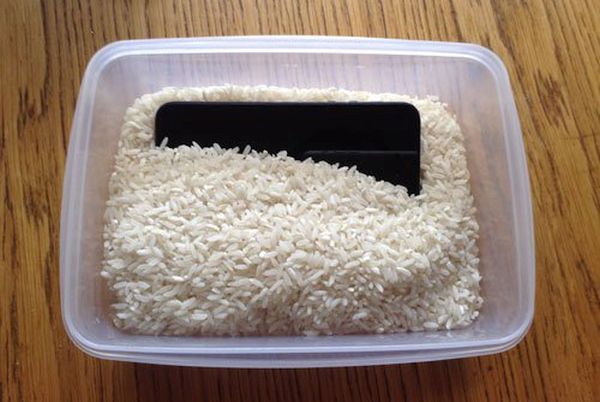
Have you heard of an interesting method how to absorb the moisture without disassembling your device? Does putting iPhone in rice work? Here is a curious solution many people have tried:

Step 1. You need uncooked rice and we’ll explain ‘how do i dry out my iPhone’ with food.

Step 2. You also need a bowl or plastic container that should be filled with the rice.

Step 3. Place the handset that was dropped into water into uncooked rice. Make sure to cover the gadget completely.

Step 4. Let the device dry in rice for up to 48-50 hours. If you decide it’s time to get new phone learn more about the best AT&T iPhone data plans and prices.

Step 5. While rice can absorb liquid it might also cause iPhone corrosion. Besides, the small grains might get inside your ports. These disadvantages and risks must be taken into consideration before you try it. Tip: you can use silica gel instead of rice.

iPhone No Signal after Water Damage Repair Guide

Have iPhone 6s No Signal After Water Damage?

When the device has dried and you finally turn it on you might find another unpleasant thing: no signal. The gadget might be searching for it but the search lasts forever. Remember that it becomes expensive to upgrade AT&T iPhone so it’s better to make it alive. Use the following iPhone no service fix:

Step 1. If your date, time is wrong you need to set everything the correct way.

Step 2. Once the Date & Time show the right information the problem will be gone.

Step 3. You can also remove and insert the SIM to make sure it’s placed properly.

Step 4. Enable and disable Airplan mode.

Step 5. Do the same with WiFi connection and your cellular data.

We hope that this detailed guide for fixing ‘My iPhone fell in the toilet what do i do’ problem has helped you to get a working device. If not, you should take the gadget to the Service Center and make experts fix everything which is not free. Replacing components or repairing hardware issues could be the only way to return your phone to a working condition. Or you can purchase the new model and take better care of it.