Here is useful guide how to setup iPhone complex passwords. Apple company has made it difficult for attackers to bypass a passcode lock, and made our iOS devices more secure with Touch ID.
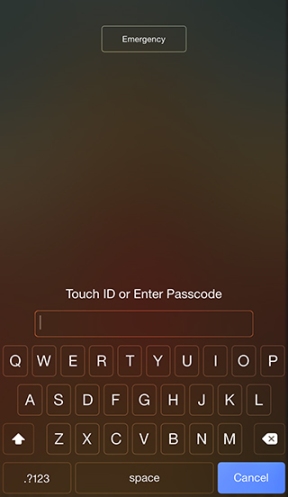
As it was reported last week about small IP box that was able to use brute force to bypass a passcode and gain entry to a locked iOS device while touching its data. Also a hacker has developed a utility for Mac called TransLock tool, that can do the same job via USB. If that has got you worried, then you need to change simple 4-digit password to complex password on your iOS device.
Here Is How To Setup iPhone Complex Passwords
Step 1. First launch the Settings app.
Step 2. Then scroll down, and click on Touch ID & Passcode.
Step 3. If you had 4-digit password, then enter the password when prompted.
Step 4. Scroll down, and to turn it off click on the toggle next to Simple Passcode.
Step 5. You will be asked to enter the old password. Enter your old 4-digit passcode.
Step 6. Now you will be prompted to enter the new password. To enter a new passcode use the full keyboard. To create a super strong password you can use a combination of letters, numbers, special characters and also accented or alternate letters. Keep in mind that you can forget complex password. This is why apps like 1Password allows you to create and save complex passwords can can be very useful herein. Or you can also use Siri to create a complex password.
Step 7. Click on Next after entering the password.
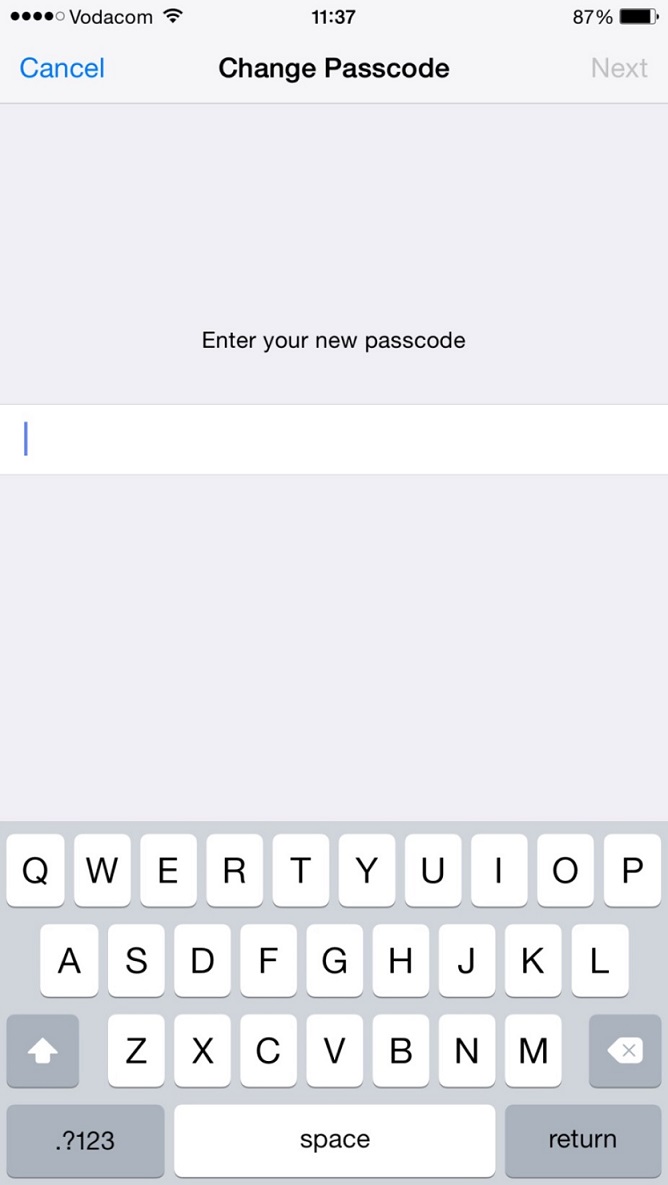
Step 8. Re-enter your new passcode, and click Done option.
The work is done. After setting up a complex passcode to enter the new one you will be able to use a full text-and-number keyboard. Now you know how to setup iPhone complex passwords to safe your device.
One thought on “Learn How To Setup Complex Passwords On Your iPhone”