Apple E SIM Cards Plan Could Make iPhone SIM Unlocked

A lot of ‘fruit’ fans would like to get Apple e SIM cards. The company is already believed to communicate with cellular carriers about such release. If you remember, a year ago Apple demonstrated two tablets [iPad mini 3 and iPad Air 2] with Apple SIMs. Such cards made it possible to use more than just one network and switch SIMs at any moment.

iPhone 6 e SIM card is not exactly full unlock but it’s also not the same as being locked to only one carrier [you can check your iPhone SIM lock status for free]. Previous SIMs introduced by Apple allowed iPad owners to use three cell carriers and switch between them without issues. This plan isn’t enjoyed by all mobile operators because most companies still like to lock their subscribers to their network only. From other hand, ordinary users are definitely happier when they get a choice of data plans and service quality.

e-SIM Apple iPhone

This is a neat idea and if Apple e-SIM card is introduced for iPhones – users might get better choices of their mobile operators. What is this interesting e-SIM? As rumors say, this could be a new technology that allows fast switching between carriers. It should be much easier than it happens now when you must order factory iPhone SIM unlock service in order to get a chance to use different mobile companies and select your data packages. Otherwise you have to purchase the never-locked smartphone and it is priced pretty high compared to locked versions.

If iPhone 5 e SIM card or other model with such a card could connect to multiple networks – users will be able to connect to AT&T, Vodafone, Hutchison (for example) and switch between these networks even without having to insert a new SIM each time. Wouldn’t it be wonderful?

Of course, iPhone e SIM card is only rumored to be launched sometime in the future [rumors mention 2016]. But the reports about Apple and Samsung talking to carriers about something like this to happen sound reassuring.

T Mobile Family Plan 2 Lines Introduced with 10 GB of Data

T-Mobile updates its plans for iPhone and other smartphone subscribers [but you still might want to SIM unlock T-Mobile iPhone smartphone]. If you want to get two lines and enjoy using 10GB of data per line you might want to learn more about T Mobile family plan 2 lines which is unveiled by the U.S. company in July.

T-Mobile Family Plan iPhone New

This U.S. Magenta mobile operator that proclaims itself as Un-carrier offered a couple of new plans recently. Firstly, its released JUMP! On Demand plan that brings new iPhone upgrade options and 21GB soft cap plan that is aimed to satisfy those users who need much data every billing period. If you are using this carrier you should know that a lot of its data plans come with unlimited phone calls and text messages. The company also offers unlimited data usage but this works only in some locations outside the United States.

The group of new T Mobile family plans now includes the 2 lines plan that provides 10GB of data every month per each line [also learn about Sprint rollover data that never expires on iPhone]. How much does it cost? You’ll have to pay $100 for two lines if you choose Simple Choice Family Play and 2 lines offer. In addition you’ll have to pay $20 for the additional line which also gets the 10GB data.

T-Mobile Family Plan 2 Lines

It is interesting that iPhone T-Mobile carrier also offers the fourth line at no additional cost at the moment. This is a limited time offer and you’ll have to subscribe a new person to your Simple Choice Family plan before September in order to get this deal.

In other words, if you have a family of four you can pay $120 a month to get four lines and 10GB of data per each line if you do this before Labor Day which is celebrated on September 7th. Does it sound curious to give it a try? What do you think about this new initiative of the famous un-carrier operator?

iOS 9 Beta 3 Is Available For Download Without Developer Account

If you don’t have developer account you can easily download iOS 9 beta 3 without UDID via direct links provided in this post below.

Two weeks after the iOS 9 second beta launch and a week after the Apple Music release day, Apple has pushed iOS 9 beta 3 to developers. The beta carries the build number 13A4293g and provides a lot features from iOS 8.3 and much more new options.

download iOS 9 beta 3 without UDID

And it is available to iPhone, iPad, and iPod touch users via Apple’s developer portal on the web and via an OTA rollout. But you can download iOS 9 beta 3 without UDID using suitable for your device direct links below.

As it is expected Apple will launch iOS 9 in the fall, although a public beta will be available later this month. This new third beta update gains several fixes, together with new features like Proactive search, Transit in Apple Maps, and a new Notes application. It also brought new features for the iPad that further hint at the release of a larger-screened iPad Pro.

folders on ipad

According to Eddy Cue announcement that iOS 9 users would need a new seed of the beta toget access to Apple Music and beta 3 does in fact will activate the service for Apple users. Two weeks ago, with beta 2 Apple brought about minor interface tweaks and refreshes, as well as minor feature improvements. iOS 9 beta 2 carried some support for Apple Music, but it was partial and only accessible through Siri.

new calendar in search

So if you try out this last beta update use the above provided direct links to download iOS 9 beta 3 without UDID on your device.

Last month, we broke down some of the features in iOS 9 and noted some improvements Apple could make to the functionality of the features before release later this year.

selfie folder

  • Apple Music is now available
  • New folders in Photos for selfies and screenshots
  • Siri no longer makes her classic “ding” sound when activated
  • New Calendar icon appears in search
  • Folders on the iPad are 4*4

Download iOS 9 beta 3 Direct Links:

iPhone 6 Plus

iPhone 6

iPhone 5 (A1428)

iPhone 5 (A1429)

iPhone 5S (A1457, A1518), __A1528, A1530__

iPhone 5S (A1453, A1533)

iPhone 5C (A1507, A1516, A1526, A1529)

iPod Touch 5th Generation

iPad Mini (A1432)

iPad Air (A1474)

iPad Air 2 (A1566)

iPhone 5C (A1456, A1532)

iPad Mini 2 (A1489)

iPad 2 Wi-Fi + 3G (GSM)

iPad Air (A1475)

iPad 4th Generation (A1458)

iPad Air 2 (A1567)

iPad Wi-Fi (3rd Generation)

iPad Mini (A1455)

iPad Mini 2 (A1490)

iPad Mini (A1454)

iPad 2 Wi-Fi

iPad Mini 3 (A1599)

iPad 4th Generation (A1459)

iPad 4th Generation (A1460)

iPad Mini 3 (A1600)

iPad 2 Wi-Fi (Rev A)

iPad Wi-Fi + Cellular (ATT)

iPad Mini 2 (A1491)

iPad Mini 3 (A1601)

iPad Wi-Fi + Cellular (Verizon)

iPad Air (A1476)

iPad 2 Wi-Fi + 3G (GSM)


Does AT&T Have 2 Year Contract for iPhone 6 and 6 Plus Models?

Here are some interesting AT&T 2 year contract details for customers who are planning to purchase iPhone 6 or 6 Plus from Apple and hope to get the two-year contract deal from the popular U.S. carrier. There are some major changes in Apple’s policy.

No Contract AT&T iPhone 6, 6 Plus

Does AT&T have 2 year contract? Well, the mobile operator still offers such devices however Apple has dropped contract plans for its seventh-gen smartphones for AT&T in its stores [you can check your iPhone 6 IMEI status for AT&T in case you wish to SIM unlock]. Everything has changed this summer. Beginning on June 1st, you can no longer buy the two-year contract AT&T iPhone from Apple.

Would you like to see no contract AT&T iPhone models in the ‘fruit’ retails stores? Actually, such devices have also disappeared from the company’s online store. The Cupertino-based giant now offers the handsets locked to the Big Blue carrier with monthly installments.

Here are the new prices for the AT&T iPhone 6 and 6 Plus:

iPhone 6 model with 16GB storage is offered at $21.64 per month, 64GB version is sold for $24.97 a month and 128GB one costs $28.30 per month.

iPhone 6 Plus version cost is as follows: $24.97 a month for 16GB model, $28.30 per month for 64GB version and $31.64 a month for 128GB smartphone.

The installments can be paid within 12, 18 and 24 months. The monthly payments depend on the period of time and the full price of your handset. The same prices are reflected at the physical retail ‘fruit’ stores from now on.

The installments for iPhone are offered within AT&T Next data plan [here is how to unlock AT&T iPhone 6 or 6 Plus]. It is worth to note that some other American carriers are still offering the 2-year contracts for iPhones. Both Sprint and Verizon Wireless are still selling such gadgets while AT&T seems to be moving away from such a program.

Do you favor installment plans over 2-year contracts or not?

Sprint Rollover Data for Some iPhone Users Never Expires

iPhone Sprint rollover data program subscribers might be glad to know the latest news about expiration date of their extra data [also learn about Sprint iPhone for Life option extended for 30 months]. The program can be used by prepaid customers as well, and users who are part of this program should be happy to hear that they are able to bank all the data they didn’t end up using with no expiration date.

Sprint iPhone rollover data expiration date

There are some restrictions announced by Sprint though. Prepaid users with iPhone and other smartphones should know that Sprint data rollover no expiration supports only up to 30GB of data.
Most other similar programs come with expiration date for the data. U.S. carriers preffer letting users roll over the unused data only to the next billing period. Unlike them, Sprint introduces new rules. You are offered to keep your data and it won’t expire.

Just be attentive with the prepaid plan you are buying from Sprint [learn how to SIM unlock iPhone from Sprint]. The company has three options that promise unlimited text and talk but they have different restrictions for the amount of data you can roll over on a monthly basis.

Thus, iPhone Sprint users who get the $35 plan can only roll over up to 1GB of data. Users who purchase the $45 prepaid plan from Sprint are able to roll over up to 3GB of data. If you agree to pay $55 for your prepaid plan you’ll get a chance to use up to 6GB of rolling data.

It is worth to note that your local Sprint store might not offer the new plans. Besides, if you already bought your prepaid plan before the end of May you cannot grandfather in it because Sprint will make you ‘migrate’ if you want to roll over your extra data.

According to Sprint, the new plans can be purchased at Best Buy stores. What do you think about the new promotion?

Use Instafrab To Download Instagram Photos and Videos On iPhone

Find out herein how to easily download Instagram photos on iPhone iOS 8.3 for later viewing. Instagram doesn’t allow users to save images or videos from within the app. But we will show you how to use App Store app that lets you save content from Instagram to your iPhone.

iphone-6-pics-3

There are dozens of free apps in the App Store that allow you to save photos and videos from Instagram to your iPhone. But the bad news is they usually contain in-app purchases, tons of ads, and aren’t always the best looking apps. Now we will show you how to save photos and videos from Instagram using Instagrab.

Step 1: Download Instagrab for free, and launch the app on your device .

Step 2: Now login to Instagram using your username and password. Remember that the login is done on Instagram’s website, so theoretically, you don’t have to worry about the app having access to your credentials.

Step 3: Now you can view all the pictures and videos that are in your Instagram feed. Simply choose the photo or video that you want to download to your iPhone.

Step 4: Click on the Share icon at the bottom right corner of the screen, and pick Save option. These photo or video will be downloaded to your Camera Roll.

As it was said above there is a plethora of apps to save content from Instagram, and they’re not all really pretty, or even updated for iPhone 6 or iPhone 6 Plus, but they successful download Instagram photos on iPhone.

Check Roundup Of iOS 8.3 Features

Let’s check iOS 8.3 features roundup, as Apple company has just launched iOS 8.3 for iOS devices. It is the third major update since iOS 8 was released, that gains a long list of improvements and bug fixes.

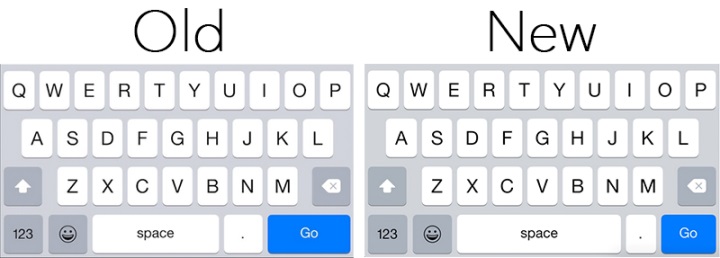
As we could see from the betas of iOS 8.3 software update brought improved performance for App responsiveness and launch, Control Center, Keyboard shortcuts, Messages, Safari tabs, Simplified Chinese keyboard, Wi-Fi, 3rd-party keyboards.

ios 8.3 features roundup

This last Apple’s update gained also bug fixes and improvements for Wi-Fi and Bluetooth. It fixes an continuously conformation for login credentials issue and where hands-free phone calls could become disconnected, also where audio playback could stop working with some Bluetooth speakers.

There are many fixes for Messages. It resolve problem that caused group messages to sometimes split and fixes an issue that sometimes removed the ability to forward or delete individual messages. The update also gains the ability to report junk messages directly from the Messages app and possibility to filter out iMessages that are not sent by your contacts.

iOS 8.3 brought fixes for Family Sharing, Enterprise, Accessibility options.

carplay

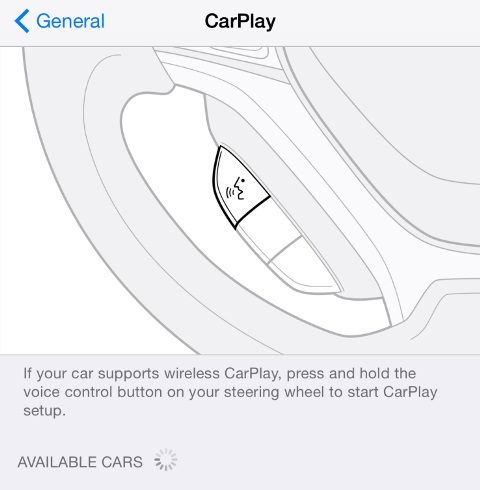
There are also resolution for problems connected with CarPlay. The update fixes an issue where Maps could come up as a black screen and where the UI could be incorrectly rotated. It also resolves an issue where the keyboard could appear on the CarPlay screen when it shouldn’t.

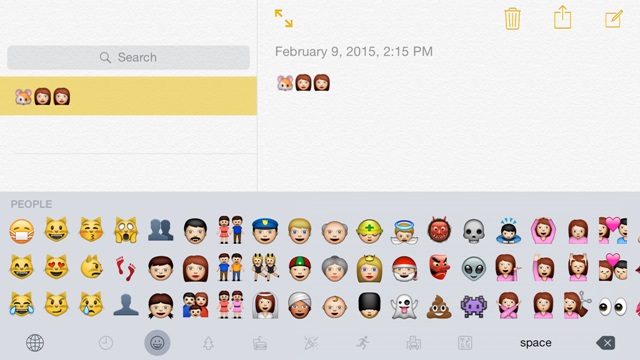
Apple’s last update introduces a redesigned Emoji keyboard with over 300 new characters. iCloud Photo Library has been optimized to work with the new Photos app on OS X 10.10.3 and is now out of beta.

emojoji

It was iOS 8.3 features roundup and jailbreakers, should note that if their devices are on iOS 8.1.2 version or lower, then they must avoid upgrading to iOS 8.2 or 8.3, as you will lose their jailbreak, and currently there is no tool available to jailbreak iOS 8.3update.

In case you don’t plan to jailbreak your device in near future, then the update is available as an OTA download for iOS devices navigating to Settings > General > Software Update.

If you don’t looking for jailbreak you can update your device via iTunes and direct download iOS 8.3 links:

iPhone 5 (CDMA)

iPhone 5 (GSM)

iPhone 5c (CDMA)

iPhone 5c (GSM)

iPhone 5s (CDMA)

iPhone 5s (GSM)

iPhone 6

iPhone 6 Plus

iPhone 4s

iPad Air 2 (6th generation WiFi)

iPad Air 2 (6th generation Cellular)

iPad Air (5th generation WiFi + Cellular)

iPad Air (5th generation WiFi)

iPad Air (5th generation CDMA)

iPad (4th generation CDMA)

iPad (4th generation GSM)

iPad (4th generation WiFi)

iPad mini (CDMA)

iPad mini (GSM)

iPad mini (WiFi)

iPad mini 2 (WiFi + Cellular)

iPad mini 2 (WiFi)

iPad mini 2 (CDMA)

iPad mini 3 (China)

iPad mini 3 (WiFi)

iPad mini 3 (Cellular)

iPad 3 Wi-Fi (3rd generation)

iPad 3 Wi-Fi + Cellular (GSM)

iPad 3 Wi-Fi + Cellular (CDMA)

iPad 2 Wi-Fi (Rev A)

iPad 2 Wi-Fi

iPad 2 Wi-Fi + 3G (GSM)

iPad 2 Wi-Fi + 3G (CDMA)

iPod touch (5th generation)

Check Tips To Fix iOS 8.2 Battery Draining Issue

Check all iOS 8.2 battery saving tips if you have some issues on your updated iOS 8.2 device. Some of the users have complained that after installing the new update the battery is draining a lot faster.

Although there are many users reported that battery life issues are resolved or better after upgrading their devices to iOS 8.2 version. Battery drain issue is a common problem after every iOS update and it is not a very easy problem to crack, because battery life is based on a user’s usage pattern, which makes it difficult to find the source of the problem.

ios 8.2 battery saving tips

Here are few tips that you could use to extend battery life on your iOS 8.2 device.

First step you must do is to find battery hogs.

Apple gained feature in iOS 8, which gives you a introduction of battery usage by every app. The battery usage shows how much different apps and services used battery energy on your iOS 8.2 iPhone. It doesn’t always so that app that has high percentage battery usage is definitely a battery hog. This app could run in the background downloading/ uploading some content or you could used it a lot.

battery usageFollow steps to find battery usage:

Step 1. Open Settings app

Step 2. Click on General option

Step 3. Click on Usage

Step 4. Click on Battery Usage

After that you will see all the apps and internal services that are consuming battery on your iPhone. By default it will show you apps hat consume much battery energy in the last 24 hours, there is also an option to check the battery hogs in the last 7 days.

while using app

After you found the app that is eats your battery life, use these options to extend your iOS 8.2 iPhone’s battery life, especially if it is third-party app:

  • If you can live without the app just delete it.
  • Close the app in background that you don’t use.

In iOS 8, Apple gained a new setting in Location Services that is called While Using the App. The app will only use location services when you’re using it, and won’t use the service all the time.

If you by accident disabled location services for an app that needs to use it. Please don’t worry as the app will prompt you to give access to Location Services when you launch it.

Apple has a lot of optimizations for battery consumption to make it minimal.

To disable Background App Refresh:

Step 1. Navigate to Settings

Step 2. Go to General option

Sep 3. Push Background App Refresh and turn it off for apps that don’t need to be updated all the time.

push emails

Another tip is to check if the email account has been set as Push, Manual or Fetch. As push email can be a primary cause of battery drain on some iOS 8 devices. Launch the Settings app, and then navigate to Mails, Contacts and Calendars > Fetch New Data. With the Push option ensures you get an instant notification when you get a new email. Try to disable Push email for your email accounts temporarily to see if it improves battery life.

Let’s review some other general tips.

In case a dynamic wallpaper have been set on your OS 8.2 iPhone, and you’re having battery problems, go to Settings, then to Wallpaper, next Choose Wallpaper option where you can navigate to either Stills or your set an picture, as your wallpaper, from your photo library.

You should review the list in Notification Center Widgets and remove the widgets that you don’t want to ensure they don’t consume battery life unnecessarily as some of them could be using Location services. Swipe down from the top edge of the screen to access Notification Center. Then click on the Today tab, scroll down and click on Edit button.

Click on the red – button to erase the widget from the Notification Center.

Disable App Store’s automatic updates by going to Settings, then to iTunes option and App Store. Then scroll down to the Automatic Downloads section and then turn off the “Updates” switch.

diable automatic updates

If you use Bluetooth very rare then turn it off going to Settings option, then to General, next to Bluetooth.

If you work or live in place with low or no LTE coverage, then turn off LTE by going to Settings option, then General, next Cellular, then Enable LTE/Enable 4G.

Another battery problem can be connected with receive many push notifications. Please make sure you turn off push for apps that you don’t frequently use by going to Settings , then to Notifications , next Scroll down to the Include section to view the apps list and tap on one to turn notifications off.

You can also try to disable unwanted indexing in Spotlight search. Navigate to Settings-General-Spotlight Search.

There are some other iOS 8.2 battery saving tips that will help you.

Try to restart/reset your iOS 8.2 iPhone. Hold down the Sleep/Wake button and the Home button at the same time for at least ten seconds, until the Apple logo appears. Also you can try to restore iPhone in iTunes and set it up as a new to reset all settings but first you need to backup your device.

Another tip is reset network settings by clicking Settings, next General, then Reset, next Reset Network Settings.

This will reset all network settings, including passwords, VPN, and APN settings.

Apple also advices users to charge the battery to 100% and then completely running it down. You can do it once per month.

The last tip to solve battery draining issue is to restore iPhone as new. But before start to do it please a backup of your iOS 8.2 iPhone using iCloud or iTunes.

Learn How To Setup Complex Passwords On Your iPhone

Here is useful guide how to setup iPhone complex passwords. Apple company has made it difficult for attackers to bypass a passcode lock, and made our iOS devices more secure with Touch ID.

how to setup iPhone complex passwords

As it was reported last week about small IP box that was able to use brute force to bypass a passcode and gain entry to a locked iOS device while touching its data. Also a hacker has developed a utility for Mac called TransLock tool, that can do the same job via USB. If that has got you worried, then you need to change simple 4-digit password to complex password on your iOS device.

Here Is How To Setup iPhone Complex Passwords

Step 1. First launch the Settings app.

Step 2. Then scroll down, and click on Touch ID & Passcode.

Step 3. If you had 4-digit password, then enter the password when prompted.

Step 4. Scroll down, and to turn it off click on the toggle next to Simple Passcode.

Step 5. You will be asked to enter the old password. Enter your old 4-digit passcode.

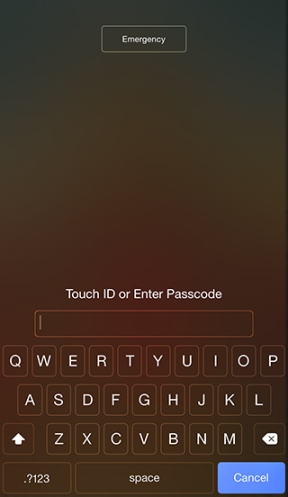
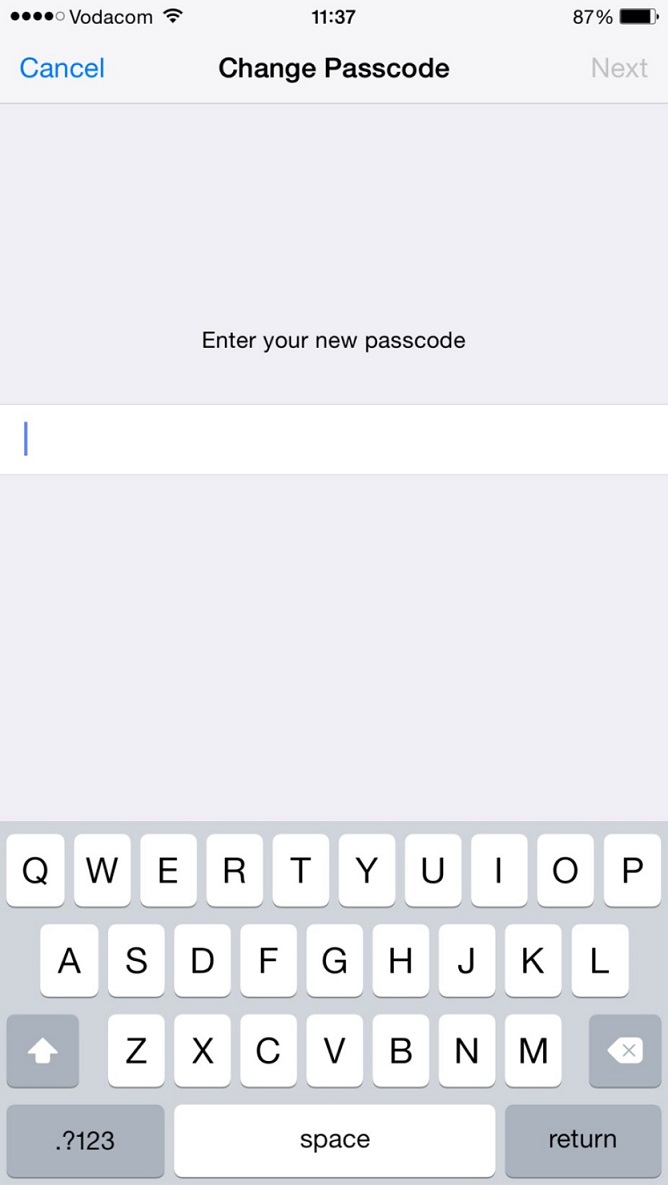
Step 6. Now you will be prompted to enter the new password. To enter a new passcode use the full keyboard. To create a super strong password you can use a combination of letters, numbers, special characters and also accented or alternate letters. Keep in mind that you can forget complex password. This is why apps like 1Password allows you to create and save complex passwords can can be very useful herein. Or you can also use Siri to create a complex password.

Step 7. Click on Next after entering the password.

step7

Step 8. Re-enter your new passcode, and click Done option.

The work is done. After setting up a complex passcode to enter the new one you will be able to use a full text-and-number keyboard. Now you know how to setup iPhone complex passwords to safe your device.

iOS 8.3 Password Settings Allows Free Download From App Store

It has been discovered iOS 8.3 App Store password setting in the Settings app which will allows users to set up their iPhone, iPod touch or iPad so that downloading free iTunes apps and iTunes media bypassing an Apple ID password.

main picture

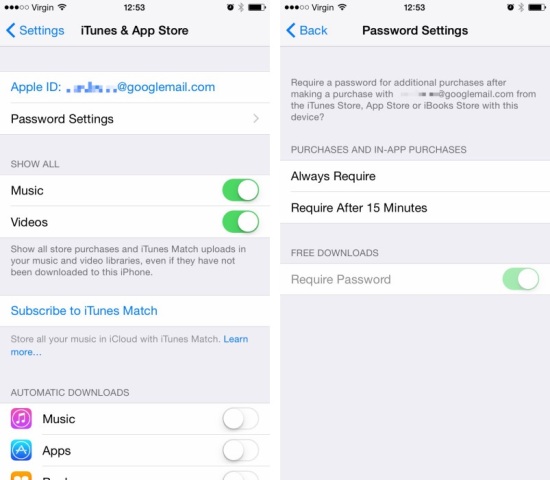
Now if someone will try the latest iOS 8.3 beta he will discover this new change in the latest software from Apple. Found within settings, and then navigating to the “iTunes & App Store” area, there’s a new option called “Password Settings.” Clicking on that will let the user to make some changes to the way that free content is accessible via the App Store and/or iTunes. This new feature will be available only when Touch ID is disabled. If Touch ID is enabled, the new option will disappear.

Located in the iTunes & App Store section in iOS 8.3’s Settings app, the ‘Password Settings’ subsection gains much welcomed changes to the way Apple treats free app and iTunes media content downloads. There, you’ll find an altogether new Require Password option.

Just move the switch to ON and the App Store and iTunes will allow you to download free apps from the App Store, free music, movies and television shows in the iTunes Store and free books from the iBooks Store bypassing your Apple ID password in App Store with iOS 8.3 update.

ios 8.3 app store password

The new option currently is not showing up in all regions. Unfortunately, paid apps and iTunes products still need a password or Touch ID authentication.

Additionally, this section also gains another option to require a password for additional purchases (Always Require and Require After 15 Minutes), including In-App Purchases, after making a purchase with your Apple ID. In prior iOS versions, this option is available by navigating to Settings > General > Restrictions > Require Password.

The third beta of iOS 8.3 was seeded to registered iOS developers on March 12. So with iOS 8.3 App Store password not required for free download users will get new feature to use.