Do you enjoy iOS 10 features? Some users liked everything Apple offered this fall however those who updated to iOS 10.1 version notice some difference. Right after this iOS 10 download their iMessage stops sending cute messages with bubble effects. This takes place on both iPhone 7, 7 Plus, other iPhones and iPad devices.
Are you unhappy with iOS 10 update because of this problem? You can fix bubble effect and enjoy it again on your iDevice. There are some simple tips and tricks you can follow. No one guarantees that your issue will be solved right away but you risk nothing to try. Hopefully your iOS 10 problems with iMessage will be gone as soon as possible.
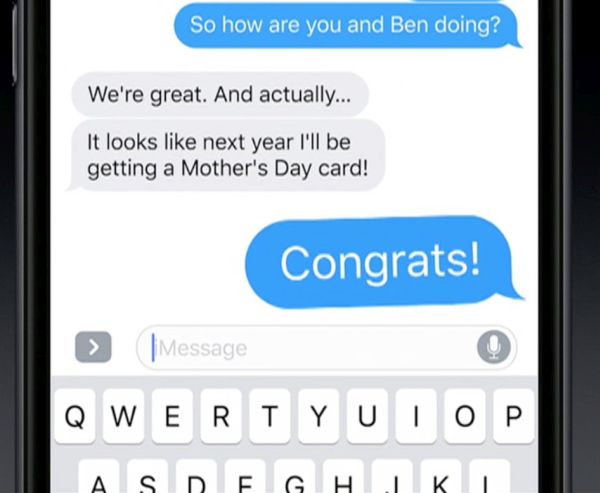
It is nice when you can text your relatives and friends with messages that have the bubble effect, isn’t it? Of course, you can always go with the WhatsApp instead and a lot of ‘fruit’ fans prefer this program over the default iMessage. Still the latest operating system has improved iMessaging so much that you could find it even fantastic.
By the way, all Verizon iPhone owners can learn how to restrict their data usage and save some money on monthly bills. This is pretty simple and can be handy in times for the holidays season.
How to Fix iMessage Effects Not Working
Sometimes bubble effect doesn’t let you enjoy all the magnificent iOS 10 features as it stops working. It could be related to the Reduce Motion option. If you enable this particular spec it automatically decreases the parallax effect of different icons. In other words, it directly influences bubble effect and this is why you face issues.
Step 1. Open Settings on your iPhone 7 or other handset / tablet model to enjoy iOS 10 options including the updated iPhone Health app.
Step 2. Choose General menu to proceed.
Step 3. Select Accessibility option.
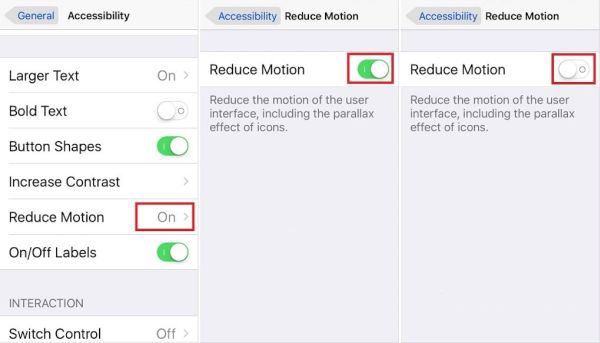
Step 4. If iOS 10 iMessage effects not working for you you need to click on Reduce Motion.
Step 5. Now disable this feature by simply toggling it off.
Step 6. You need to also disable Auto-Play Message Effects.
Step 7. To let the changes take the effect you need to reboot the gadget. This can be done by pressing both Volume down and Sleep / Wake buttons at ones if you have iPhone 7 model or Home button + On / Off buttons on older versions.
Step 8. Now when the phone is back on you should enable Auto-Play Message Effects again.
Step 9. Now create your new text message and enjoy the awesome bubble effect as it should start working.
Don’t worry if iOS 10 problems with iMessage ‘bubbles’ continue. It means you should try a different method and we’ll talk about it below. Keep in mind that the latest version of ‘10’ firmware makes it possible to enjoy message extras while also using Reduce Motion feature. Mac users can also learn how to get a refund from iTunes store.
What to Do If iMessage Screen Effects Not Working
There is a second trip that could fix iOS 10 bubble effects not working issue on the ‘fruit’ gadget. It’s simple and it deletes nothing on your phone. Still it can help you out.
Step 1. To enjoy all the iOS 10 message features you should reset your settings. This could ‘restart’ the options and make them perfect again.
Step 2. Launch Settings as this is the place where all the changes happen.
Step 3. Go to General menu.
Step 4. Find Reset section.
Step 5. Click on Reset All Settings feature.
Step 6. Sometimes you should enter your passcode before you can use Reset All Settings option. So confirm that you wish to reset the settings and enjoy the bubble effect.
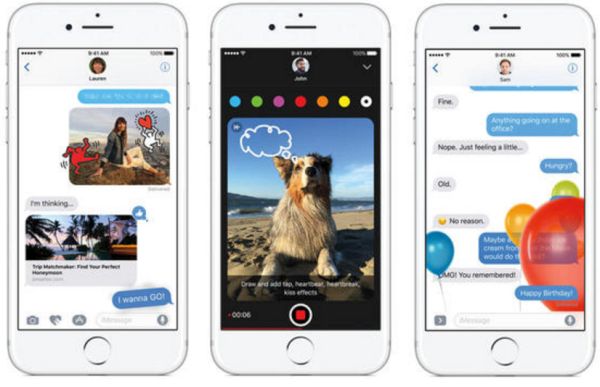
Is it worth to download iOS 10 and update to this latest platform or not? iPhone owners should be glad to enjoy the impressive features such as new Emojis, Digital touch update, Markup feature and various superb extras that make it so much cooler to own the Apple device.
Texting with animations is cool but if something stops working you become frustrated. In case the two methods described above don’t help you to solve the issue you can either downgrade iOS 10.1 to iOS 10 or wait until Apple presents the new official iOS 10.2 firmware version. It’s up to you what to do but we all believe that everything will be all right and your cute bubbles will appear on screen when you send your text messages via iMessage program.