
There are so many great emojis for WhatsApp and texting on both iPhone and your Apple Watch. Are you ready for some curious iOS 10 tips and tricks to make your holiday messages pretties and much funner? We’ll share some guides with you to help you take full advantage of iPhone emoji keyboard and improve your wearable texting experience.
The updated WhatsApp iPhone iOS 10 version allows you sending text messages with emojis, draw on your videos and photographs. It’s amazing especially when your emojis Apple Watch feature cool additional options for you to enjoy. Let’s see how to get emojis on iPhone 7, 7 Plus or any other model.

How to Add Emoji to WhatsApp on iPhone
We hope you’ll find this instruction handy and easy-to-follow. The simple WhatsApp emoji tricks are perfect for your SMS messages.
Step 1. Open WhatsApp on the iOS 10 iPhone 7 or other model that is updated to this firmware version.
Step 2. Choose who you wish to chat with.
Step 3. Click on Plus ‘+’ where you can select an image.
Step 4. You can use WhatsApp iPhone emoji via top menu where you are able to add smiley faces or other emojis. There are iPhone emoji meanings you can learn more about if you wish to. It’s always nice to know what the picture means.
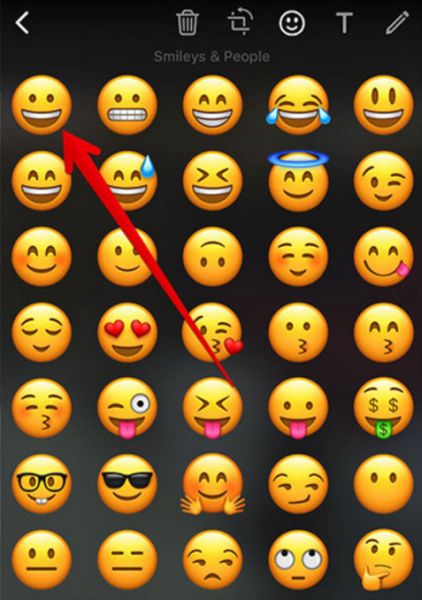
Step 5. Once you click on the Smiley icon you will see the list of available emojis. Choose the one you like and drag it where you would it to be placed.
Step 6. Now you can add text via Text menu or send the message as it is. Just click on the Send option.

Emojis for WhatsApp and Texting: Draw on Videos or Photographs
Now as you have learned how to easily add emoji to WhatsApp let’s start with more complicated steps [learn about factory SIM unlock service that can make your iPhone never-locked forever]. It is possible to share pretty images and videos if you draw on the. Here is how to do this:
Step 1. In order to scribble on the images or videos you want to share with your friends you should go to WhatsApp on the handset and choose who you wish to send the message to.
Step 2. There is no need to search for iPhone emojis copy and paste links as you need to click on the ‘+’ and choose one of the options from the bottom menu you’ll see. It can be ‘Share Contact’, ‘Take Photo or Video’, ‘Share Document’, ‘Photo/Video Library’ etc.
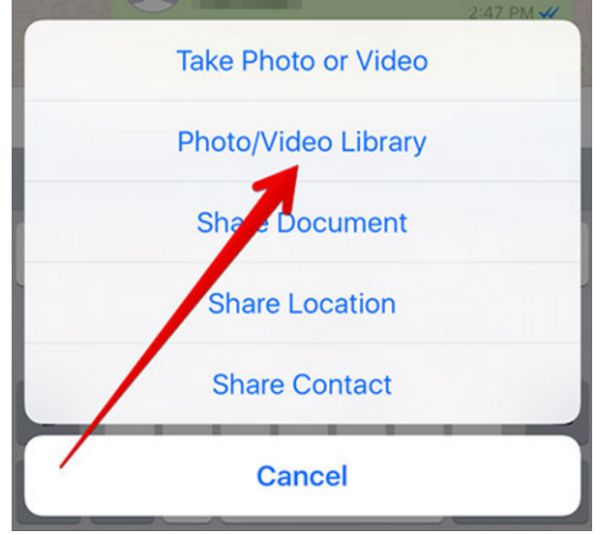
Step 3. For example, let’s go with Photo/Video Library where you should tap on the video file or your image before you can share it.
Step 4. From the top menu you can choose what you want to do with the photo: rotate it, add emoji, adjust the size etc.
Step 5. If you select emoji via Smiley icon and drag it to any place. You can also add Text, color it the way you like, and drag it to the desired place.
Step 6. You can click on the Pencil [upper right part of the screen] in order to draw something on the photo or video.
Step 7. Remember to click on ‘Send’ to send the text message to your friends.
You can easily enjoy Apple emojis copy and paste option and it is definitely cool to create funny images and video files. Use WhatsApp iPhone iOS 10 emoji tips and tricks and also explore all the possibilities of your wearable gadget.

Emojis Apple Watch Instruction
If you are not a big fan of iPhone emoji keyboard you can also send emojis using your wearable device. While WhatsApp emoji tricks are perfect for smartphone owners, the Apple Watch users can use animated emoji images via Messages application.
Here is how you can make animated emojis live if you are running watchOS 3:
Step 1. Open Message program on the iWatch.
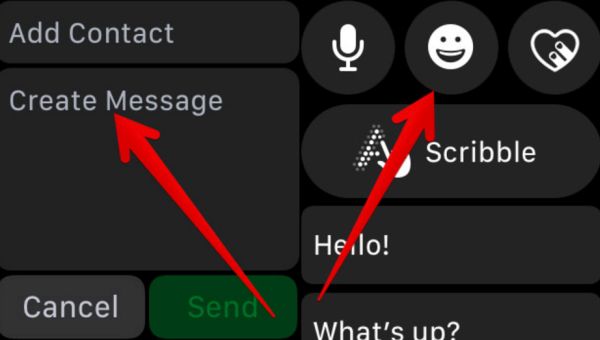
Step 2. Go to conversation – Create Message or just Force Touch the screen so that you can start a new message.
Step 3. Click on smiley face and once you see emojis you should swipe to the left until you see characters and choose the emoji you like.
Step 4. Press Done – Send and your message will be sent.
It is also possible to use standard emoji image via Messages – Conversation – Emoji and located the icon using the Digital Crown. Besides, you can always limit your Verizon data usage on iPhone which is simple and pretty quick to achieve.