Make Siri Silent iOS 9 Guide and Disable iPhone Audio Feedback

It is too easy to activate Siri on iOS 9 and sometimes this could happen during an important meeting or in a class [you can always SIM factory unlock AT&T iPhone 6s and other models if you want to use different networks without restrictions]. Users who like to check on their smartphone once in a while and don’t want to become red because their personal assistant is suddenly activated can use Siri silent mode iOS 9 or simply make it silent.

We’ll tell you how to disable Siri on iOS 9 and this is probably the best solution which makes sure the assistant will stay silent and not be awoken during an intense conference or other event you are attending. We’ll also explain how to turn off your audio feedback just in case.
Disable Siri iOS 9 Audio Feedback Turn Off How to

Make Siri Silent iOS 9 Instruction

Step 1. Firstly take your iPhone and launch Settings app.

Step 2. In General menu you will find Siri option.
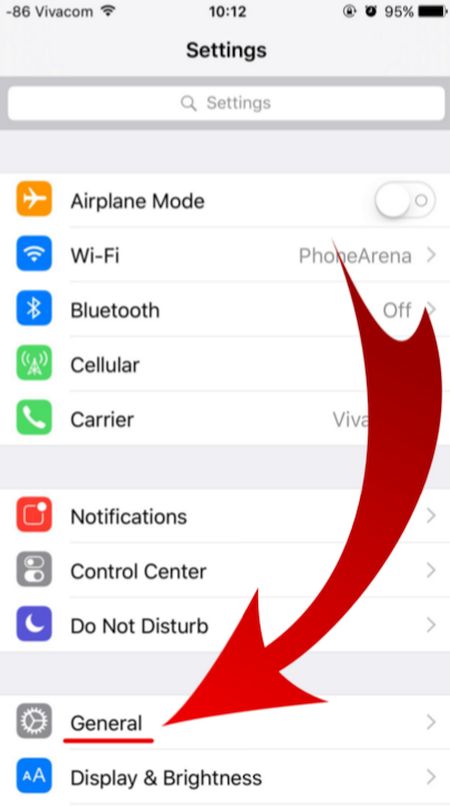
iOS 9 iPhone Settings General menu

Step 3. There are several options under Siri menu. Look up for Voice Feedback feature as we are here to learn how to turn off audio feedback on iPhone that is updated to one of iOS 9 firmware versions [Apple released iOS 9, updated it to iOS 9.0.1, 9.0.2 and 9.1 which is the most recent release and the only firmware signed in by the company right now. Some users report AT&T iOS 9.1 Touch ID not working issue on their smartphone after upgrade].
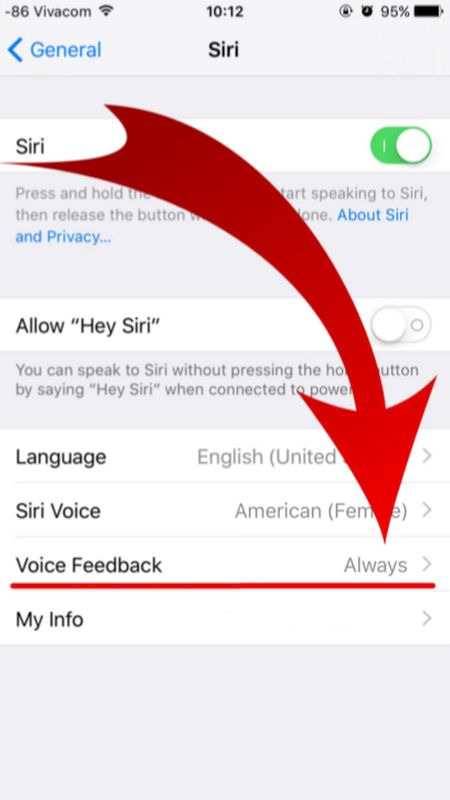
iOS 9 Voice Feedback Siri Disable iPhone

Step 4. You don’t need the Siri Voice Feedback being always on so disable it and you will complete Siri silent iOS 9 guide. How can you turn it off? Just select a different option. For example, tap on Control with Ring Switch. Why not? This is very simple but unfortunately Apple doesn’t set this feature this way by default.
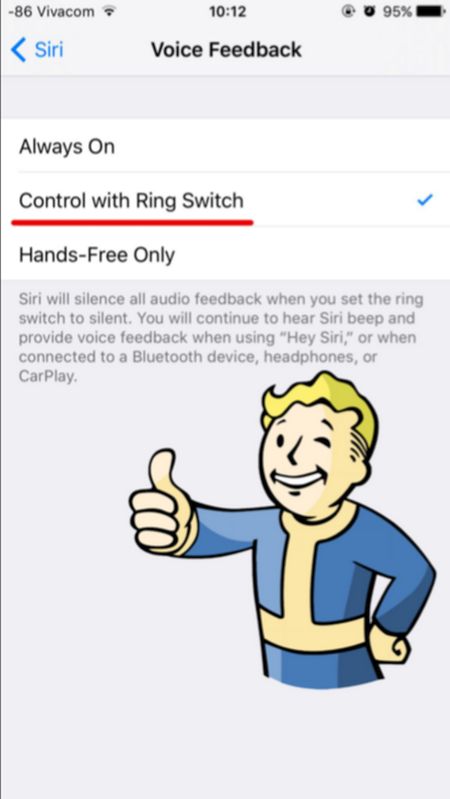
Turn off Voide Feedback Siri iOS 9 Feature

Your personal assistant Siri will never surprise you after you go through the guide above and change the settings for iOS 9 Siri. You can use it but it will remain silent letting you attend meetings and other events without having to worry whether you awake Siri unexpectedly or not.
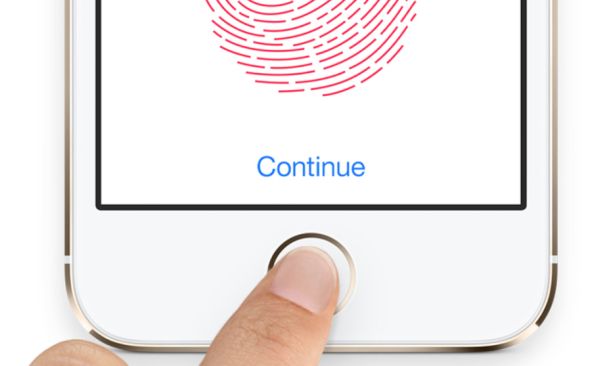

Touch ID Not Working After iOS 9.1 Update

A number of iPhone users report they experience iOS 9.1 Touch ID issues are updating to this firmware [it is possible to download iOS 9.1 ipsw or update via OTA; you can also SIM unlock AT&T iPhone on iOS 9.1]. According to different Apple customers, their Touch ID does not work, becomes too slow or is not responding at all. This happens right after you install the new platform firmware but the problem is not common yet.

Only some iDevice owners assure their Touch ID not working after iOS 9.1 update [if you expeirence battery life issues you can also fix battery drain on iPhone 6s]. It is also curious that Apple released the iOS 9.1 upgrade in the end of October however the first problems surface in November, according to complaints. Users who have updated and started using the latest mobile OS assure that their Touch ID slow in iOS 9.1 or stops working at all.

iPhone iOS 9.1 Touch ID Not Working Slow Not Responding

The reports about unreliable Touch ID option are not rare. Previously it was possible to downgrade iOS 9.1 to iOS 9.0.2 however now this doesn’t work because Apple is not signing the previous firmware version any more. Lucky users who got a chance to downgrade have no problems with their smartphones but users who didn’t downgrade complain about the issues on the company’s Support Forums.

iOS 9.1 Touch ID Not Responding Bug

As noted by Apple fans who have installed version 9.1, their iPhone Touch ID becomes useless and they have to input the passcode. This happens on iPhone 6, iPhone 5s and even the new iPhone 6s that was officially realeased this fall [the problems also affect the App Store]. Before the update, users assure there were no issues with their Touch ID work. Everything started to happen only after the upgrade, using low power mode or other actions.

Apple doesn’t explain what happened and when it is planning to fix Touch ID not working iOS 9.1 problem. Maybe the company will offer the solution in iOS 9.2 release that is being tested now by developers and public beta testers. You can try to reboot if you have the bug as well however this is only a temporary fix and the problem will return pretty soon.

Set Video as Your Facebook Profile Pic on iPhone: How to

Did you know that you can use video as Facebook profile pic which you can make / set using your iOS 9 iPhone [there are many problems with iOS 9 update]? This popular social network connects millions of people from all over the world. Still images are not as fun as video profiles that are becoming popular lately and you can follow this trend as well and create your own outstanding video profile to surprise your friends, family and people who are visiting your page.

The feature is available since September. It might be not work for all users who want to use iPhone Facebook profile video picture. If you cannot use it – wait some time as this new option will soon support all devices and platforms.

Set Facebook Video Profile on iPhone

How to Set Facebook Profile Video on iPhone

Step 1. Launch iOS 9 Facebook application on the smartphone.

Step 2. Find the More menu. You’ll see it at the bottom.

Step 3. Choose Profile Name and look at the bottom of the profile page.

Step 4. If you see the the camera icon under the profile image you can switch between camera / video.

Step 5. Tap the profile image to get the menu that allows Uploading Video or Photo / Taking a New Profile Video [here is how to fix Facebook battery drain problem on iPhone if you have it]. Choose the option you would like to use. If you don’t have a saved video on Photos you can create one using your iPhone camera.

Step 6. It is possible to create a 7-second video profile and set it as your Facebook profile video. Just remember to choose the thumbnail that will be used when your profile video becomes unavailable.

Step 7. That’s it. View your profile and enjoy the video as your profile icon on Facebook.

Isn’t it a nice idea?

iOS 9 WiFi Calling AT&T iPhone 6 Set Up Guide for Mac

There were some problems with iOS 9 WiFi Calling AT&T option as the U.S. carrier was waiting for the approval from the FCC before it was ready to finally launch the announced service. The latest news state that users will be able to enjoy iPhone AT&T WiFi Calling on Mac once Apple officially updates iOS 9.2 version.

The Cupertino company started to test iOS 9.2. Developers got the first and second beta already and this latest OS makes it possible to answer your AT&T iPhone calls from Mac through WiFi connection. You just have to make sure that your computer and smartphone are both connected to the same network.

iPhone ATT WiFi Calling Mac Support

iOS 9.2 beta 2 supports AT&T NumberSync technology. Previous releases didn’t offer such support so you cannot answer phone WiFi calls from Mac right now. You’ll be able to do this when iOS 9.2 is launched for public use or if you are a public tester. Apple will definitely release iOS 9.2 public beta with support for AT&T NumberSync option.

How to Set Up WiFi Calling on iPhone 6 iOS 9.2

Step 1. Firstly you should install iOS 9.2 beta on iPhone [you can also SIM unlock AT&T iPhone 6s at any time].

Step 2. Now you can launch Settings on the phone.

Step 3. Select Phone – WiFi Calling menu.

Step 4. You need to Add WiFi Calling for Other Devices. This option is exactly what activates the feature on your computer.

Step 5. Follow the on-screen guide until you activate the iOS 9.2 WiFi Call support for AT&T.

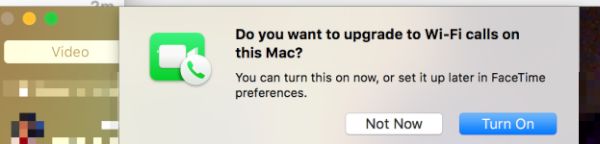
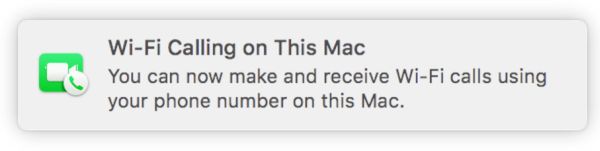
Step 6. If both Mac and iPhone are connected to the same WiFi network you will see a pop-up message from FaceTime that confirms everything is working.

AT&T WiFi Calls Mac

Step 7. On your Mac launch FaceTime and agree to enable WiFi Calling feature for Mac. The computer will provide you with the code. Enter it into your iPhone.

Step 8. When someone calls your iPhone via WiFi AT&T Calling you’ll be able to answer the call from Mac.

What do you think about such feature?

Great iPhone 7 Concept Shows iPhone 7 With No Bezel

This year Apple presented two new iPhone models, iPhone 6s and iPhone 6s Plus [you can fix battery drain issues on iPhone 6s if you need to]. Analysts believed the company could also introduce cheaper iPhone 6c but this didn’t happen in the fall. Some experts think that the new iPhone 6c could be unveiled in spring 2016. While the official iPhone 7 release date is still nearly a year ahead there are some great concepts presented by designers already.

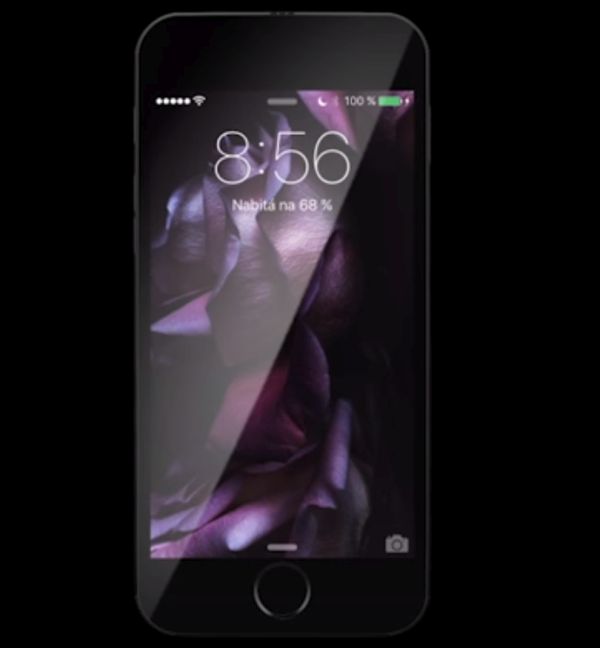
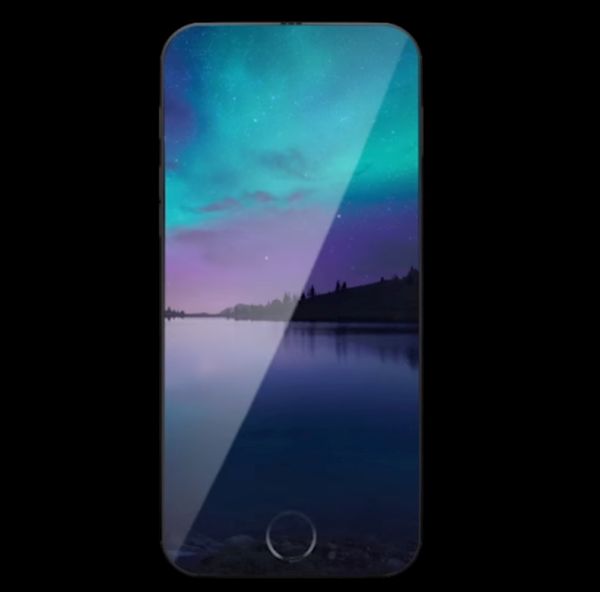
The beautiful iPhone 7 concept created by DeepMind shows a smaller handset that has not bezels around. The idea of iPhone without bezels is not new. Different designers created such devices in their concepts but Apple releases only the familiar phones with bezels around the screen.

iPhone 7 Concept

Still having a fullscreen version might be an interesting idea for the future. Can you imagine how great it could be to view your photographs fullscreen or watch videos on the big display that takes up the entire front iPhone panel?

It’s curious that this time designers created iPhone 7 no bezel model with virtual bezels that make the gadget look pretty similar to any other iPhone in the market. Still this is only the virtual effect as the bezels disappear as son as you press your Home button that has the popular Touch ID option [some users might want to learn how to get refund for not using AppleCare plan]. Once there are no bezels visible you can enjoy the content without borders.

Could Apple truly launch the no bezel iPhone 7 in 2016? Probably not. The company doesn’t like to make major changes as it cares about each customer and people buy the iPhone because it is the Apple iPhone!

iPhone 7 Concept no Bezels

Do you like the current iPhone 6s? It’s design hasn’t changed compared to previous iPhone 6 but Apple added some new features, improved some options and specs and made millions of users want this update.

The next year the company could really add some minor changes to the design. For example, make the bezels smaller similar to the iPhone 7 concept. Why not?

Can’t Update Apps App Store Issues Today with iOS 9

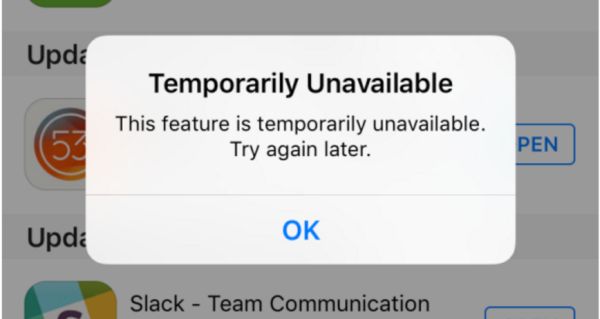
Do you experience can’t update apps App Store problem? A lot of AT&T iPhone and iPad owners come across App Store issues today and assure they cannot upgrade programs using iOS application store so popular among millions of Apple fans from all over the world. They keep getting the same message ‘Temporarily Unavailable’ from the store with suggestion to ‘try again later.’

Different sources mention App Store problems iOS 9 [if you have issues with extreme data usage you can reduce data usage on iOS 9 iPhone 6] and while this is usually not common, a lot of people cannot use the store and its options once in a while. The 2015 fall problem is not the first outage experienced this season. Different Apple services become unavailable while there are no indications of outage on the company’s System Status page.

App Store Can't Update App Temporary Unavailable

A number of reports and tips from different users suggest that they can’t update apps via App Store while all the processes are ‘green’ on the System Status site meaning everything is ok and working just as normally as usual.

Did you have any issues with updated your iOS 9 applications lately [by the way you can get more AT&T iPhone data for free]? Apple will absolutely fix the issues and there might not be any problems when you try to update a program the next time. Sadly, the company often prefers fixing issues silently without mentioning there was a real problem for a number of its users.

If you have problems with upgrading programs [maybe particular apps and not all applications you are trying to update for iOS 9 device] – you should know that the problem could be with Apple servers even though the company doesn’t indicate this. When several tips suggest the issue exists – it means a lot of users are struggling like you do and waiting for the Cupertino-based company to fix the problem.

Mobile Privacy in USA to Be Invaded by CISA Privacy Act

Will all U.S. companies get a legal right to invade your privacy? Mobile privacy in USA is one of the top concerns of iPhone and other mobile device users as well as people who are using any other tech products [you can order SIM unlock for A&T iPhone 6s already]. Major American technology companies believe that it is highly important to protect privacy, but lately Senate passed the CISA bill that gives any company a free pass to invade privacy.

We should note that Apple and some other firms are opposed to CISA privacy act. CISA stands for Cybersecurity Information Sharing Act. It is not legal and officially approved yet. Once the U.S. Senate passes the bill it has to be passed in the White House.

CISA Bill iPhone Users Privacy USA

According to the bill, US companies invading privacy option will let them share cybersecurity threats with government agencies and other companies. Customers will not be happy with such invasion on their privacy, that’s for sure.

A lot of experts and analysts are sure that CISA bill can be used by government and not private companies to spy on millions of users. A lot of companies and advocates are planning to oppose the CISA privacy act / bill. For example, Yelp, Twitter, Apple, Reddit, Wikipedia, Facebook, Amazon, Google and Microsoft don’t like the idea and are against it – the Senate thinks differently and supports the document.

iPhone AT&T and iPhone Verizon, T-Mobile, Sprint users, what do you think about the CISA and your privacy? Apple states it doesn’t support the ‘current CISA proposal’ and this is the support for all customers from across the world. Privacy is the top priority. Will President Obama also support customer and not the bill?

How to Get More Data on iPhone AT&T for Free

Who wouldn’t like AT&T get more data option for their iPhone especially if it is possible to net some of your allowance without truly paying more [you can also reduce your data usage]? The new AT&T Data Perks is the new program the U.S. carrier introduced to its iPhone 6, iPhone 6s, iPhone 5s and other phone subscribers. It is possible to use the feature on both iOS gadgets and Android devices so more Americans can benefit from it.

We’ll explain how to get more data on iPhone free of charge and you can decide if this is something you would really like to use nowadays. The program got the name Data Perks. This is how the Big Blue network calls the 2015 plan.

Surely there are some requirements users will have to meet in order to earn more monthly data. This will happen through interactions.

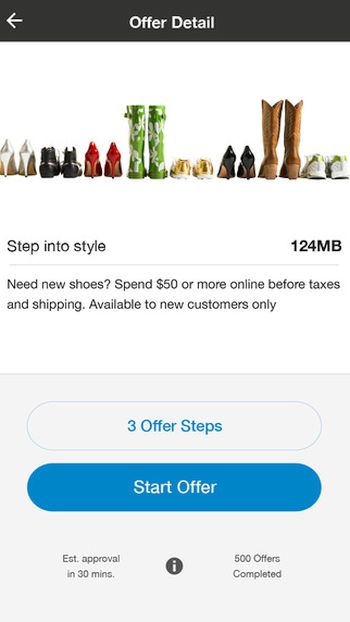
AT&T Data Perks iPhone Program

How to Get More Data on AT&T iPhone for Free

Step 1. Firstly you should have iPhone locked to AT&T [you can run IMEI network checker to double check the name of your original carrier] or you just have to be subscribed to AT&T with unlocked iPhone model. If you want you can also factory unlock your AT&T iPhone 6s or other version without issues.

Step 2. You need to take part in filling different AT&T surveys. To do this you’ll have to install the free application AT&T Data Perks [download link]. This program is the way of communication between the subscriber and carrier.

Step 3. You should also take part in other activities offered by the program and earn some amounts of MB to use for free. You can also shop through the iOS application.

Step 4. It is possible to get from 25MB to 1000MB of data per month through Data Perks option.

Step 5. Unfortunately you will also have to spend all your earned data otherwise it will expire when the billing cycle is over.

The new program is not a part of the rollover option offered by AT&T network in the U.S.

How to Fix Facebook Battery Drain on iPhone 6, 6s

A lot of users get the same issue while using one popular social network program on their iPhone 6, 6s and other models [if you have iOS 9 flaws you can fix them]. Facebook battery drain iPhone 6 became a problem and it had to be fixed since millions of people from all over the world wish to preserve their battery life while still accessing their social network accounts.

Firstly, Facebook app battery drain was finally explained after numerous complaints from users. Secondly, when too many people report the same problem – it is indeed a big issue that must be addressed by a company.

iPhone Battery Drain Facebook Fix

Here is the best Facebook battery drain iPhone fix that should help you when you face the bug. There is an update you can download and install. It addresses iOS 9 battery concerns and is meant to solve the issue for most users who experienced it. You know that Apple rolled out iOS 9 firmware and upgraded it to iOS 9.1 you can download using direct links. There are also versions 9.0.1 and 9.0.2.

So what could cause the problem with fast iPhone battery drain when you were using Facebook app? The company thinks the issue was related to CPU spin. As noted by Facebook, its mobile program kept sending requests to the CPU to do ‘something’ even when the program wasn’t being in use. This was a problem in the network code and it is fixed in the update.

Once you install the most recent version of iOS 9 application the problem will be gone and Facebook will stop asking your iPhone for something and ‘eating’ its battery life that much. The improvements should help you out.

The more fixes are coming soon since the iOS 9 program has another issue the company is aware of. It continues to play audio if you were watching a video while the program was active and then put in the background.

How to Unlock iPhone iOS 9.1 from AT&T Network

As soon as Apple upgraded its mobile firmware version to iOS 9.1 a lot of AT&T iPhone users started to wonder whether it is possible or not to SIM unlock their smartphone. Great news, yay! You can already order iOS 9.1 SIM unlock for your handset if you are locked to U.S. network AT&T and are not satisfied with the service.

Why wouldn’t you be satisfied? Well, you know that AT&T iPhone unlimited data plan users are often throttled by this carrier. Besides, the data plan’s cost can be more expensive compared to smaller American carriers.

Unlock AT&T iPhone iOS 9.1

If you decide to factory unlock iPhone iOS 9.1 model you can use our service. We offer the top quality service at the most affordable price on the web. You can be on contract or off contract with AT&T and meet some other requirements if you wish to get SIM free starts once and forever.

How to Unlock iPhone iOS 9.1

Step 1. Use iPhone network check service to make sure you are activated with AT&T, locked to AT&T in U.S., have clean IMEI and your phone is not reported as lost or stolen.

Step 2. Select the unlock package for your AT&T iPhone model.

Step 3. Provide your IMEI number. You can look it up in Settings on the smartphone.

Step 4. Order and pay for the service.

Step 5. Wait for email confirmation for your order and once you are unlocked – for an email with instruction on how to insert a non-supported SIM and connect via iTunes to activate your SIM unlock.

Step 6. Enjoy using different networks and stay unlocked permanently.

This iOS 9.1 SIM unlock guide for iPhone AT&T is a great way to get a locked smartphone cheaper and spend minimum on making it never-locked. The full price of the iPhone is always higher than the subsidized + unlock cost.