iOS 9.3.2 Firmware for iPhone: Must Know Details

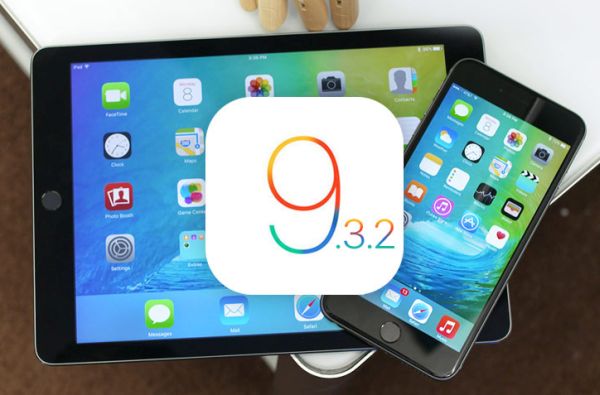
Apple presented iOS 9.3.2 update for iPhone and iPad users. This operating system turned out to be buggy and this is the reason why users hesitate whether to install it or not. There are some basic facts and things you have to know about the mobile firmware.

The iOS 9.3 brought some new features to iDevices [find out if you can still downgrade from iOS 9.3.2 to 9.3.1 version]. Then iOS 9.3.1 followed and buggy iOS 9.3.2 that was supposed to fix problems in 9.3.1. Apple is now working on iOS 9.3.3 beta and hopefully this next minor update will do what it is supposed to do: solve all the issues.
Why to Install iOS 9.3.2 Firmware iPhone iPad Apple

iOS 9.3.2 details will help you understand if you need this update or not. Users who are running 9.2.1 or earlier iOS 9 system should know that iOS 9.3.2 is a bigger file. So you should make sure there is enough free space before you choose to update via OTA-update option.

If you are running iOS 9.3.1 or 9.3 [learn more about cool and new iOS 9.3 features] and are not interested in being jailbroken you can upgrade to iOS 9.3.2. This way you’ll be running the most recent public version of Apple mobile operating system.

It could take you about 6-8 minutes to install the iOS 9.3.2 version on iPhone 6s. There should be no problems with the installation itself. This OS version seems to run just any other Apple firmware.

Your UI should be just as fast as on previous iOS version. There should be no random reboots and bricking if you have the iPhone and not iPad Pro. Only 9.7-inch iPad Pro users can experience issues with iOS 9.3.2 and they are advised to install the latest version created specially for this model.

iPhone Battery Drain Fix After iOS 7.0.6 Update

iOS 7.0.6 release is the latest iOS 7 firmware version that can downloaded today. Apple presented it as the fix to SSL network verification. A lot of people were fast to adopt this operating system to get rid of iOS 7 problems with the build 11B651. New reports suggest that iOS 7.0.6 update brings iPhone battery bug.

The file that people can download via OTA-upgrade or through iTunes is not too heavy. For instance, iPhone 5S iOS 7.0.6 upgrade weighs at 35.5MB. This is not too much, but even such light files can bring new problems on your iPhone.

ios 7.0 6 battery drain

How to fix fast battery drain on iPhone

Hackers provided a way on how to solve SSL problems on iOS 7.0.5 and iOS 6.1.3 without installing iOS 7.0.6 and 6.1.6 released by Apple. At the same time, a lot of people had time to upgrade and are now facing another issue.

The huge battery drain is experienced by iPhone owners who are now running iOS 7.0.6. Some people assure their iPhone battery can jump from 20% to 17% within seconds. This is really fast and not comfortable at all. You can’t have a charger with you 24/7. Is there a way to solve this new problem with a warm smartphone and short battery life?

There is a good fix that can make iPhone battery last longer. It also solves the problem with warm gadget.

Firstly, you should close all the applications you have in the background. Multitasking is a good feature but it can eat much of your iPhone battery life. To quit iOS apps you can click twice on your Home button and swipe up each program you wish to close. This doesn’t take much time but it does extend battery life on the iDevice.

Secondly, it is necessary to reboot your handset by pressing both Power and Home buttons. Your device will reboot and the problem will be gone.

iOS 7 Conversation: How to Delete Particular Text Messages Guide

iOS 7 has a lot of new features interesting to iPhone and iPad users. A lot of options haven’t been presented in previous iOS 6 firmware thus it takes some time to learn everything Apple introduced in the latest update. Now you can delete iPhone conversation in iOS 7. You are most likely familiar with the multitasking, Parallax effect, Camera app update and other options. The new changes have come to iOS 7 Conversation also and you can learn how to easily delete particular text message in it which can be handy in many situations.

support-px-png

It is never too late to learn something new. For example, my friend has been updating to iOS 7 since summer. He installed all the betas manually trying to explore the new firmware and was fast to install the first public release. He likes being updated and he is always eager to share some tips with me.

iOS 7 Delete iPhone Text Message

Previously it was simple to delete the messages through Edit option [icon] located in the top right corner of the message. The new version of iPhone operating system has replaced this option with Contact icon. If you wish to delete the entire iPhone conversation in iOS 7 you should swipe it to the left.

If you need to delete a specific message located in the conversation you should follow these steps.

Step 1. Open the conversation you want to apply changes to.

Step 2. Click and hold on the message bubble [choose any you like]. This will bring up “copy” and “more” options. Select “More.”

Step 3. You will see a blue circle next to all the messages within the conversation.

Step 4. Check the particular messages you wish to delete [one or more] and click on Trash icon located in the low left. The “Delete” option will appear and you will successfully get rid of all the chosen messages.

Note. The message you clicked on in Step 2 is automatically checked for being deleted. You can uncheck it if you don’t want to move it to Trash with other messages you have selected in Step 4.

How to Fix Activation Lock on iPhone Running iOS 7

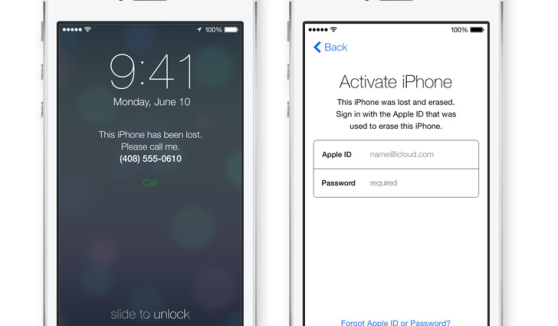
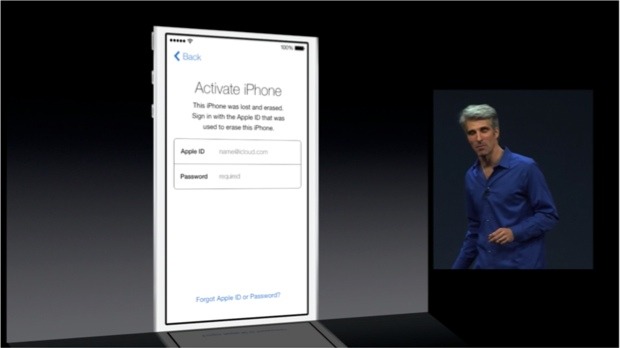
Apple introduced Activation Lock feature when it released iOS 7 version for iPhone users this fall. The new option is tricky. From one hand, it is designed to protect unknown people from accessing your personal information. From the other hand, it gives headache to users who wish to unlock the device they purchased from other people.

Turn Find My iPhone Off Beforehand

The introduction of iOS 7 has changed the rules for iPhone users. Now if the Find My iPhone app is turned on, you are not able to update to new iOS version or unlock your handset without knowing the Apple ID and password of iPhone’s original owner.

ios 7 activation error

This ID and passcode are stored on the Cupertino-based company’s servers. It is impossible to turn off Find My iPhone, reactivate the gadget and erase information on it without entering them. This happens because of the Activation Lock feature presented in iOS version 7 and up. You turn it automatically when you enable Find My iPhone program or when you decide to install the latest firmware [updating from iOS 6 or earlier operating system].

What You Must Do Before Ordering iPhone Unlock

If this is your device purchased from Apple or official carriers you should simply turn off the application. Users who purchased their smartphone from someone on eBay or other platforms should make sure the previous owner erased all his information, settings and disabled Find My iPhone for you.

ios 7 activation lock

Only after you make everything to fix iOS 7 activation error, you can place iPhone unlock order online and have it successfully unlocked by IMEI number.

What You Must Do After Your iPhone Unlocked

Note: We make no refunds if we unlock your handset on iOS 7 and you are stuck with the Activation lock issue. Solve this problem before you order factory unlock or following this guide below if you have just unlock it and got this issue.

Fortunately there is a fix and you can use it just following steps below:

1. Go to Settings on iPhone.
2. Tap iCloud.
3. Sign in with the Owner’s Apple ID.
4. Turn OFF Find My iPhone.
5. Insert a NON accepted SIM card and RESTART the iPhone.
6. When phone turns on plug iPhone into iTunes.
7. (Optional) If iTunes prompts for you to RESTORE, follow the steps on screen.
8. The phone will then be unlocked!

Also you can follow this link for more info: http://support.apple.com/kb/HT5818