iOS 9.1 Issues or Should I Update to New Firmware?

The number of different iOS 9.1 issues make users wonder why such an update was offered by Apple. The company reported that its new iOS 9.1 platform fixes the issues, problems and bugs found on the previous iOS 9.0.2 firmware version. At the same time Apple stopped signing the 9.0.2 platform making it impossible to downgrade from 9.1 to 9.0.2. Users who installed the new mobile OS are now stuck on it with similar issues they used to have.

Firstly, a number of users experiences can’t connect to App Store iPhone problem on iOS9.1 Secondly, a lot of people complain about iOS 9.1 Apple Music problems. Thirdly, there are unexplained issues with Touch ID that stops working after update.
Should I Update to iOS 9.1

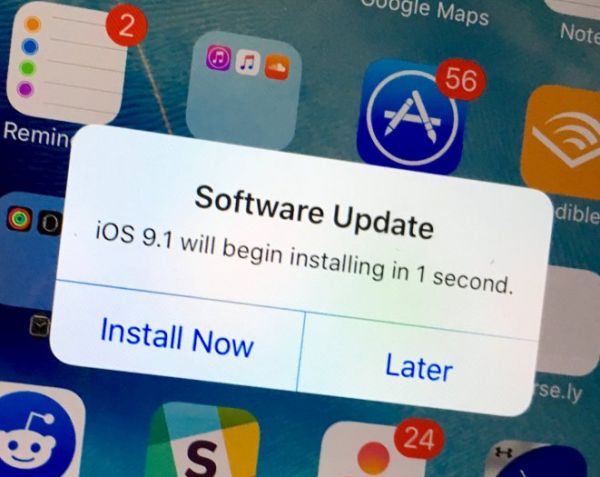
Should I update to iOS 9.1? It’s your decision however you are advised to learn what other people think about this firmware. They are sure that the platform brings the same bugs and problems as were present in iOS 9.0.2 [if you are trying to SIM unlock iPhone 6s or iPhone 6 here is how to fix iOS 9 iPhone no service response]. In other words, if you are still running iOS 9.0.2, 9.0.1 or the original iOS 9 you might want to avoid updating until Apple releases the next version iOS 9.2. This should happen soon because the Cupertino-based company is already testings iOS 9.2 beta versions together with registered developers and public beta testers.

This year the issues with Apple services and App Store surface once in a while. The company agrees with some problems and doesn’t mention others while users always know when something is wrong with the company’s services. It was possible to fix can’t connect to App Store iPhone problem by signing out and signing back in. But with iOS 9.1 upgrade this solution doesn’t work any longer. The similar bug was present on 9.0.2 so experts start to believe something is wrong with App Store and the mobile platform.

You can try to reboot, reset your iPhone however this doesn’t guarantee you will not have problems with App Store or Apple Music on iOS 9.1 so you are advised to postpone your upgrade and wait for a more stable mobile firmware to arrive.
Compare iOS 9 and iOS 8: Speed Test for 9.2 Beta and 8.4.1 Firmwares

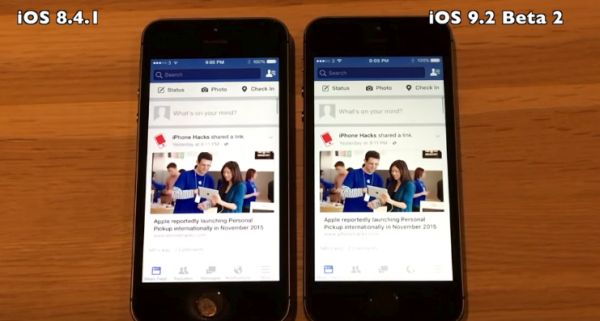
Over 60 percent of iPhone users installed iOS 9 versions [here is a list of some useful iOS 9 tips and features], as Apple reports. Still at least 25 percent of people who are using the ‘fruit’ smartphone are still running previous iOS 8. Let’s compare iOS 9 and iOS 8 in a speed test performed for the most recent iOS 9.2 beta and the last iOS 8.4.1 version.

Isn’t it curious to see the results of iOS 9.2 vs 8.4.1 speed test before this operating system becomes officially released? The test was performed by iAppleBytes and it compares the most recent versions of iOS 8 and iOS 9 platforms that both support iPhone 6, 5s, 4s, 5, 5c and 6 Plus. Not all the models were put to the test. The company chose the older iPhone 4s, 5 and 5s since the iPhone 6 / 6 Plus were launched a year ago and they won’t be affected by iOS 9.2 update as much as previous gen devices.

iOS 9.2 vs iOS 8.4.1 Speed Test Compare

The iOS 9.2 speed test proves that Apple makes its system running just a big faster on older phones if compared to iOS 8.4.1 version. Still if the boot up gets faster some other things remain the same. For example, when you launch programs and switch between iOS applications you will notice no difference between the two firmwares.

If both versions truly offer identical speeds – users who are running iOS 9 might want to stay on this firmware and not downgrade to iOS 8.4.1 which is still possible! You can read how to update and downgrade to 8.4.1 from any iOS version on the web. Keep in mind that iOS 8.4.1 cannot be jailbroken just like iOS 9.1. iOS 9, 9.0.2, 9.0.1 and earlier iOS 8 versions are also jailbreakable with Pangu program.

A group of hackers found a way how to jailbreak 9.1 platform but their tool will not be released to public.
Apple will present iOS 9.2 upgrade sometime this fall. The company is testing it together with developers and public beta testers. You can also participate in Apple iOS public beta testing program if you are interested in peering inside the firmware versions that are not available officially yet.

How to Return iOS 9.1 to 9.0.2 Guide for iPhone, iPad, iPod touch

Users who are looking for the shortest iOS 9.1 downgrade to iOS 9 instruction can follow the guide below and successfully return from their newest mobile version on iPhone to the previous one [if you don’t have iPhone and hesitate between different models check our comparison of iPhone 6s and Galaxy S6]. Apple is signing 9.0.2 right now so you can install this particular firmware on your iDevice. Unfortunately you cannot get iOS 9 or iOS 8.

We’ll mention one pretty fast guide on iOS 9.1 downgrade iPhone 5 or other model you have. It is easy but you’ll have to do some search as you’ll need to find iOS 9.0.2 ipsw file if you didn’t download and save it when Apple officially released it.

How to Return iOS 9.1 to 9.0.2 on iPhone 5

Step 1. Firstly, make sure you have the 9.0.2 firmware file on your computer.

Step 2. Secondly, double check to make sure Apple is signing 9.0.2 version.

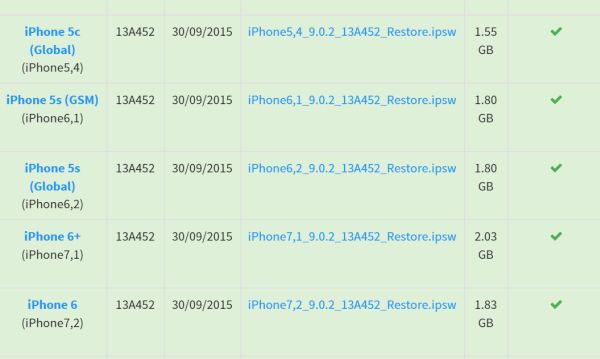
iOS 9.0.2 Apple Signing Status for Downgrade

Step 3. Launch Settings program on your iPhone 5. Select iCloud and disable Find My iPhone program.

Step 4. Users who started to prefer 6-digit code over the 4-digit code have to change it back to the 4-digit passcode. This way you’ll be able to unlock iPhone 5 when you are downgraded and running iOS 9.0.2 [here are some other useful iOS 9 tips and tricks you should learn about].

Step 5. Backup. Remember to do this. You can use iTunes.

Step 6. Now connect via USB to your computer while the iPhone is running iOS 9.1.

Step 7. Launch iTunes on PC / Mac.

Step 8. Choose your iDevice from iTunes top menu.

Step 9. Press on Shift [Windows] or Alt / Option [Mac] and click on Check for Update on iTunes.

Step 10. Choose your 9.0.2 file and allow iTunes to restore to iOS 9.0.2.

Step 11. Press update and wait.

Step 12. As soon as iTunes completes restoring your iPhone, it will restart and you will find Slide to upgrade option. You can enter the 4-digit passcode and activate the iPhone running iOS 9.0.2 instead of 9.1.

iPhone iOS 9.1 Unlock for Sprint, Verizon, T-Mobile

It doesn’t matter that much what carrier your iPhone is locked to. It is possible to order iPhone iOS 9.1 unlock for most popular networks across the world. You just need to know the name of your original network and status of your Apple smartphone.

You know that each iPhone has to be activated with network in order to use it. If the handset is not activated it is not found in Apple and carrier databases meaning it is impossible to SIM unlock it. Use iPhone network checker to make sure you are activated and proceed with the order.

SIM Unlock iPhone iOS 9.1

In order to unlock SIM iPhone 6, 6s, 6s Plus, 4S, 5s, 5 and other models from AT&T, Verizon, Sprint, T-Mobile and other networks in and outside the U.S. you should make sure you are activated, double check the name of your network and use IMEI network check service to get other important details about your phone: its blacklist status, contract / off contract state and lost / stolen status.

If the device is reported as stolen or lost you cannot unlock it. If the device is blocked [blacklisted] by carrier – you can SIM unlock it however you will not be able to use it in the country where you are originally blocked. The gadget will remain blocked after the service but it will be usable with other networks outside this country.

iPhone iOS 9.1 SIM unlock currently supports only clean IMEIs meaning the gadget must not be blocked, barred, blacklisted. You should choose your network and iPhone model and place your order. We guarantee fast unlock results at affordable price. Please read our Terms and Conditions before you place your order.

It is great that factory IMEI unlock doesn’t depend on your baseband or iOS version. The service is good for all current basebands and firmwares including the most recent iOS 9.1 that was released by Apple in late October.

The unlock is permanent. You’ll preserve your SIM free status after restoring, updating, upgrading and backing up.