
Modern WhatsApp iPhone program has a lot of interesting possibilities for users who like to send text messages to family and friends. For example, you can add emojis to make your SMS unique or add videos and images to make it pretties and funner. Short videos, live photos, GIFs – these are incredible things you can use through WhatsApp animated images feature.
iPhone 7 Apple model has different options to boast. Customers get more storage, better cameras and longer battery life, new colors and water-resistance. All these features are even more improved since you are running iOS 10 version.
So along with nice iPhone 7 colors and other cool extras you can also enjoy various improvements offered by third-party apps. You know that you can always send iMessages via iMessage app which is a default program created by Apple. At the same time there are other tools that help you send SMS with emojis, photos, videos and text. And WhatsApp animated images are one of the many great third-party iOS 10 features to explore.
By the way, WhatsApp iPhone tool is extremely popular. This popularity will only grow since the app finally starts to support GIF messages along with Live photos iPhone 7 option and videos support.
How to Find and Send iPhone GIFs Text Message on iOS 10
Step 1. Firstly, you should user any iPhone that supports iOS 10 firmware version. You can either purchase new iPhone 7 and enjoy its great options or use any previous model.
Step 2. Now you need to download the most recent release of WhatsApp. It is free of charge and, by the way, it works with all mobile operating systems starting with old iOS 6.
Step 3. Open your updated WhatsApp tool.
Step 4. Now open a conversation where you wish to use iPhone GIF file.
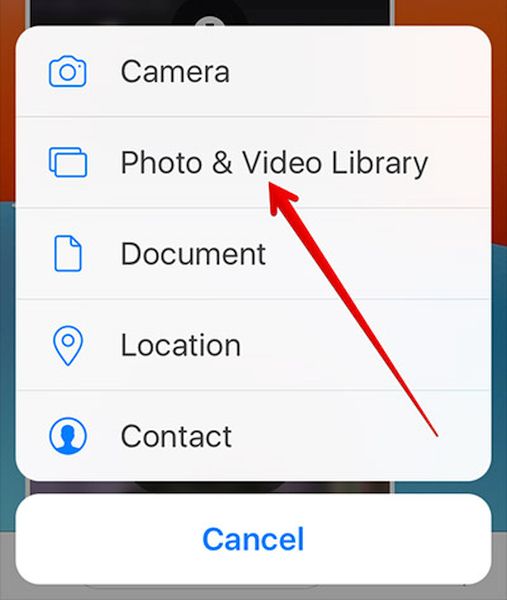
Step 5. Do you see the Plus? Click on ‘+’ and choose Photo & Video Library.
Step 6. You can easily search the web for cute GIFs by clicking on GIF option [lower left part of the screen].
Step 7. Select the animation you enjoy the most from the big choice of GIFs you’ll see. Just tap on the one you like.
Step 8. Now send the text message as you would normally do. It will contain the selected GIF image.
The iPhone 7 Apple device is not what a lot of users expected. The design reminds of previous iPhone 6s and 6. No major changes are introduced. Still there are many customers who are excited about the colors, storage capacity, battery and cameras. Besides, the iOS 10 features also make this gadget pretty interesting compared to smaller iPhone SE or previous 6s.
You can also include live photos on iPhone 7 and videos to your text message. It’s actually so simple to make your Live Photo a GIF image:
Step 1. You need to open WhatsApp tool on your smartphone running the latest firmware.
Step 2. Open a new conversation.
Step 3. Press on the Plus option.
Step 4. You’ll see a section with Photo & Video Library option. Choose it.
Step 5. You’ll get to your Live photos. Select the one you wish to turn into GIF file.
Step 6. You should 3D Touch and swipe up to be able to the ‘Select as GIF’ action.
Step 7. Send your message.
It is even possible to make a short video a GIF file. Here is how you can perform this iOS 10 trick:
Step 1. Record a video (6 seconds long at the most) on your handset.
Step 2. Launch WhatsApp.
Step 3. Start a new conversation and click on the ‘+’ option.
Step 4. Select Photo & Video Library and choose the video file.
Step 5. Turn on GIF feature [use a toggle] and your short video will become an animated GIF image.
Step 6. You can now send your text message. Isn’t it incredible?
You have learned how to SMS GIFs, short videos and Live Photos as GIF files. Create pretty messages and surprise your friends with simple animations. Learn how to add emojis to your iPhone message.
In case you want to add your GIF to starred section for quicker access while searching you should go to your WhatsApp conversation, click-hold that GIF file and choose the star option.