The long iOS 10 features list is growing fast. There is a new edition in iOS 10.2 firmware version and it uses single sign on technology for both iPhone and iPad. Apple offers its customers single sign on solutions and the first example arrives with operating system update. By the way, you can fix iPhone 7 storage full issue in case you have this problem.
What is this option about? What are the benefits of single sign on? We are happy to answer these questions and explain how you can enable the long-awaited feature on your iDevice. Nothing is complicated and you’ll love how you can access your applications so much easier.
Would you like to get more freedom on your ‘fruit’ device? By the way, you can turn on the new option on both iOS 10.2 gadgets [iPhone 6s battery replacement can be free to you] and your Apple TV running tvOS 10.1 version. The simple access to your TV content or iOS programs is incredible can be achieved after you enter your credentials only one time (all other accesses will happen automatically on any supported apps).
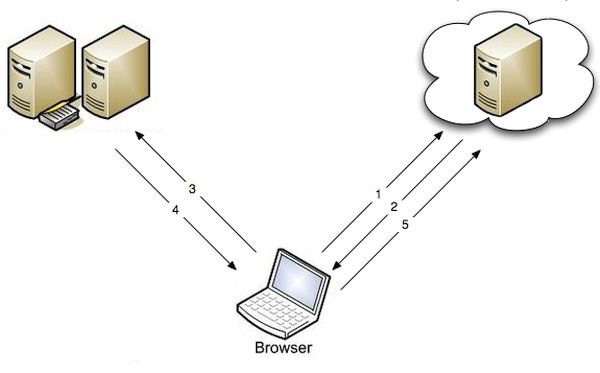
Single Sign on Implementation Providers in U.S.
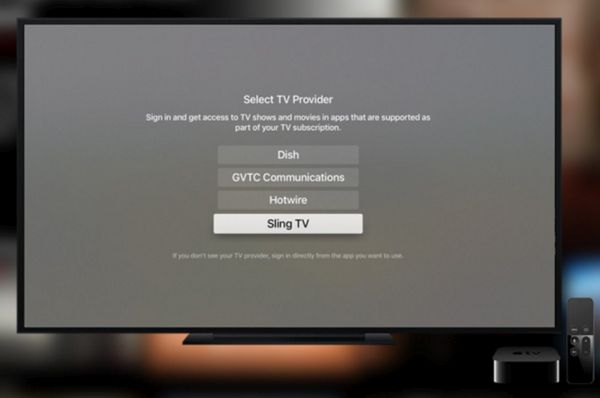
Only several providers support the new feature in the USA. They are Hotwire, Sling TV, Dish Network, DirecTV, Hawaiian Telcom, GTA, GVTC, MetroCast and CenturyLink Prism. This list will most likely grow in the future so you’ll get more options pretty soon. See the single sign on example below.
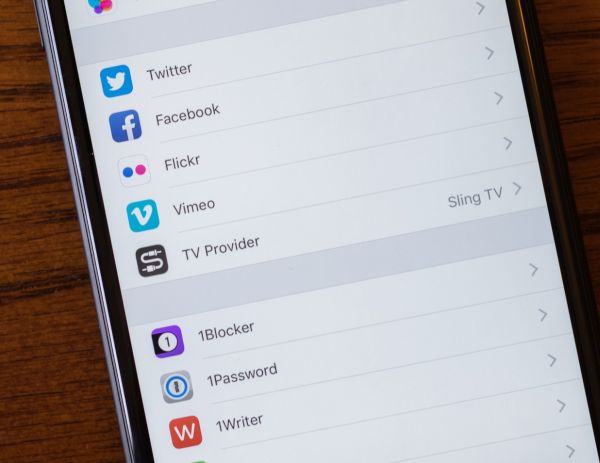
How to Enable iOS 10.2 Single Sign On Technology on iPhone / iPad
Step 1. Remember that you can turn on the latest option only after you install iOS 10.2. [Learn how to check AT&T iPhone data usage].
Step 2. Take your iPhone or iPad. Go to Settings to start using fun iOS 10 features.
Step 3. Click on TV provider section.
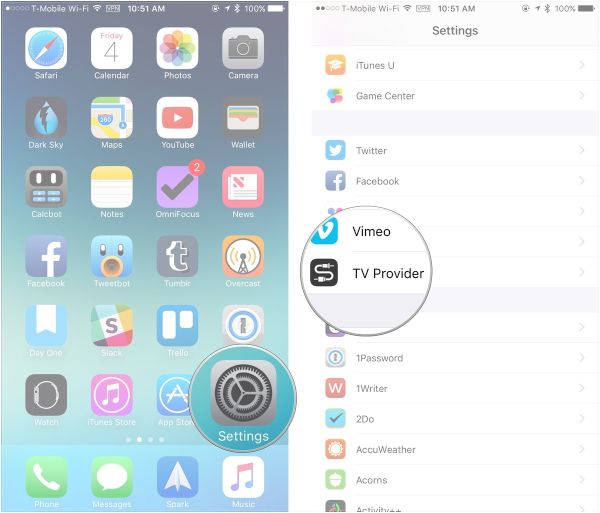
Step 4. Choose your TV provider (after you made sure it is supported).
Step 5. You’ll have to enter your credentials.
Step 6. Now you should find the applications that are compatible with your subscription on iDevice. Open Settings again – TV Provider section – Find More Apps.
Step 7. You’ll see all the compatible programs on the App Store you’ll be taken to.
There will be NBC, USA NOW, E! Now, Telemundo, Watch Travel Channel and other apps. Some of them support only Apple TV and others are created for iOS platform. There are also titles that work on both platforms (for example, Hallmark Channel Everywhere or Watch DIY).
All iPhone 7 users can factory unlock AT&T iPhone 7 / 7 Plus and use any SIM card.
The great single sign on solutions is not full without you being able to disable this option:
Step 1. Launch Settings on iDevice if you loved the benefits of single Sign on but wish to now disable this option.
Step 2. Select TV Provider.
Step 3. Choose your account.
Step 4. Press on Sign Out option.
How to Implement Single Sign On for Apple TV
Step 1. Install tvOS 10.1 and double check the name of your provider. Only supported cable providers work with the feature. Also keep in mind that only U.S. users can enjoy both advantages and possible disadvantages of single sign on.
Step 2. Launch Settings on your ATV.
Step 3. Go to Accounts.
Step 4. Choose TV Provider section.
Step 5. Choose your provider.
Step 6. Press on Sign In option and enter username / password.
Step 7. Just as it happens with the iPhone (have you heard about secret iPhone 6s codes you can unlock?) or iPad you should launch Settings on Apple TV and choose Accounts – TV Provider once again.
Step 8. Select Find More Apps option to visit App Store and download the programs that are compatible with the feature.
Step 9. You won’t have to sign in by providing your credentials each time you log into one of such apps. This will happen automatically when you enable single sign-on option.
How to Disable Single Sign-On for ATV Running tvOS 10.1
Step 1. Launch Settings on your device.
Step 2. Choose Accounts menu.
Step 3. Select TV Provider section.
Step 4. Press on Sign Out option.
Keep in mind that once you turn off the option you’ll be asked to individually sign in to every application that supports your subscription with one of the nine U.S. providers.
What do you think about these tips and tricks? Do you like the advantage of saving time while logging into your favorite apps? The disadvantage is that anyone who has access to your iPhone, iPad or Apple TV can also sign into your apps without your help.