Let’s ago ahead of the official iPhone 7 release and recollect how to set up new iPhone. This is a perfect method for all phone models. You might need to know how to set up new iPhone 6s or even older iPhone 5s since it is possible to complete this action both for the gadget purchased directly from Apple and used smartphones.
The simple iPhone 7 setup is what you’ll have to do when you purchase this next generation device. It might happen this fall if you consider upgrading or getting this model in 2016 [have you heard of useful iPhone 6s tricks and secret codes?]. It might be an interesting Christmas gift or just a gift for you or your family members. There are different options to select and this what could confuse new users. Should you set up new iPhone or restore from backup? Is it better to use iCloud or iTunes? Which options to select when it comes to Location Services or iCloud Key Chain? Let’s start from the very beginning and explain what you need to do.
How to Transfer Everything to New iPhone
A lot of users already own an iPhone, the models vary. So it might be important for you to know how to transfer info from one iPhone to another, newer one. This is something to be performed before you choose to set up your AT&T iPhone 7 [here are some of the top ATT data plans for your handset] or any other carrier smartphone.
Step 1. If you wish to use all your programs, settings and personal data on a new phone you should back up your old device. It is possible to do this via iTunes or iCloud.
Here is how to backup iPhone through iTunes:
You need to install the most recent version of this desktop program. Connect your handset using a USB cable and choose to Sync it. This way the app will automatically back up your gadget.
iCloud iPhone backup procedure is also simple:
Newest operating systems support every-day-icloud-backup so double check if you are ok to go. Select Settings on your iPhone once you have a WiFi connection and go to iCloud – Backup. If you don’t have a recent backup saved under Back Up Now option you can click on Backup menu and create a copy of your iPhone.
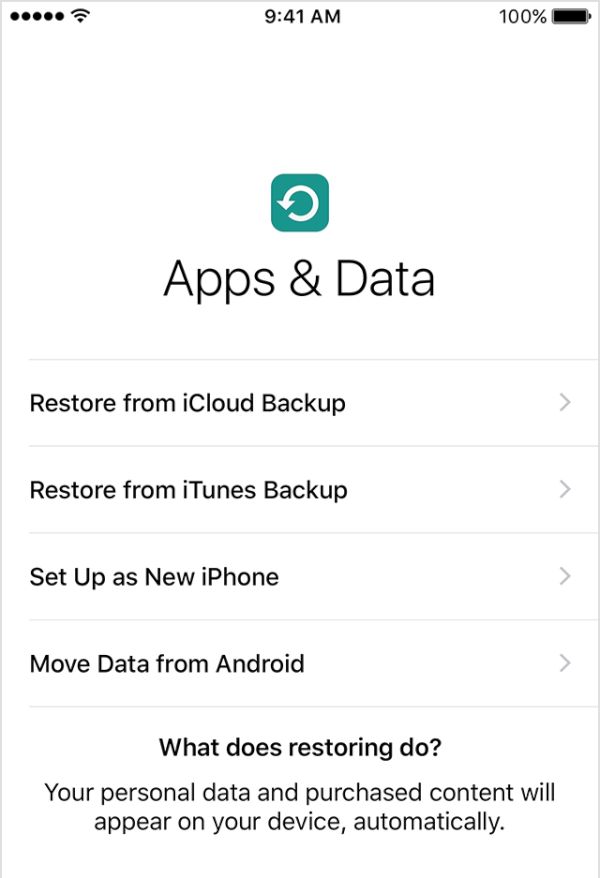
Step 2. You can now set up new iPhone AT&T or any other network. Turn on your smartphone and press on Slide to Set Up. You will see on-screen guide created by Apple that helps you to choose your settings. Go through it until you see the three options to select from, including Restore from iCloud and iTunes Backup. This is what you need right now.
Step 3. You can restore new phone using your iTunes or iCloud backup to get back all the information you saved from your previous device.
How to Set up iPhone 7 Brand New without Need to Restore
This method works for iPhone 6s or any other model you purchase from the store. If you have a new handset you shouldn’t experience any issues with iPhone 6s, SE, iPhone 6 setup.
Step 1. Click and hold the On / Off button on your handset to turn it on.

Step 2. You should swipe on the ‘Slide to Set Up’ to proceed.
Step 3. Select language, country. It is nice if you can get WiFi connection. Choose to turn on Location Services or ignore this option for now. It is used by some applications to track your location so choose Next if you don’t want to use it.
Step 4. Choose Set Up as New iPhone since you don’t have anything to back up.
Step 5. You can transfer your contacts from Gmail or other mail account to your iPhone 7 by just logging into it from the phone. The syncing will be automatic for Hotmail, Gmail, Yahoo and some other services. You might need to also fix activation problems with your phone.
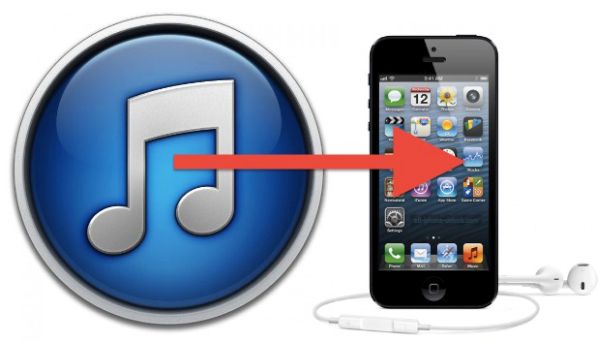
Step 6. You can also bring your music and videos from computer to the phone by installing iTunes program on your PC or Mac. This program is used to sync some of your files to the smartphone. Just connect the device to your computer, launch iTunes and select movies or songs you wish to sync.
Step 7. Apple doesn’t let its users to bring non-iOS applications to the iPhone. You can download free and paid games and apps on the official App Store.
Step 8. Unfortunately it is not possible to transfer the text messages from a very old phone to your iPhone. Android has some programs that can make this happen but Apple doesn’t. Still you can copy contants to the old nano-SIM if this is what your previous device as using (if you had one) and insert it into the iPhone, open Settings and go to Mail, Contacts, Calendars to Import SIM Contacts. For different SIMs you will need third-party desktop programs to try and transfer contacts. Learn how to solve No Service message on your device.
If you need to go through iPhone setup without SIM and wish to move from Android you need to download special Move to iOS application that can be found on Google Play store.
Once you have set up your new iPhone 7 or other model you can enjoy using it and learn everything about iOS 10, the new 2016 Apple firmware upgrade planned for the fall.