iPhone YouTube users know that this service has strict rules and you can’t just download any video when you want it. There are some tips and tricks you can follow to turn off YouTube autoplay and download YouTube videos directly to iPhone or iPad. We want to share the main secrets with you and help you enjoy both watching and saving videos to watch later on.
You might remember those times when you could use a simple browser plugin for YouTube iPhone download but this doesn’t work nowadays. Such additions are blocked or patched. Still there are tools that make everything possible. Let’s see what becomes helpful when good old methods stop working. In case you are running iOS 10 operating system version and having some issues here is how to fix bubble effect for iPhone messages.
How to Download YouTube Videos on iPad / iPhone
There is iPhone YouTube app you can use. Since it’s free to download it’s pretty popular among users. We’ll explain how to save YouTube videos to iPhone Camera roll for both iPhone 6 and newest iPhone 7. The program also supports others Apple handset models. You need to double check that your firmware version is supported before you get it.
The program Titan Downloader used to be on iTunes. It was a free application you could download and use. Now you have to find the link on your own to get it.
Step 1. Install your new iPhone YouTube Titan Downloader on the phone or iPad [there is a different My Video Downloader tool on iTunes these days and it’s also free of charge].
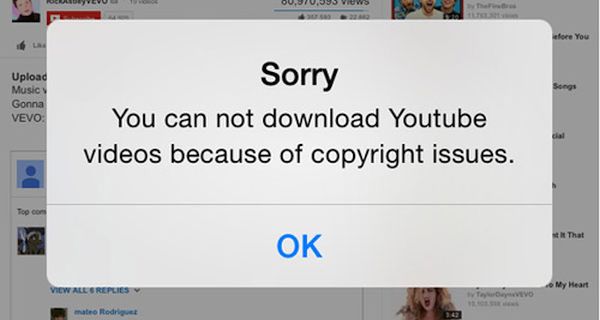
Step 2. There are some tricks you have to know about. The official feature that once allowed downloading videos from YouTube is now blocked. So when you find a video via this app and try to download it you will see a warning about ‘copyright issues’ – you have probably guessed that nothing will work this way. So let’s see what the bypass is.
Step 3. Launch Safari browser on your iDevice.
Step 4. Search Safari for your wished YouTube iPhone download video. Copy the video’s URL [link].
Step 5. Now launch Titan YouTube downloader for iPhone 7 with numerous features and paste that link to watch the video.
Step 6. Start watching it and as soon as video begins playing you should quickly click on ‘Done’ option [it is located at the top left part of the screen].
Step 7. Now once the video window is shrinked down you should click-hold your finger on this window and wait. The special menu should appear.

Step 8. This menu has two options. One is called ‘Download’ and the other one is known as ‘Download As’ – use one of these features to download the file within the application.
Step 9. If you want to download YouTube videos directly to iPhone you should select ‘Videos’ section located at the bottom. Make sure you click-hold the video icon so that you can save the video to Camera Roll.
This is a nice YouTube downloader for iPhone 6, 6s, 7 and iPads. You can enjoy the hidden feature even though it is banned.
Now since you’ve learned how to download videos on iPhone from Safari using a trick, let’s see what you can do with autoplay option.
You can also find out how to transfer information, files and other data from Android to iPhone. This could be useful.

How to Turn Off YouTube Autoplay
If you are tired of all the videos playing automatically on your Apple device you can disable this feature and play them only on demand.
Step 1. Open YouTube on iPhone or iPad.
Step 2. Go to ‘Up Next’ menu.
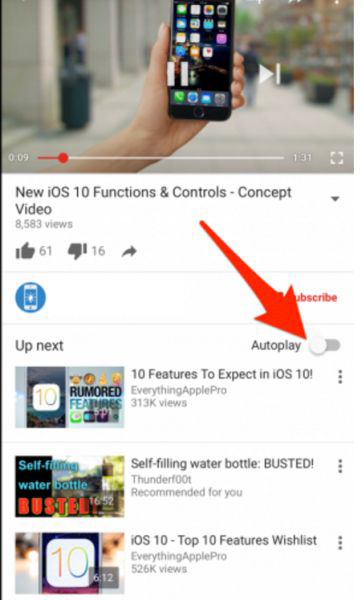
Step 3. Disable Autoplay option you’ll find at the upper part.
Step 4. That’s it. All the videos should stop playing on their own now. When you wish to enable this feature you have to repeat the same guide but turn on Autoplay instead of disabling it. P.S. If you haven’t got the latest phone model you can easily upgrade to iPhone 7 online.
We hope you enjoyed our short how to save YouTube videos to iPhone camera roll instruction and now know how to disable autoplay option.