Once you have downloaded firmware file from iOS 8 download links, you can follow this simple iOS 8 installation guide and update your iDevice to the most recent operating system released by Apple on September 17, 2014.
The new iOS 8 brings such interesting options as support for third-party keyboards, updated Siri, enhanced Notifications app, QuickType and tons of other improvements. You can get everything and even more after you use iPhone iOS 8 update download and installation or go through the same procedure on your iPad or iPod touch 5G. Also here you can unlock your device even after updating it to the new firmware. Just find our the carrier to which it is locked and go to unlock it for any SIM card worldwide.
Before you learn how to install iOS 8 on iPhone 5 and other iDevices, we’ll remind what models are supported by this firmware. The new iOS 8 is created for iPhone 5, 4S, 5S and 5c. It supports iPad Air, iPad mini and iPad 2, 3 and 4. It also works on your iPod touch 5 generation. iPhone 6 and iPhone 6 Plus arrive to customers with iOS 8 pre-installed on them so there is no need to download the new firmware if you purchased one of these two seventh gen smartphones.
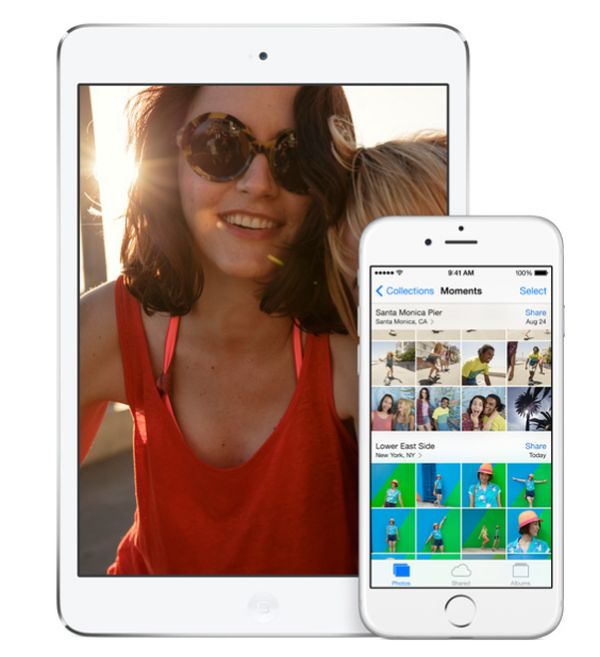
iOS 8 Install from iOS 8 IPSW Download Links
Method 1
Step 1. When you are searching for how to update to iOS 8 instruction, you can simply follow our guide and do fine. Begin with iTunes update to v. 11.4 as this version was designed by Apple to support its new firmware version.
Step 2. Backup your iDevice. You can use iCloud or iTunes to do so [this way you can save your images, books, applications, games, videos and settings]. If you choose to back up via iTunes manually, you need to connect your iPhone, iPad or iPod touch to computer, launch iTunes and select your gadget. Then you have to right click / control click your model and choose Back Up option.
Step 3. Once you have backed up, you can download iOS 8 from direct links [be attentive when you choose your device and its version] and save to your desktop:
- 4S: iPhone4,1_8.0_12A365_Restore.ipsw
- 5 GSM: iPhone5,1_8.0_12A365_Restore.ipsw
- 5 GSM+CDMA: iPhone5,2_8.0_12A365_Restore.ipsw
- 5c GSM: iPhone5,3_8.0_12A365_Restore.ipsw
- 5c GSM+CDMA: iPhone5,4_8.0_12A365_Restore.ipsw
- 5s GSM: iPhone6,1_8.0_12A365_Restore.ipsw
- GSM+CDMA: iPhone6,2_8.0_12A365_Restore.ipsw
- 6 or 6 Plus: iPhone7,1_8.0_12A366_Restore.ipsw
- 6 or 6 Plus: iPhone7,2_8.0_12A365_Restore.ipsw
- iPod 5G: iPod5,1_8.0_12A365_Restore.ipsw
- iPad 2 Wi-Fi: iPad2,1_8.0_12A365_Restore.ipsw
- iPad 2 GSM: iPad2,2_8.0_12A365_Restore.ipsw
- iPad 2 CDMA: iPad2,3_8.0_12A365_Restore.ipsw
- iPad 2 New: iPad2,4_8.0_12A365_Restore.ipsw
- iPad Mini Wi-Fi: iPad2,5_8.0_12A365_Restore.ipsw
- iPad Mini GSM: iPad2,6_8.0_12A365_Restore.ipsw
- iPad Mini CDMA: iPad2,7_8.0_12A365_Restore.ipsw
- iPad 3 Wi-Fi: iPad3,1_7.1.2_11D257_Restore.ipsw
- iPad 3 CDMA: iPad3,2_8.0_12A365_Restore.ipsw
- iPad 3 GSM: iPad3,3_8.0_12A365_Restore.ipsw
- iPad 4 Wi-Fi: iPad3,4_8.0_12A365_Restore.ipsw
- iPad 4 GSM: iPad3,5_8.0_12A365_Restore.ipsw
- iPad 4 GSM+CDMA: iPad3,6_8.0_12A365_Restore.ipsw
- iPad Air Wi-Fi: iPad4,1_8.0_12A365_Restore.ipsw
- iPad Air Cellular: iPad4,2_8.0_12A365_Restore.ipsw
- iPad Air China: iPad4,3_8.0_12A365_Restore.ipsw
- iPad Mini 2 Wi-Fi: iPad4,4_8.0_12A365_Restore.ipsw
- iPad Mini 2 Cellular: iPad4,5_8.0_12A365_Restore.ipsw
- iPad Mini 2 China: iPad4,6_8.0_12A365_Restore.ipsw
Step 4. Press and hold Shift / Option [for Windows /
Mac] and choose Update on iTunes.
Step 5. Point to your firmware file that is saved on your desktop and allow the new iOS 8 install on your “fruit” gadget.
Method 2
This is how you download and install iOS 8 on you smartphone or tablet via OTA update.
Step 1. Launch iTunes and make sure you are using Wi-Fi network.
Step 2. Launch Settings – go to General and select Software Update.
Step 3. Choose Download option and Install for iOS 8.
Remember that Apple’s servers can have troubles with millions of users who wish to update to the most recent firmware version over-the-air. If you fail to update this way, use direct links and install iOS 8 yourself via iTunes using the first method.