Would you like to transfer files to iPhone without iTunes? There are a lot of different iPhone transfer software you can use. Everything depends on the type of files you wish to move between your phones or between iPhone and Mac. For example, if you are using Evernote that is believed to be a wonderful note application – there is a simple way how to export Evernote to Apple Notes on both your handset and ‘fruit’ computer.
We know how you can use your iPhone Notes app to move all files from Evernote to your iOS 10 program [learn more about new single sign-on iOS 10 feature]. This instruction will also work for your Mac computer. Follow the iOS Notes app tutorial below and you’ll quickly explore all interesting Apple Notes tips for users with products released by the Cupertino-based company.

Best iPhone Transfer Software Details
Do you need to use any third-party program to transfer files to iPhone without iTunes? With Evernote, there is no need to install any additional tools when you wish to move your notes. Everything can be done within the program itself. Are you excited to give it a try? You’ll find the step-by-step guide for using your notes iOS 10 below.
Unfortunately, there is no way how you can export all files at once. The process takes a lot of time and you’ll have to be patient. Still you can manage everything eventually. By the way, AT&T iPhone users should learn how to check their mobile data usage.

How to Export Evernote to Apple Notes on iPhone
Step 1. Being to export Apple notes by opening Evernote application on your iPhone 7, iPhone 7 Plus or other handset model.
Step 2. It’s best to choose one Note you want to export. If you want to export multiple files you’ll have to repeat this guide several times.
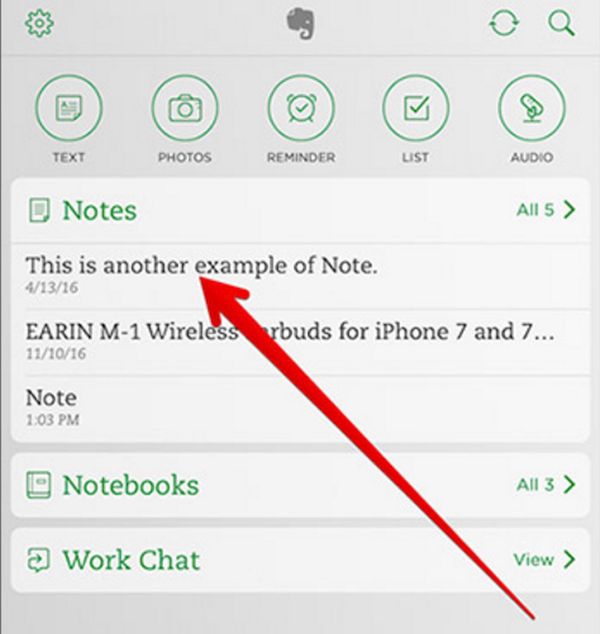
Step 3. Click on More option that looks like 3 dots. You’ll see it at the lower right part of the screen.
Step 4. Click on ‘Share’ option that is available in the Evernote menu.
Step 5. To transfer files on iPhone you’ll have to choose ‘Export Note’ option. This feature should open a new Mail window that has the Note attached as .enex file. Just type in your email address and click on ‘Send’ to email the file.
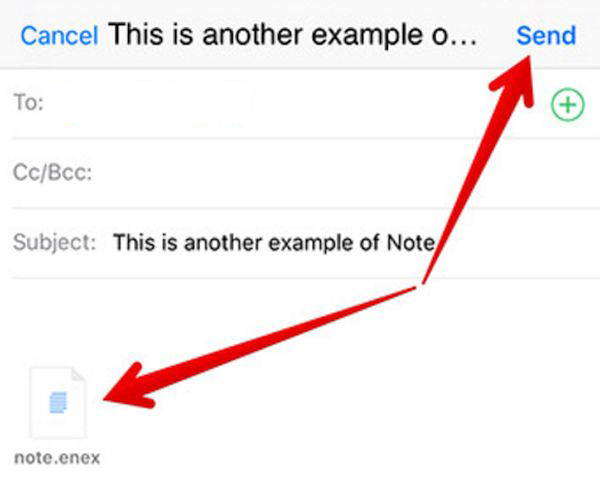
Step 6. Now you can close the app.
Step 7. Don’t put your iPhone away yet. Launch Mail application on it.
Step 8. Select the email you have sent (the one that contains the .enex file).
Step 9. Long-click on this file and you’ll access the extensions window.
Step 10. Click on ‘Add to Notes’ option. This way you can export the file to your iOS 10 iPhone Notes app. There will be a new pop-up window that shows ‘Import Notes’ option. Press on it to continue.
Step 11. You can exit Mail program.
Step 12. Launch iPhone Notes and click on Imported Notes folder.
Step 13. Find your file (in case there is more than 1) and enjoy your note.

How to Move Evernote Files to Apple Notes App on Mac
Step 1. Make sure your computer uses OS X 10.11.4 version or newer operating system.
Step 2. Open Evernote on your Apple machine.
Step 3. You should sign in to Evernote account.
Step 4. Look at the Menu and press on ‘Edit’ option. You’ll be able to move all Evernote files to Notes at once which is impossible on iPhone.
Step 5. Click on Select All option.
Step 6. Select ‘File’ in your Menu and press on ‘Export Notes’. Remember to Name your file.
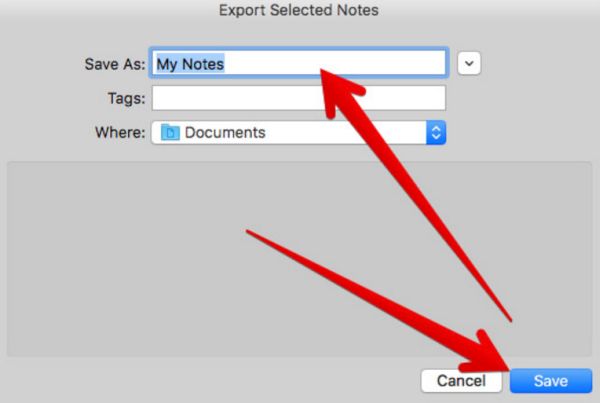
Step 7. Choose where you wish to have the file saved and press on ‘Save’ option. All your notes will be exported as .enex files just as it happens on iOS 10 devices.
Step 8. Open Notes program on Mac and press on File – Select – Import to Notes.
Step 9. Find the .enex file and press on Import.
Step 10. Confirm your decision by clicking on Import Notes and all your files will appear in iCloud folder ‘Imported Notes’ – isn’t it cool?
You see that it is possible to easily move files from Evernote to your iOS 10 iPhone 7 or Mac Notes app.