My iPhone password not working… I think I forgot it. Has it ever happened to you? Personally I keep in mind all my passwords but I swear there are situations when I just can’t remember the right one. It is simple with different online services, social networks and websites because you can recover your passcode through email which is so fast. With smartphones everything is so different. You need to remember how many tries to unlock iPhone you have and stay attentive to not lose your data.
Let’s learn more about the password on iPhone and how the gadget acts when you forget the important numbers.
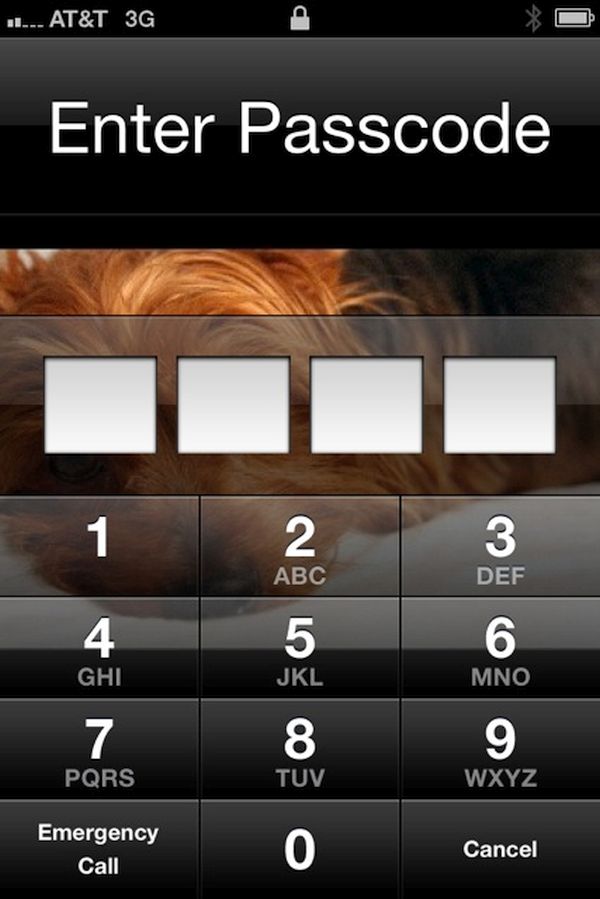
About iPhone Passcode: Details
Most modern handsets are protected by passwords. This way you can be sure no one accesses your personal information etc. The behavior of a smartphone truly depends on configuration so when you come across iPhone password forgot problem you should be wise.
According to Apple, there are no passwords by default. Still users choose to protect their privacy with a passcode and sometimes face an unpleasant situation when you can’t remember the password you were using day after day and it is not written down somewhere you can look it up.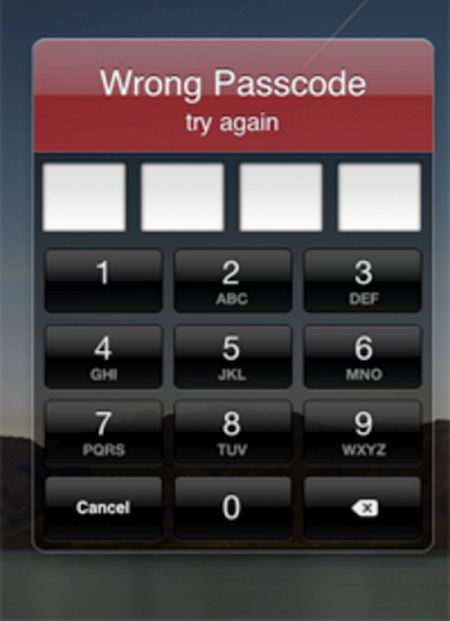
How Many Tries Do You Get to Unlock an iPhone
Everyone understands that you have limited attempts to enter the corrent numbers [here is what to do if you have Activation Lock problem]. As noted by the Cupertino-based company, the more wrong passwords you enter, the longer become the intervals before your next try. Several unsuccessful attempts make you not being able to re-try again.
So how many failed passcode attempts iPhone 6 users have? The setting with the number of unsuccessful password entry is disabled by default. Still some users choose to turn it on before they forget their precious numbers. The configurations are located under Settings – General menu – Passcode Lock and if you enable this feature you will only have 10 attempts after which your iPhone will completely erase itself.
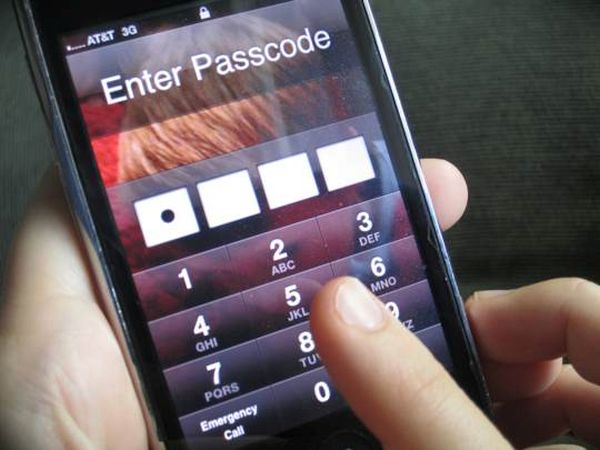
How to Unlock Your iPhone if You Forgot the Password
What should you do? You should connect the device to the computer with which it was synced for the last time. It doesn’t matter if you used iCloud or iTunes for this purpose. You can backup without password and save your information. Now restore the locked handset from a backup copy by selecting ‘Restore from iTunes backup’ option when you are asked to. Afterwards you can reset the code or leave this option disabled.
If your computer was never synced with the handset you can restore and unlock it however this method of how to unlock iphone 6 erases everything you have. Besides, if you choose to take your gadget to Apple service center and have it unlocked by their representatives – the smartphone will be erased just the same.
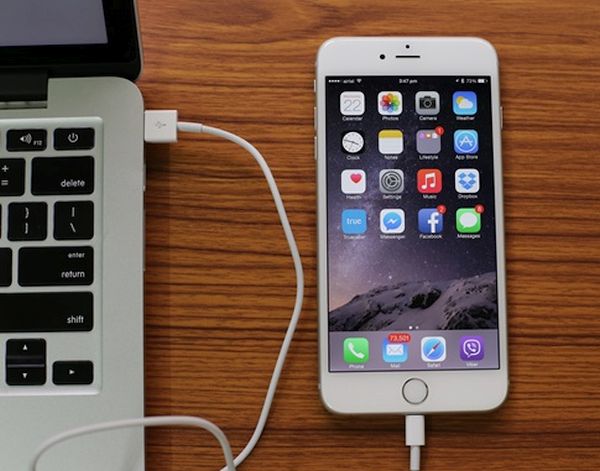
Now you know answer to your question ‘How to unlock iphone 6 without erasing data:’
Method 1. Recollect the original password. It’s the best thing to do.
Method 2. Connect to your computer, restore from a backup [to save your personal information and important data], unlock and reset the password. This time you need to write down the numbers and remember where figures are written. This way you won’t have to restore if you ever happen to forget the code ever again.
The worst thing to happen after iPhone failed passcode attempts is erasing your data. Users who still remember their code are highly advised to create a backup copy just in case. This way you will restore from a backup in case anything bad happens and have all your data back. Deal?
We really hope that this detailed ‘how do i unlock my iphone if i forgot the password’ guide was useful to you. We also hope that you never have to restore the handset this way and lose contacts, apps and other content you really need.
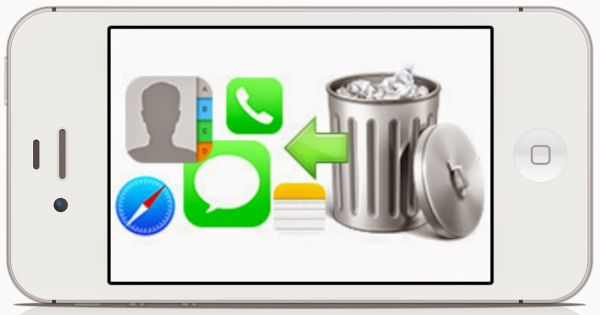
What Data Might Be Lost After Restore
iPhone users should note that restore erases your videos, programs, images, all music, contacts unless you have a backup copy to use [the one that was created before you can’t remember password and unlock device without restore].
Only users who don’t enable password protection will never forget their code.
How to Erase iPhone through iCloud
There is another method we would like to mention. If you don’t remember where you left your iPhone but can log into your iCloud account using Apple ID and passcode, you should:
Step 1. Sign in to your iCloud via www.icloud.com site.
Step 2. Select Find My iPhone menu.
Step 3. Choose All Devices and select the handset you wish to erase [the one that you can’t unlock because you don’t remember passcode].
Step 4. Use this guide only if you lost your device and don’t want anyone to access your personal information. Don’t use it if you simply forgot password.