Do you have one of those old Mac computers released prior to 2013? Do you know that you can still enjoy Mac Touch ID option and unlock your laptop or desktop machine without issues? Surely, all newest computers arrive with a great feature that is built-in and can be used by customers right out of the box. Still this doesn’t mean that Touch ID MacBook option is available on newest devices only (learn details about MacBook Pro touch bar customization). Users who still own an older model and don’t wish to upgrade can learn about curious tricks and perform them in everyday life. This way you can truly get more features and surprise yourself and your friends.
Should you find a real fingerprint scanner for Mac or is there any other trick to use on old Mac? There is no need to enter a passcode to unlock your iDevice. This is not comfortable and still you can enjoy your Mac ID to auto-lock your desktop or laptop computer.

About Mac Touch ID and macOS Sierra
Unfortunately that awesome auto-unlock option comes with macOS Sierra. While there is no need to enter your password every time to want to unlock you computer you cannot use this feature on old Macs. Right, even if you are able to install macOS Sierra on an old Mac the newest features won’t be supported by your machine.
Computers released before 2013 can run macOS Sierra version but they do not support the Auto-Unlock feature. Still you are able to unlock Mac with Touch ID of your other iDevices (such as the new iPhone 7, older iPhones and Apple Watch wearable).
Mac ID is a great tool that works on Apple gadgets. This is the program that helps you to unlock computers with other ‘fruit’ devices. The whole idea is pretty similar to Auto-Unlock option.
Mac ID supports a lot of gadgets from 2011-2016 (including the new MacBook Pro 2016 model). It works with newest iPads and iPhones as well as old iMac 2012, Mac Mini from 2011 and 2012, MacBook Pro from 2012 and iMac back from 2012 or newer. In other words you can take an incredible advantage of such Mac Touch ID similar feature.

How to Get Touch ID on Older Devices
So you need no fingerprint scanner for Mac if it’s an old computer. But you need Mac ID application for both your old Mac computers and iPhone or iPad. You can find a free version for old Mac laptop but you’ll have to pay $3.99 for iOS Mac ID release.
Step 1. Before you can create your cool Mac Touch ID option you should set up Mac ID on both Mac and iDevice.
Step 2. Launch programs on both gadgets.
Step 3. The Mac ID on Mac wills how he list where you can select your iPhone or iPad that is also running this program. Make sure everything is ok with Bluetooth.
Step 4. Enter your login credentials before you can press on Continue option.
Step 5. The program should now work. So simply lock your computer.
Step 6. On the iPhone or other Apple device that really supports Touch ID and has Mac ID installed, you need to hold Home button with the finger you registered for Touch ID. Ta-da, your computer will unlock.
Learn how to set up MacBook Pro with touch bar and find out what else you can do with the additional application.
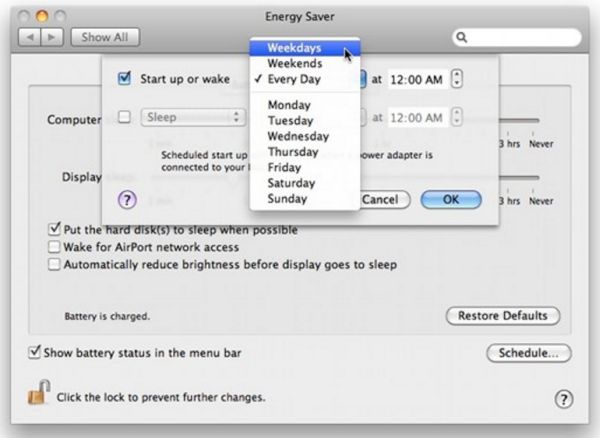
Mac Auto Wake Feature
Step 1. Look at the Mac Menu bar. Press on Mac ID.
Step 2. There will be Proximity Wake in the drop window.
Step 3. Enable it.
Step 4. Press on Custom if you wish to add some adjustments to the proximity. Choose the distance for waking up your Mac screen with a phone.
Step 5. Your computer will automatically wake up when you enter the room with the right iDevice.
Let’s pay more attention to the proximity option. The distance threshold has several options. You can select the default ones (low, medium or high) or go with your customized solution.
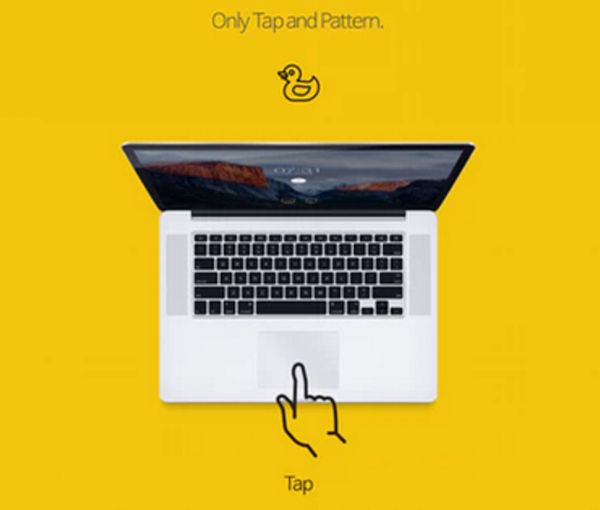
There is one more thing you can try. It is called Tap Pattern. It requires some options. It only works when you have the Magic Mouse or a trackpad. Here is what you should do:
Step 1. Go to Menu on your computer and select Mac ID.
Step 2. Choose the Tap to Unlock feature.
Step 3. Select Set up option.
Step 4. You can set a pattern using the physical or virtual trackpad (or Magic Mouse).
Step 5. Now press on Menu – Mac ID and Tap to Unlock. Now you should see the notification via Taps visible on Lock screen. P.S. You can also unlock your iPhone from any carrier once and forever.
Step 6. Select the option to provide passcode only when the primary gadget is connected. Otherwise choose to unlock your computer with Magic Mouse or trackpad.
Step 7. Now press the Tap pattern also locks Mac and you are done.
It’s simple, isn’t it?