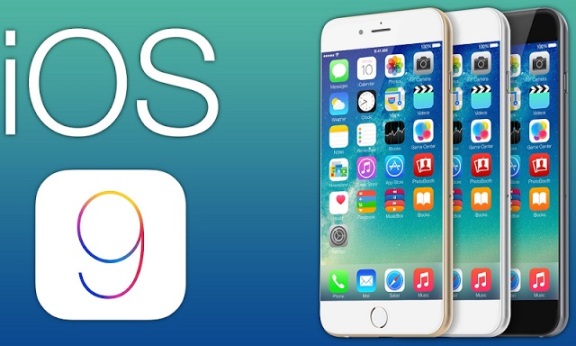
Here’s useful tutorial on how to install iOS 9 beta 3 without UDID on your iPhone, iPad and iPod touch. As you will see the installation process is not so difficult.
How To Install iOS 9 Beta 3 Without UDID On iOS Device
Important notes before proceeding:
This version of iOS 9 is a beta release. Such things like performance issues, instability, battery life drainage and other issues are common with beta releases. It is recommended to install this on a spare and test device only. Please do not install this beta on your main device.
Step 1: Before start the installation process please make sure that you are running the current latest public version of iOS, which is iOS 8.4.
Step 2: No, if you have registered at Apple Beta Software Program go to next step.
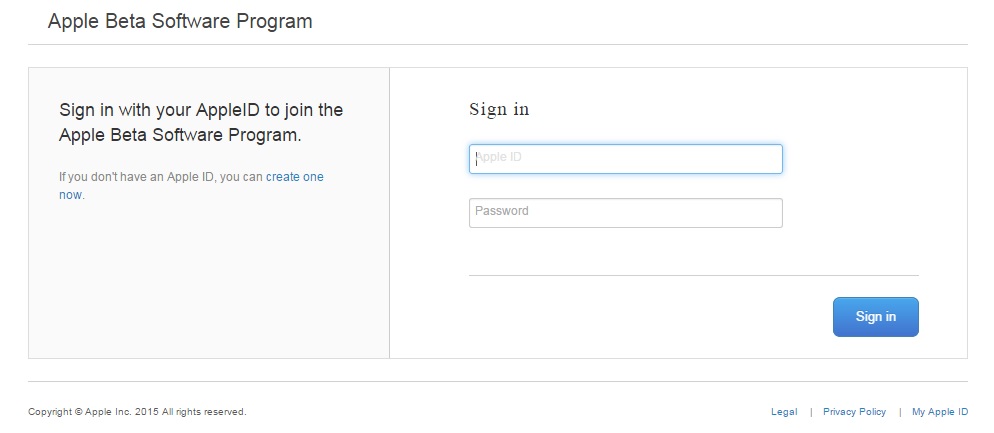
Step 3: Point your browser to: beta.apple.com and then click on ‘Sign In’ as shown in the picture below. If you’re starting fresh, then click on ‘Sign up’.
Step 4: To sign in please enter your Apple ID and password.
Step 5: Next you need to accept the ‘Agreement’ by tapping on the ‘Accept’ button on the bottom right hand corner.
Step 6: Now you’re going to enroll your iOS device into the beta program.
Step 7: Open the following link on your iPhone or iPad: beta.apple.com/profile
Step 8: Now please sign in with the same Apple ID account once again on your iOS device.
Step 9: Then click on the blue ‘Download profile’ button.
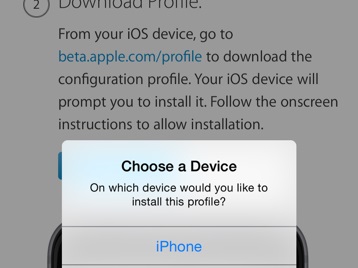
In case you have an Apple Watch paired to your iPhone then you’ll get the message asking you to choose the device on which you want to install the profile. Click on ‘iPhone’ only.
Step 10: On the top right of the screen click on the ‘Install’ button. You’ll be required to input your passcode to confirm the action if you have one in place.
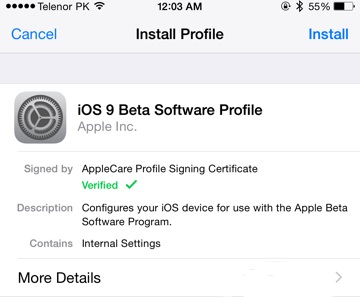
Step 11: After you are done with entering your passcode, you’ll be asked to agree to a ‘Consent’ from Apple. Tap on ‘Install’ on the top right once again.
Step 12: Pick the ‘Restart’ option on the popup message.
Step 13: After your iPhone or iPad restarting will be done, go to Settings > General > Software Update, and the iOS 9 Public Beta 3 download will be sitting there for your approval. Simply tap the ‘Download and Install’ button to get things rolling.
You are done! Install iOS 9 beta 3 without UDID process is successfully completed.