It is possible to change your iOS 9 screen timeout on iPhone. If you already have the most recent Apple smartphone model iPhone 6s you might want to adjust this setting [if you have clean IMEI you can unlock AT&T iPhone 6s to use it with other SIM cards]. Everything is pretty fast and simple. Follow the instruction and you’ll learn how to deal with this option.
Your iOS 9 iPhone screen timeout if the period of time that passes until the smartphone shuts off its display after you stopped playing with your gadget. You are the one who can set up the time that passes after the last touch and before the screen shuts down automatically.

How to Adjust Screen Timeout iPhone 6s Guide
Step 1. Take your Apple smartphone. The iPhone 6s has tons of great features [users are already looking for new iPhone 7 features and specs] but this particular setting is not that easy to find at first. Go to Settings as this is where our journey begins.
Step 2. To change iPhone screen timeout you need to launch General menu and select Auto-lock option which appears at the bottom.
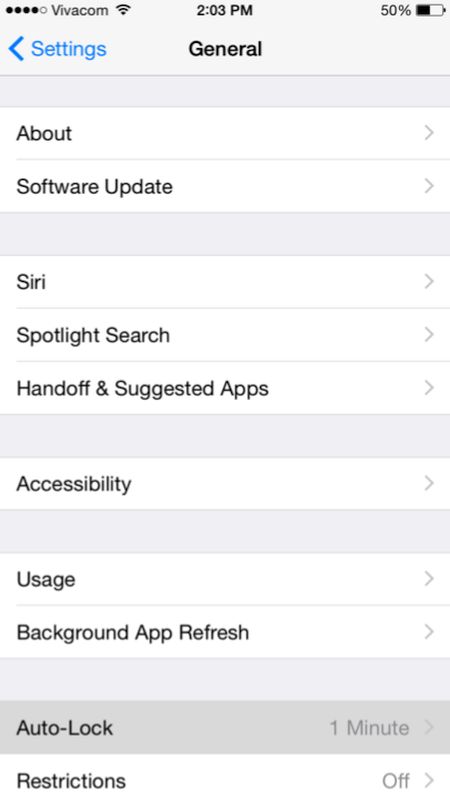
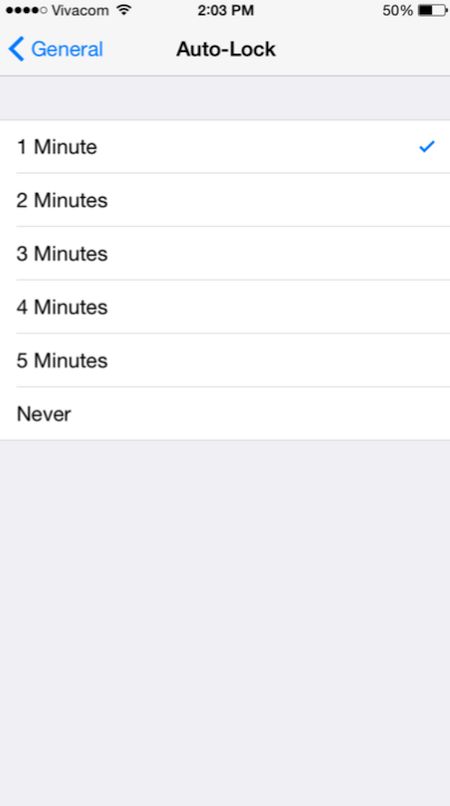
Step 3. There will be a checkmark which you need to use in order to change the screen timeout option.
This is pretty simple once you know where to look at. Right? There are numerous great iOS 9 changes and features you might also want to use in your everyday life. The iPhone offers a lot of possibilities and is a very popular smartphone nowadays.