Mac Text Replacement is a cool features build in OS X platform that allows you using shortcuts for longer words, phrases and pieces of text [if not paying attention to different Mac login problems on OS X 10.11.4]. You can enable replace text as you type option in different applications even if this option is not enabled by default.
We’ll explain how you have to do in order to enjoy Text Replacement Mac OS X addition and create easy-to-use shortcuts for something you are typing periodically or even every day. This is cool for computer users who are working with text or write many emails / letters.
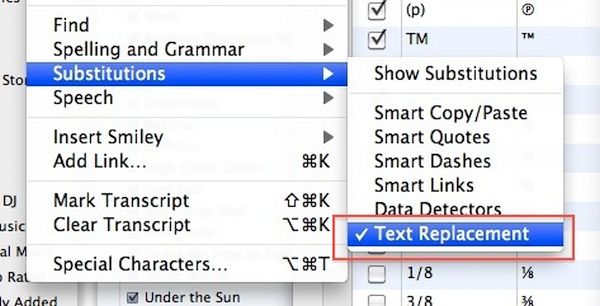
How to Enable Text Replacement in Apps on Mac
Step 1. Launch the app you wish to use along with Text Replacement on Mac from menubar.
Step 2. Choose Edit option.
Step 3. Go to Substitutions section.
Step 4. Choose Text Replacement feature. You have to turn it on.
Step 5. Repeat this guide for every application you are using for typing and enjoy faster typing with shortcuts used for Text Replacement. This is not difficult but may take some time. Remember that the Text Replacement option should be supported by the application [Apple fixed Mac security issues].
If the app doesn’t support Text Replacement feature [for example, Chrome browser wouldn’t work with OS X Text Replacement] you need to search for alternative third-party utilities that improve text expansion and make it simpler to use text shortcuts.
It is better if your shortcuts or snippets are no longer than 5 letters. This way it will be easier for you to type the snippet which will be automatically transformed into the piece of text you meant to use originally.