Computer users who type a lot during the day might want to learn how to type faster on Mac. There is OS X option you can use as it can really improve your typing speed and save some time [you can also play PS4 games on your Mac]. How is it possible to do? There is always information you are using over and over again, right?
For example, you often enter your address, using email templates or other information, simple or complicated. OS X Mac text replacement is a cool option you can take full advantage of. It is present under Text menu. It allows you creating a shortcut / snippet that converts into the piece of text by your operating system. Just create shortcuts to help it automatically change into something you meant.
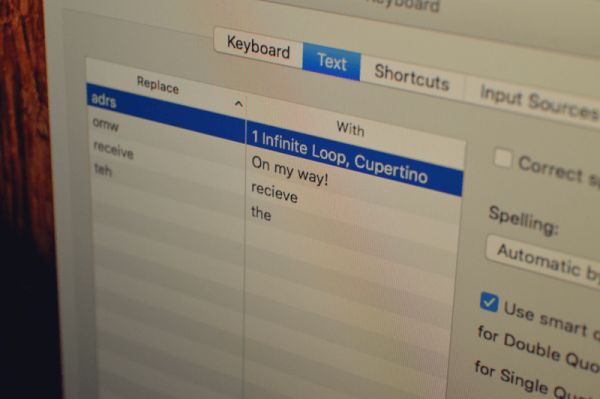
Let’s imagine you need to type your email address in every letter you create. Add your email address to the shortcut and name it ‘@@@’ – when you type @@@ your computer will automatically replace it with your full email address.
How to Use Mac Text Replacement Feature
Step 1. Press on Apple in menu.
Step 2. Go to System Preferences – Keyboard.
Step 3. Select Text.
Step 4. There are two sections on the left that say ‘Replace’ and ‘With’ – you’ll also find the ‘+’ which allows adding a new shortcut. Learn what you have to do next [users who suffer from Mac issues can learn how to fix Mac Startup disk full error].
Step 5. Enter your shortcut or snippet into ‘Replace’ section. Enter the full text or what you wish the shortcut to transform into the ‘With’ section. Create as many snippets as you need.
Step 6. You can now launch TextEdit or similar program and try to type faster on Mac using your new shortcuts.