Is your Mac startup disk full? You might get this warning on your computer [there are malicious apps for Mac you have to be aware of]. It’s possible to fix the issue and free some storage space. Sooner or later you will face the message about your disk being nearly full so the guide below can be handy.
You can surely try to delete large file you don’t use. But how can you find such files? Is there a way how to free space without losing any important data you have?
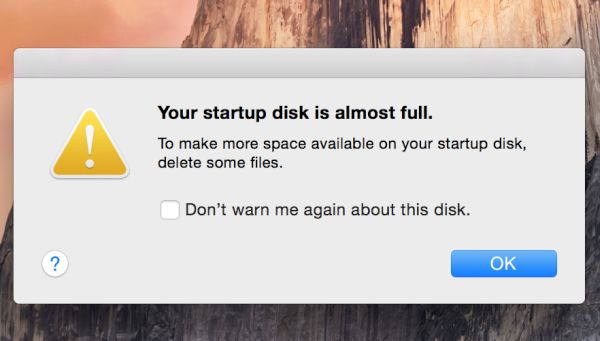
How to Fix Startup Disk Full Mac
Step 1. Backup your hard drive. This is an important thing to do before you decide to make any changes. Use Time Machine. You’ll protect all information you need this way.
Step 2. Go to the Apple icon [the top left one] and choose About This Mac.
Step 3. Select Storage and you’ll see the diagram of your storage. You will have to remove the files that get the largest bar of this image.
Step 4. We can predict that most space is taken with images, movies and your backups [it is also important to back up your iPhone espcially with error 53 that can brick the handset at once]. You might really want to back up your photographms and videos to a second location. There is a big amount of cloud storages you can always use. With backups ready you can remove movies and images you don’t really need right here right now.
Step 5. You can also find largest files using Finder tool and remove them as well.
Step 6. A lot of Mac users backup iPhone once in a while and with time they get many old smartphone backups stored on computer. Delete old backups.
Step 7. There are many files in Downloads folder and you can clear it as well.
Step 8. Empty Trash folder and restart your Mac.
There should be no Mac startup disk full message anymore.