Sometimes you can get into a situation when your Apple Watch app is unresponsive [a lot of iPhone users get bricked over error 53]. Is there a way how to solve this difficulty and use your smartwatch again? You can follow the simple Apple Watch force close app guide and be able to close any application when it doesn’t want to be closed the ordinary way.
In most situations WatchOS will simply lock up when you cannot leave the application and if you are stuck inside the program that is frozen you can force close it. This task is easy to perform.
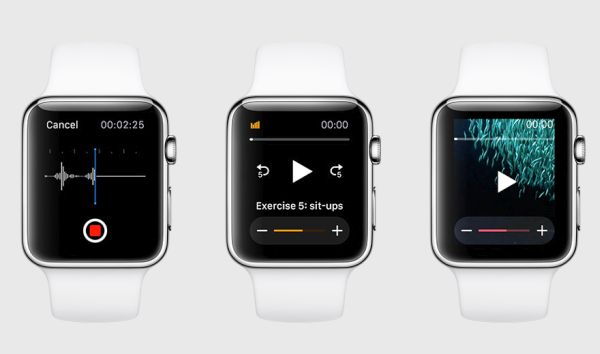
How to Force Close Apple Watch Apps
Step 1. There is a Side button your device. Apple created its Apple Watch with external tools that can be handy in a difficult situation. You should use it when you are locked up in the frozen application and wish to get back to Glances or your home screen.
Step 2. Keep pressing the Side button until you see the Power Reserve, Power Off and Lock Device options.
Step 3. Release the Side button and but don’t choose any options.
Step 4. Press the Side button once again and you’ll force the app to close. You will force quit it.
If you did everything the correct way you’ll now see your Home screen on Apple Watch. The frozen application will be force closed by you.
Apple is currently working on the next generation Apple Watch 2 and new iPhones that could get improved 3D Touch feature. This new device should be unveiled this spring.
Apple is also testing the new WatchOS 2.2 version. Developers and public beta testers can install it on the Watch after updating iPhone to iOS 9.3 beta and see all the changes and features the company is to offer in 2016.
Are you satisfied with your Apple Watch model? Would you like to upgrade to Apple Watch 2 this year?