Are you a fan of Apple hot news RSS feeds? Many iPhone and iPad users are following the latest news from all over the world. The ‘fruit’ company released its stock News App [do you know that you can get $200 discount on iPhone 6s from Verizon?] and you can now add Apple News RSS feeds to keep an eye on the most interesting and important events that take place every day.
Using best Apple RSS feeds you can catch up with everything that happens in politics, sports, tech world, culture etc. There are so many news aggregators you can add, so many websites you might want to follow through RSS. We’ll explain what you have to do in order to bring a new sources of news to your iOS 9 application.
How to Add RSS to Apple News on iOS 9 iPhone
Step 1. Launch Safari on your smartphone.
Step 2. Open the website you wish to add to your News application.
Step 3. Press on Share option and you will get the Share Sheet where you are able to select the feature called Add to News.
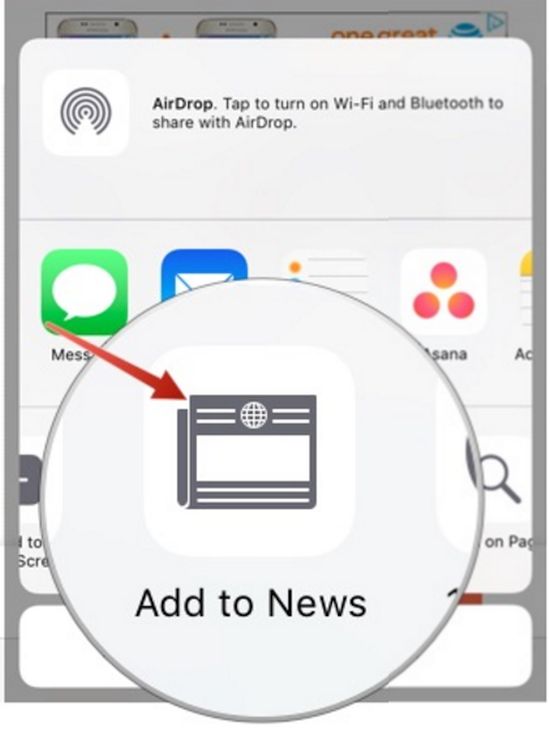
Step 4. Click on Add to News option and confirm your decision [this is an important step since the actual adding of the new source to your News program happens when you confirm].
Step 5. Now you will find this site in your news feed. Isn’t it awesome [the new iPhone 5SE is coming this spring]? Just launch News tool on iOS 9 smartphone and look in Favorites section. There will be the new website added to your RSS feed.
Thanks to the simplicity of adding RSS to Apple News you can easily create the personal RSS reader you will enjoy reading. This way you’ll always know what happens in your favorite world.